
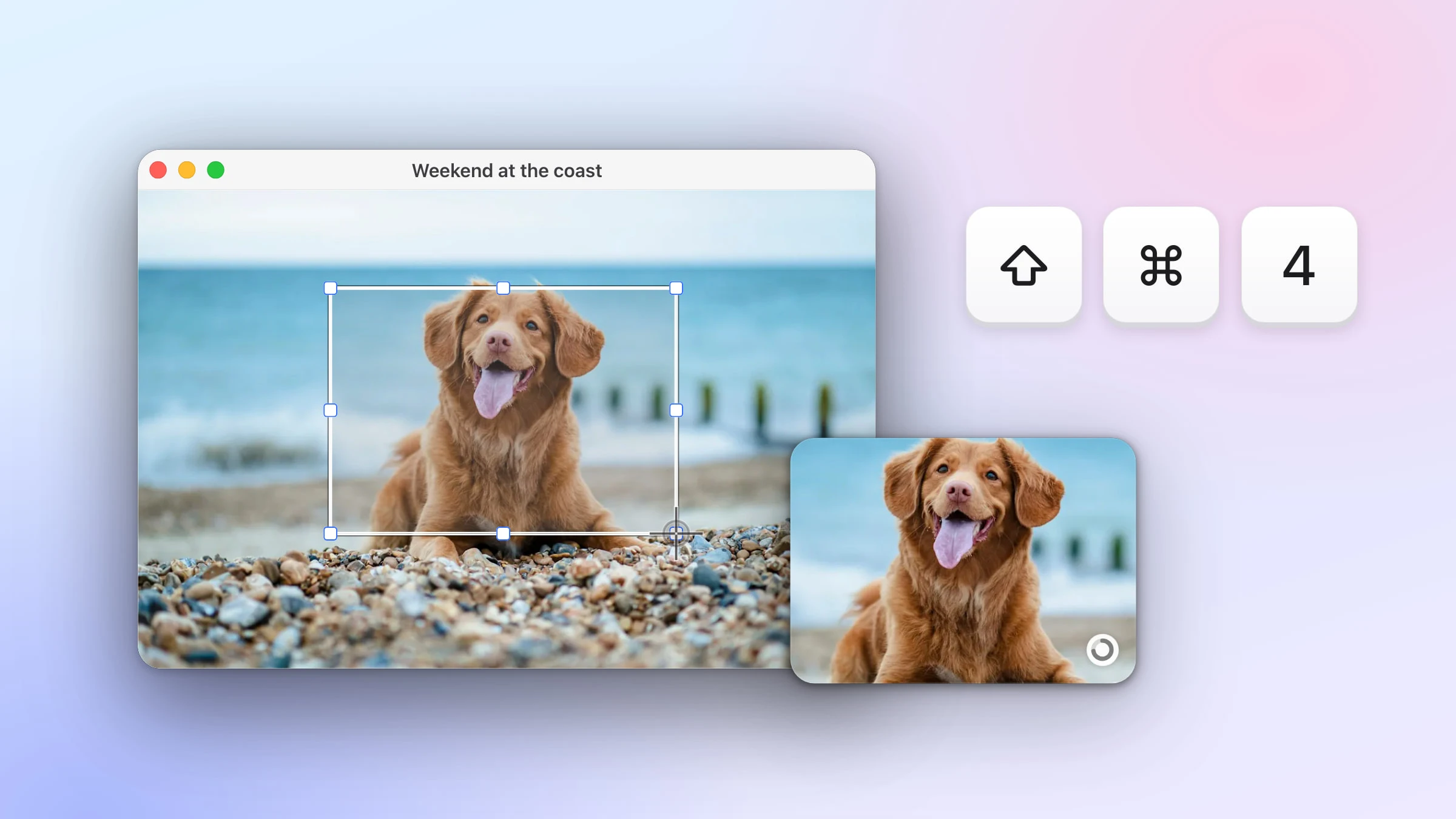
Start here
How to Take a Screenshot on a Mac: Every Way
The shortcuts built into every Mac, where your screenshots go, and how Snapix keeps each one ready to paste or pin.
We use cookies for personalization, ads, analytics. Learn more ›
Step-by-step guides for taking, editing and sharing screenshots on your Mac, with Snapix and with the tools built into macOS.
Start here
The shortcuts built into every Mac, where your screenshots go, and how Snapix keeps each one ready to paste or pin.
The defaults. Change any of them in Snapix Settings ▸ Shortcuts, or see every Mac screenshot shortcut.
Install Snapix, allow screen capture, and take your first screenshot.
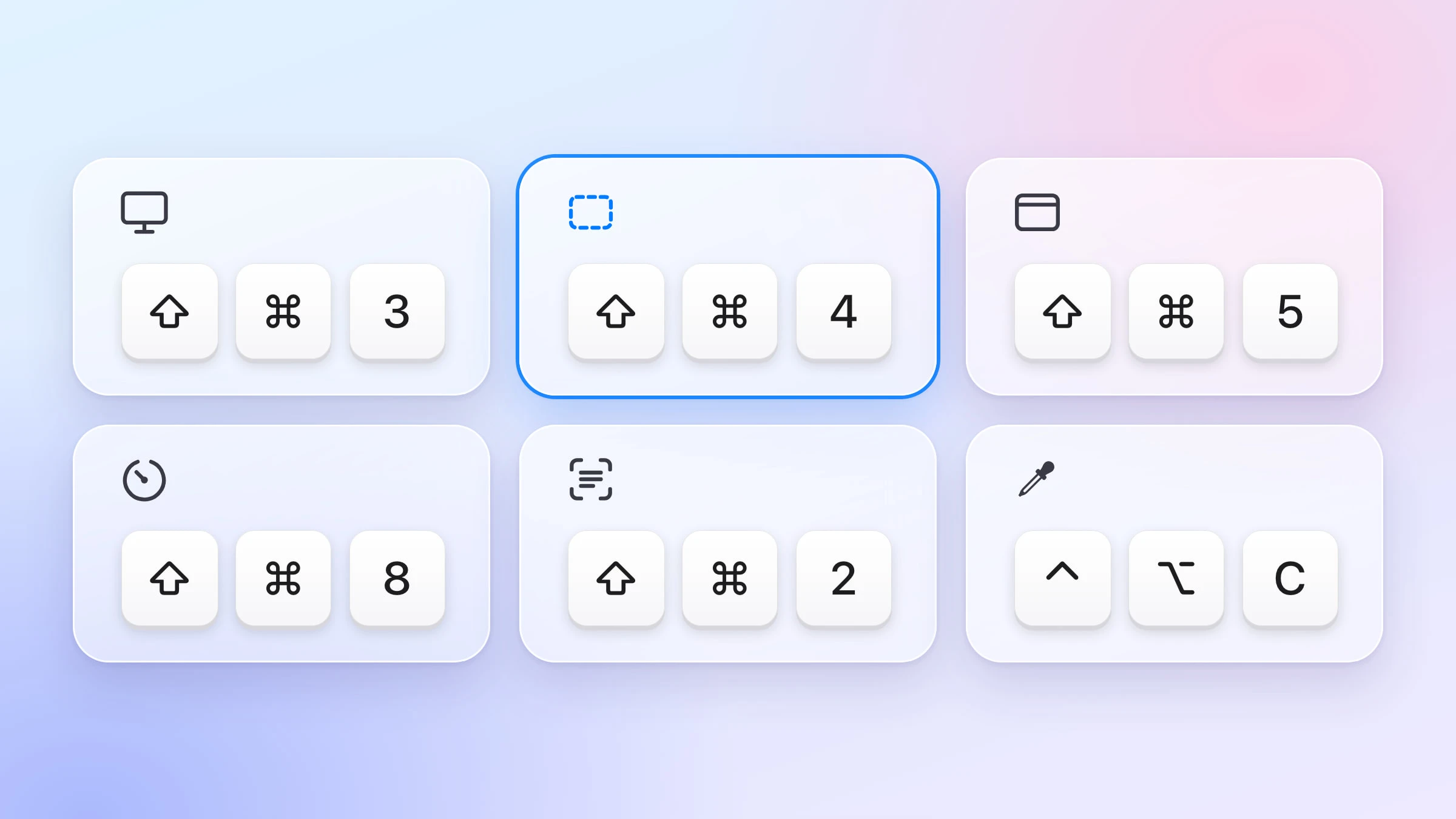
Every screenshot shortcut built into macOS and every one Snapix adds, in tables you can skim and one card to keep.
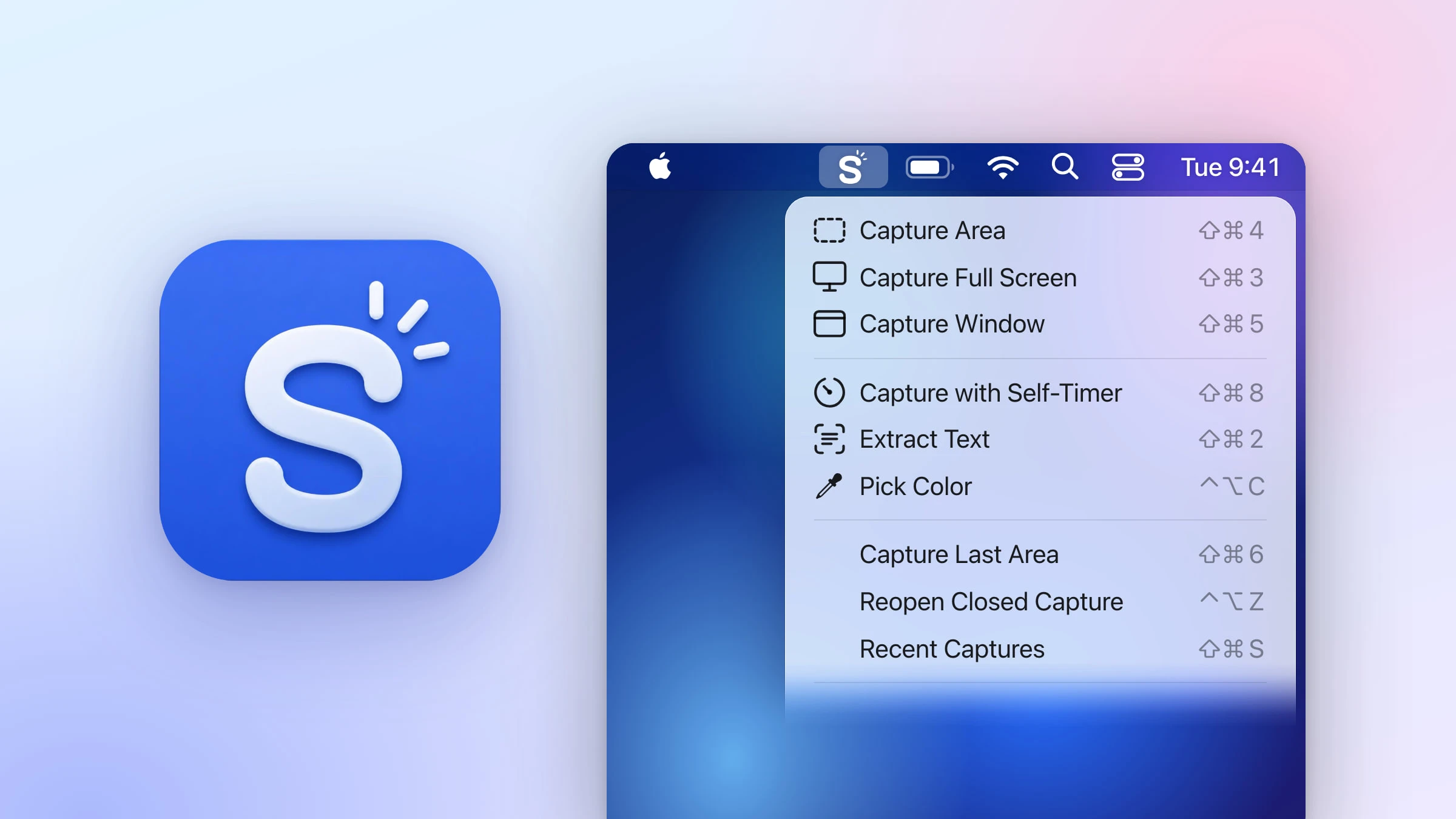
Install Snapix, sign in, allow Screen Recording and take your first screenshot, one step at a time.
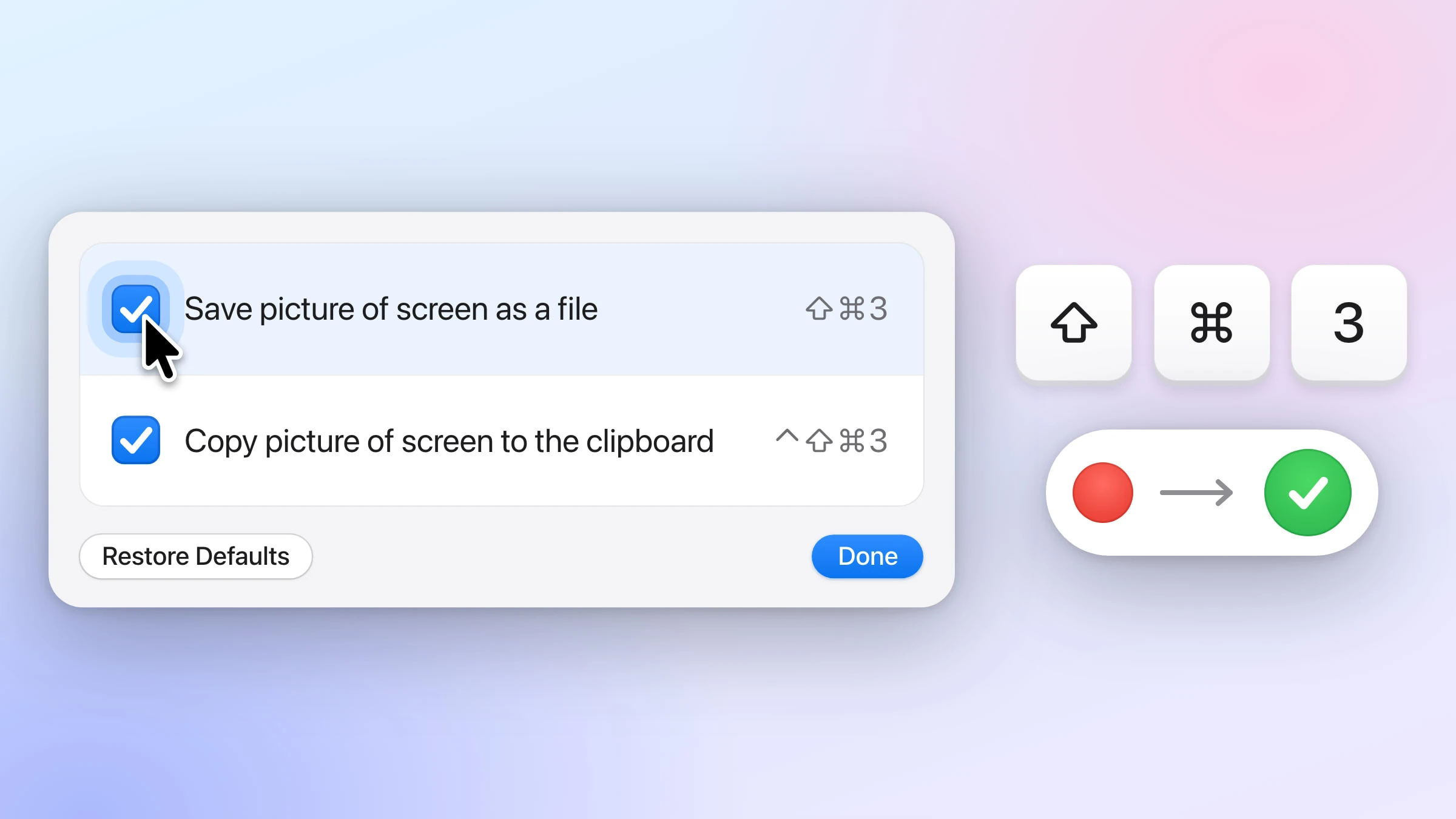
Turn the screenshot shortcuts back on, find screenshots that went elsewhere, and fix wallpaper-only captures.
The whole screen, one monitor, a window, an area, on a timer or again in the same spot.
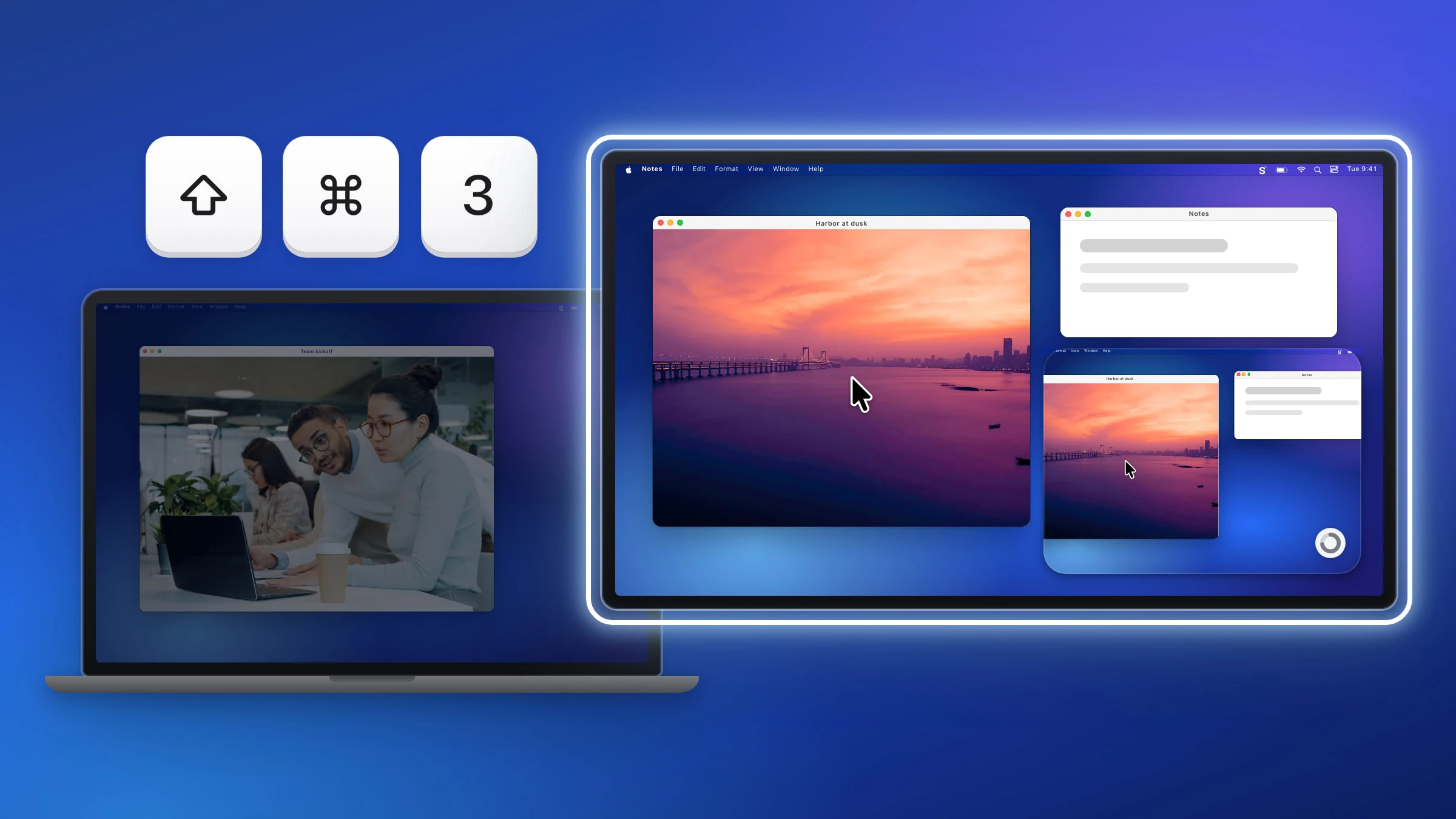
Capture just the monitor you want, each display in turn, or every screen stitched into one picture.
⇧⌘3
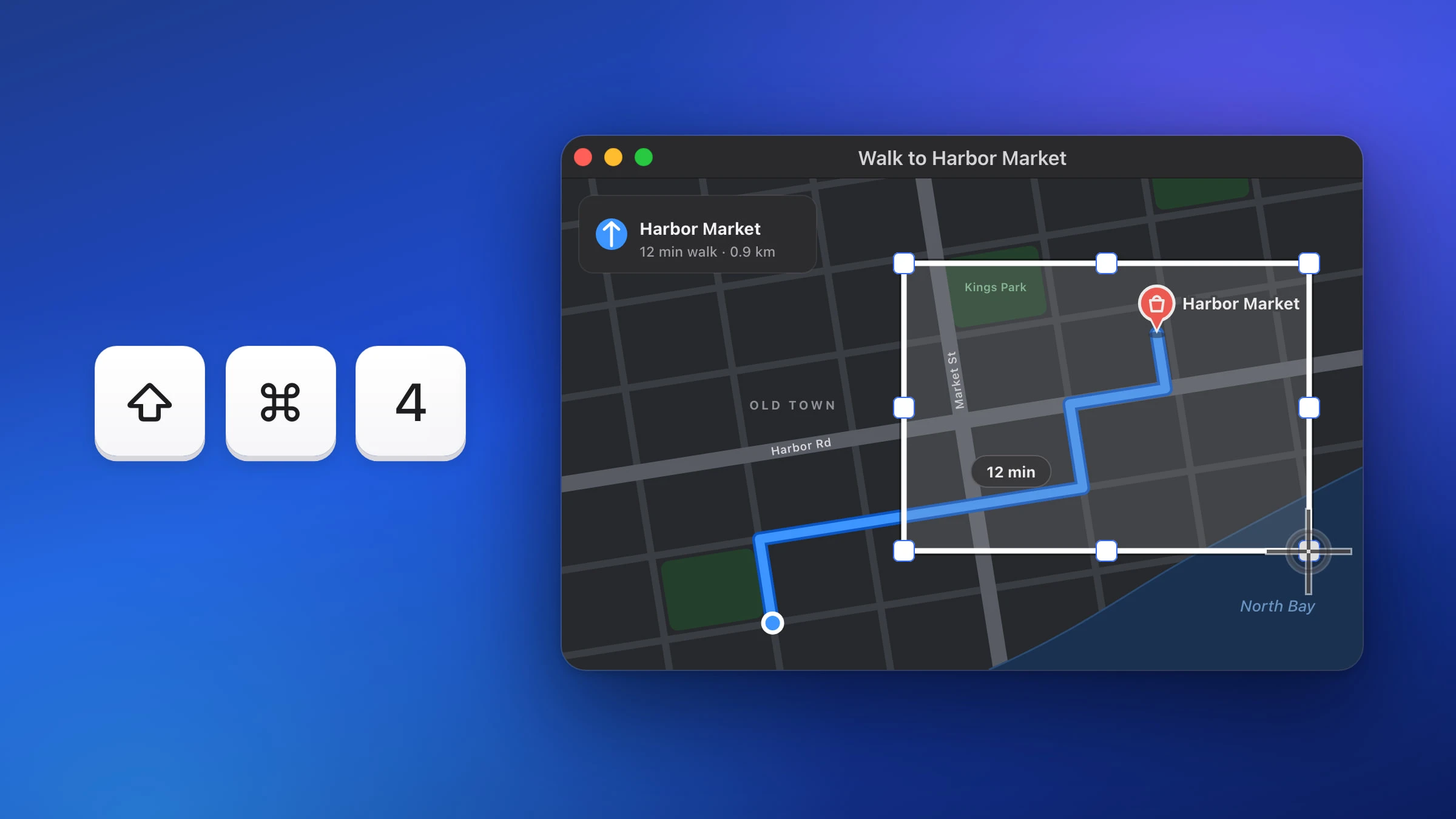
Press ⇧⌘4, drag over the part you need and let go. Plus the keys that move or resize the box.
⇧⌘4
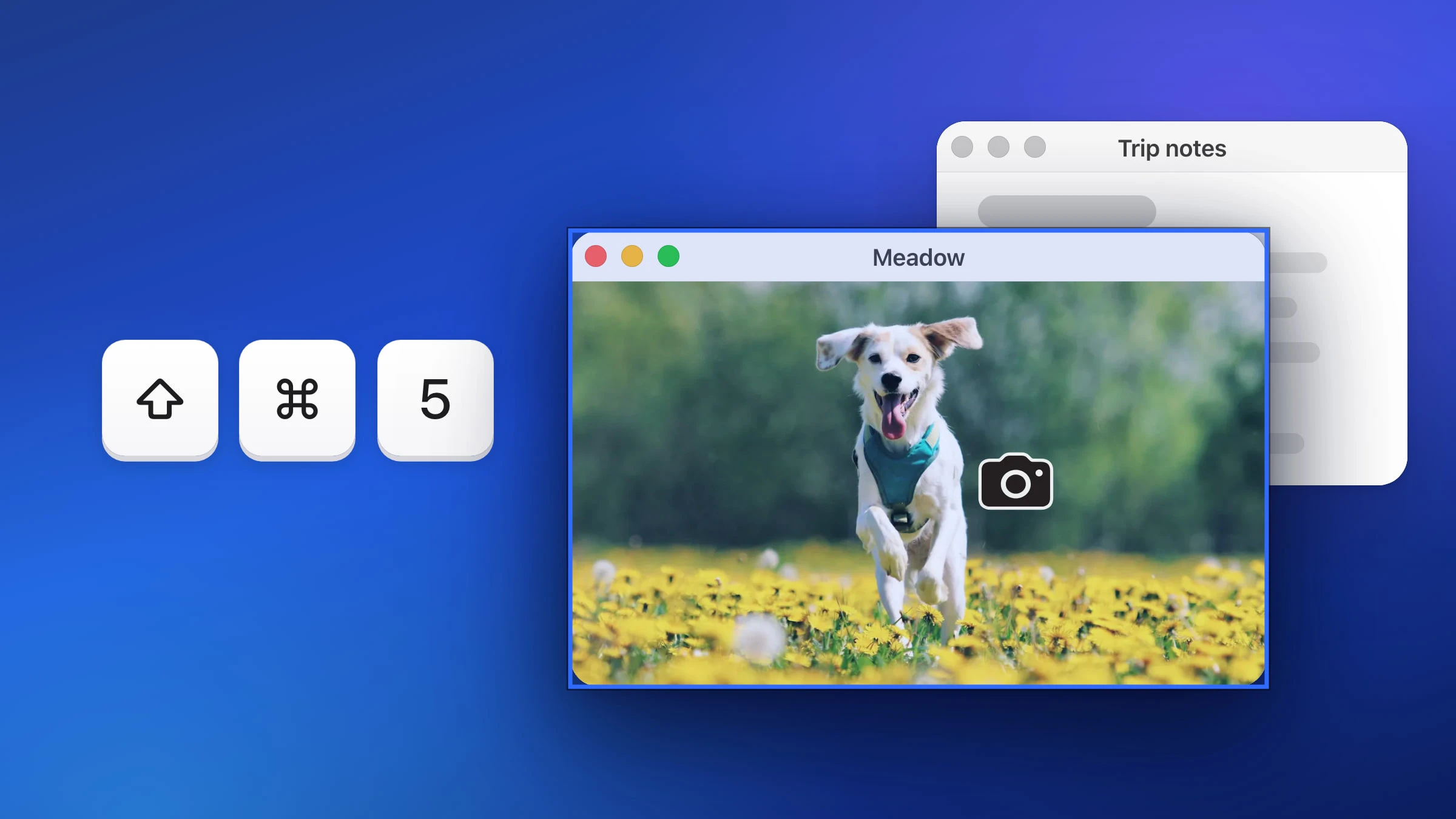
Capture one window with the shortcut built into macOS or with Snapix, shadow or no shadow.
⇧⌘5
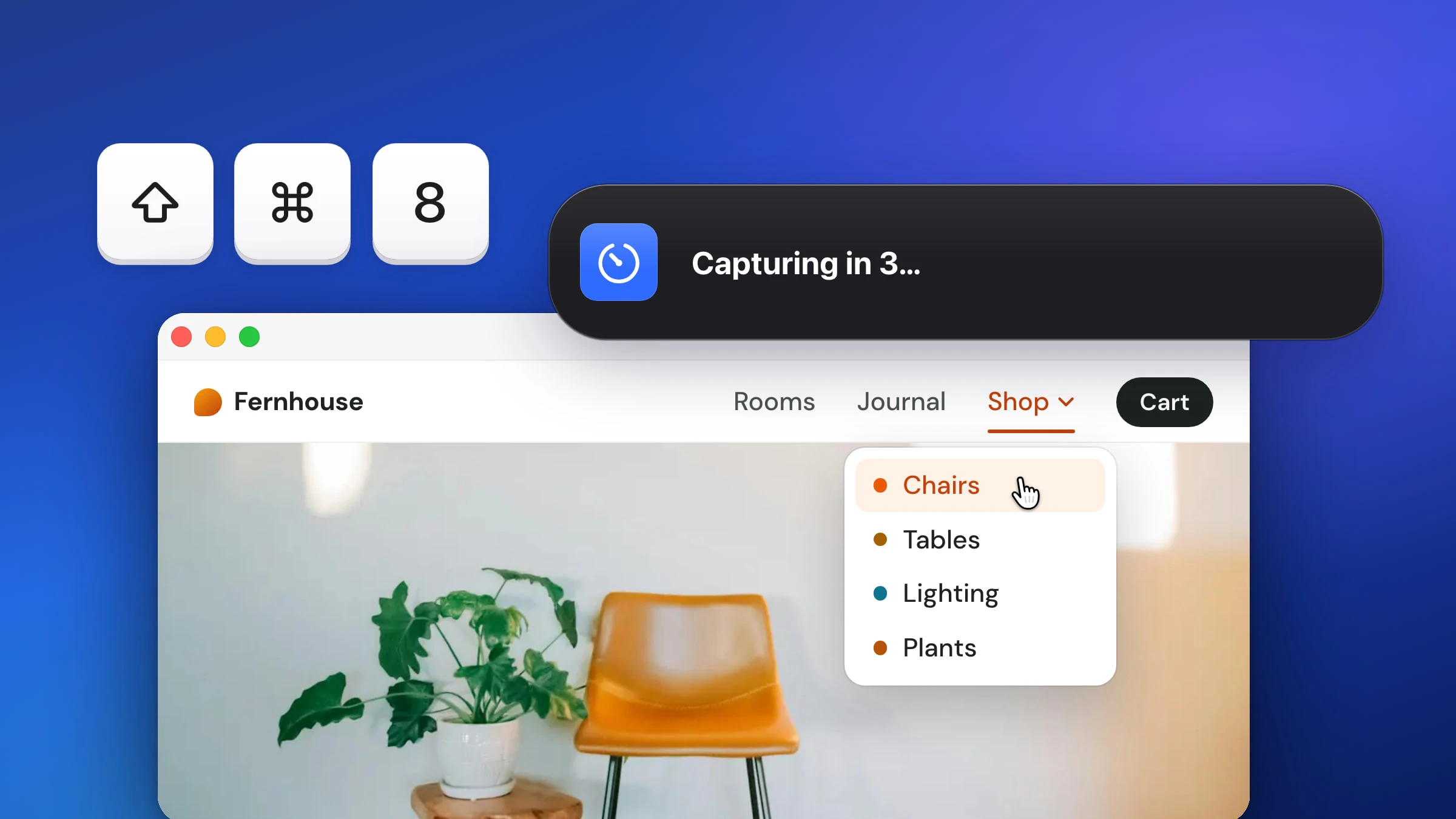
Set a 5- or 10-second timer in the Screenshot toolbar, or let Snapix count down and capture the whole screen.
⇧⌘8

Capture the same part of the screen again with one shortcut, for before-and-after shots and progress checks.
⇧⌘6
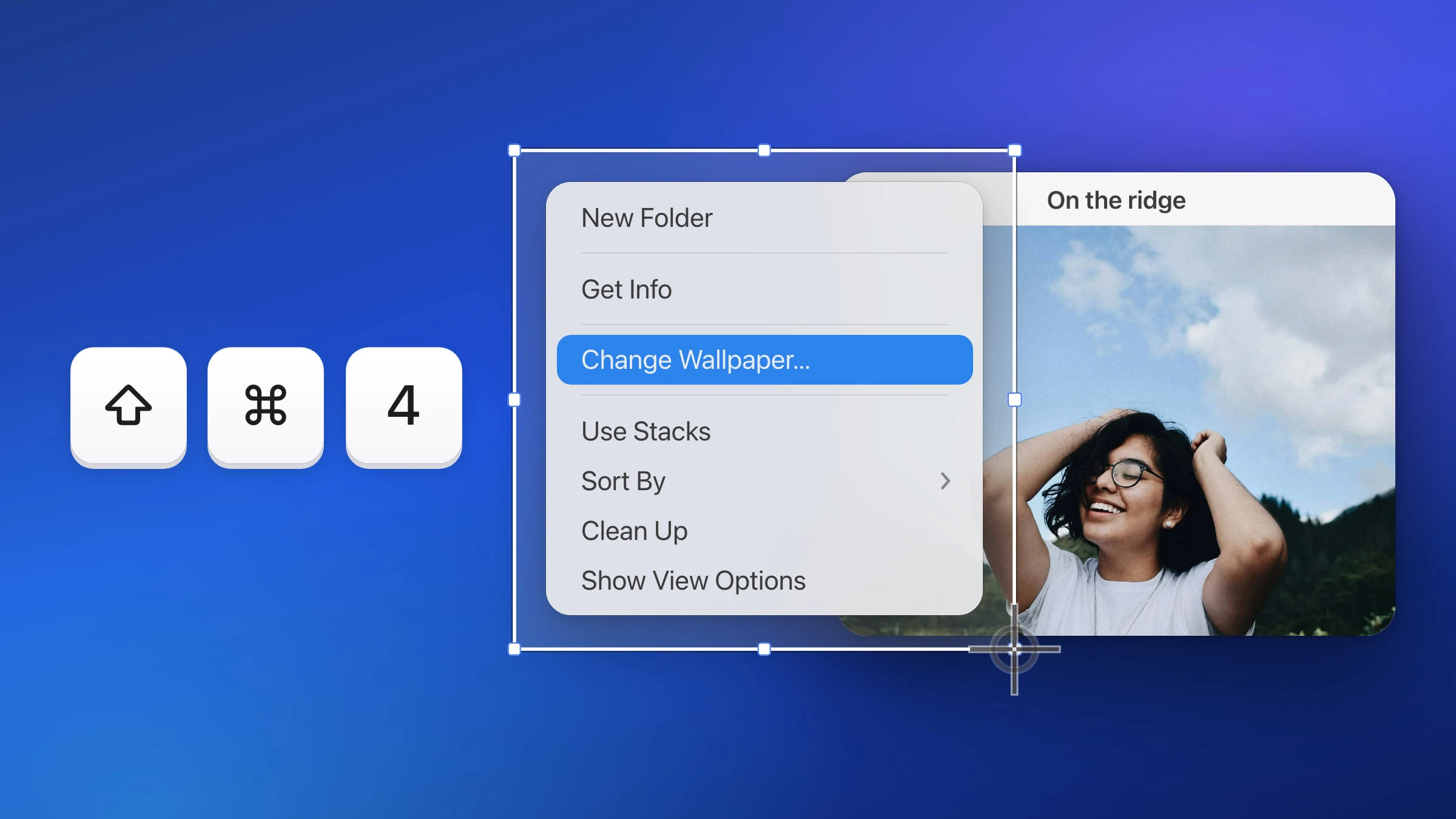
Capture right-click menus, menu bar menus, web dropdowns and tooltips without them closing on you.
⇧⌘4
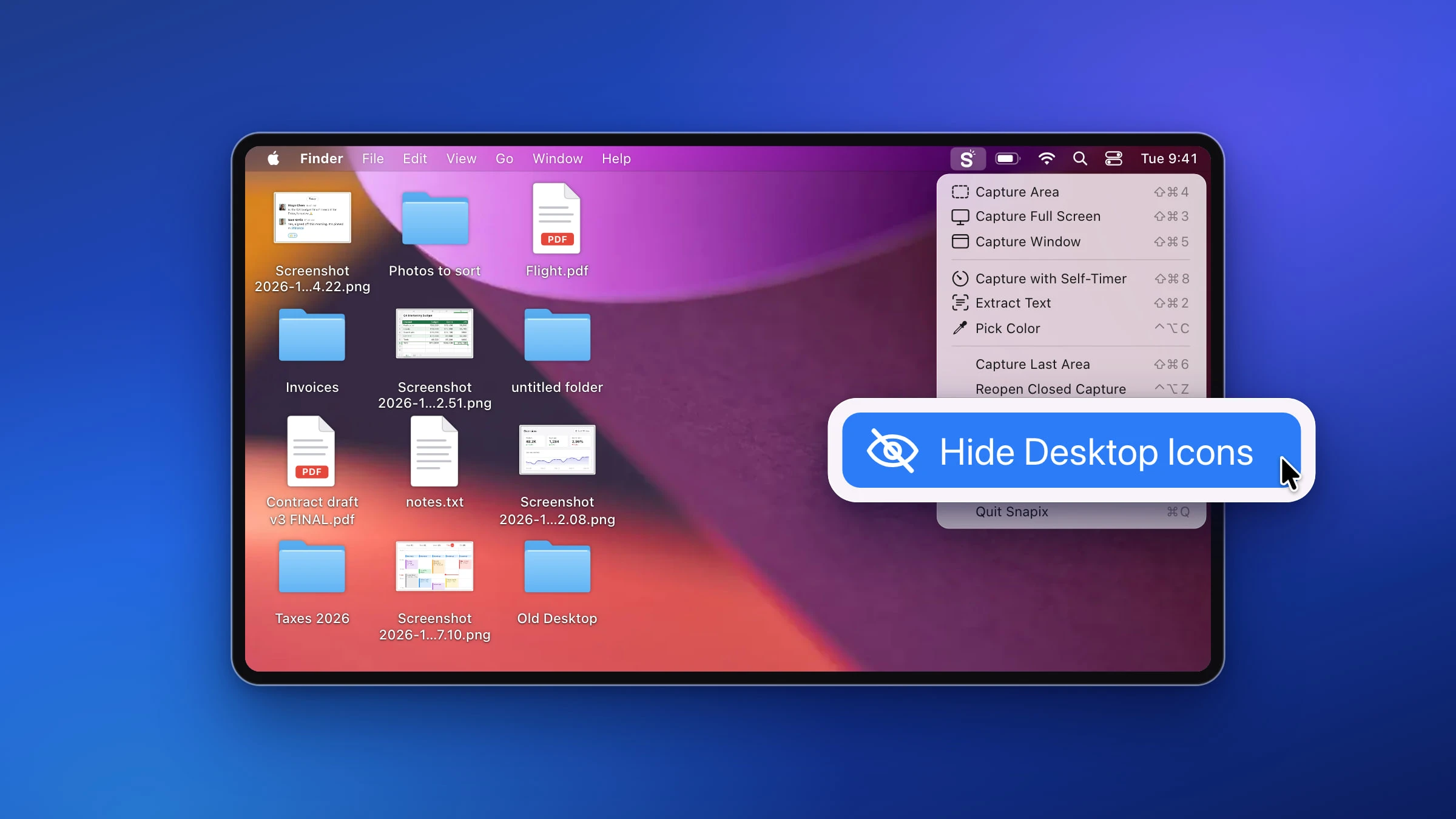
Clear the icons and widgets off your desktop for a screenshot or a screen share, then bring them back from the same menu.
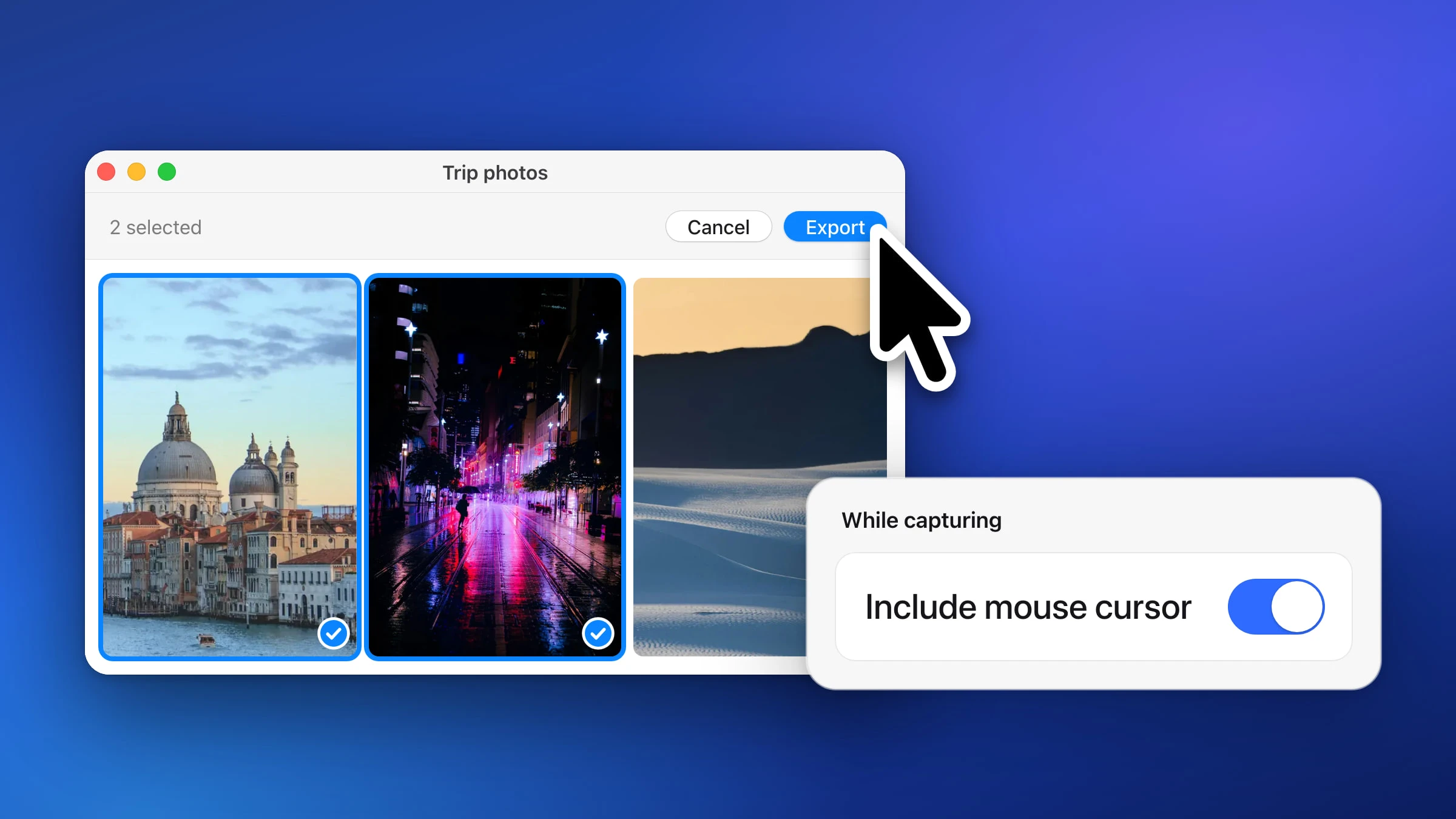
Keep the pointer in a screenshot to show where to click, or leave it out, with the tools built into macOS or Snapix.
Arrows, text, shapes, numbered steps, highlights, crops and backgrounds.

Open any screenshot in the Snapix editor, mark it up with one-key tools, find words in it, and keep every mark editable.
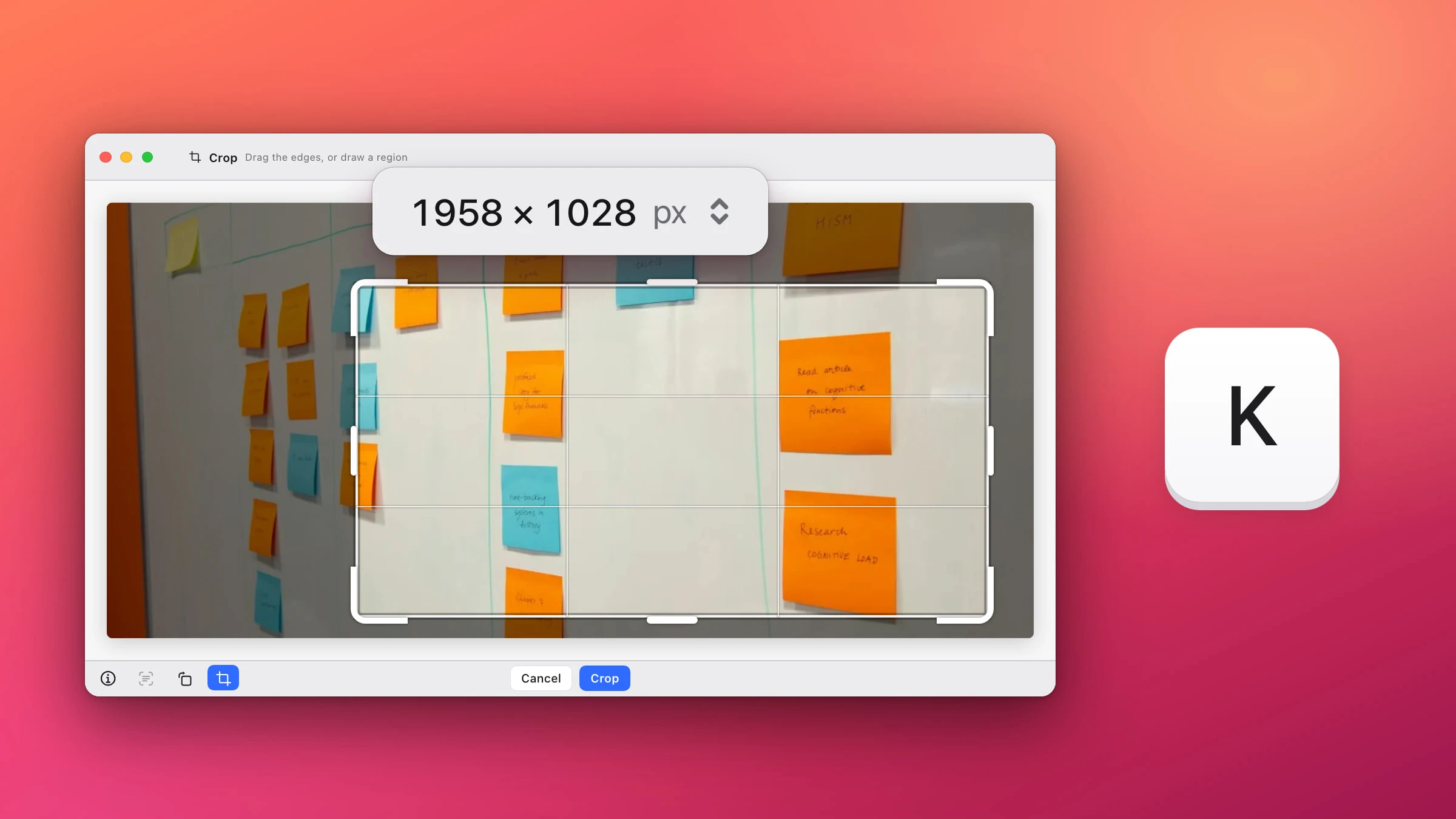
Trim a screenshot right after you take it, crop a saved one in Preview, or crop and resize in one step in Snapix.
K
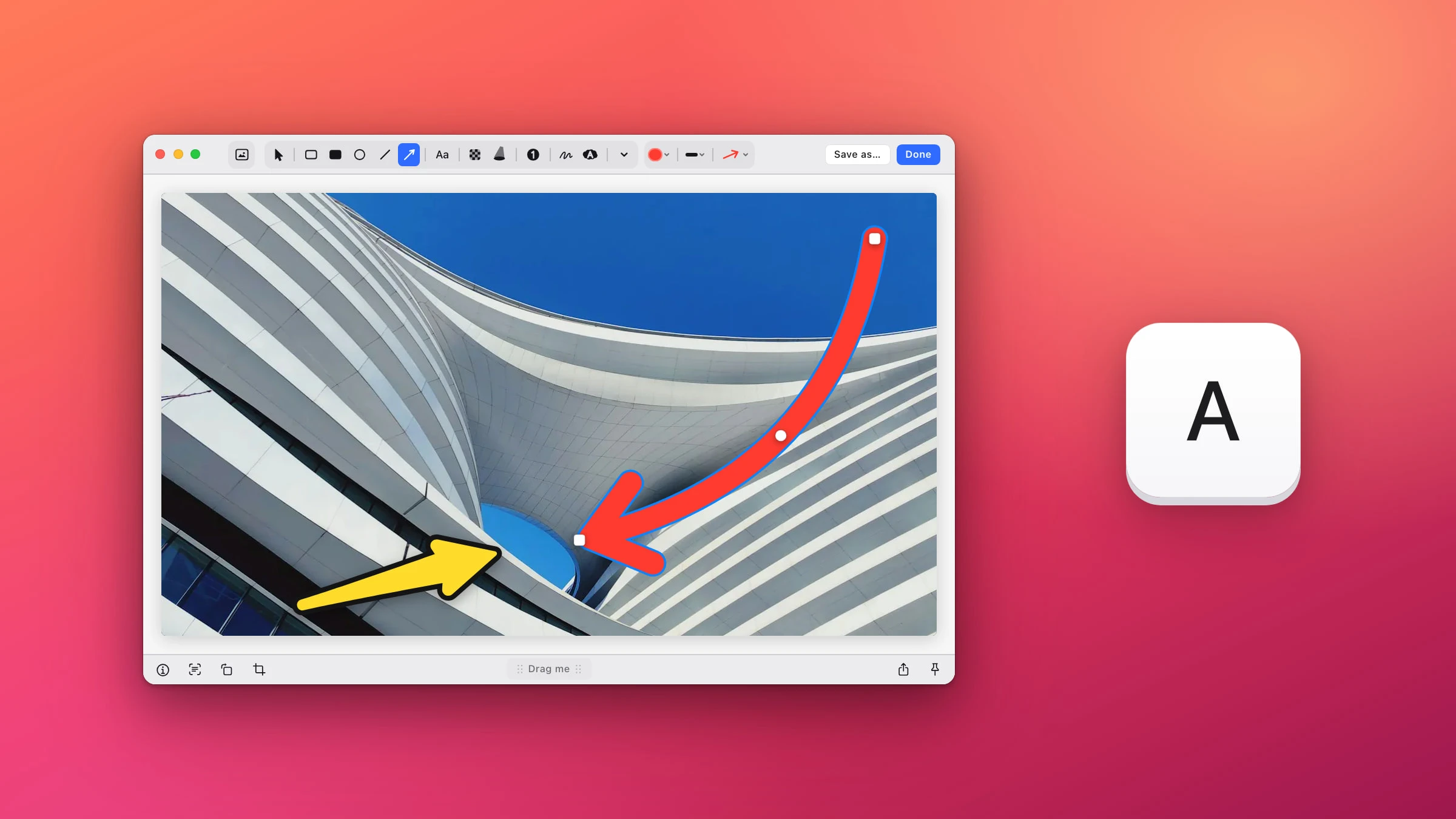
Draw straight or curved arrows on any screenshot, pick a style and color, or use the Markup tools built into macOS.
A
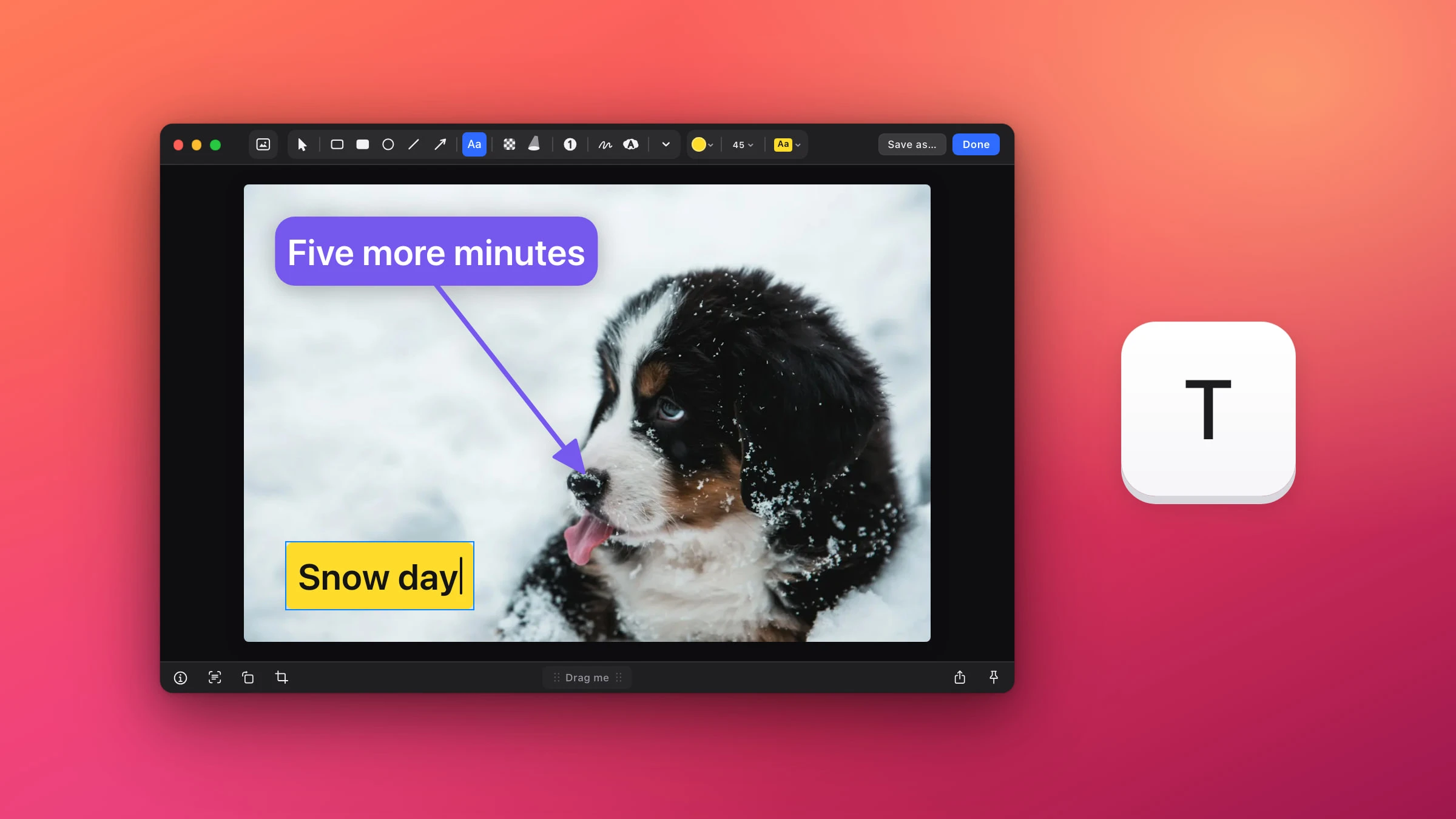
Type a label, a caption or a speech bubble onto any screenshot, then resize it, recolor it or point it at something.
T
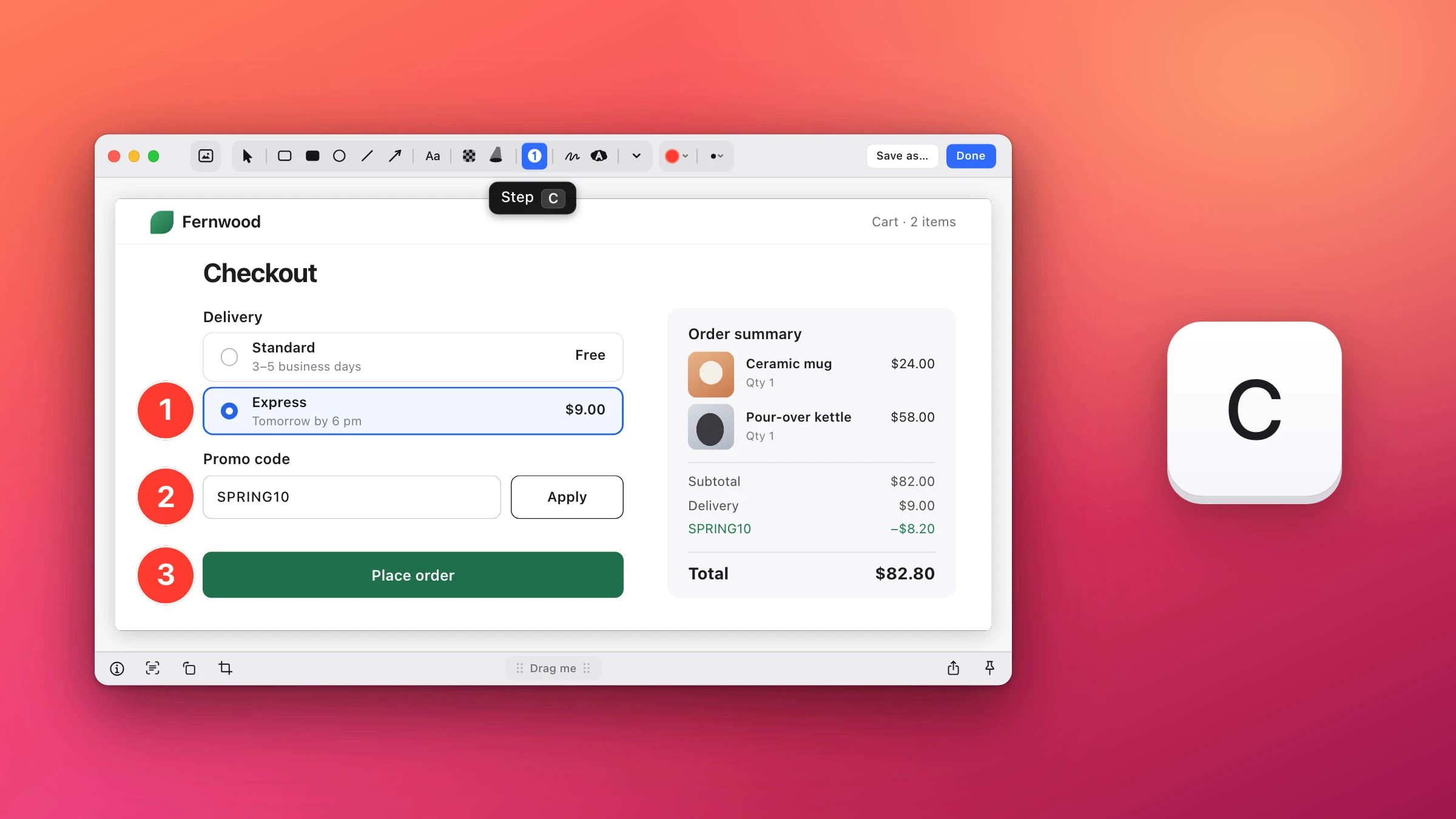
Click 1, 2, 3 onto any screenshot in Snapix, and the count stays in order when you delete or undo a step.
C
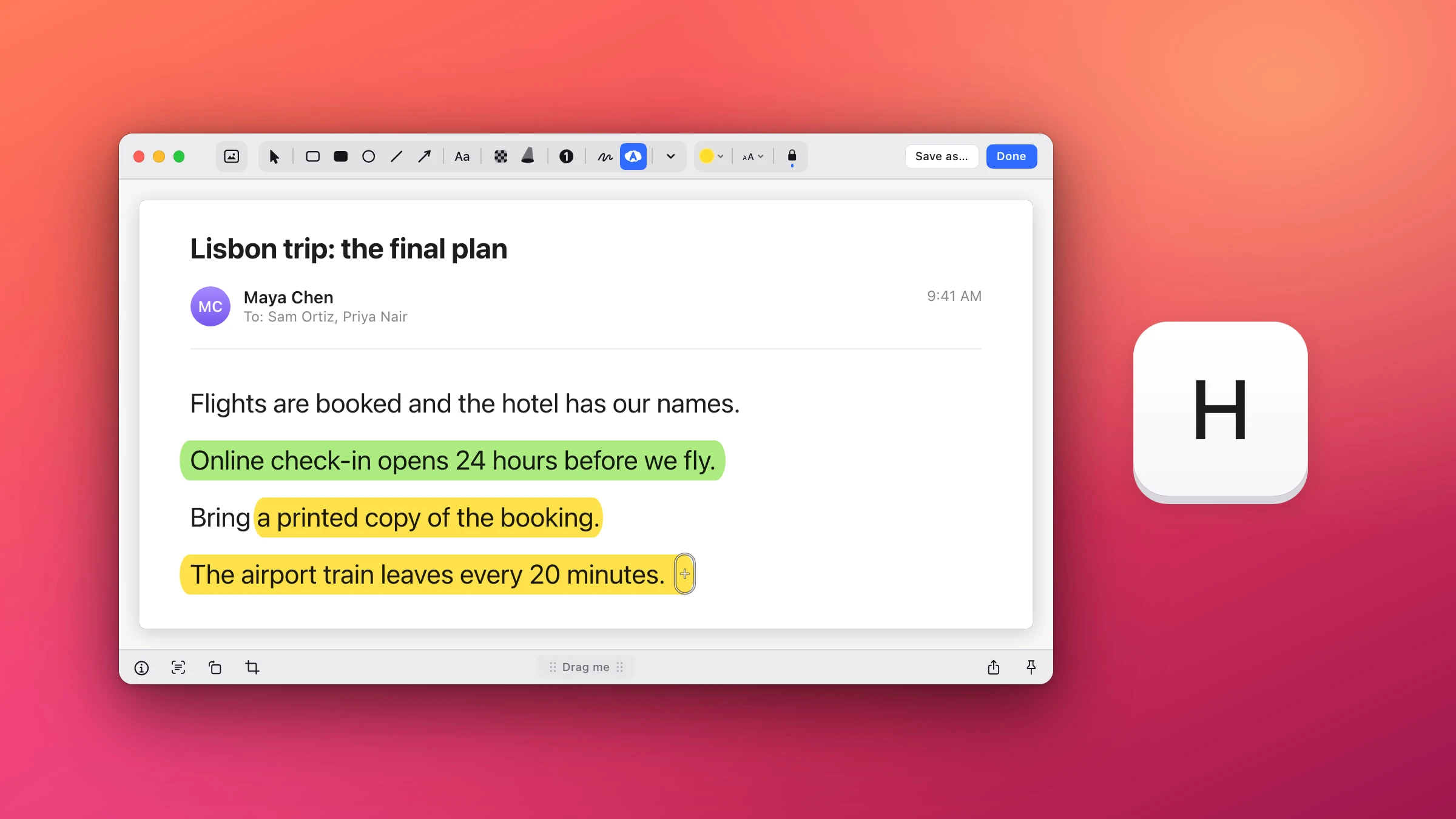
Mark any line of a screenshot with a clean, level marker band, or box it with the Markup tools built into macOS.
H
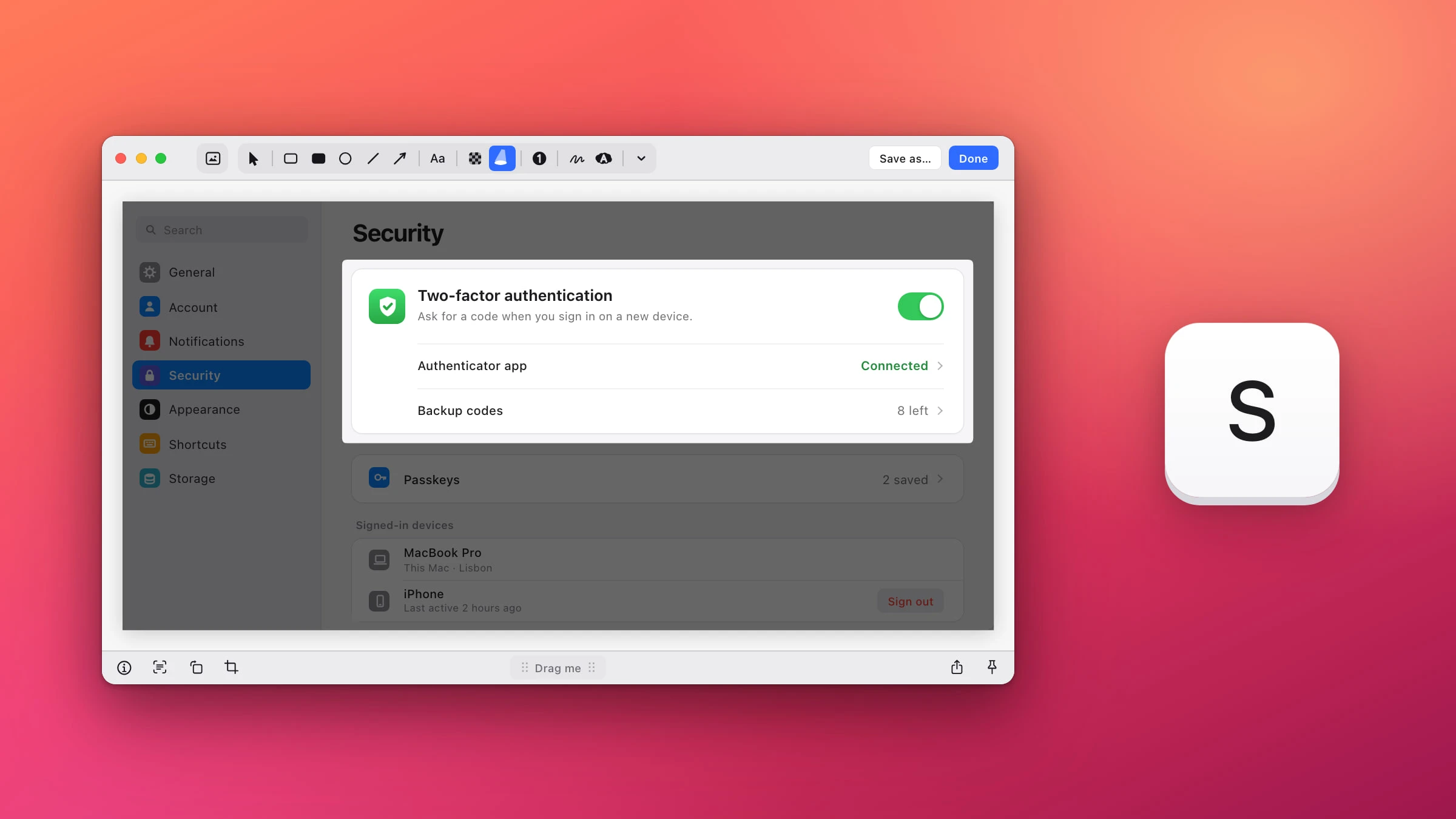
Dim everything except the part that matters, choose how dark the rest goes, and draw arrows on top.
S
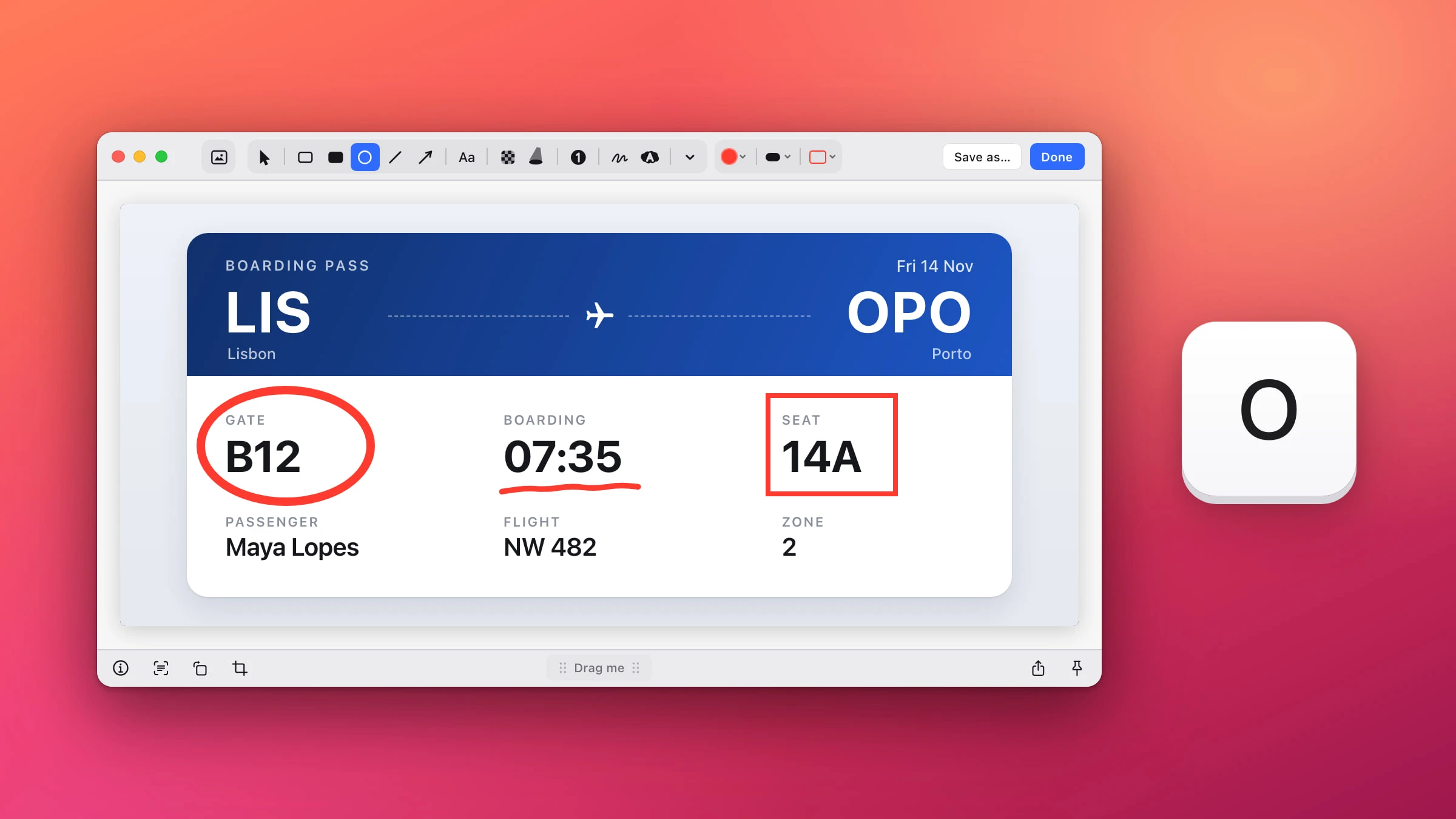
Circle, box, underline or scribble on any screenshot, then pick the color, thickness and a circle's fill.
O
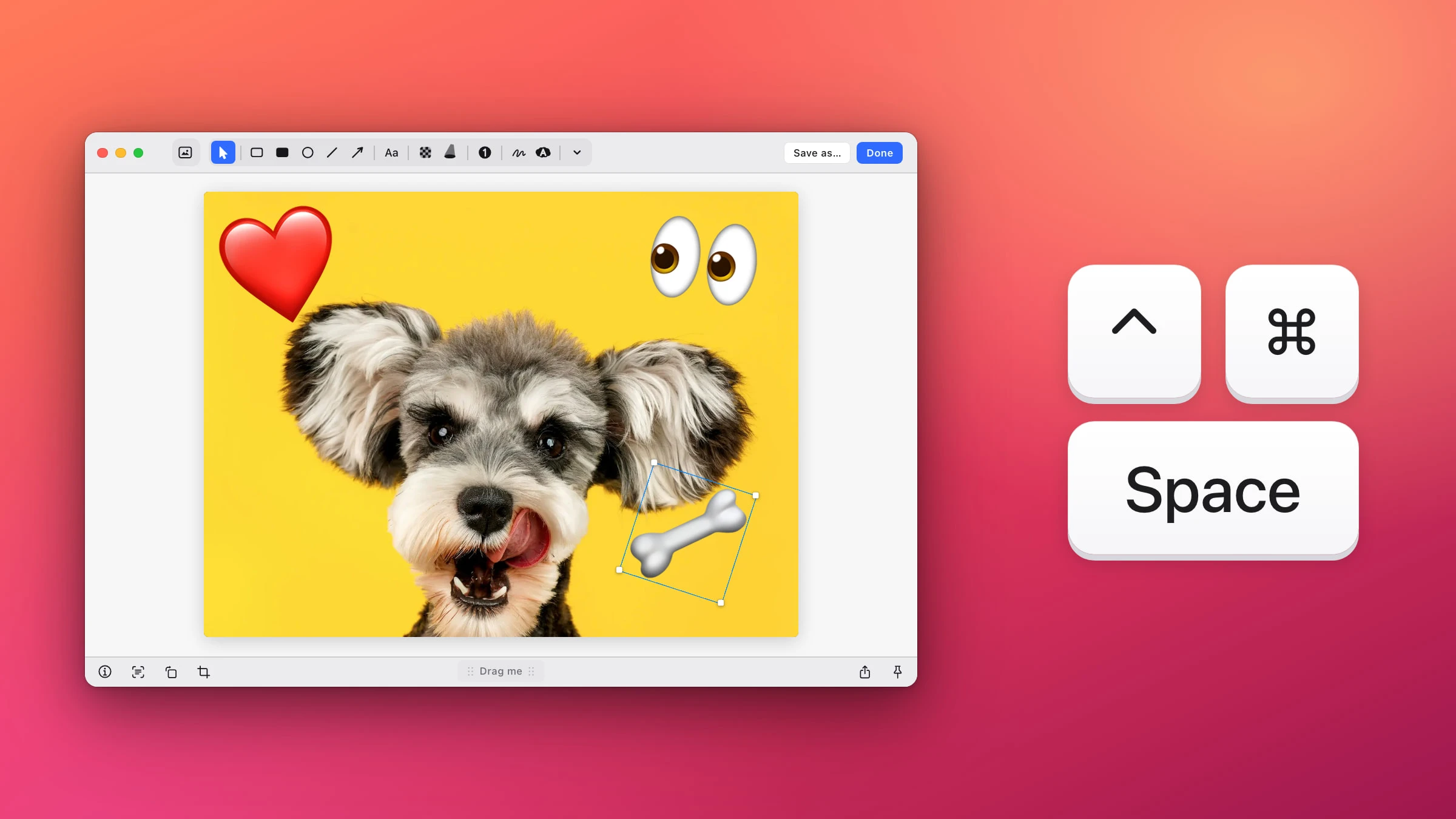
Put crisp emoji stickers, or your own pictures, on any screenshot, then resize, turn and move them.
⌃⌘Space

Put any screenshot on a gradient, your wallpaper or a color, with padding, a soft shadow and rounded corners.
G
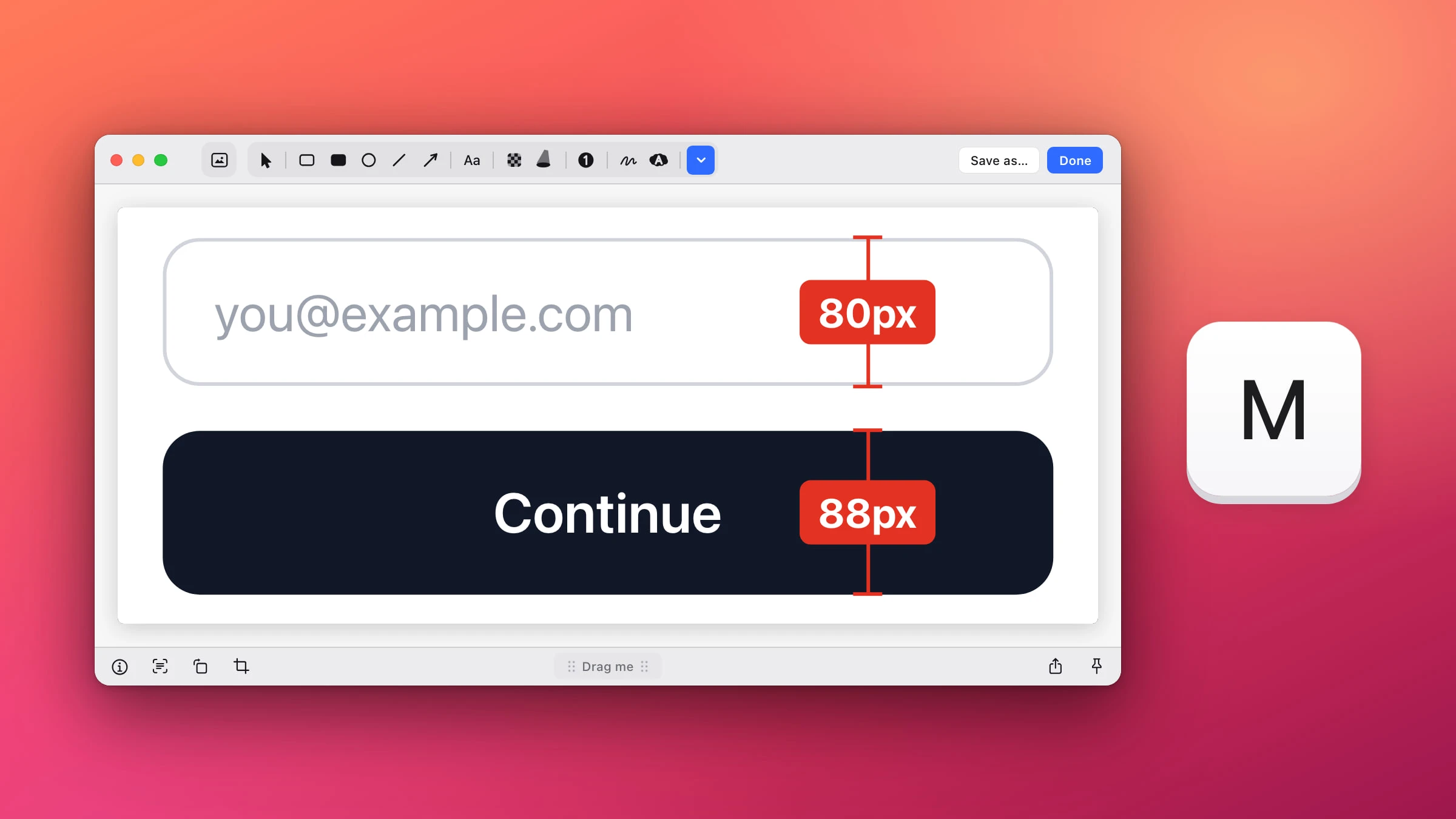
Drag a ruler across any screenshot to check a gap, the padding or a button, in pixels or points.
M
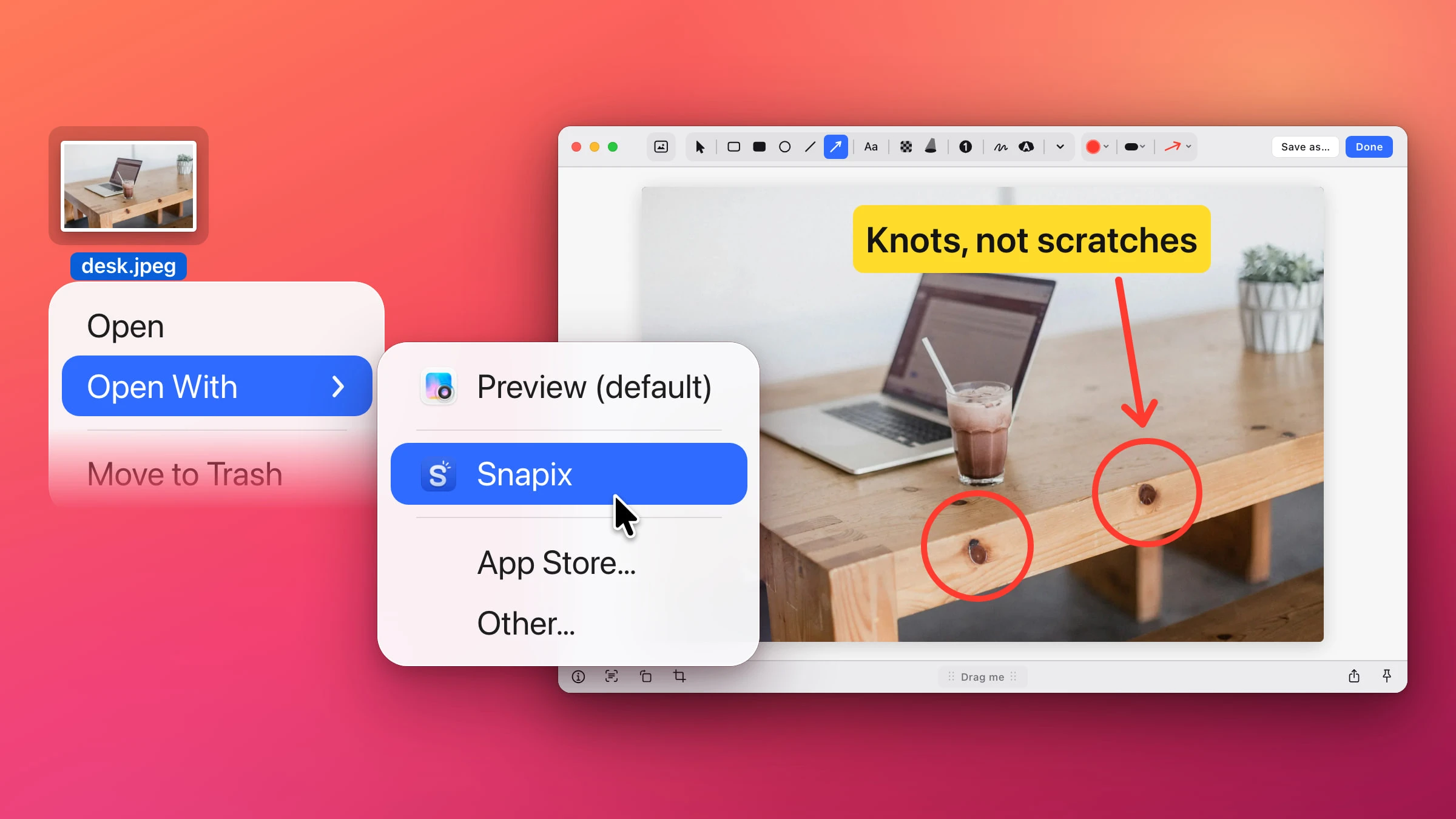
Mark up a photo or any picture on your Mac with Preview, Quick Look, Photos or Snapix, and keep a copy of the original.
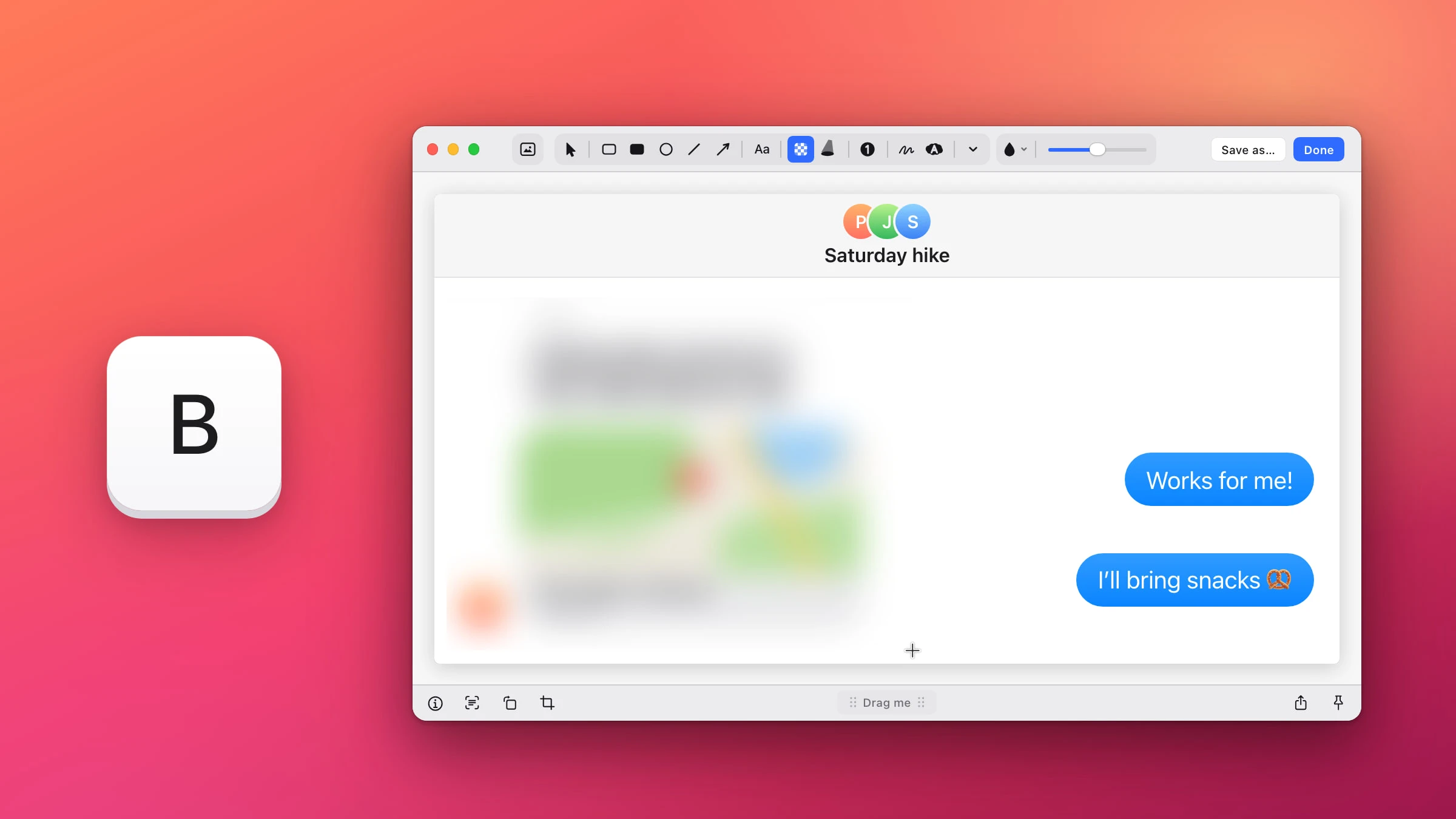
Blur, pixelate or black out anything in a screenshot on your Mac, and learn which one actually keeps a secret.
B
Copy the words out of any picture, scan a QR code on screen, and pick a color from anywhere.

Read a QR code in a web page, PDF or video on your Mac, copy its link and open it, without reaching for your phone.
⇧⌘2
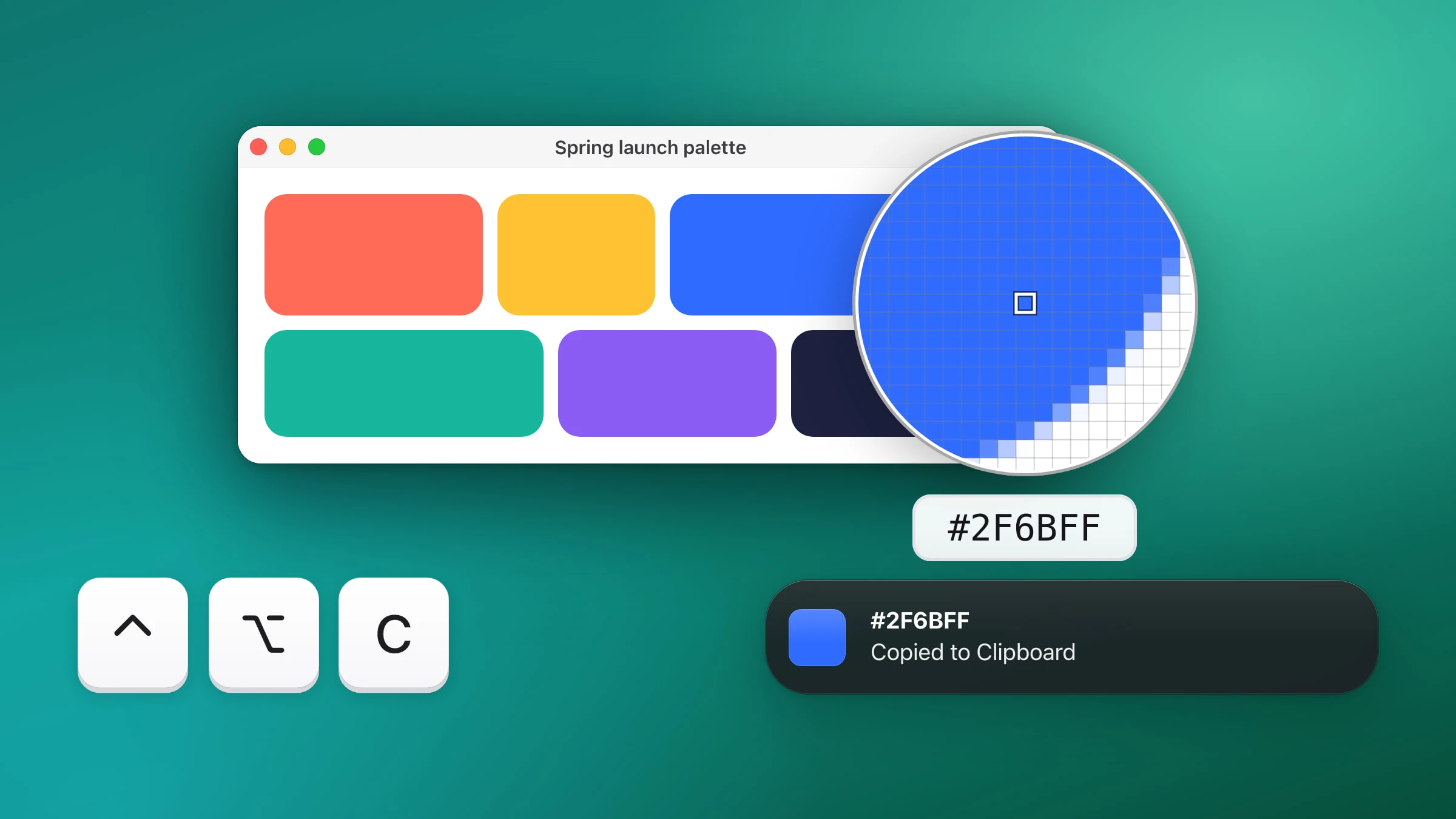
Copy the hex code of any pixel on your screen in one click, or read color values with Digital Color Meter.
⌃⌥C
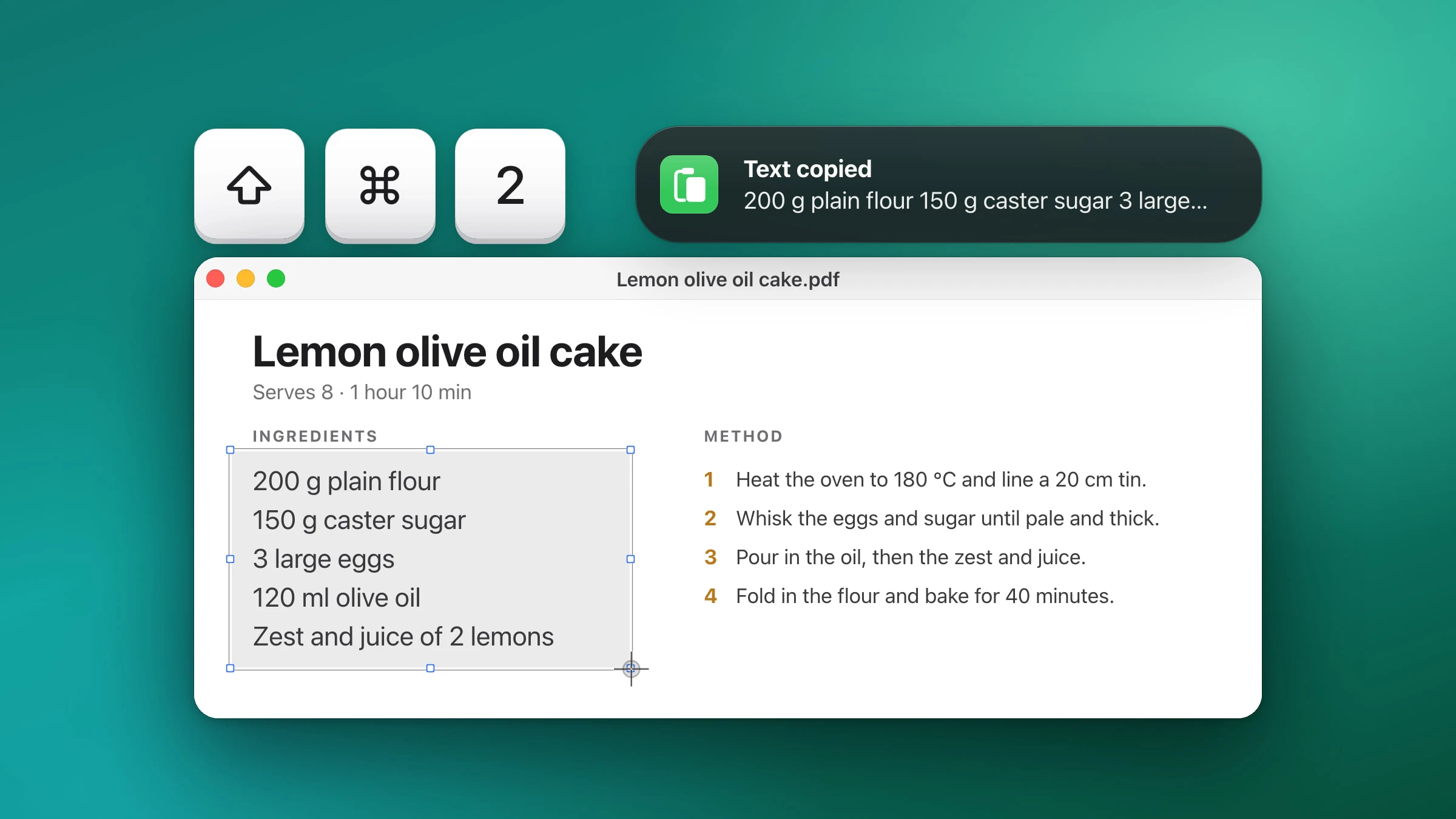
Copy text from a screenshot or image on Mac with Live Text, or grab it in one step with Snapix's on-device OCR. Clear steps plus a quick comparison.
⇧⌘2
Copy, save and drag your screenshots, pin them on top, and find old ones again.

Copy a screenshot straight to the clipboard, paste it anywhere, and skip the file on your desktop.
⌘V
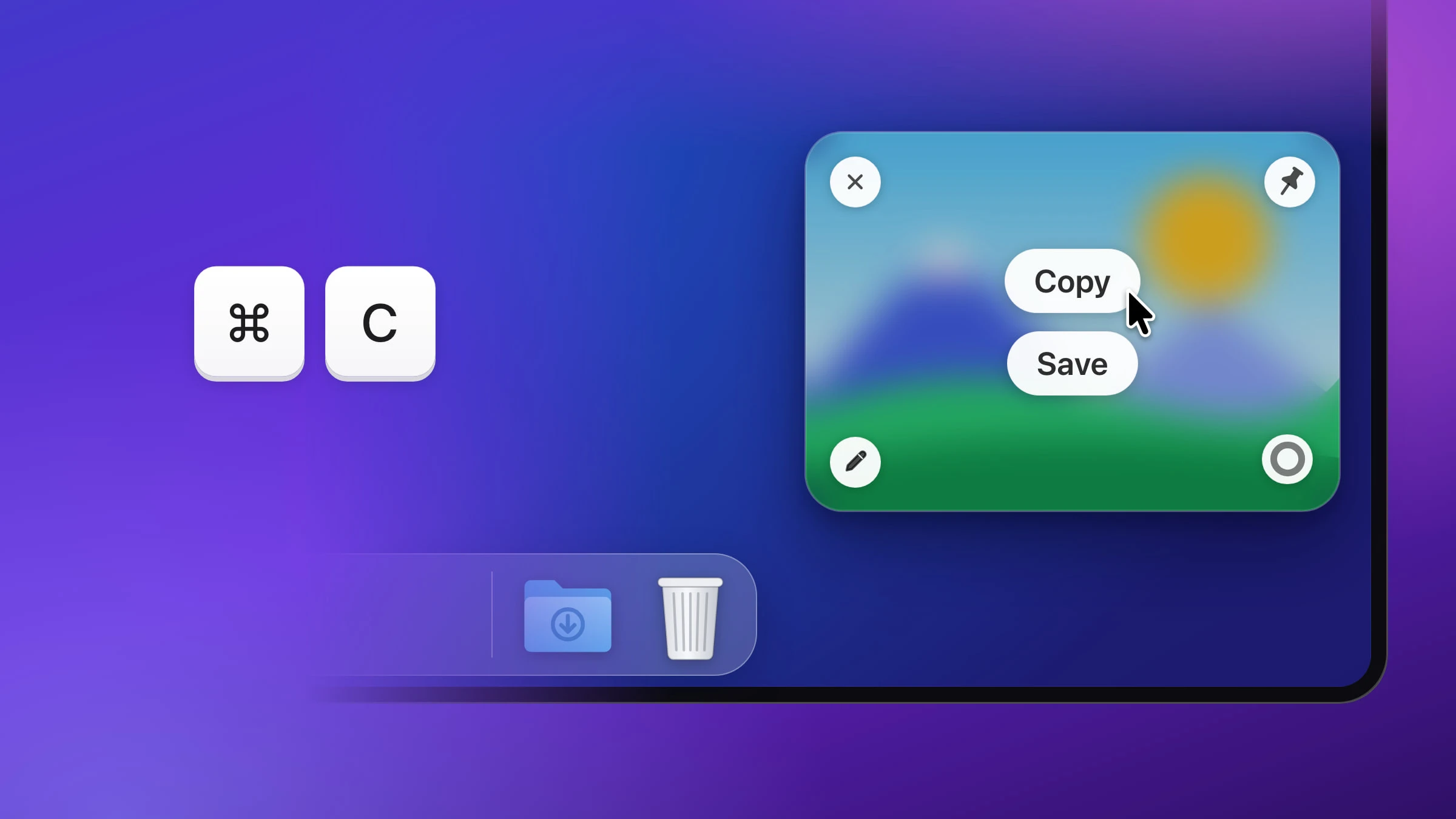
Copy, save, pin or drag a screenshot straight from the preview in the corner, and choose how long it stays.
⌘C
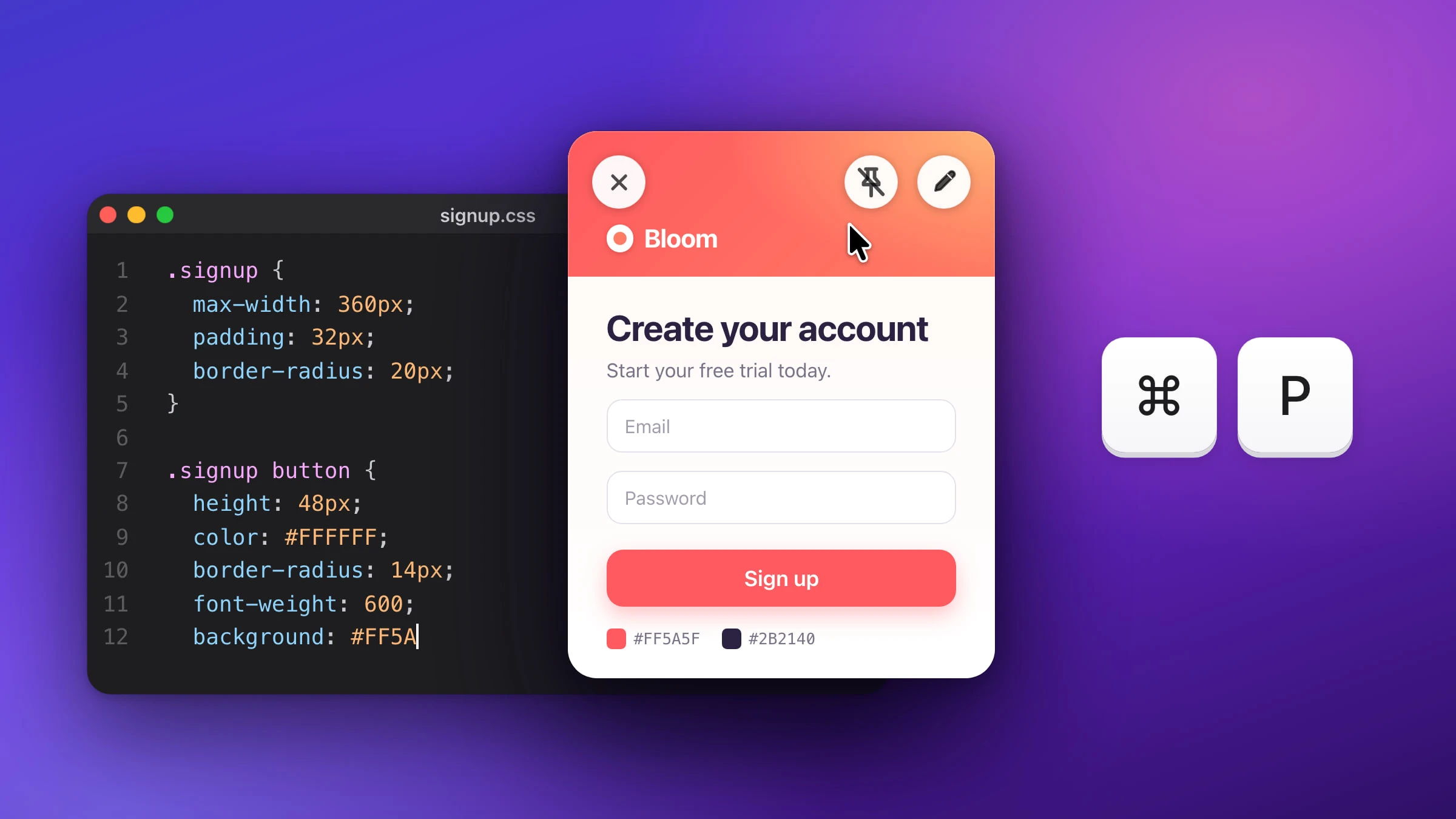
Keep a screenshot floating above your other windows while you type, code or compare, and unpin it when you're done.
⌘P
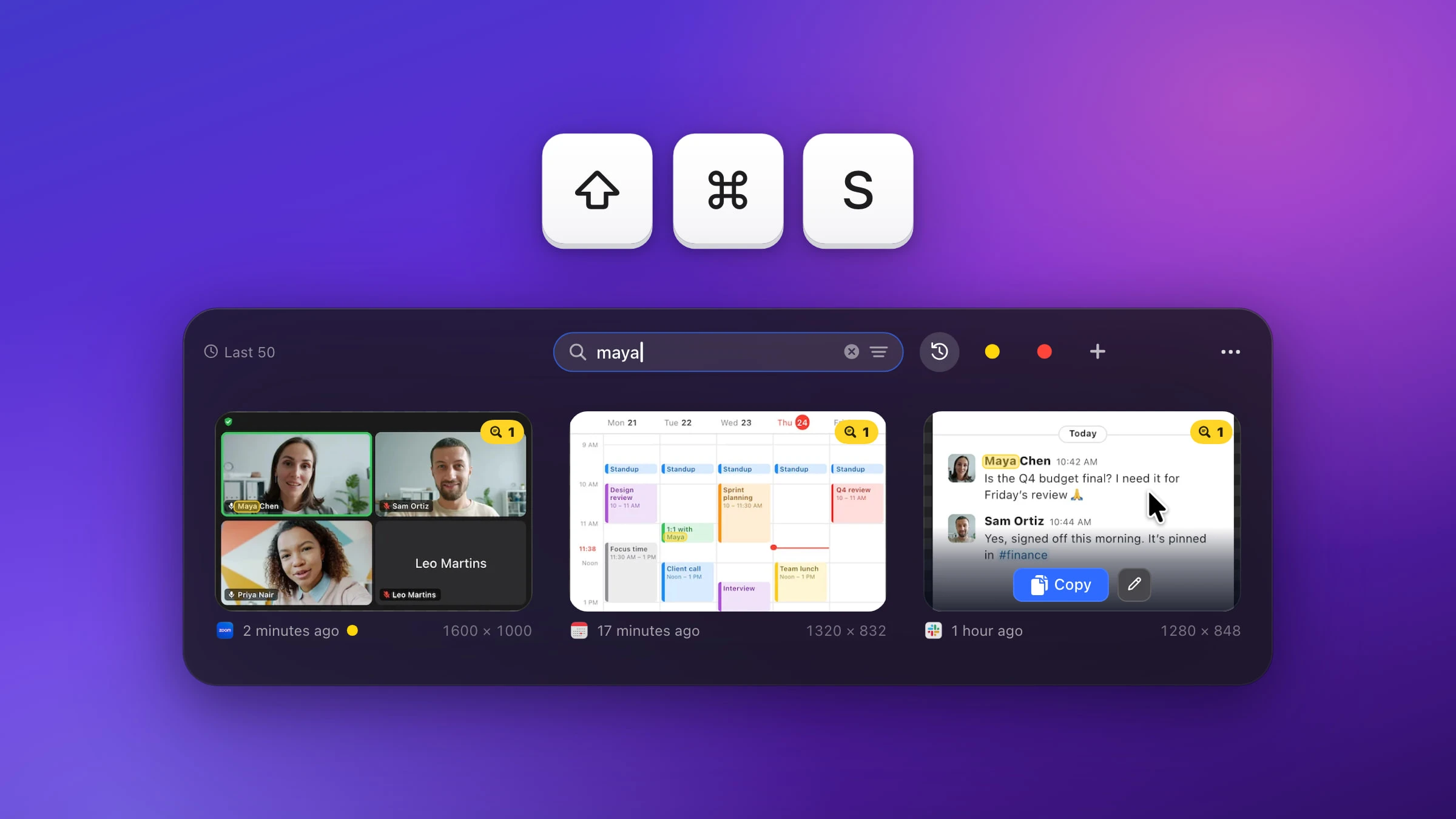
Bring back your last screenshots with one shortcut, and find an old one by a word that was in it.
⇧⌘S
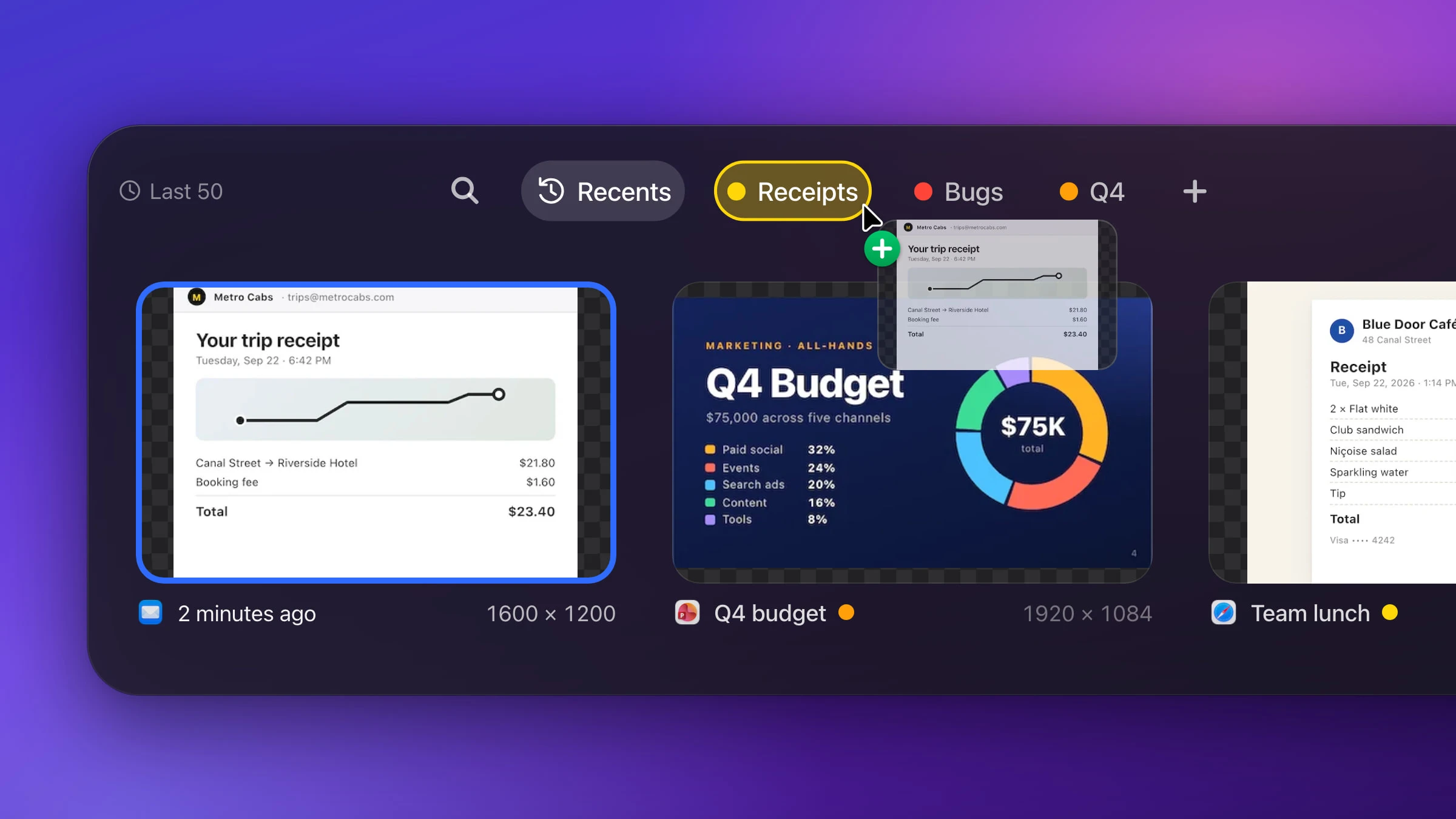
File screenshots into named, colored lists that keep them past the history limit, or sort the files in Finder.
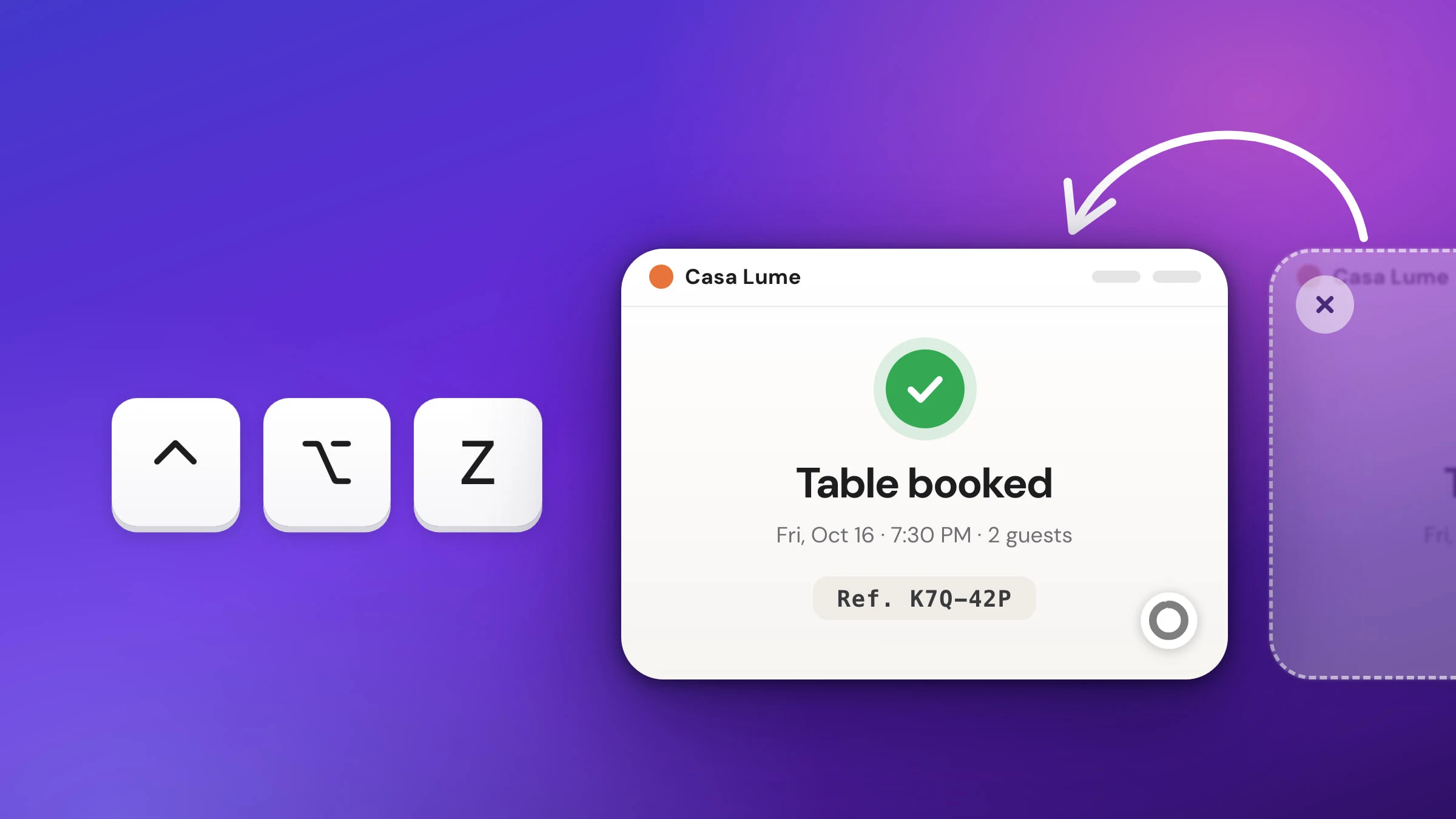
Bring back a screenshot preview you closed too soon, find an older one, and see where the Mac put yours.
⌃⌥Z
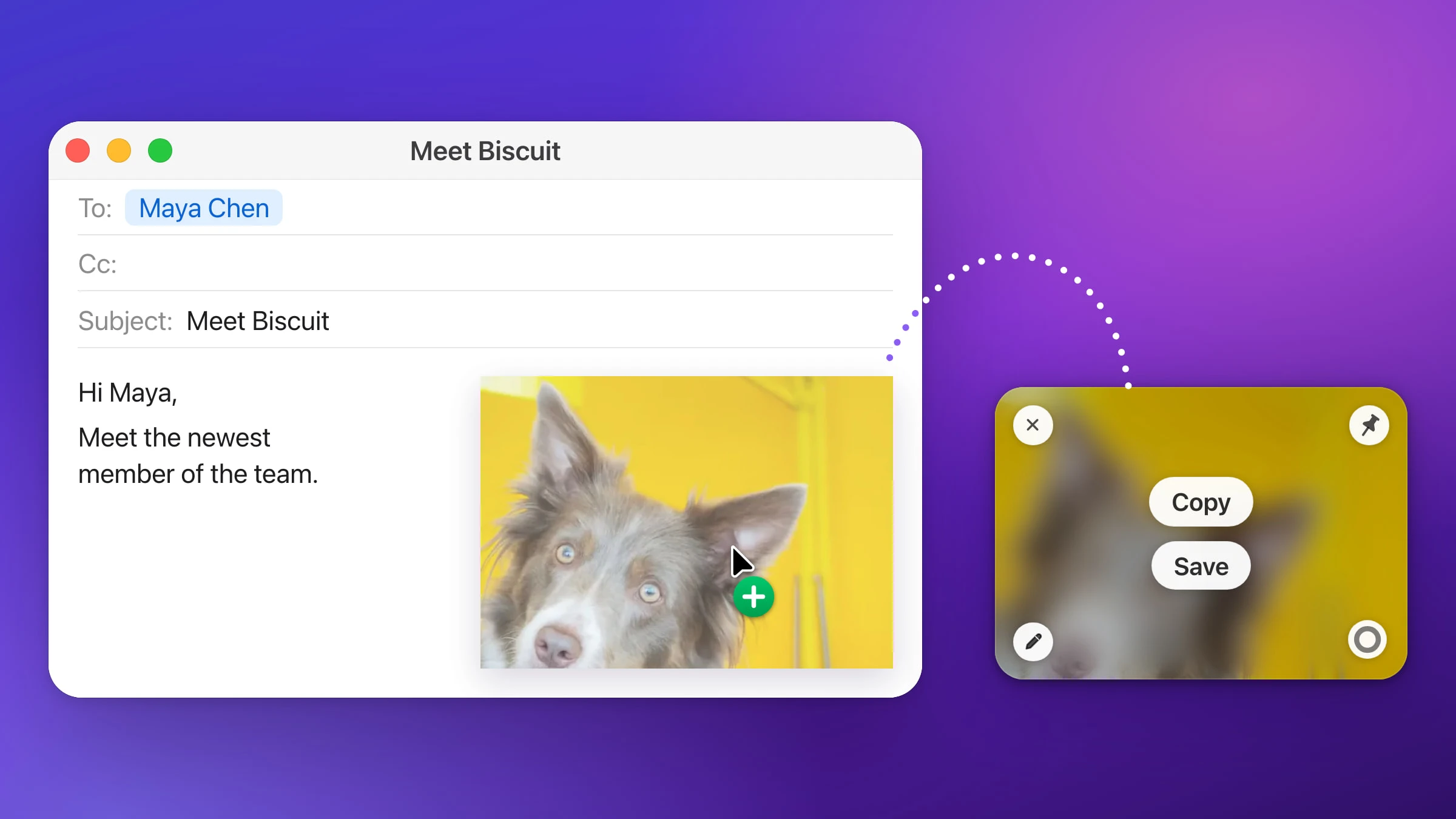
AirDrop it, message it, email it or drag it into any app, straight from the screenshot.
Change the keys, where screenshots are saved, their format and how Snapix behaves.
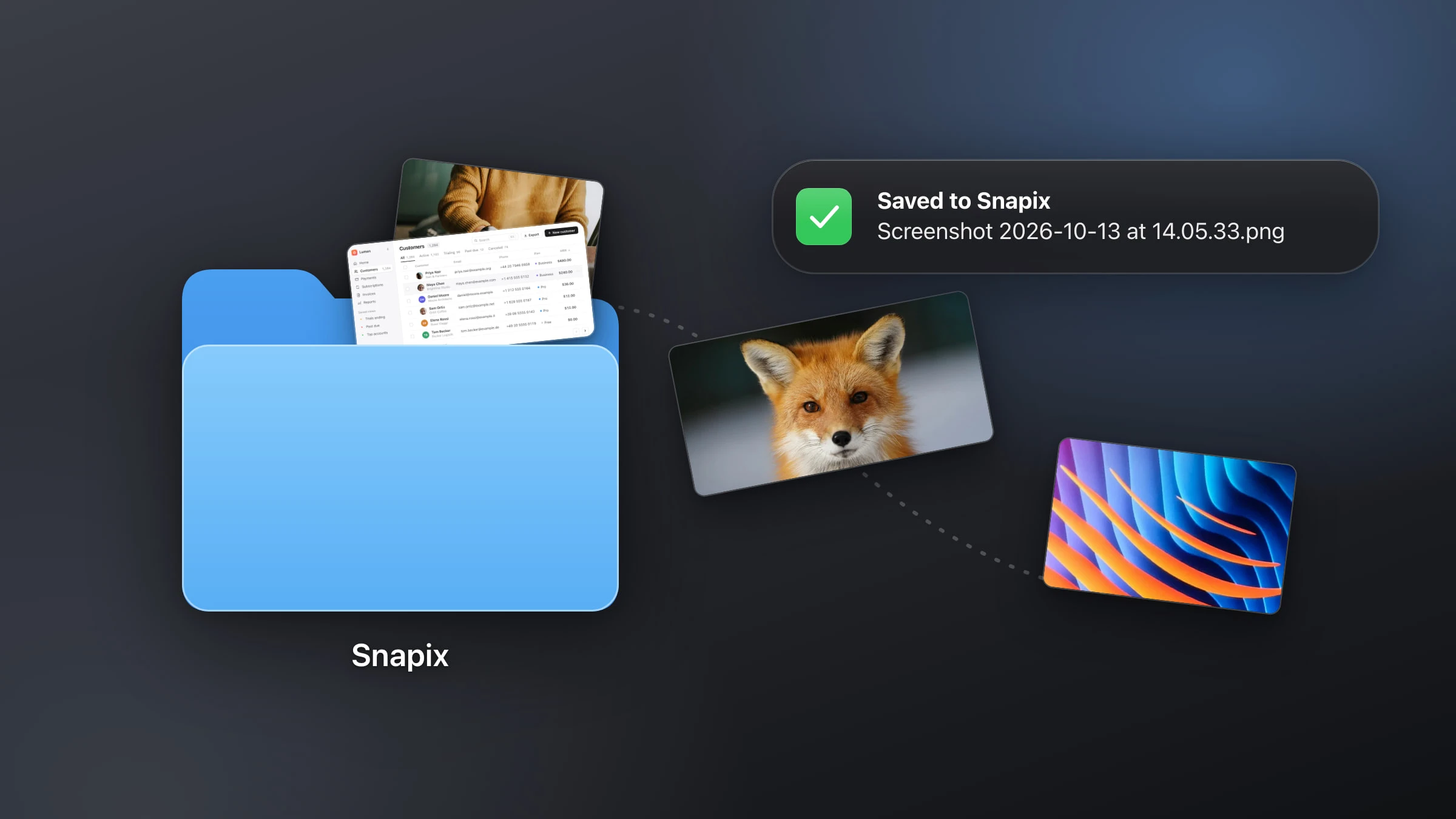
Find the screenshots you just took, send them to any folder, and see where Snapix keeps each capture.
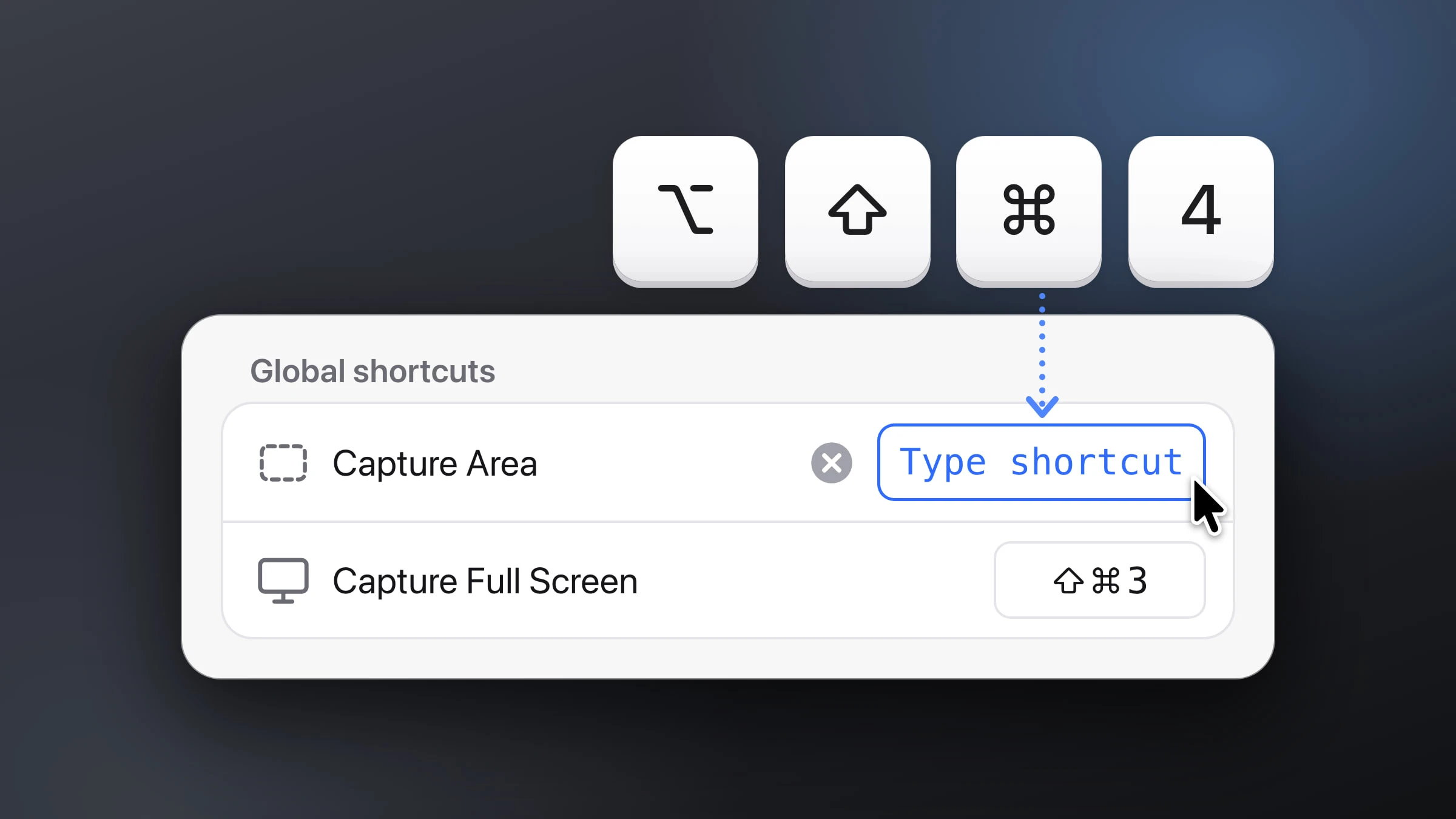
Pick new keys for the macOS screenshot shortcuts or for any Snapix action, and put the defaults back in one click.
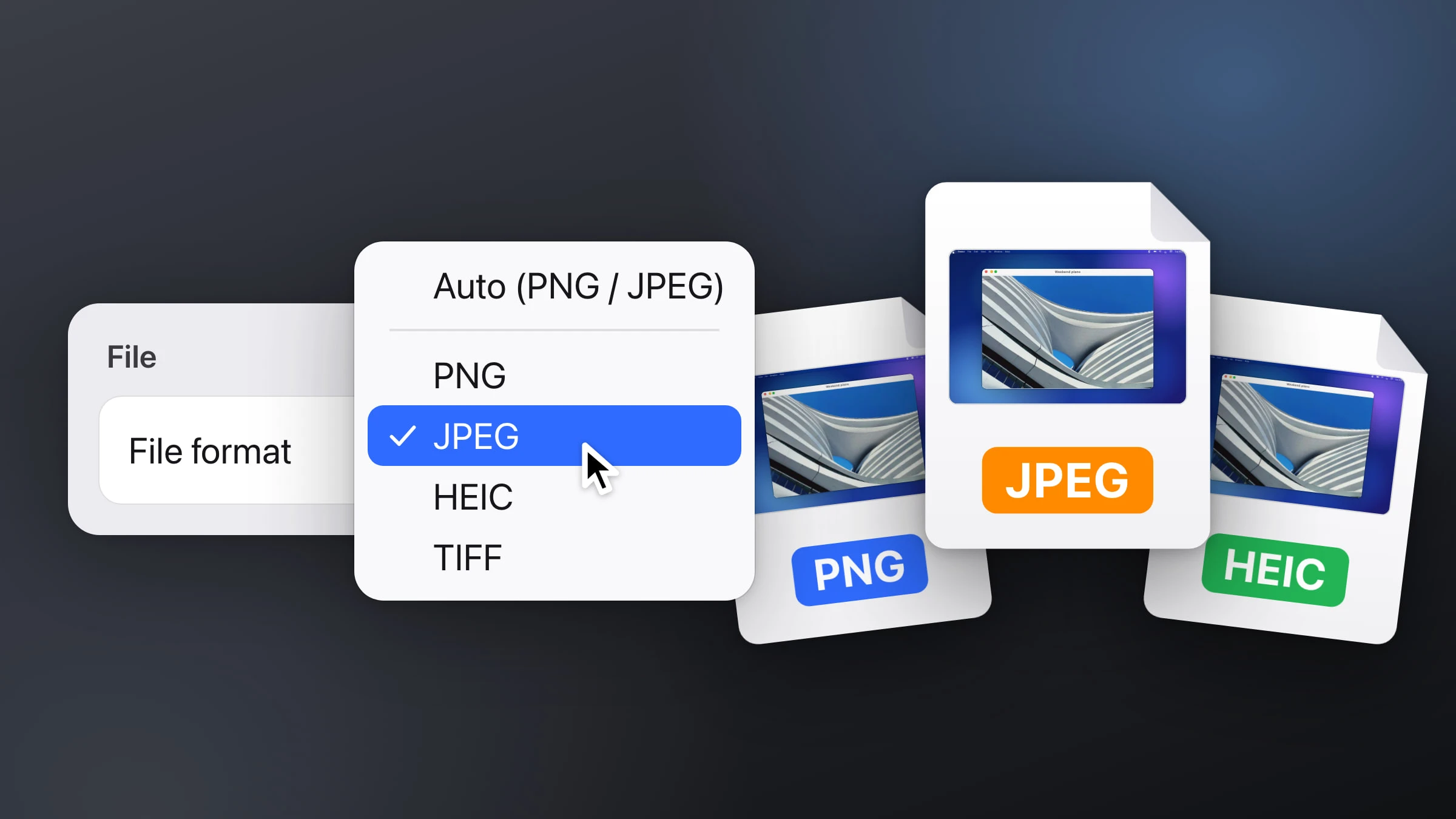
Save screenshots as JPG, HEIC or PNG, make the files smaller, and convert the ones you already have.
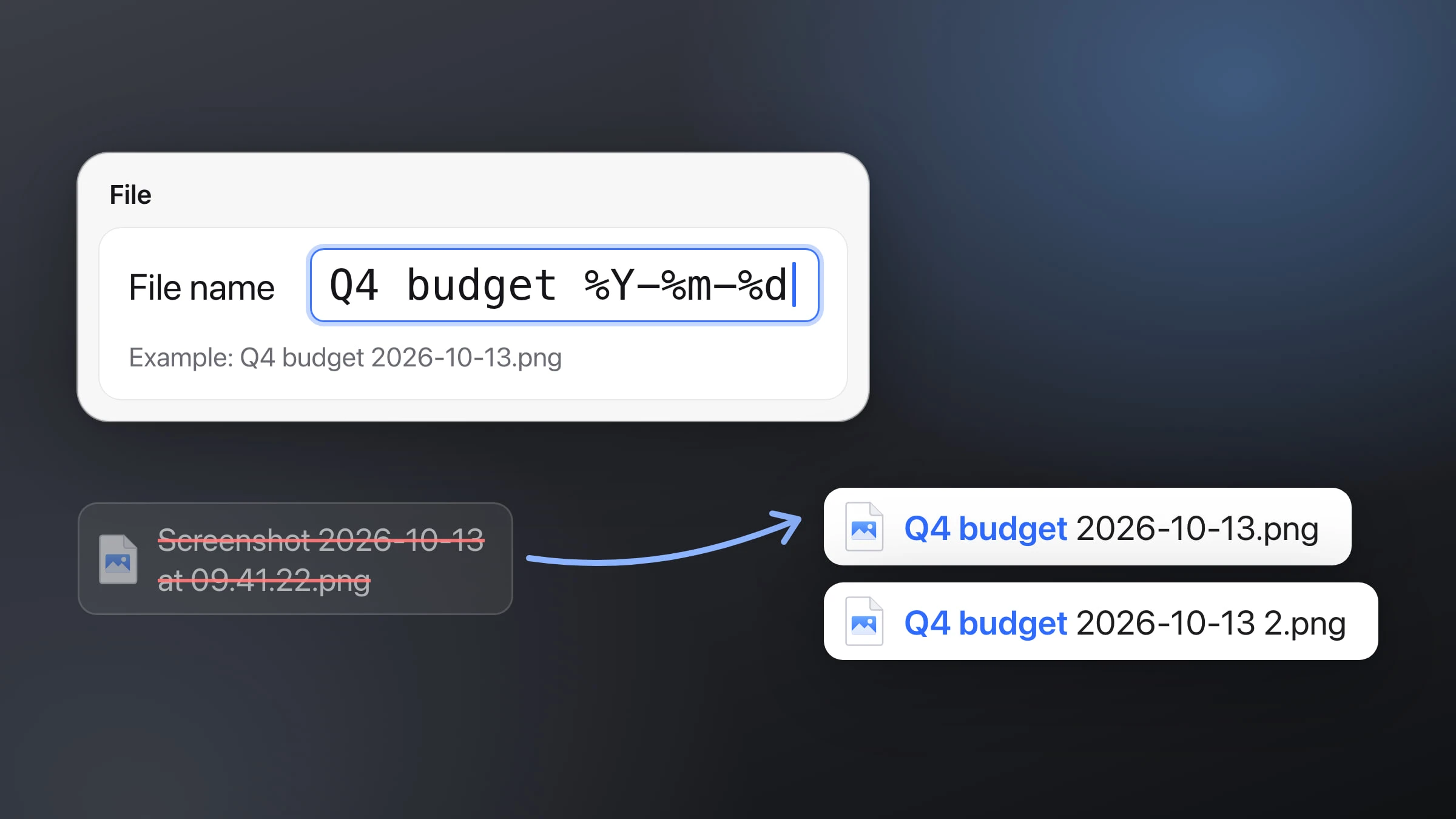
Change the word, drop the date, write your own pattern, or rename a pile of old screenshots at once.
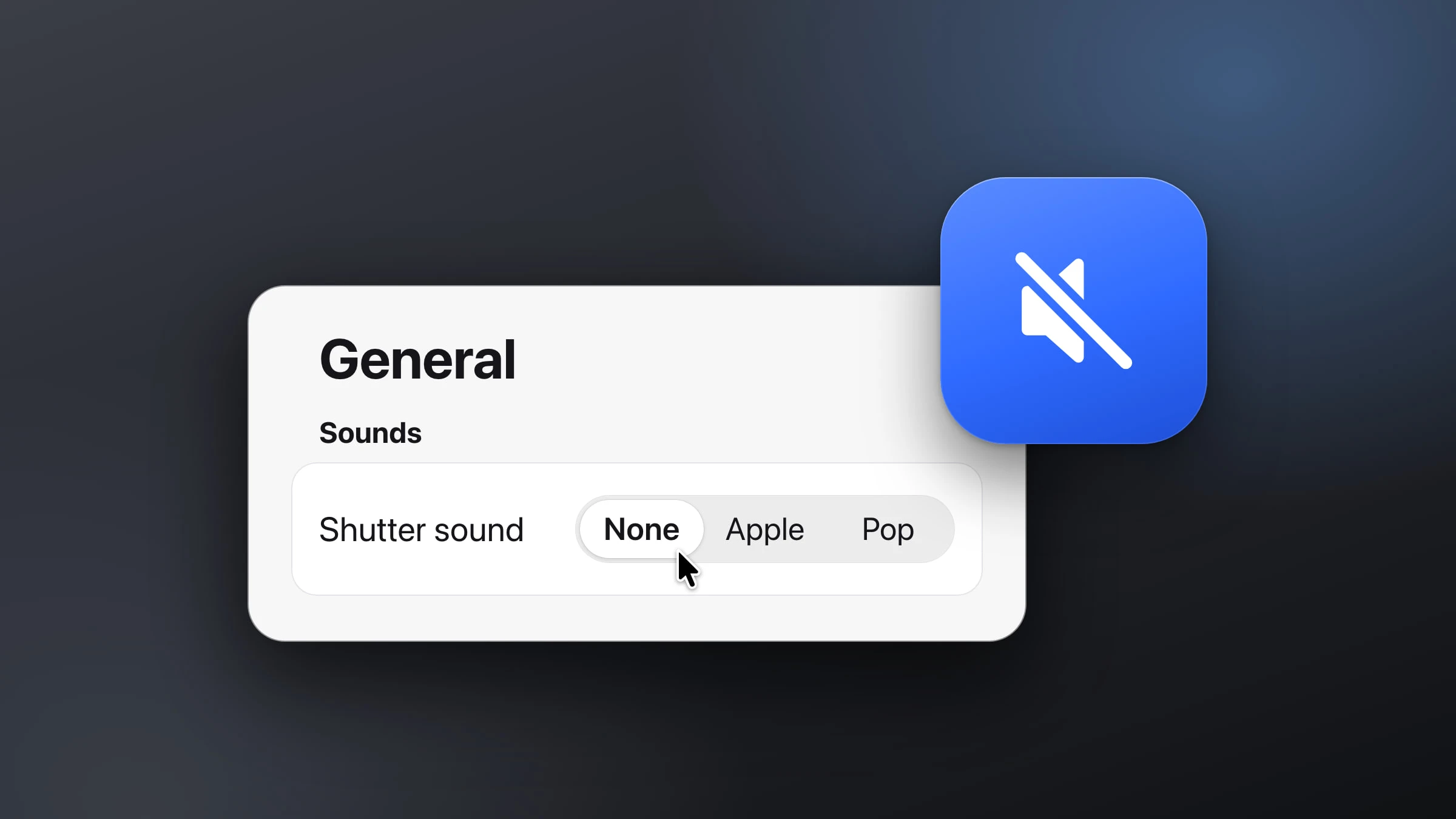
Silence the camera click on Mac screenshots, or turn off just the shutter in Snapix.