To add an arrow to a screenshot on a Mac, open it in the Snapix editor, press A and drag from where the arrow should start to the thing it points at. You can then bend it into a curve, switch between four arrow styles and change its color and thickness. If you’d rather not install anything, the Markup tools built into macOS can draw an arrow too.
How to add an arrow to a screenshot with Snapix
- Open the screenshot in the editor. Press ⇧⌘4 and drag over what you need, then click the preview that slides into the corner (or hover it and press ⌘E). For a PNG, JPEG, HEIC or TIFF that’s already on your Mac, Control-click it in Finder and choose Open With ▸ Snapix.
- Press A. This picks the Arrow tool, the arrow button in the toolbar. The editor opens with the tool you used last, and on a new install that’s already Arrow.
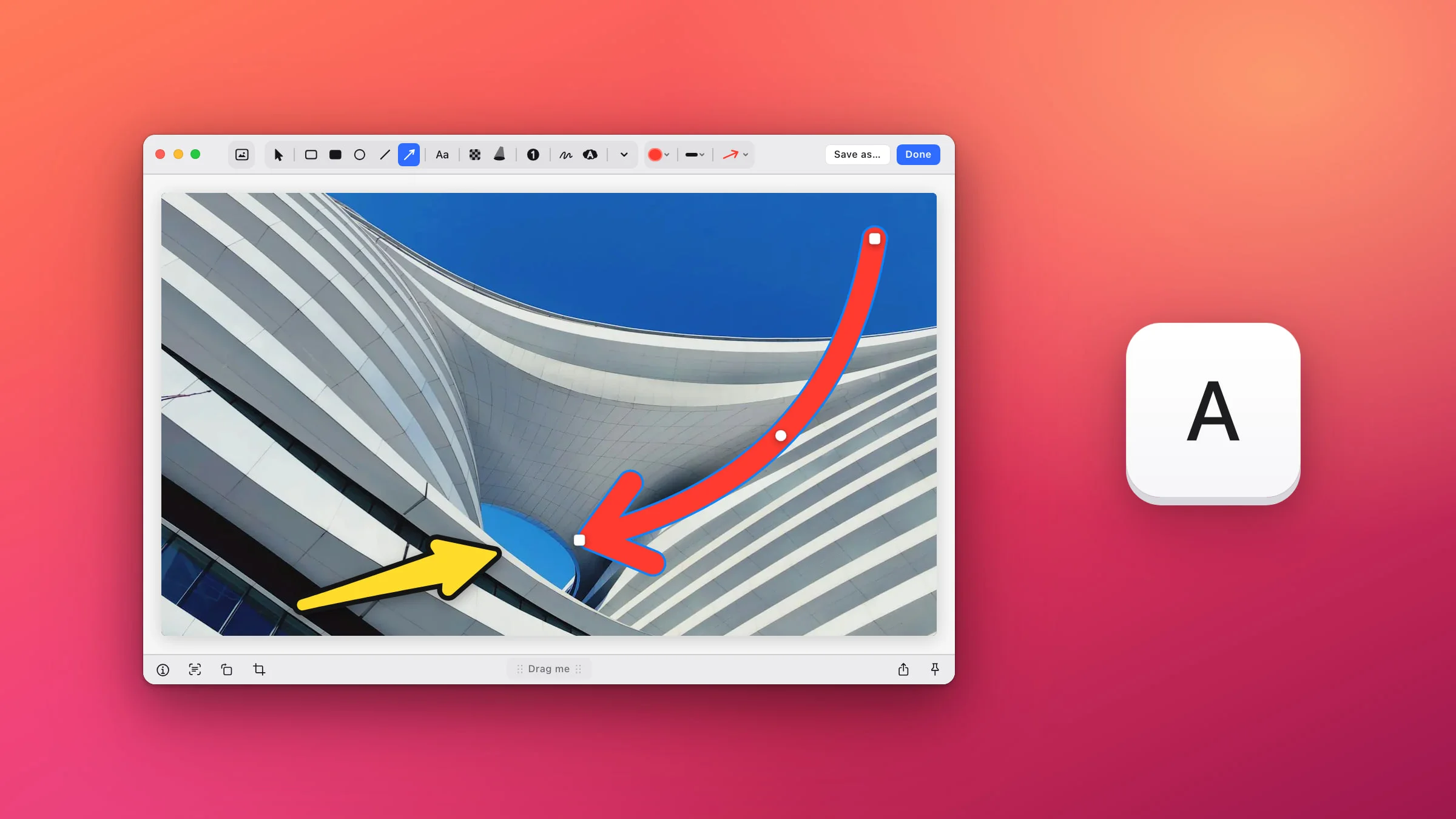
- Drag from the tail to the tip. Press where the arrow should start and let go on what it points at. Hold ⇧ to keep it to 45° steps. The tool stays picked, so you can draw the next arrow straight away.
- Bend it into a curved arrow. Click the arrow to select it. Drag the round handle in its middle to curve it, and drag a square end to re-aim it.
- Click Done. The screenshot, arrows included, is copied to your clipboard and ready to paste. Prefer a file? Click Save as… instead. If you opened an image from Finder, Done and Save as… both write the arrows into that file, and Snapix keeps no backup.

Your arrows stay editable. Open the capture again from its preview or from Recent Captures (⇧⌘S), and each arrow is still its own mark that you can move, bend or delete, as long as you finished with Done, Save as…, ⌘S or Pin. By default, pressing Esc until the editor closes also copies the picture, but it doesn’t keep the arrows for later.
Tip: To land in the editor after every capture, without clicking the preview, turn on Open the editor in Snapix Settings ▸ After Capture.
Pick an arrow style
Snapix has four arrow styles. With the Arrow tool picked or an arrow selected, click the arrow chip next to the color and size in the toolbar (its tooltip says Arrow style) and choose one:
- Dart: a tapered arrow, thin at the tail and widest at the head.
- Classic: one even line into a solid head.
- Chevron: an even line that ends in an open V head, like the one on the Arrow button. This is the default.
- Sticker: a bold arrow with a contrasting outline and a soft shadow, so it stands out on any screenshot, even one in its own color.
Hovering a style previews it on the selected arrows, and a click applies it. Snapix remembers your choice for the next arrows, in later editor windows too.

Change the color and thickness
- Color. Click the round swatch (its tooltip says Color) for ten preset colors, your saved Favorites and an eyedropper that picks a color from anywhere on screen. Arrows start out red.
- Thickness. Click the line chip next to the swatch (its tooltip says Stroke size) and pick one of six thicknesses, or press 1 to 6. Arrows start at the second one.
With an arrow selected, a new color or size changes that arrow and becomes the default for the next one. With nothing selected, it only sets up the next arrow. The Arrow tool keeps its own color and size, separate from your other tools.
Move, copy or delete an arrow
Press V, click an arrow and drag it to move it. The arrow keys nudge it 1 point at a time, or 10 with ⇧. Hold ⌥ as you drag to pull off a copy, or press ⌘D to duplicate it. Delete removes it, and ⌘Z undoes any step. Once you’ve drawn an arrow, you can also grab it and move it while the Arrow tool is still picked.
Circle it or add a label too
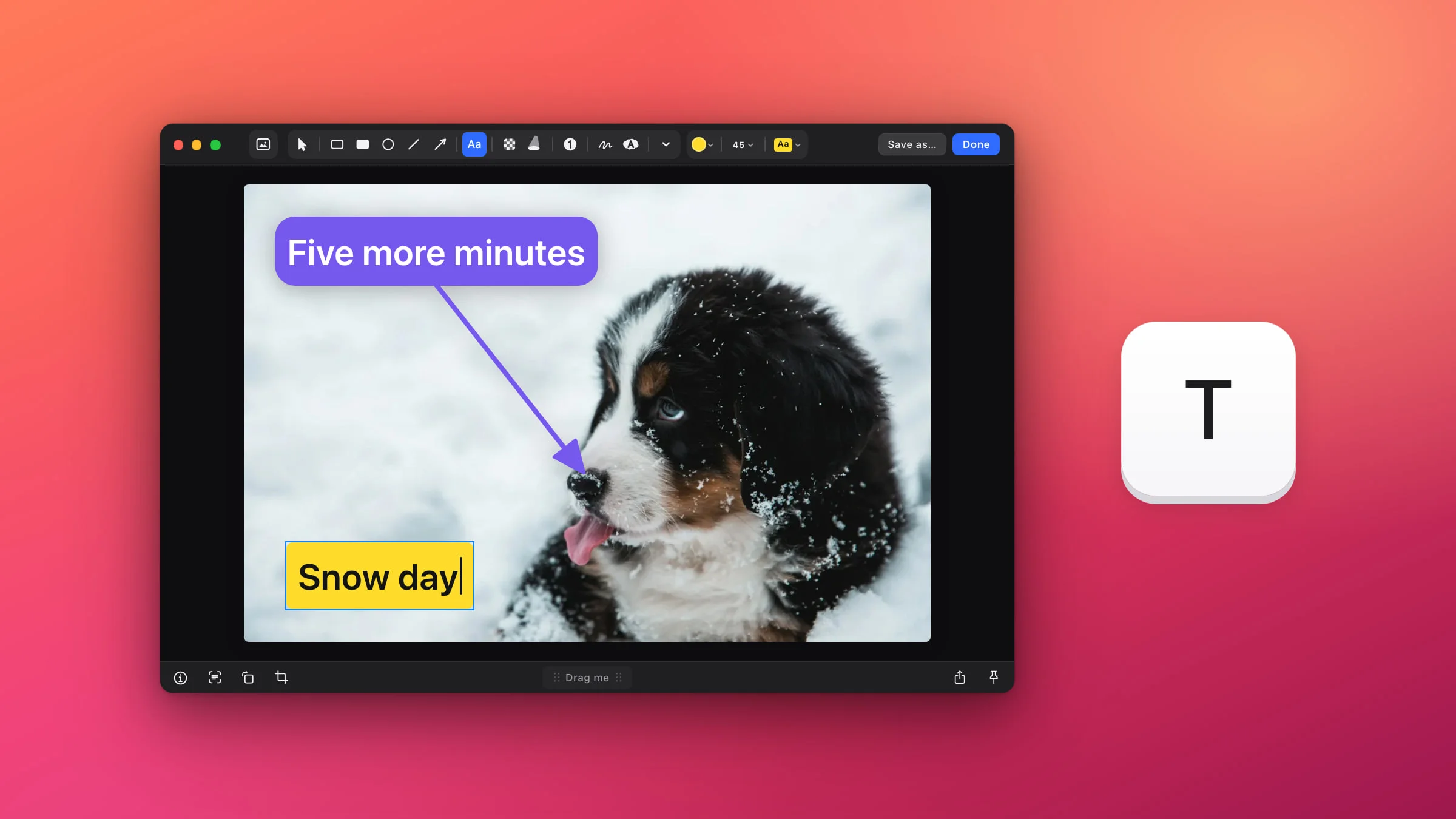
An arrow often works best with a ring or a word next to it. Press O for the Ellipse tool and drag around the spot. Hold ⇧ as you start for a perfect circle. Press T and click to type a label, which comes out as a yellow tag by default. There’s more on both in how to add text to a screenshot and how to circle something on a screenshot.
How to add an arrow to a screenshot without an app
Markup, the editor behind the screenshot thumbnail and Preview, has an arrow in its Shapes menu. It draws a clean arrow, can put the head at either end or both, and can bend it too.
- Open the screenshot in Markup. Right after you take it with ⇧⌘4, click the thumbnail in the corner of the screen before it slides away. For an image already on your Mac, open it in Preview and click the Markup button.
- Click Shapes and choose the line with an arrowhead.
- Drag it where you want. Use the blue handles at its ends to resize or re-aim it, and the green one in the middle to bend it.
- Style it. Shape Style sets the line’s thickness and where the arrowhead goes: at the end, at the beginning or at both ends. It can also make the line dashed or add a shadow. Border Color sets its color.
- Click Done in the screenshot window. In Preview, press ⌘S or choose File ▸ Save instead.
Note: In Preview, an arrow becomes part of the picture once you save the image. Apple notes that annotations on an image file can’t be edited, moved or deleted after that.
Not on your own Mac? The free Annotate Screenshot tool adds arrows, boxes and text right in your browser. For every other kind of mark, see how to edit a screenshot on a Mac, and to hide something private before you share, blur part of the screenshot. If you don’t have Snapix yet, you can try Snapix free.