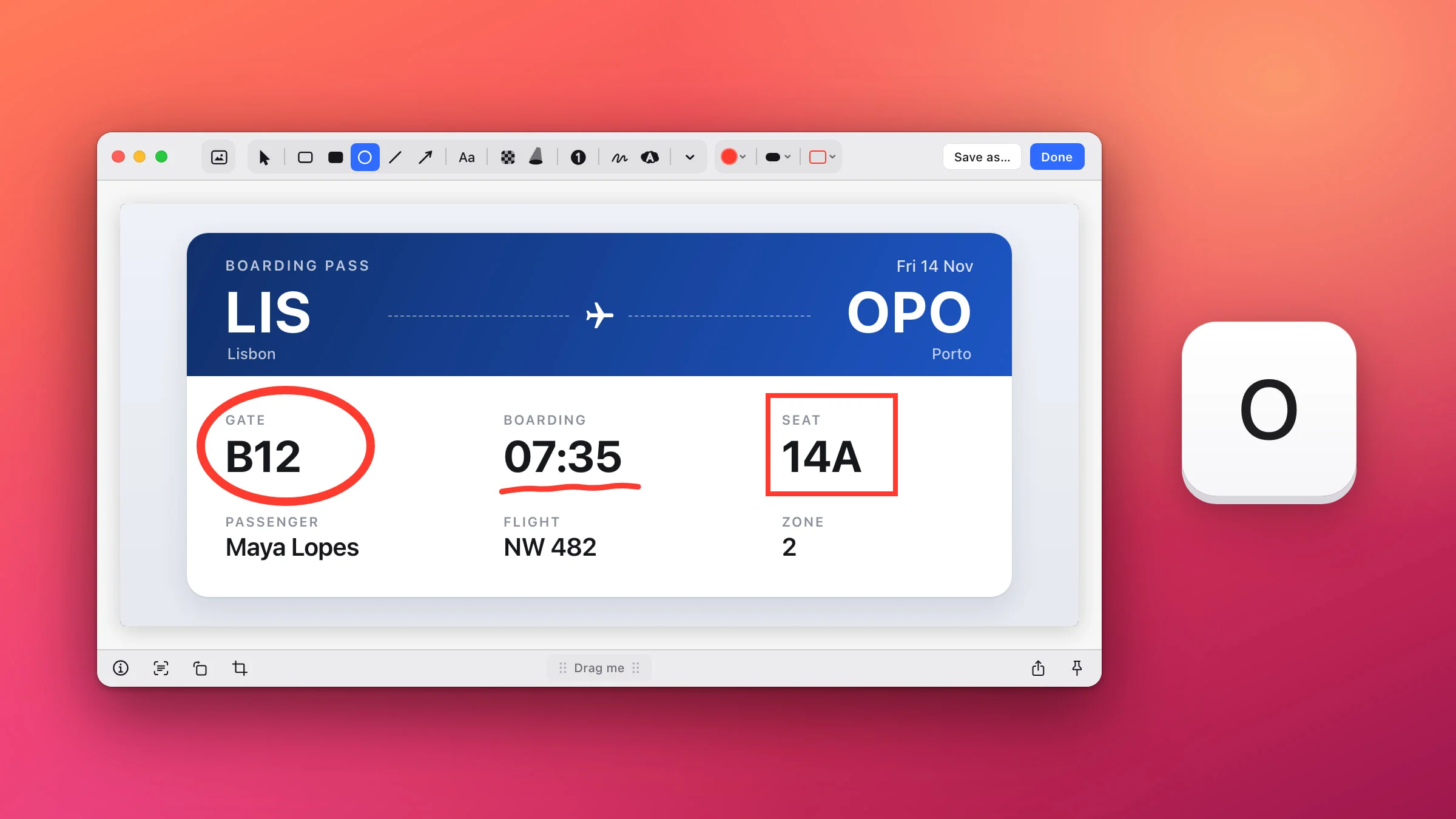
To circle something on a screenshot on a Mac, open it in the Snapix editor, press O and drag across the thing you want to point out. Hold ⇧ as you start for a perfect circle, and use the same editor for boxes, straight lines and freehand ink. If you’d rather not install anything, Markup, the editor built into macOS, has shapes and a sketch tool too.
How to circle something on a screenshot with Snapix
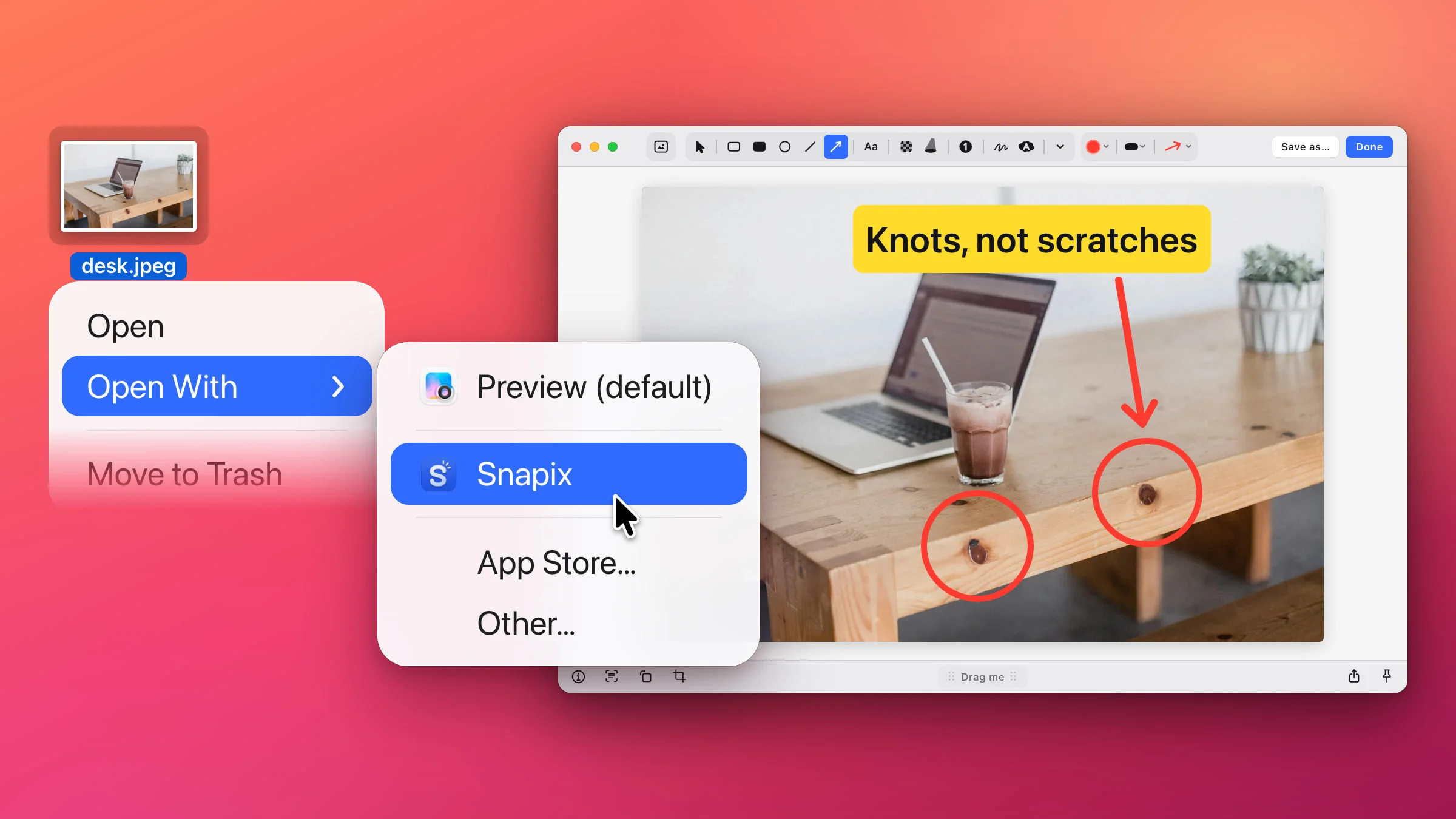
- Open the screenshot in the editor. Press ⇧⌘4 and drag over what you need. Hover the preview that slides into the corner and click its pencil (Edit), or press ⌘E. For a PNG, JPEG, HEIC or TIFF that’s already on your Mac, Control-click it in Finder and choose Open With ▸ Snapix.
- Press O. This picks the Ellipse tool, the circle button in the toolbar. Press R instead for a box, or D to draw freehand.
- Drag across what you want to circle. Press at one corner of an imaginary box around it and let go at the opposite corner. Hold ⇧ from the start for a perfect circle. The tool stays picked, so you can circle the next thing straight away.
- Fix it if you need to. Press Return right after drawing to select the circle, then drag it to move it or pull a handle to resize it. Delete removes it, and ⌘Z undoes any step.
- Click Done. The screenshot, shapes included, is copied to your clipboard and ready to paste. To save a file instead, click Save as… and choose where it goes. If you opened the image from Finder, Done and Save as… both write the shapes into that file, and Snapix keeps no copy of the original.

Draw a box, circle, line or freehand mark
Rectangle, Filled Rectangle, Ellipse and Line sit together near the start of the toolbar, next to Arrow. Draw sits further along, beside the Highlighter.
- R Rectangle draws an outline box, 2 pt thick by default. Hold ⇧ as you start for a square.
- F Filled Rectangle draws a solid box that covers whatever is under it. To hide something private, see how to blur part of a screenshot for Pixelate, Blur and Black.
- O Ellipse draws an oval, or a circle if you hold ⇧. It starts as a 4 pt outline.
- L Line draws a straight line. Hold ⇧ to keep it to 45° steps. For a line with a head on it, press A and add an arrow instead.
- D Draw is a freehand pen. Drag to draw, or click once for a dot. Hold ⇧ partway through a stroke and it runs level or upright from there. Let go of ⇧ to carry on freehand.
To mark a line of text with a see-through band instead of a ring, press H for the Highlighter. There’s more in how to highlight a screenshot.
Tip: If you start a circle in the wrong spot, keep the mouse button down, hold Space and move it where it belongs. Let go of Space to carry on sizing it.
Change the fill, color and thickness
The style buttons sit to the right of the tools and change with the tool you’ve picked.
- Fill style (Ellipse only). Click the fill button (its tooltip reads Fill style) and choose Outline (the default), Translucent (the inside tinted with the shape’s color at 25%), Hatched (diagonal stripes inside the outline) or Filled (solid).
- Rectangles have no fill menu (the tool sets the fill), but both have a Rounded corners button.
- Color. Click the round swatch for ten preset colors, your saved Favorites and an eyedropper that picks a color from anywhere on screen. Shapes start out red.
- Thickness. Open Stroke size and pick a row, from 1, the thinnest (2 pt), to 6, the thickest (18 pt). Or press 1 to 6.

With a shape selected, a new color, size or fill changes that shape. With nothing selected, it sets up the next one. Each tool keeps its own style, so a yellow circle doesn’t turn your next box yellow.
Move, resize or rotate a shape
Press V for Select and click the shape. On a hollow circle or box, click its line, because a click in the empty middle doesn’t pick it up. Drag it to move it, or drag one of its eight handles to resize it. To turn a box or an ellipse, point just outside a corner until the pointer becomes a curved arrow, then drag. Hold ⇧ to turn it in 15° steps. A line takes its angle from its two ends, so drag an end to re-aim it.
Hold ⌥ as you drag to pull off a copy, or press ⌘D to duplicate a shape. While Rectangle, Ellipse or Line is still picked, you can also drag a shape you’ve already drawn by its line, without switching tools. For everything else the editor does, see how to edit a screenshot on a Mac.
How to circle something on a screenshot without an app
Markup, the editor behind the screenshot thumbnail and Preview, can draw shapes and freehand lines.
- Open the screenshot in Markup. Right after you take it with ⇧⌘4, click the thumbnail in the corner of the screen before it slides away. For an image already on your Mac, open it in Preview and click the Markup button. Use Preview while Snapix is running too, since Snapix answers ⇧⌘4 then.
- Click Shapes and choose the oval. Rectangle, Rounded Rectangle and Line are in the same menu.
- Drag it over what you want to circle. Resize it with its blue handles.
- Style it. Shape Style sets the line’s thickness, Border Color its color and Fill Color the inside.
- Click Done in the screenshot window. In Preview, choose File ▸ Save (⌘S) instead.
To draw by hand instead, click Sketch and draw in one stroke. If Markup recognizes a shape, it swaps in a clean one. To keep your own drawing, choose it from the palette that appears. On a Mac with a Force Touch trackpad, Markup also has a Draw tool, whose line gets heavier the harder you press.
Note: In Preview, your shapes become part of the picture once you save the image. Apple notes that annotations on an image file can’t be edited, moved or deleted after that.
You can also draw circles, boxes, lines and freehand marks in your browser with the Annotate Screenshot tool, on the same keys as Snapix. For the same tools on your Mac, try Snapix free.