To annotate an image on a Mac, open it in Preview and click the Markup button, or select it in Finder, press Space and click Markup in Quick Look. Either way you can draw shapes and arrows, add text or a signature, and crop any photo, not just a screenshot. If you need numbered steps or blur, Snapix opens PNG, JPEG, HEIC and TIFF files in the same editor it uses for screenshots.
How to annotate an image on Mac with Preview
- Open the image in Preview. Control-click the file in Finder and choose Open With ▸ Preview.
- Show the Markup toolbar. Click the Markup button in Preview’s toolbar, or choose View ▸ Show Markup Toolbar.
- Pick a tool. Shapes has rectangles, ovals, lines and arrows, plus a loupe and a Highlight that dims the rest of the picture. Text adds a text box, Sketch tidies a quick drawing into a clean shape, and Sign adds your signature.
- Style it. Change the look with Border Color, Fill Color, Shape Style and Text Style. Drag the blue handles to resize a shape.
- Save it. Choose File ▸ Save or press ⌘S. After that, the marks are part of the picture, and you can’t move or delete them.
Tip: To keep the original, duplicate the file first. Select it in Finder, press ⌘D, and mark up the copy.
Markup is a good, free tool for a quick shape, a crop or a signature. What it can’t do is blur or pixelate part of a picture, or number steps.
How to mark up an image from Finder with Quick Look
Select the image in Finder and press Space, then click the Markup button in the Quick Look window. You can also Control-click the file and choose Quick Actions ▸ Markup. You get the same Markup tools for shapes, text and signing without opening Preview. Click Done when you’re finished.
Apple notes that changes made in Quick Look can’t be undone after you close the window, so work on a copy if you might want the original back. Markup is built into Mail, Notes and TextEdit as well.
How to draw on a photo in the Photos app
For a photo in your Photos library, double-click it and click Edit in the toolbar. Click the Extensions button, choose Markup, mark it up, and click Save Changes. Photos keeps the original, so Image ▸ Revert to Original brings it back.
To use Snapix on a photo from your library, drag it from Photos to your desktop first. That makes a separate file to open in Snapix, and the photo in your library stays as it is.
How to annotate an image with Snapix
Snapix opens a picture from Finder in its screenshot editor, so a photo, a diagram or an old screenshot gets the same tools as a new capture.
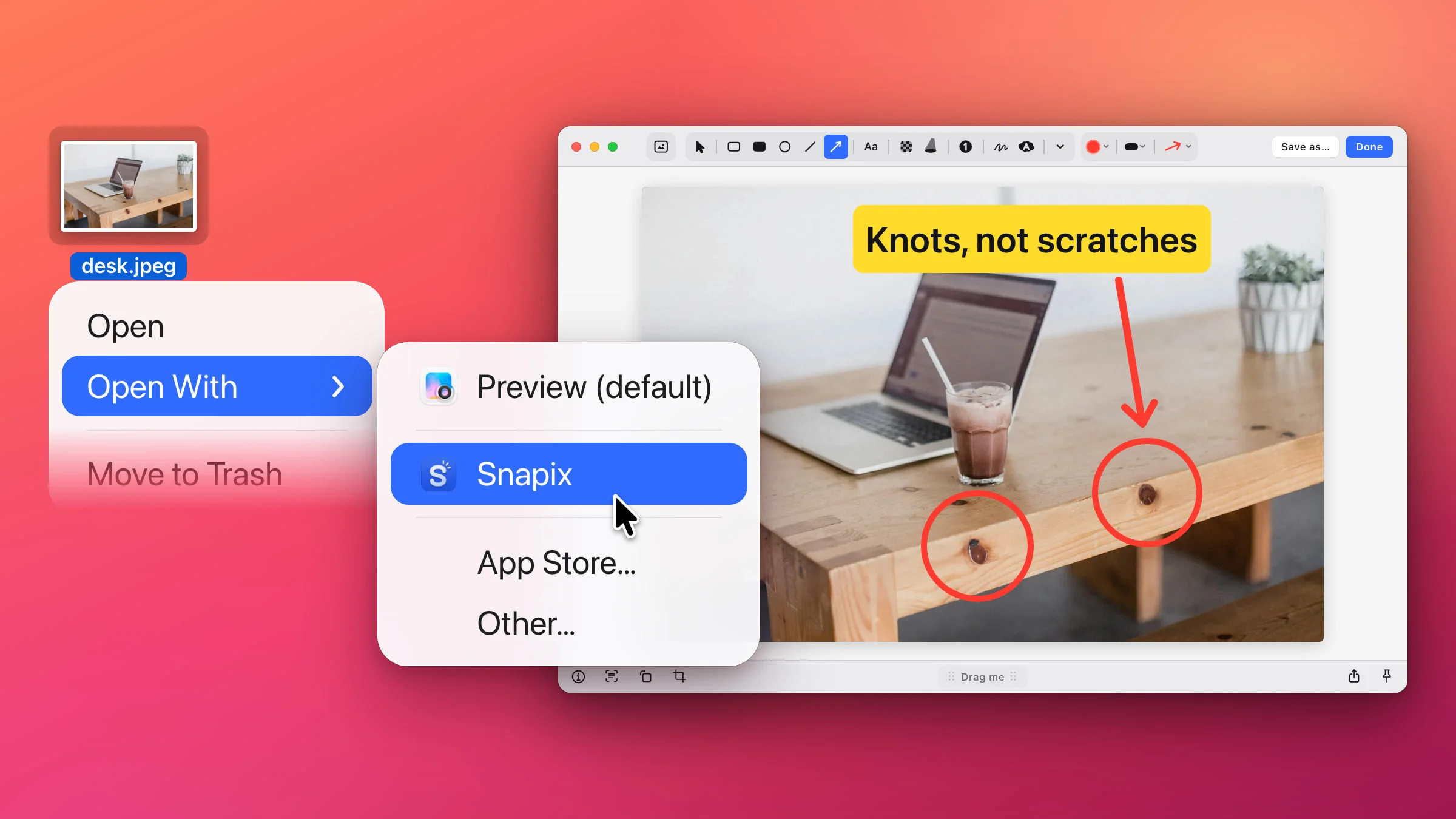
- Open the image in Snapix. Control-click a PNG, JPEG, HEIC or TIFF in Finder and choose Open With ▸ Snapix. The editor opens with the picture in it.
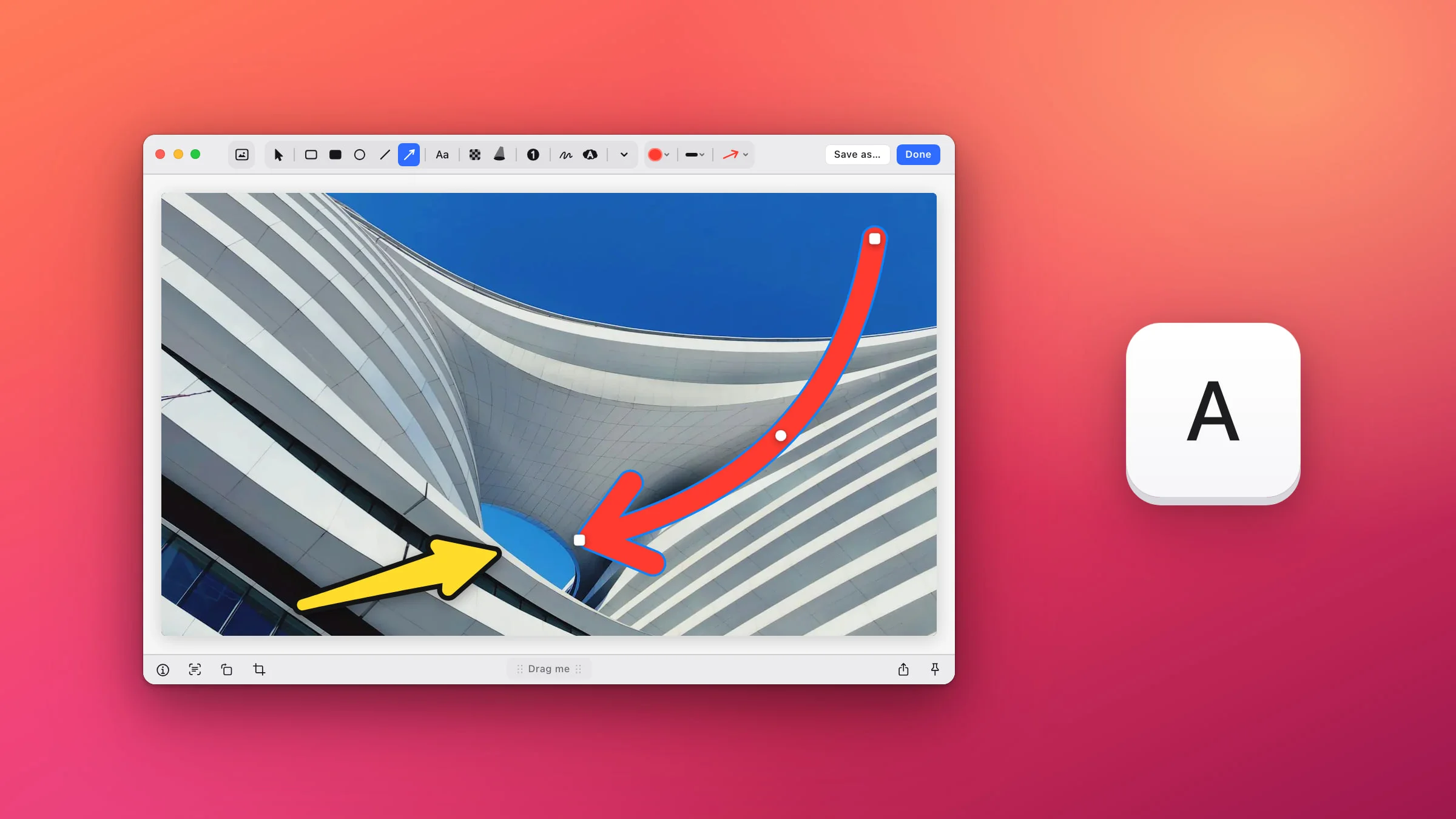
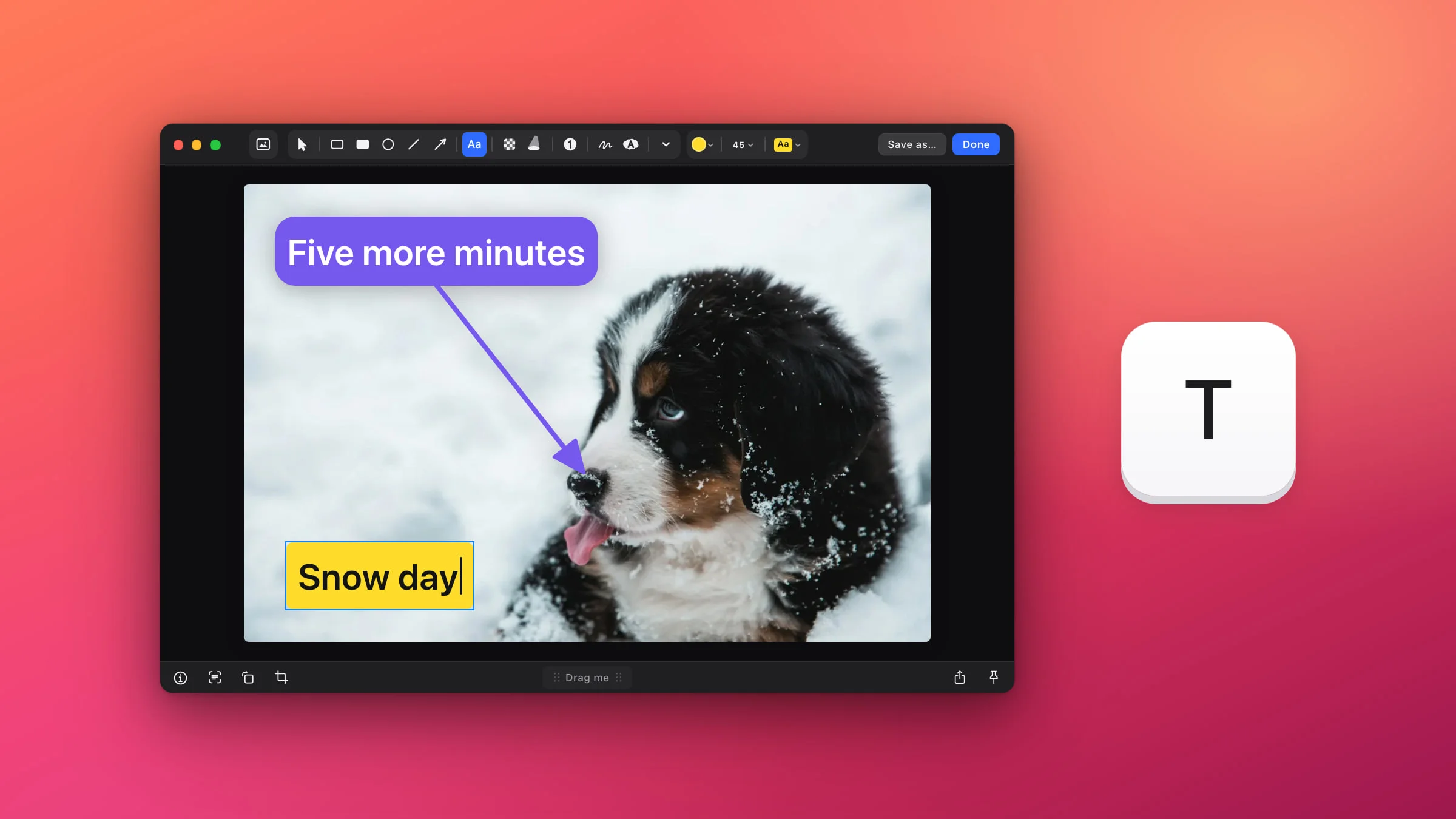
- Press a tool’s letter. A for Arrow, O for Ellipse, T for Text, C for a numbered Step, H for the Highlighter and B for Blur.
- Mark it up. Drag to draw an arrow, a circle or a blur, and click to place a label or the next number. Press V to select a mark and move it, and ⌘Z to undo.
- Click Done. The picture with your marks is copied to your clipboard and saved into the same file.

Note: Snapix edits the file you opened and keeps no backup. Done, ⌘C, ⌘S, Pin and even Save as… write your marks into the original. To keep it as it is, duplicate it in Finder with ⌘D and open the copy.
What happens to the file
- It keeps its format. A JPEG stays a JPEG and a PNG stays a PNG. A JPEG or HEIC is saved at the Quality set in Settings ▸ Saving, which is high by default. That slider shows when File format there is Auto, JPEG or HEIC.
- It keeps its resolution. The picture opens at full resolution, so saving doesn’t shrink it. Only a crop, a Background or a mark drawn past the edge changes its size.
- Phone photos stay upright. Snapix applies a photo’s rotation when it opens it, so it’s saved the right way up too.
- Camera details are removed. The saved file keeps the picture but not its metadata, such as the date taken and the location.
- ⌘S saves and keeps the editor open. Save as… saves a copy wherever you choose, then also updates the original and closes the editor.
- Esc copies without saving. By default its last press copies the marked-up picture and closes the editor, but doesn’t change the file. ⌘W closes the editor without saving anything, and doesn’t ask.
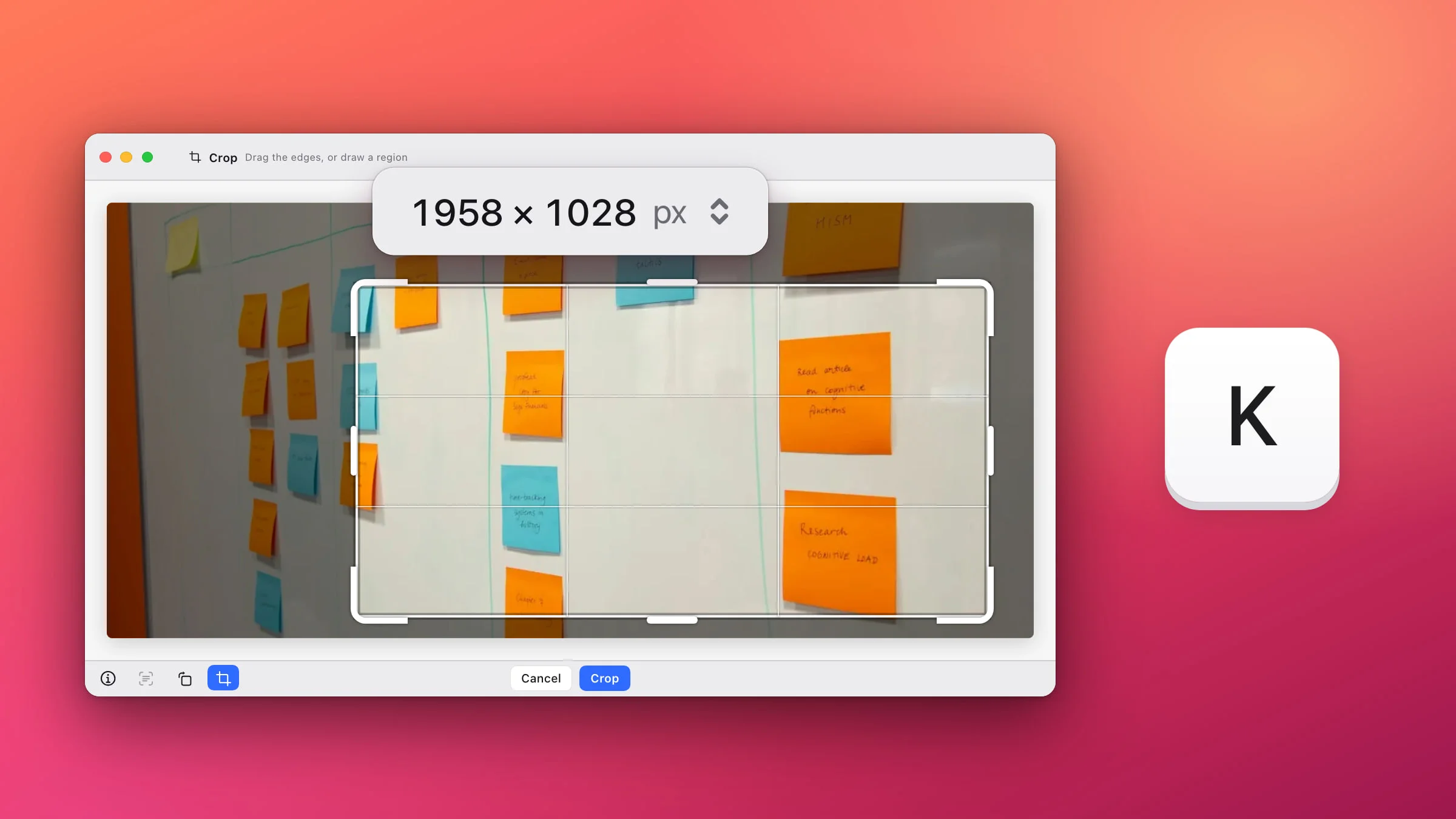
To trim the photo before you mark it up, press K in the editor. How to crop a screenshot covers it, and it works the same on any picture.
How to open images in Snapix with a double-click
- Open Settings ▸ Editor. Click the Snapix icon in the menu bar, choose Settings… and click Editor.
- Turn on Open image files in Snapix. It’s under Default image editor.
- Confirm in macOS. On recent versions of macOS you’re asked twice, once for PNG and once for JPEG.

From then on, double-clicking a PNG or JPEG opens it in Snapix. HEIC and TIFF files still open with Open With ▸ Snapix. The first time you use Open With, Snapix also offers this in a banner, Always open images in Snapix?, and clicking it does the same. Turn the switch off to give each format back to the app that had it before, or to Preview.
Markup or Snapix?
- Markup is already on your Mac. It’s the better pick for signing something, a quick shape or line of text, and PDFs, which Snapix doesn’t open.
- Snapix adds what Markup doesn’t have: Pixelate and Blur to hide details (Markup can only cover them with a filled shape), numbered Step badges, and a Background with padding and a shadow. It also has Black and Spotlight, and every tool has its own key. The full toolbar is in how to edit a screenshot on Mac, and how to blur part of a screenshot explains which way of hiding is safe.
If Snapix isn’t on the Mac you’re using, the free Annotate Screenshot tool opens PNG, JPG, WebP, GIF and BMP pictures in your browser and downloads the result as a new file, so the original stays as it was. To do it on your Mac every day, try Snapix free.