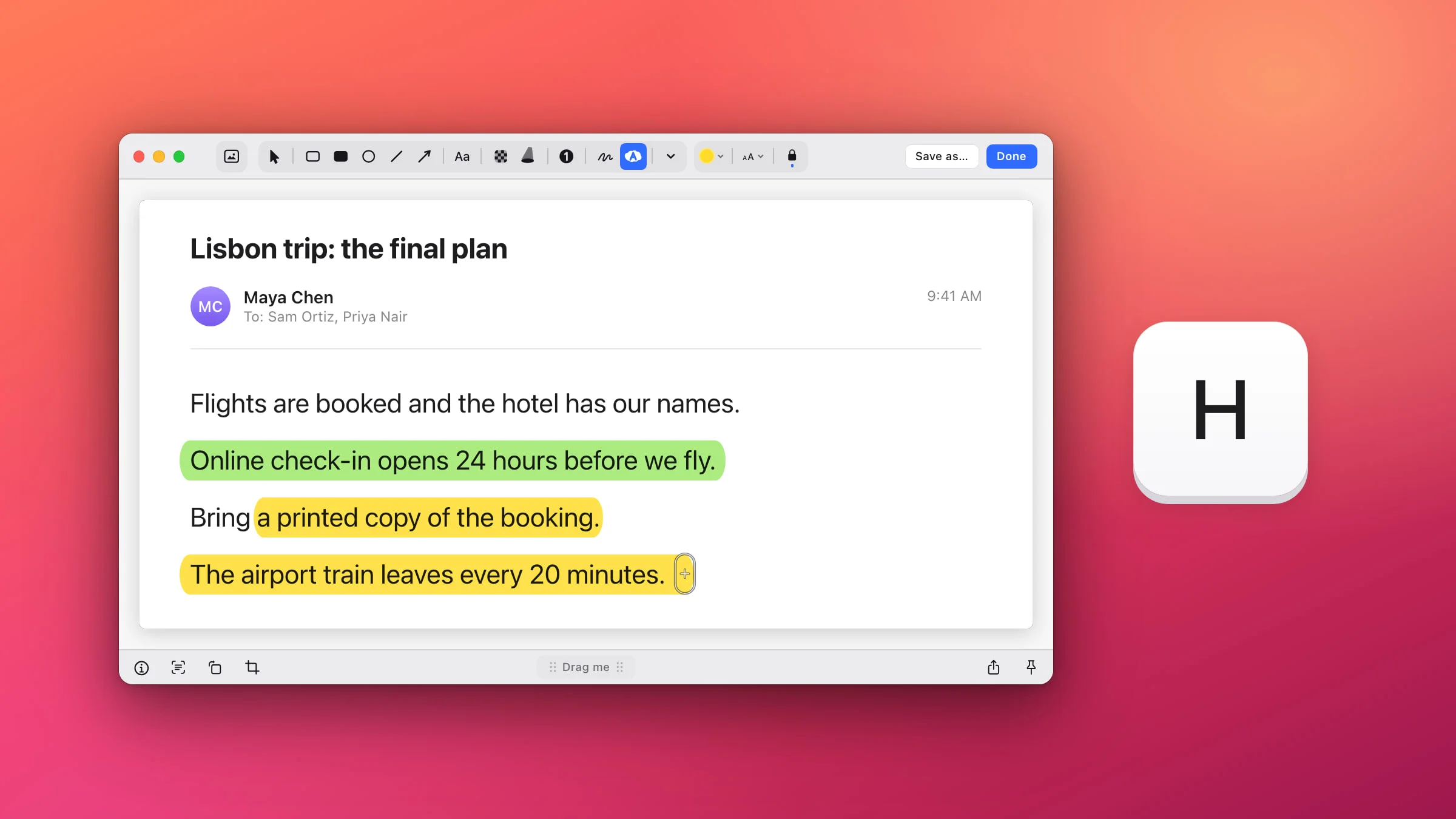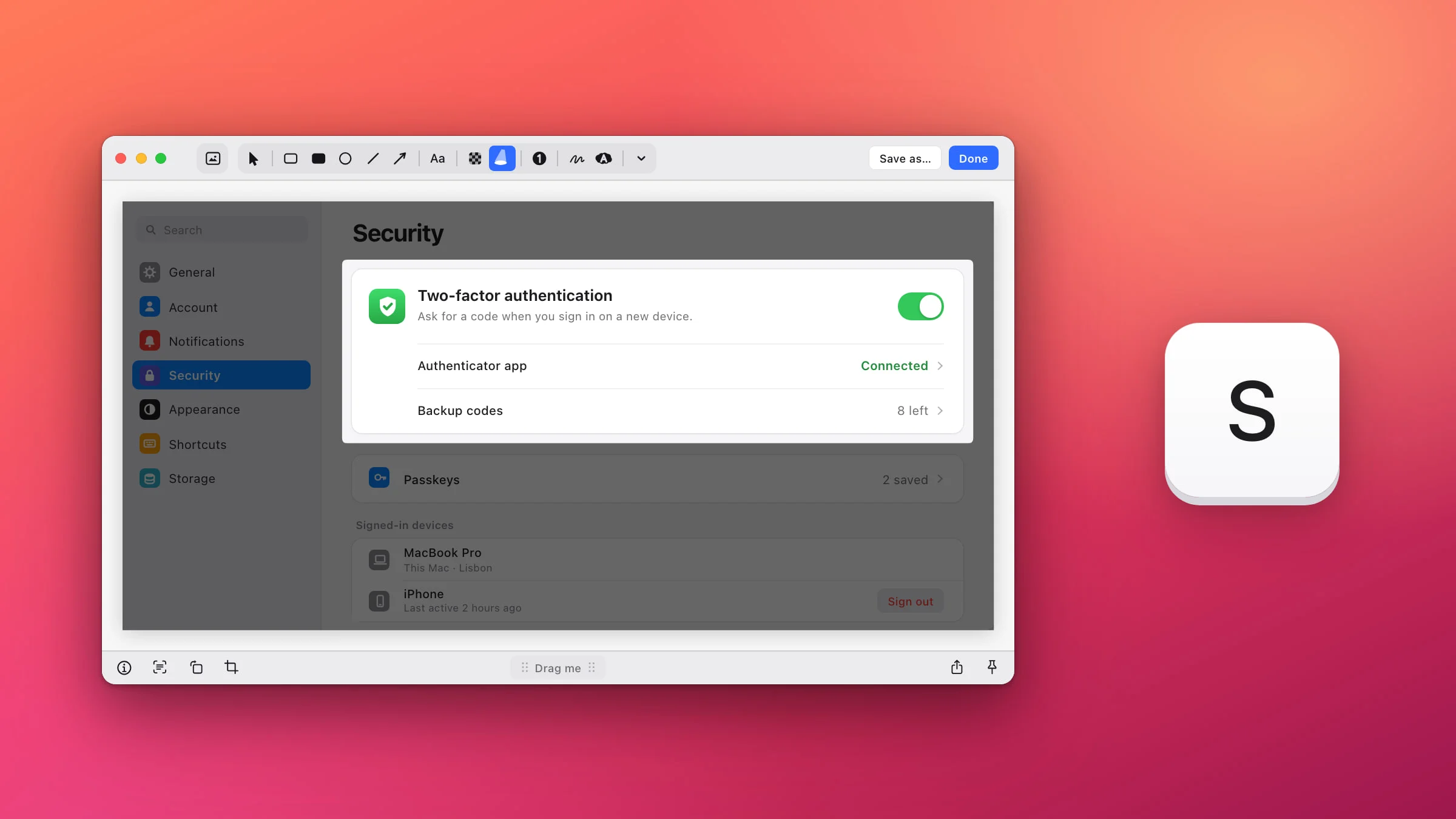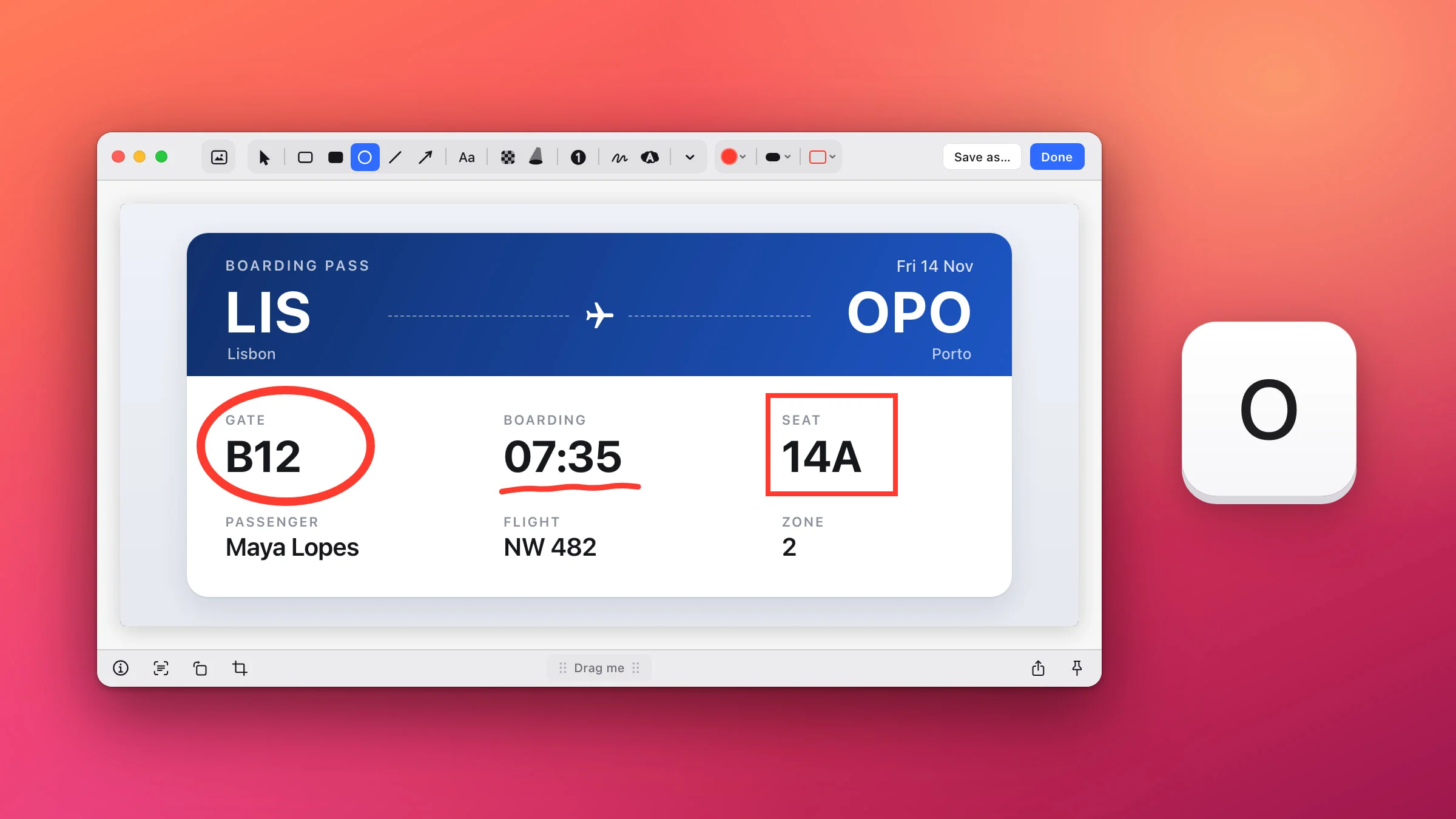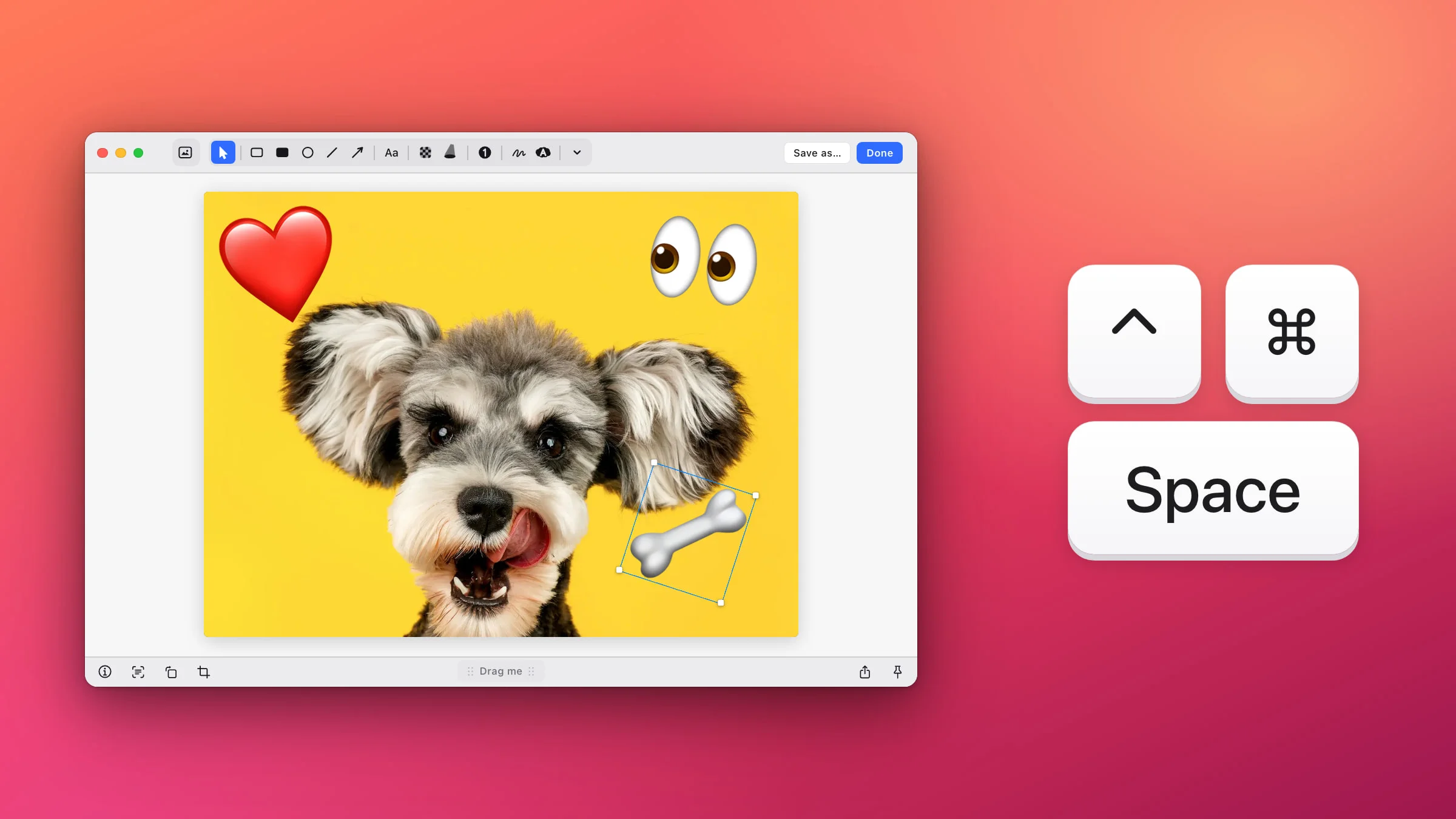
To number steps on a screenshot on a Mac, open it in the Snapix editor, press C and click each spot in order. The first click puts down a 1, the next a 2, and so on. Delete one and the numbers after it count down, so there’s never a gap. Markup, the editor built into macOS, has no numbering tool, but you can type the numbers into text boxes.
How to number steps on a screenshot with Snapix
- Open the screenshot in the editor. Press ⇧⌘4 and drag over what you need. Hover the preview that slides into the corner and click its pencil (Edit), or press ⌘E. For a PNG, JPEG, HEIC or TIFF that’s already on your Mac, Control-click it in Finder and choose Open With ▸ Snapix.
- Press C. This picks the Step tool, the button with a 1 in a circle in the toolbar.
- Click each spot in order. Every click puts down the next number: 1, then 2, then 3. The tool stays picked, so you can keep going for as many steps as you need. A click on a mark that’s already there, like a badge or an arrow, picks it up to move it instead.
- Add an arrow or a word where a step needs one. Press A for an arrow, or T for text and click outside the label when you’ve finished typing. Then press C again. The count picks up from the highest number on the picture.
- Click Done. The screenshot, numbers included, is copied to your clipboard and ready to paste into a reply, a bug report or a doc. Click Save as… if you’d rather keep a file. If you opened an image from Finder, both of them write the numbers into that original file, and Snapix keeps no backup. Work on a copy if you want to keep the original clean.

If you finished with Done (or Save as…, ⌘S or Pin), your numbers stay editable. Open the capture again from its preview or from Recent Captures (⇧⌘S), and every badge is still its own mark that you can move, delete or renumber. By default Esc also copies the picture and closes the editor, but it doesn’t keep the badges for later.
What happens when you delete, undo or copy a step
Snapix keeps these numbered callouts in order for you:
- Delete a badge and every badge after it counts down by one, so 1, 2, 3, 4 without the 2 becomes 1, 2, 3. Press V, click the badge and press Delete. Right after you place a badge, Delete alone removes it.
- Undo with ⌘Z. It takes back the last badge, and your next click reuses its number. Undoing a delete brings the badge back with the old numbers.
- Copies get the next number. A badge you duplicate with ⌘D, paste with ⌘V or drag off with ⌥ becomes the next step, not a second 2.
- Moving a badge never changes its number. Press V and drag it wherever it fits best.
- Badges stay on top. An arrow or a box drawn later never covers a number.

Change a badge’s number
Select the badge (press V and click it), then hold ⌥ and type the number you want. For 10 to 99, type both digits quickly, one after the other. Zero works too. New badges carry on from the highest number on the picture.
There’s no button to restart the count. For a second set of steps that starts at 1 again, place its badges as usual, then renumber each one with ⌥ and its digit. Wait a couple of seconds before you move on to the next badge, or the digits join up: ⌥1 on one badge and ⌥2 right after on the next makes that one 12. Deleting a badge later counts down every higher number on the picture, the second set’s too.
Change the color and size
- Color. Click the round swatch beside the tools (its tooltip says Color) for ten preset colors, your Favorites and an eyedropper that picks a color from the screen. Badges start out red, and the number is always white, so a strong color reads best.
- Size. Click the chip next to it (its tooltip says Badge size) and pick one of six sizes, or press 1 to 6.
With badges selected, a new color or size changes them. With nothing selected, it sets up the next badge. To select several badges, press V, then hold ⇧ and click each one. The Step tool keeps its own color and size, separate from your arrows and text.
Tip: If the guide goes to someone outside your team, cover names, email addresses and account numbers before you paste it. How to blur part of a screenshot shows three ways to do it.
How to number steps on a screenshot without an app
Markup, the editor you get from the screenshot thumbnail or in Preview, has no step tool. You can still type the numbers yourself:
- Open the screenshot in Markup. Right after you take it with ⇧⌘4, click the thumbnail in the corner of the screen before it slides away. While Snapix is running, ⇧⌘4 takes a Snapix screenshot by default. For an image already on your Mac, open it in Preview and click the Markup button.
- Click Text and type 1. Drag the text box next to the first spot.
- Make it stand out. Text Style changes the font and its color.
- Copy it for each next step. Hold ⌥ and drag the box to make a copy, then change its number.
- Click Done. In Preview, press ⌘S to save the image instead.
Note: These numbers are plain text, so removing a step means retyping the ones after it. In Preview, Apple notes that annotations on an image file can’t be edited, moved or deleted once you save the image.
If you’d rather not install anything, the free Annotate Screenshot tool has a Step tool on C too, right in your browser.
To pair your numbers with pointers and words, see how to add an arrow to a screenshot and how to add text to a screenshot. Every other kind of mark is in how to edit a screenshot on a Mac, and you can try Snapix free on your own screenshots.