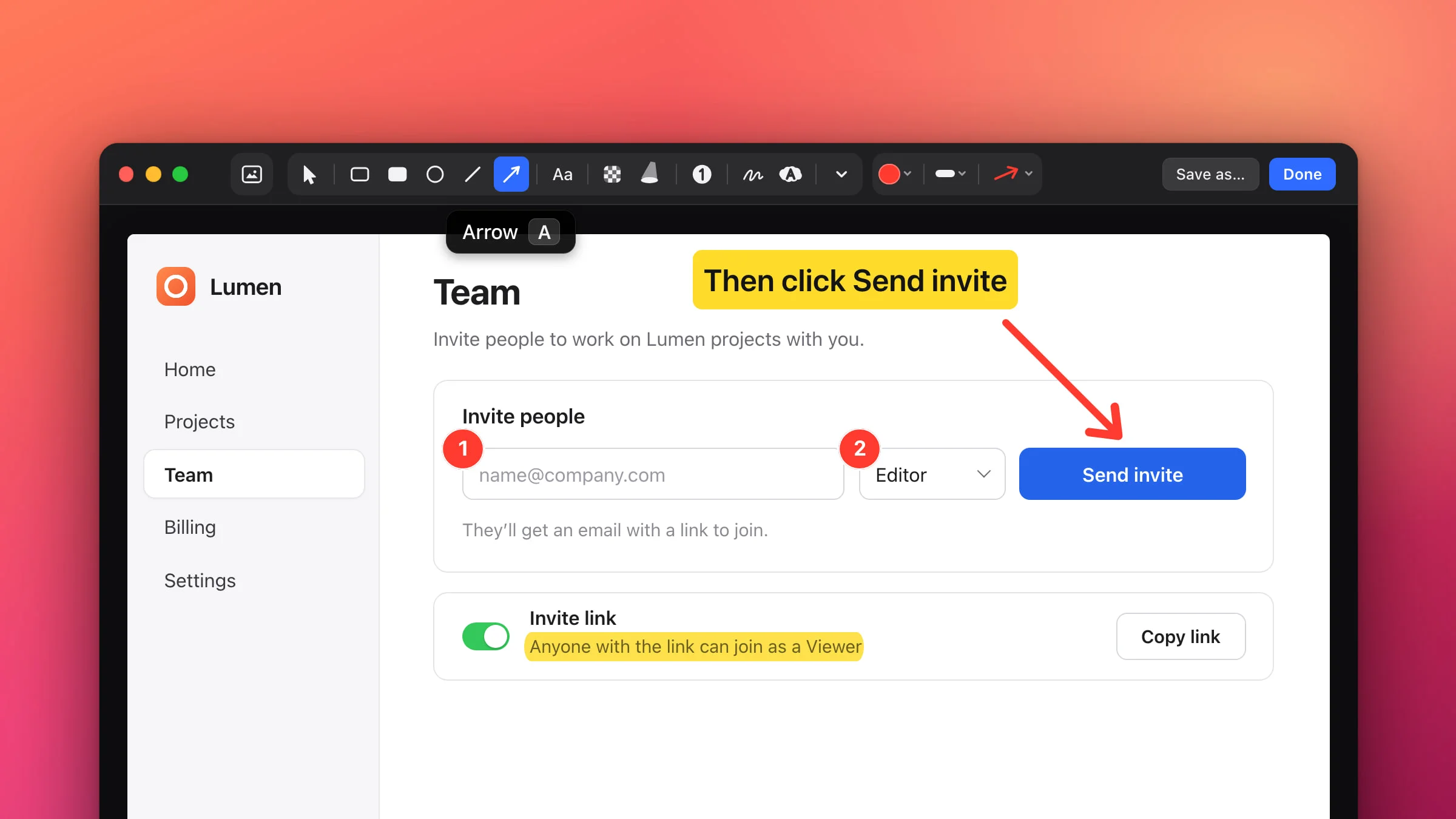
To edit a screenshot on a Mac with Snapix, click the preview that appears after you take it, or hover it and press ⌘E. Pick a tool by pressing its letter, like A for an arrow or T for text, then click Done. The edited picture lands on your clipboard, and every mark stays editable. If you’d rather not install anything, the Markup tools built into macOS can crop and annotate a screenshot too.
How to edit a screenshot on Mac with Snapix
- Open the screenshot in the editor. Press ⇧⌘4 and drag over what you need, then click the preview that slides into the corner, or hover it and press ⌘E. For an image already on your Mac, Control-click it in Finder and choose Open With ▸ Snapix.
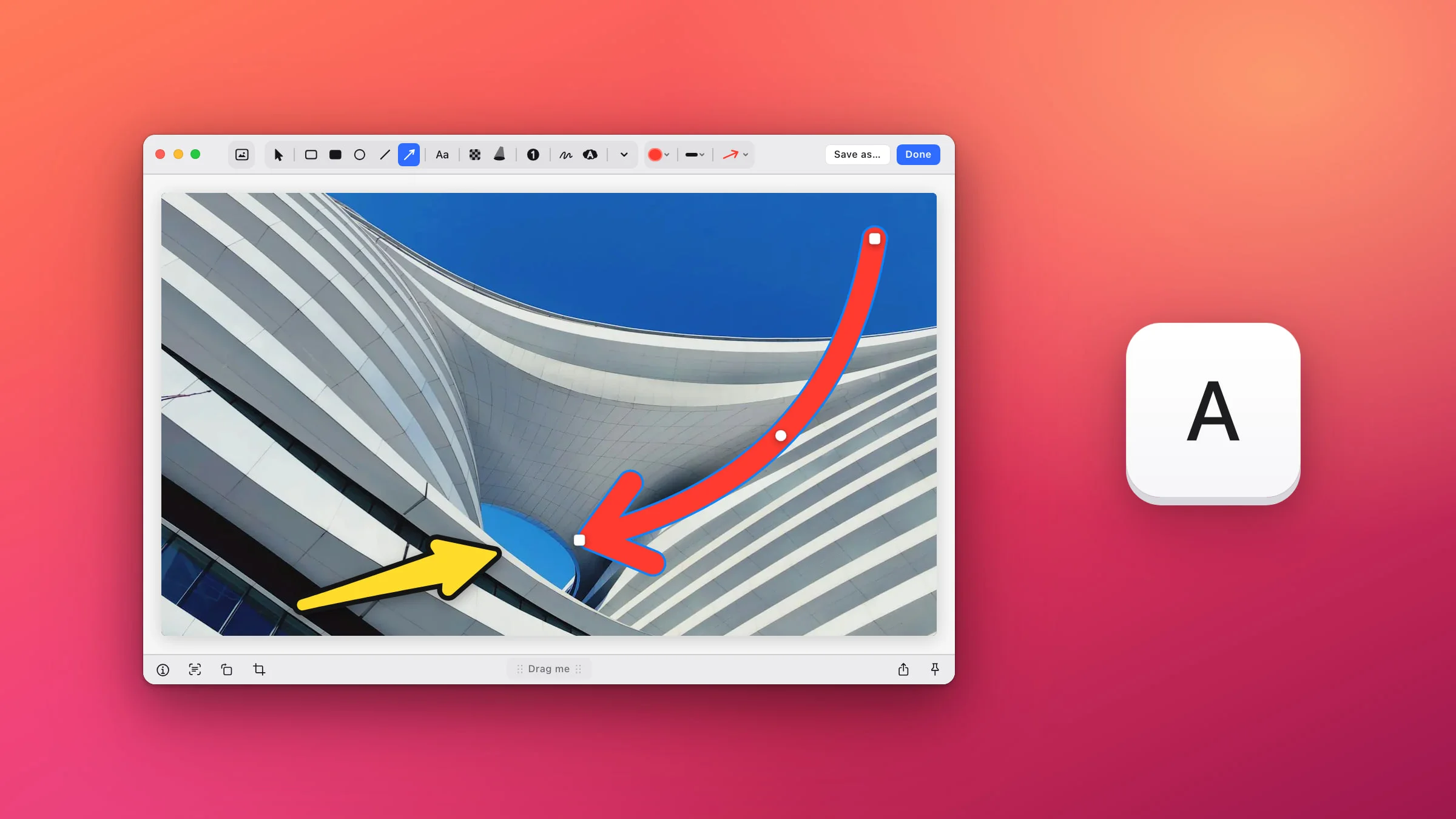
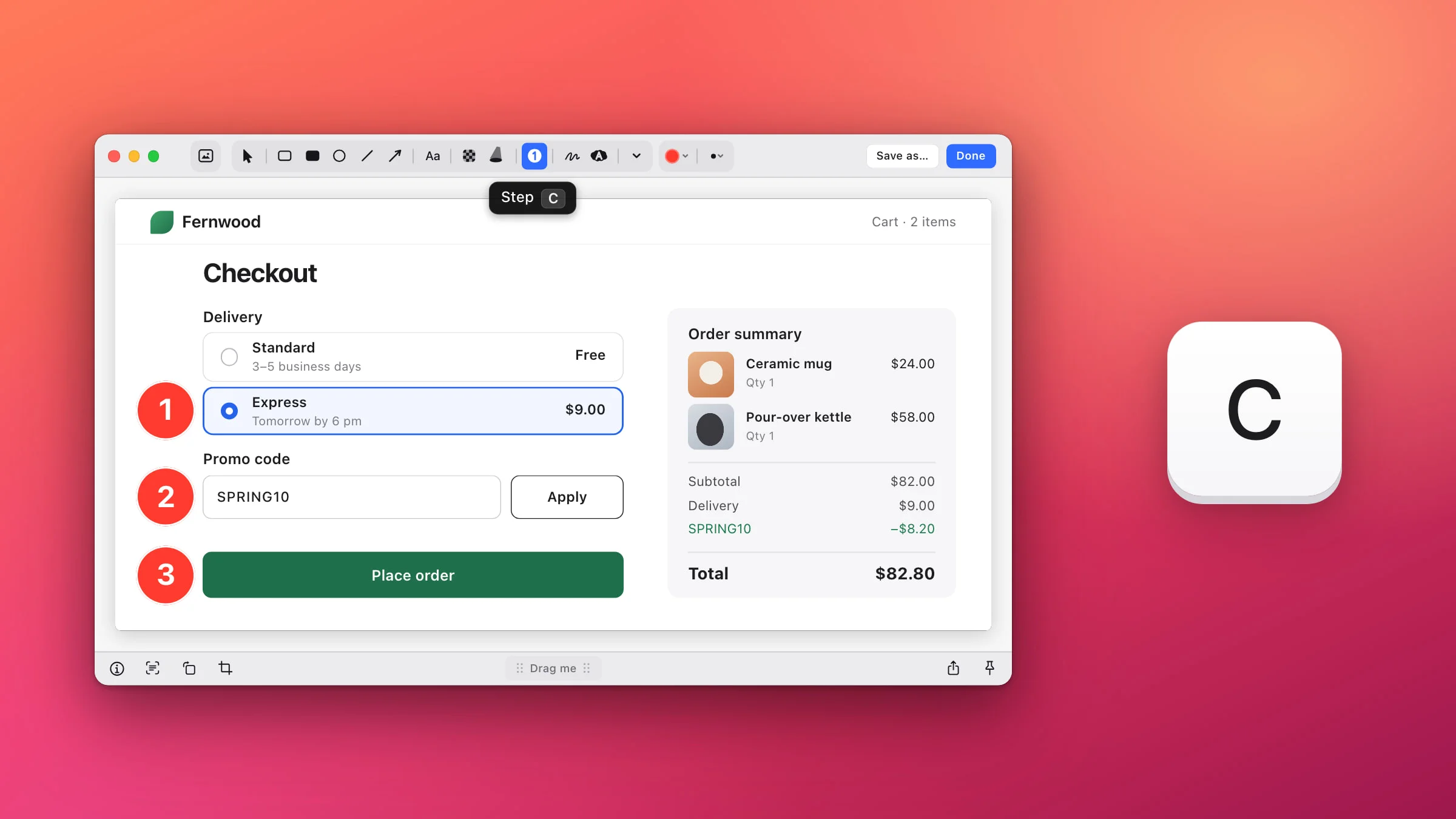
- Pick a tool. Click it in the toolbar at the top, or press its letter: A for Arrow, T for Text, C for a numbered Step. Hover any tool to see its name and key.
- Mark it up. Drag to draw an arrow, a box or a blur. Click to place a text label or the next number. Most tools stay picked, so you can add another mark straight away.
- Fix anything. Press ⌘Z to undo. Press V for Select, then click a mark to move it, resize it or delete it.
- Click Done. The finished picture is copied to your clipboard, ready to paste. To get a file instead, click Save as….

Tip: To skip the preview and land in the editor after every capture, turn on Open the editor in Snapix Settings ▸ After Capture.
Every tool and its key
The tools sit in the top bar in this order. Crop is in the bottom bar, next to Rotate 90° (⌘R), which turns the whole picture.
| Tool and key | What it’s for |
|---|---|
| Background G | Adds a background to the screenshot: a gradient, a color or your wallpaper, with padding and a shadow. |
| Select V | Moves, resizes, rotates and deletes marks. |
| Rectangle R | An outlined box. |
| Filled Rectangle F | A solid box. |
| Ellipse O | A ring around something. Hold ⇧ as you start for a circle. |
| Line L | A straight line. |
| Arrow A | Straight or curved arrows in four styles. |
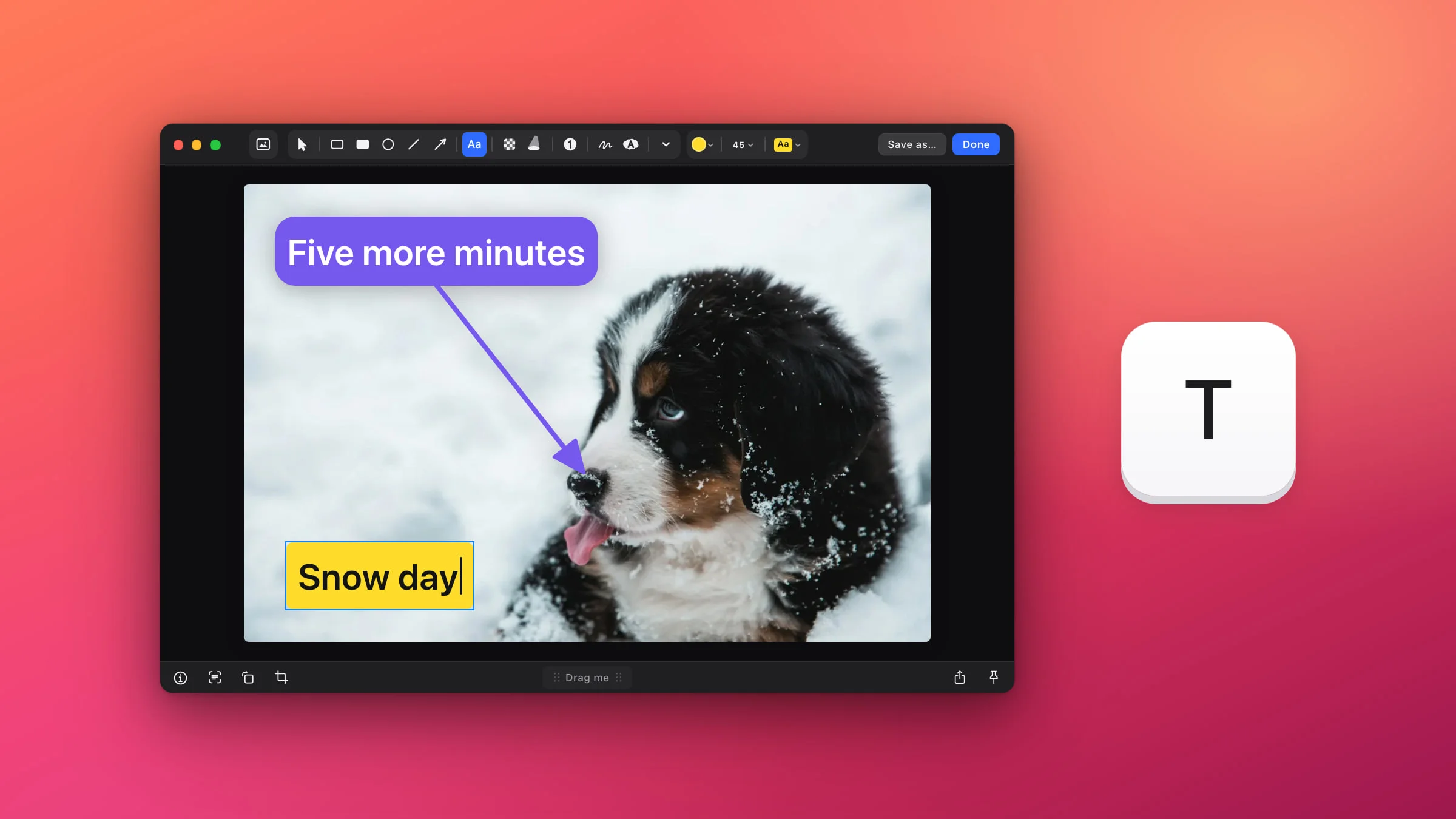
| Text T | Labels, captions and speech bubbles. |
| Pixelate P, Blur B, Black X | Blur or black out private details. The three share one button. |
| Spotlight S | Spotlights one part and dims the rest. |
| Step C | Numbered steps that count up by themselves. |
| Draw D | A pen that draws freehand or circles something. |
| Highlighter H | Highlights text with a marker band that sizes itself to the text under it. |
| Measure M | Measures pixels (or points) with a ruler that snaps to edges. It’s under More tools. |
| Emoji ⌃⌘Space | A searchable list of emoji stickers, also under More tools. |
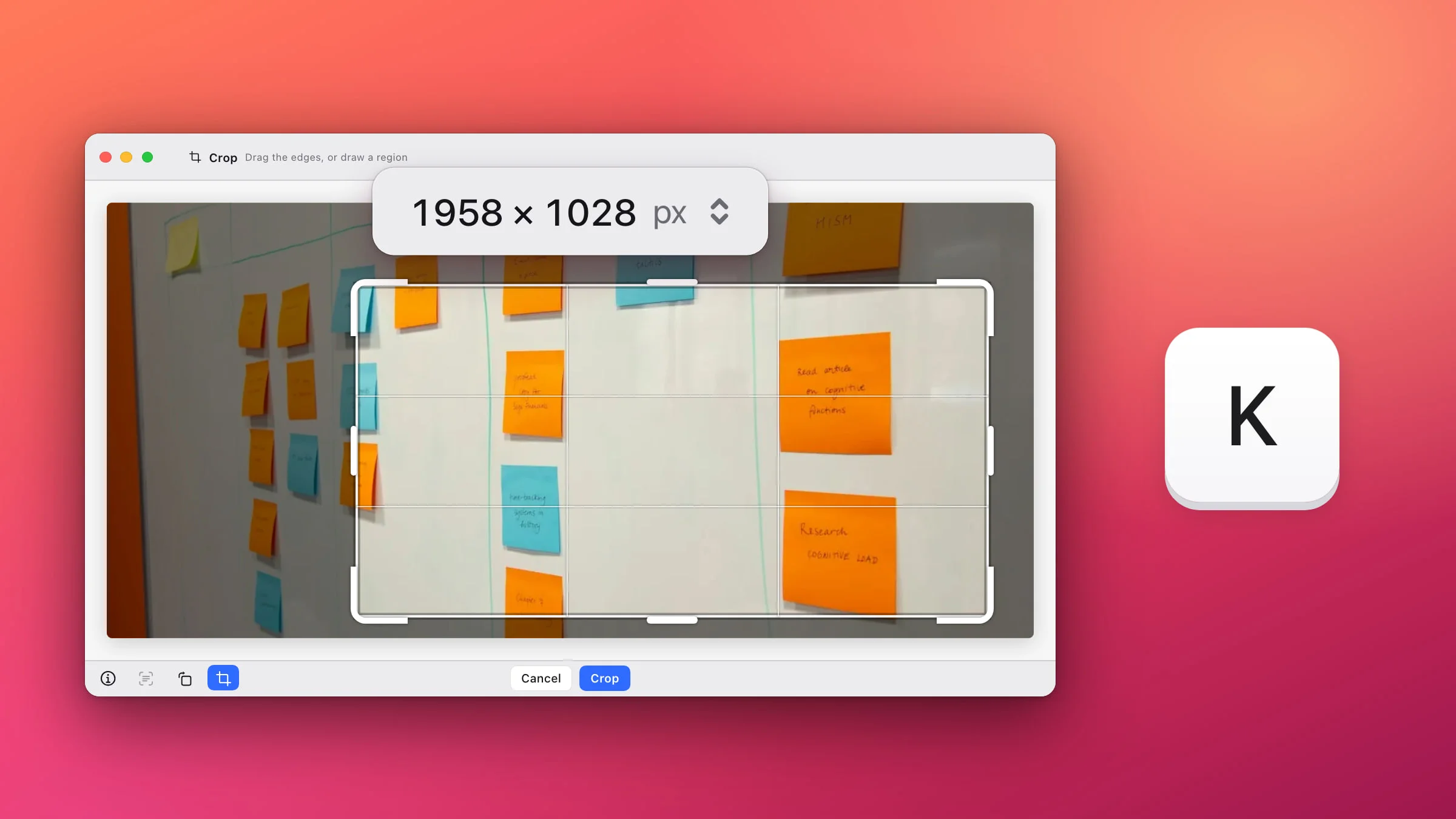
| Crop & resize K | Crops the screenshot, and can make it smaller in the same step. |
Colors, sizes and styles
When a tool is picked, the controls next to it in the top bar set its look:
- Color: ten presets, your Favorites and an eyedropper that picks a color from anywhere on screen (the Highlighter has its own eight marker colors).
- Stroke size: 2, 4, 6, 9, 13 or 18 pt for lines and shapes, or press 1 to 6.
- Style: four arrow styles, text as Plain, Outline, Background or Bubble, and an ellipse outlined, translucent, hatched or filled.
Each tool remembers its own color and size. With a mark selected, a new color changes that mark. With nothing selected, it sets up the next one.
Move, resize and zoom
Press V and click a mark to select it. Drag a corner handle to resize it, or point just outside a corner and drag to rotate a box, a label or a sticker. Hold ⌥ as you drag to pull off a copy, and press Delete to remove it.
⌘Z undoes and ⇧⌘Z redoes, crops and backgrounds included. Pinch or press ⌘= and ⌘- to zoom, ⌘0 to fit the window, and hold Space and drag to move around.
Find words inside the screenshot
Press ⌘F in the editor and type a word. Snapix reads the text in the picture on your Mac and lights up every match in yellow, with the one you’re on in orange. Press Return or ⌘G for the next match, ⇧⌘G for the previous one, and Esc to close the search. Capital letters and accents don’t matter, so “cafe” finds “Café”.

Before you share, search for your email address or a name and cover every place it appears. To copy words out of the picture, click the text button in the bottom bar (its tooltip says Show selectable text) and drag across the lines, the way Live Text works. There’s more in how to extract text from a screenshot.
Copy, save or share your edits
- Done copies the finished picture and closes the editor. The preview and Recent Captures (⇧⌘S) show the result, and your marks stay editable when you open it again. ⌘C does the same when nothing is selected.
- ⌘S saves a file to your Snapix folder (Documents ▸ Snapix unless you chose another in Settings ▸ Saving) and keeps the editor open.
- Save as… lets you choose the name and the folder, then shows the file in Finder.
- Pin (⌘P) floats the result on top of your other windows and the Dock.
- Drag the Drag me handle in the middle of the bottom bar into any app, and the picture arrives as a file: Slack, Mail, a browser upload.
- Share opens the macOS share menu, with AirDrop, Messages and Mail. See how to share a screenshot on Mac.
Note: Esc backs out one step at a time, and by default its last press copies the picture and closes the editor. It doesn’t keep your marks on the preview or in Recent Captures, so finish with Done (or Save as…, ⌘S or Pin) when you might want to change them later. ⌘W closes without saving anything, and doesn’t ask.
Edit an older screenshot or any image
- A recent screenshot: press ⇧⌘S for Recent Captures and double-click a capture. It opens with every arrow and label still its own mark.
- An image file: Control-click a PNG, JPEG, HEIC or TIFF in Finder and choose Open With ▸ Snapix. To open PNG and JPEG files in Snapix with a double-click, turn on Open image files in Snapix in Settings ▸ Editor. macOS asks you to confirm each format. There’s more in how to annotate any image on your Mac.
When you edit a file from Finder, Done, ⌘S and Pin save your changes into that same file, and Save as… writes a copy where you choose and updates that file too. Snapix keeps no backup. Make a copy first if you want to keep the original.
How to edit a screenshot without an app
Markup, the editor built into macOS, is fine for a quick crop, a shape or a signature.
- Open Markup. Right after you take a screenshot, click the thumbnail in the corner before it slides away. For an image already on your Mac, open it in Preview and click the Markup button.
- Pick a tool. The toolbar has Sketch, Shapes (with arrows, a loupe and a highlight), Text, Sign, Rotate and Crop.
- Click Done.
Markup can’t blur or pixelate, and it doesn’t number steps for you. The free Annotate Screenshot tool adds arrows, boxes, text and blur right in your browser, or you can try Snapix free.