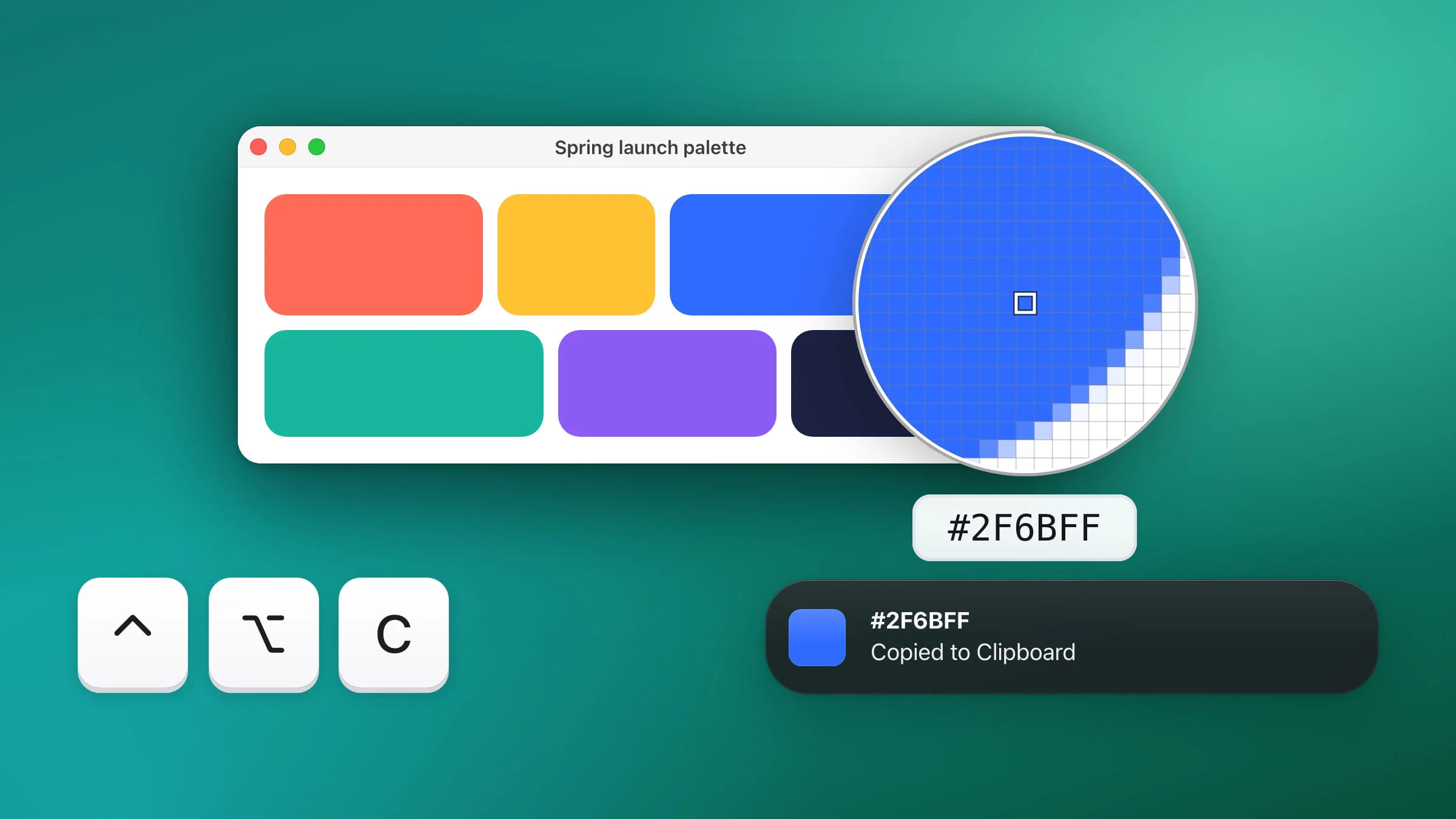
To pick a color from your screen on a Mac, press ⌃⌥C in Snapix, move the loupe over the color and click. Its hex code, like #2F6BFF, is now on your clipboard, ready to paste into CSS, Figma or a message. macOS also comes with Digital Color Meter, a small color picker that shows the values of whatever color is under the pointer.
How to pick a color from your screen with Snapix
- Press ⌃⌥C. Or click the Snapix icon in the menu bar and choose Pick Color. It works from any app, and the app you’re in stays in front.
- Move the loupe over the color. A round magnifier takes the place of the pointer. It magnifies a patch 19 pixels across, with the pixel in the middle outlined and its hex code underneath.
- Click. The pixel in the middle is the one you get. The pick happens when you let go of the button, so you can still steer while it’s down. A right-click picks too, and Esc cancels without copying anything.
- Paste the code. A banner at the top of the screen shows the hex code and Copied to Clipboard. Press ⌘V wherever you need it, and you get the text, like
#2F6BFF.

What gets copied
- A hex code and nothing else. The format is #RRGGBB: a # and six hex digits, letters in capitals, as plain text. There’s no setting for RGB or HSL. If you need those, our free Color Picker from Image tool shows HEX, RGB and HSL for any screenshot, right in your browser.
- One exact pixel. Snapix doesn’t average the pixels around it. On a Retina display it picks single pixels, not points (a point is 2 × 2 pixels there), and the loupe shows each one 12 times larger.
- sRGB values. Snapix converts the pixel from your display’s color profile to sRGB. On a wide-color (P3) display you get the sRGB code, the one you’d type into CSS or Figma.
- Only the clipboard. Picks aren’t kept anywhere else, so paste the code before you pick the next one.
Pick from any display, a video or a full-screen app
- Every display. The loupe follows the pointer onto any connected monitor. If you plug in, unplug or rearrange a display while picking, the pick is canceled. Press ⌃⌥C again.
- Moving pictures. The picture under the loupe is re-read many times a second, so you can pick from a video while it plays.
- Full-screen apps and Spaces. The loupe works over full-screen apps and on every Space.
If Pick Color is grayed out in the Snapix menu, Snapix needs you to be signed in and needs Screen Recording permission, the same as for a screenshot. See what to do when screenshots aren’t working. After the free trial ends, ⌃⌥C opens the upgrade window instead of the loupe.
Note: By default, the loupe looks straight through Snapix’s own floating previews, pins and banners, and picks what’s behind them. To pick a color from a capture, open it in the editor first (the loupe can see the editor window), or turn on Settings ▸ Capture ▸ Show Snapix UI in screenshots.
Match a color while you mark up a screenshot
The Snapix editor has the same loupe, but it colors your marks instead of copying a code.
- Choose what to color. Select the marks you want to recolor, or pick a tool such as Arrow.
- Open the eyedropper. Click the color swatch in the toolbar, then the eyedropper button (Pick a color from the screen).
- Click any pixel. It can be in the picture, in another app or on another display. The marks take that color, and so does the tool from then on. Nothing is copied to the clipboard.
- Keep it for later. Click the color swatch again, then Favorite. Favorites holds up to 10 colors (an 11th replaces the oldest) and keeps them after you quit Snapix. The button is gray when the color is already a favorite or one of the 10 presets.

If you already copied a code with ⌃⌥C, click the square color well next to the eyedropper, select the code in the hex field and paste yours over it. There’s more about the editor in how to edit a screenshot on Mac.
How to pick a color with Digital Color Meter on Mac
Every Mac comes with Digital Color Meter, which reads the color under the pointer. You don’t need to install anything.
- Open Digital Color Meter. It’s in the Utilities folder in Applications, or find it with Spotlight.
- Switch to sRGB. Choose Display in sRGB from the pop-up menu in its window, so the values are in the color space web colors use.
- Show hex values. Choose View ▸ Display Values ▸ as Hexadecimal.
- Read one pixel. Drag the Aperture Size slider all the way down, since a larger aperture averages several pixels. Then move the pointer over the color. Its R, G and B values appear on the right of the window, as three separate numbers rather than one #RRGGBB code. Press ⌘L to lock the position so you can move the pointer away.
- Copy the values. Press ⇧⌘C (Color ▸ Copy Color as Text).
Digital Color Meter does a few things Snapix doesn’t. It shows values in other color spaces, such as P3 and L*a*b*, and it can copy the color as an image with ⌥⌘C.
Apps that open the Mac’s Colors window, such as TextEdit for text color, have an eyedropper button there too. It picks a color for that app to use.
If you’re checking spacing as well as colors, Snapix can also measure pixels in a screenshot. It can scan a QR code on your Mac screen too, and copy what the code says. You can try Snapix free for 14 days.