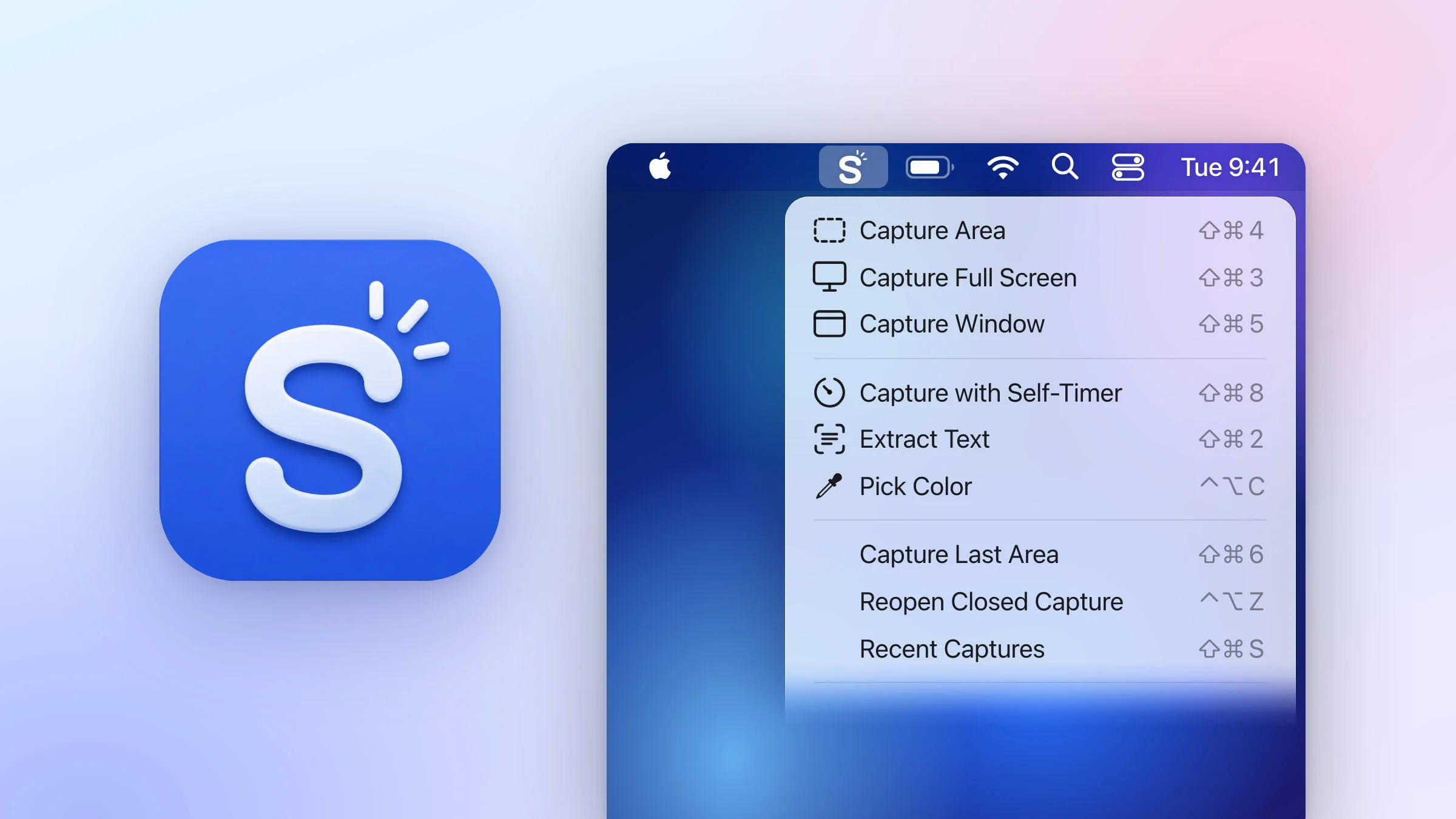
To set up Snapix on your Mac, download it, open it and let it move itself to Applications, then sign in with Google or Apple and allow Screen Recording in System Settings. After that, press ⇧⌘4 and drag over anything to take your first screenshot. Snapix needs macOS 14 Sonoma or later, and its setup window walks you through each step.
How to set up Snapix on your Mac
- Download Snapix. Go to the download page and click Get started on macOS. Snapix comes as a zip file, notarized by Apple.
- Open it and move it to Applications. In your Downloads folder, double-click Snapix (double-click Snapix.zip first if it’s still zipped). The first time, your Mac asks if you’re sure you want to open an app downloaded from the internet. Click Open. Snapix then asks Move Snapix to the Applications folder? Click Move to Applications, and it moves itself there and reopens. macOS may also ask whether Snapix can access files in your Documents folder, where Snapix keeps a folder for the screenshots you save. Allow it.
- Sign in. On the Welcome to Snapix screen, click Sign In. Your web browser opens the Snapix sign-in page, where you choose Continue with Google or Continue with Apple. If the browser asks to open Snapix, allow it. Snapix picks up the sign-in by itself. The first time you sign in, your 14-day free trial starts.
- Allow Screen Recording. On Permission to Take Screenshots, Snapix asks macOS for permission right away. Click Open System Settings, turn on the switch next to Snapix, then come back. Snapix moves on by itself. If macOS offers to quit and reopen Snapix, let it, and setup picks up where you left off.
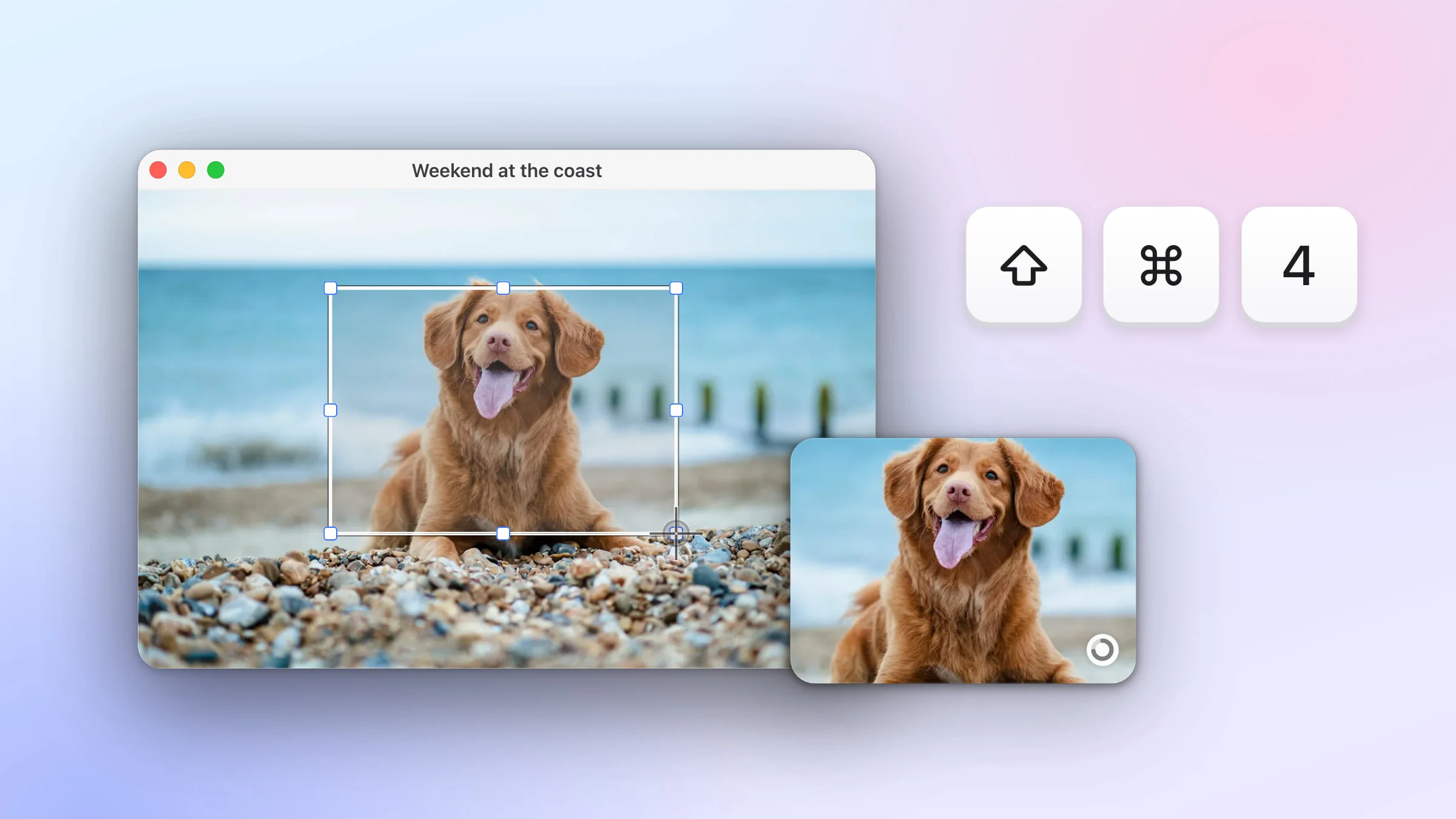
- Take your first screenshot. On the next page, press ⇧⌘4, drag over anything on your screen and let go. A preview of the screenshot floats into the bottom-right corner, and the picture is already on your clipboard.
- Pick your preview settings and finish. Choose the corner where previews land and how long they stay on screen (5, 10, 15 or 30 seconds, or Forever). Answer the usage statistics question if you see it, then click Finish.

Why does Snapix need Screen Recording permission?
macOS only lets an app see what’s on your screen after you turn on its switch in System Settings ▸ Privacy & Security ▸ Screen & System Audio Recording. On early releases of macOS 14 Sonoma, that list is called Screen Recording.
Snapix reads the screen when you ask it to: when you take a screenshot, pick a color with Pick Color or hide your desktop icons. It doesn’t record video or sound, and your screenshots stay on your Mac. Snapix doesn’t ask for Accessibility permission either, because its keyboard shortcuts work without it.
Note: On recent versions of macOS, your Mac asks again from time to time whether Snapix can keep accessing your screen, usually as you take a screenshot. Allow it, and Snapix carries on as before.
Does Snapix go online?
Snapix goes online to sign you in and keep your account and trial up to date, and, by default, to check for updates once a day. If you share usage statistics, it also sends counts of the features you use, never your screenshots or what’s in them. To turn sharing off, open Settings, click your name at the bottom of the sidebar, then choose Manage Account and turn off Share usage statistics.
Where to find Snapix after setup
Snapix lives in the menu bar at the top of your screen, not in the Dock. Click the Snapix icon on the right side of the menu bar to see every capture with its shortcut, plus Settings… and Quit Snapix. A Dock icon shows up only while one of its windows, like Settings or the editor, is open.
Can’t see the icon? Open Snapix again from your Applications folder. While it’s running, that opens its Settings window.
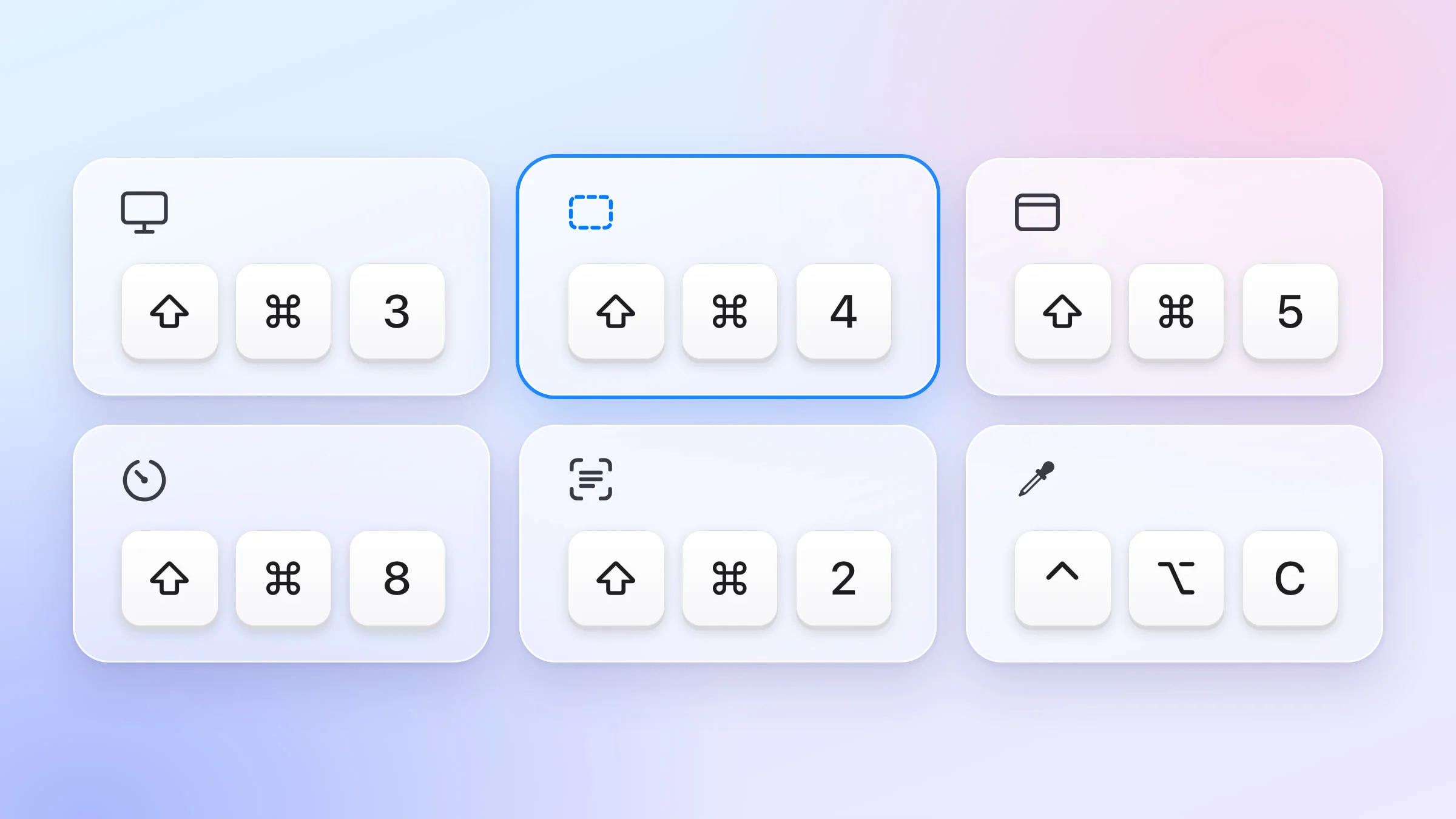
The three main captures use the chords you already know from macOS:
- ⇧⌘4 for Capture Area: drag over part of the screen.
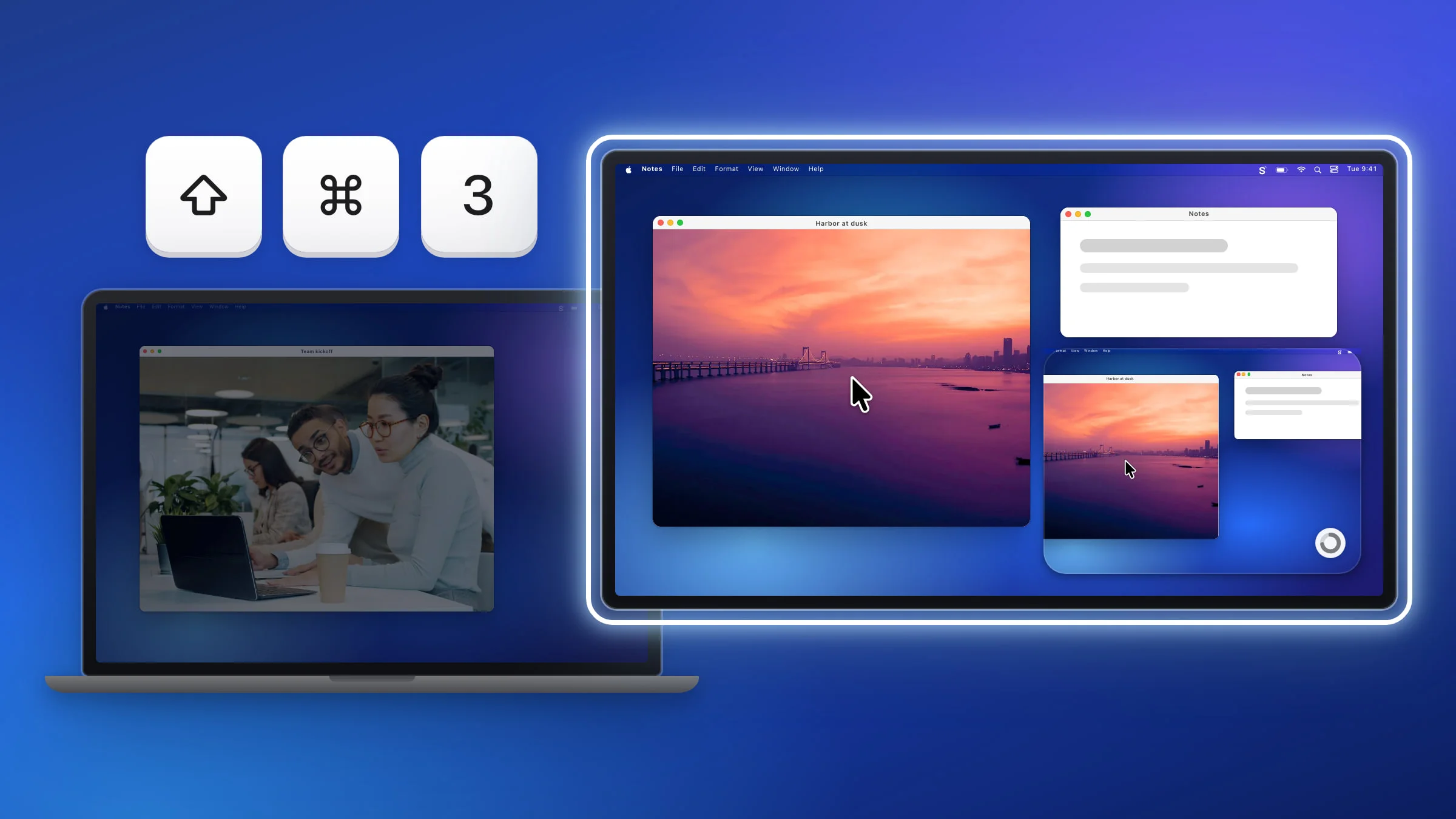
- ⇧⌘3 for Capture Full Screen: the display under the pointer.
- ⇧⌘5 for Capture Window: click the window you want.
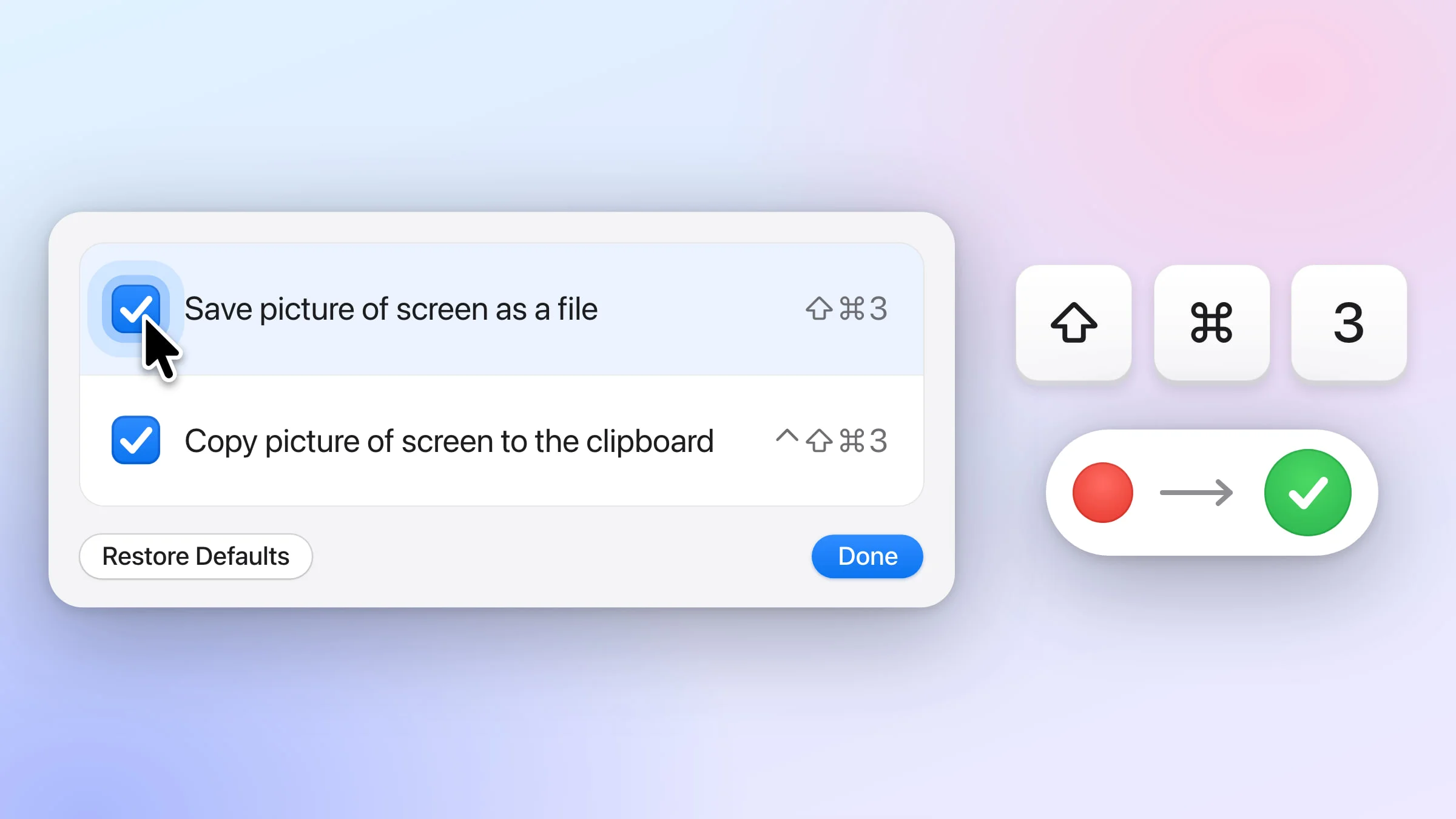
While Snapix uses these chords, it switches off the matching macOS screenshot shortcuts, and it gives them back when you quit. ⌃⇧⌘3 and ⌃⇧⌘4 still copy to the clipboard the macOS way. To use other keys, change the screenshot shortcuts. For every way to capture, see how to take a screenshot on a Mac.
Launch at login and where screenshots go
When you allow Screen Recording during setup, Snapix turns on Launch Snapix at login for you, so it’s in your menu bar after every restart.
Each screenshot is copied to your clipboard and kept in Recent Captures (⇧⌘S), which holds your last 50 shots inside Snapix. To get a file you can open in Finder, click Save, or turn on Settings ▸ Saving ▸ Save every screenshot automatically to save every shot to Documents ▸ Snapix or a folder you choose. There’s more in where screenshots go on a Mac.
If something doesn’t work
If a shortcut does nothing or the menu items stay gray, check that Snapix is switched on in Screen & System Audio Recording, and that you’re signed in. When you’re signed out, the Snapix menu has a Sign in… item that takes you back to the sign-in screen. For every other fix, see screenshot not working on Mac.