To change the screenshot shortcut on a Mac, choose Apple menu ▸ System Settings, click Keyboard, click Keyboard Shortcuts…, then click Screenshots. Double-click a shortcut such as ⇧⌘4 and press the keys you want instead. To switch one off, untick its box.
If you use Snapix, you set custom shortcuts for any of its ten actions in its own settings. By default it answers ⇧⌘3, ⇧⌘4 and ⇧⌘5 itself, so change those keys in Snapix rather than in System Settings.
How to change the screenshot shortcut in System Settings
- Open Keyboard settings. Choose Apple menu ▸ System Settings, then click Keyboard in the sidebar. You may need to scroll down to find it.
- Open the screenshot shortcuts. Click Keyboard Shortcuts…, then click Screenshots in the sidebar.
- Double-click the shortcut you want to change. The keys sit at the right end of each row, for example ⇧⌘4 beside Save picture of selected area as a file.
- Press the new keys. Hold the modifier keys and press the last key, for example ⌃⌥⌘4. They replace the old shortcut.
- Click Done. Try your new keys. To get the original ones back later, open the same list and click Restore Defaults.

The screenshot shortcuts you can change
| Row in Screenshots | Default keys |
|---|---|
| Save picture of screen as a file | ⇧⌘3 |
| Copy picture of screen to the clipboard | ⌃⇧⌘3 |
| Save picture of selected area as a file | ⇧⌘4 |
| Copy picture of selected area to the clipboard | ⌃⇧⌘4 |
| Screenshot and recording options | ⇧⌘5 |
Each row has its own box. Untick one and macOS stops answering those keys, which frees them for another app. The two Copy picture rows copy a screenshot to the clipboard instead of saving a file. On macOS 27, the list can also include Siri AI rows, such as Ask Siri about selected area on ⇧⌘6.
On macOS 12 Monterey or earlier, the same list is in System Preferences ▸ Keyboard ▸ Shortcuts ▸ Screenshots.
How to change Snapix’s screenshot shortcuts
Snapix is a menu bar app for macOS 14 Sonoma or later, and its shortcuts work from any app.
- Open Snapix’s settings. Click the Snapix icon in the menu bar and choose Settings… in its menu.
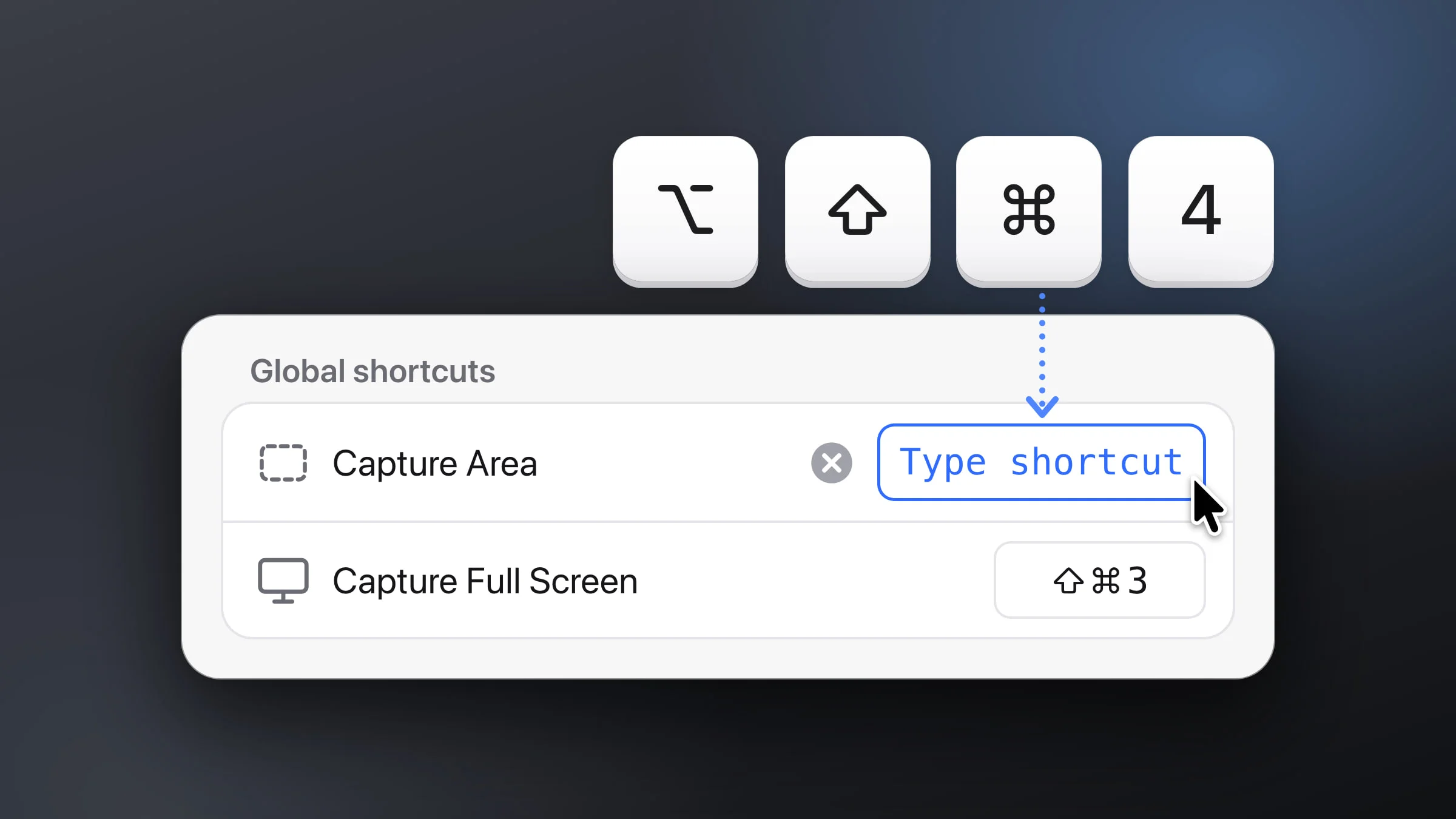
- Click Shortcuts in the sidebar. The actions are listed under Global shortcuts, in the same order and groups as the Snapix menu.
- Click the shortcut beside an action. It turns blue and reads Type shortcut.
- Press the new keys. Snapix saves them right away, and the Snapix menu shows them too. Press Esc to cancel, or Delete to remove the shortcut, which then reads None.

A few rules for the new keys:
- Include Control, Option or Command. A shortcut needs at least one of ⌃, ⌥ or ⌘, because ⇧ on its own would get in the way of typing. Function keys from F1 to F20 work alone (on a laptop keyboard, hold Fn as you press one). Otherwise the row briefly shows Add ⌃, ⌥ or ⌘.
- One action per shortcut. If another Snapix action already has the keys, the row briefly names it, for example Used by Recent Captures.
- Other shortcuts aren’t checked. Snapix looks after ⇧⌘3, ⇧⌘4 and ⇧⌘5 (below), but it doesn’t check the rest of macOS’s shortcuts or other apps’, so it won’t warn you about a clash. Don’t give a Snapix action the same keys as a row in System Settings, and if your new keys also set off something else, record different ones.
- Going back is one click. A changed shortcut gets a reset arrow beside it that puts its default back, unless another action has those keys now. Restore Defaults, under the last group, resets all of them.
All ten actions are there: Capture Area, Capture Full Screen, Capture Window, Capture with Self-Timer, Extract Text, Pick Color, Capture Last Area, Reopen Closed Capture, Recent Captures and Hide Desktop Icons. Hide Desktop Icons starts with no shortcut, so record one if you often hide your desktop icons before a screenshot. Every default is in the Mac screenshot shortcut cheat sheet.
How Snapix shares the screenshot keys with macOS
By default, Snapix’s Capture Full Screen, Capture Area and Capture Window use the Mac’s own keys: ⇧⌘3, ⇧⌘4 and ⇧⌘5. While a Snapix shortcut sits on one of those keys, Snapix switches off the macOS shortcut for it, so only one app answers. Record other keys for the Snapix action, or remove its shortcut, and macOS gets those keys back at once.
The line under the first group in Settings ▸ Shortcuts tells you which of ⇧⌘3, ⇧⌘4 and ⇧⌘5 open Snapix instead of macOS. Beside it, Hand these back to macOS (or Hand ⇧⌘4 back when there’s only one) clears them from Snapix’s shortcuts in one click. The captures stay in the Snapix menu, ready for new keys.
If the line says macOS is still handling one of them, click Open Keyboard Shortcuts and untick that row under Screenshots. If it says Right now ⇧⌘4 does nothing, click Turn back on.
Quitting Snapix or signing out also hands the keys back, until you open Snapix or sign in again. After Hand these back to macOS, take them over again by recording them on an action or clicking Restore Defaults.
The clipboard shortcuts, ⌃⇧⌘3 and ⌃⇧⌘4, always stay with macOS. While Snapix holds ⇧⌘3, ⇧⌘4 or ⇧⌘5, the matching row in System Settings may show as unticked. That’s Snapix switching the row off, whatever keys it has, and Snapix ticks it again when it hands the keys back. So new keys you give Save picture of selected area as a file won’t work until Snapix lets go of ⇧⌘4.
Note: Snapix doesn’t switch off anything macOS puts on ⇧⌘6, its default for Capture Last Area, which screenshots the same area again. On a Mac with a Touch Bar running macOS 26 or earlier, and on macOS 27 with Siri AI turned on, macOS uses ⇧⌘6 too. If Capture Last Area doesn’t respond, record other keys for it.
If a screenshot shortcut does nothing at all, see screenshot not working on Mac. To set your own keys for every capture, try Snapix free.