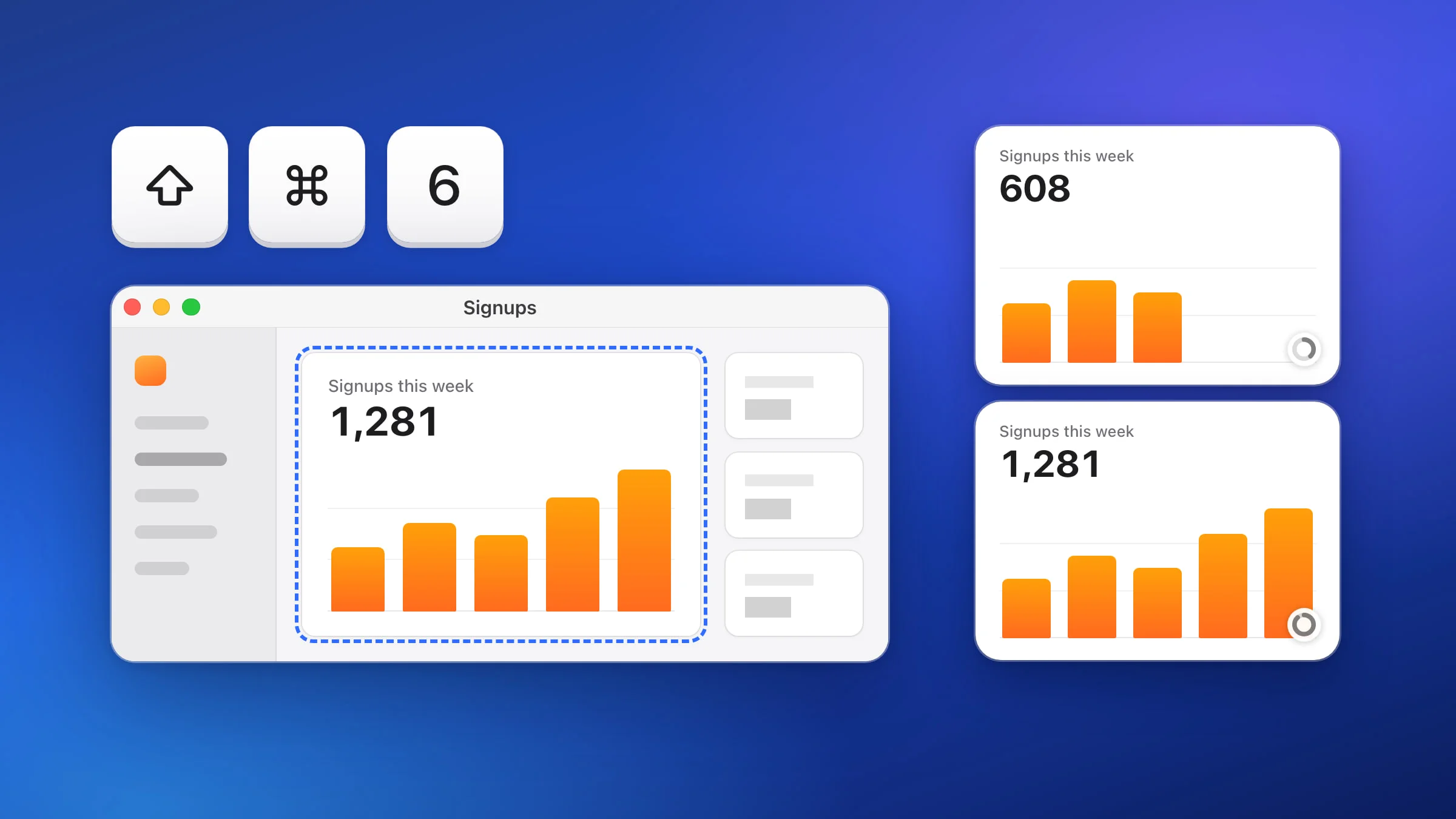
To screenshot the same area again on a Mac, press ⇧⌘6 in Snapix. Capture Last Area takes the rectangle you last dragged and captures it again right away, with no crosshair and nothing to line up. The tools built into macOS get close: the Screenshot toolbar (⇧⌘5) can remember your last selection, though you still click Capture for each shot.
How to screenshot the same area again with Snapix
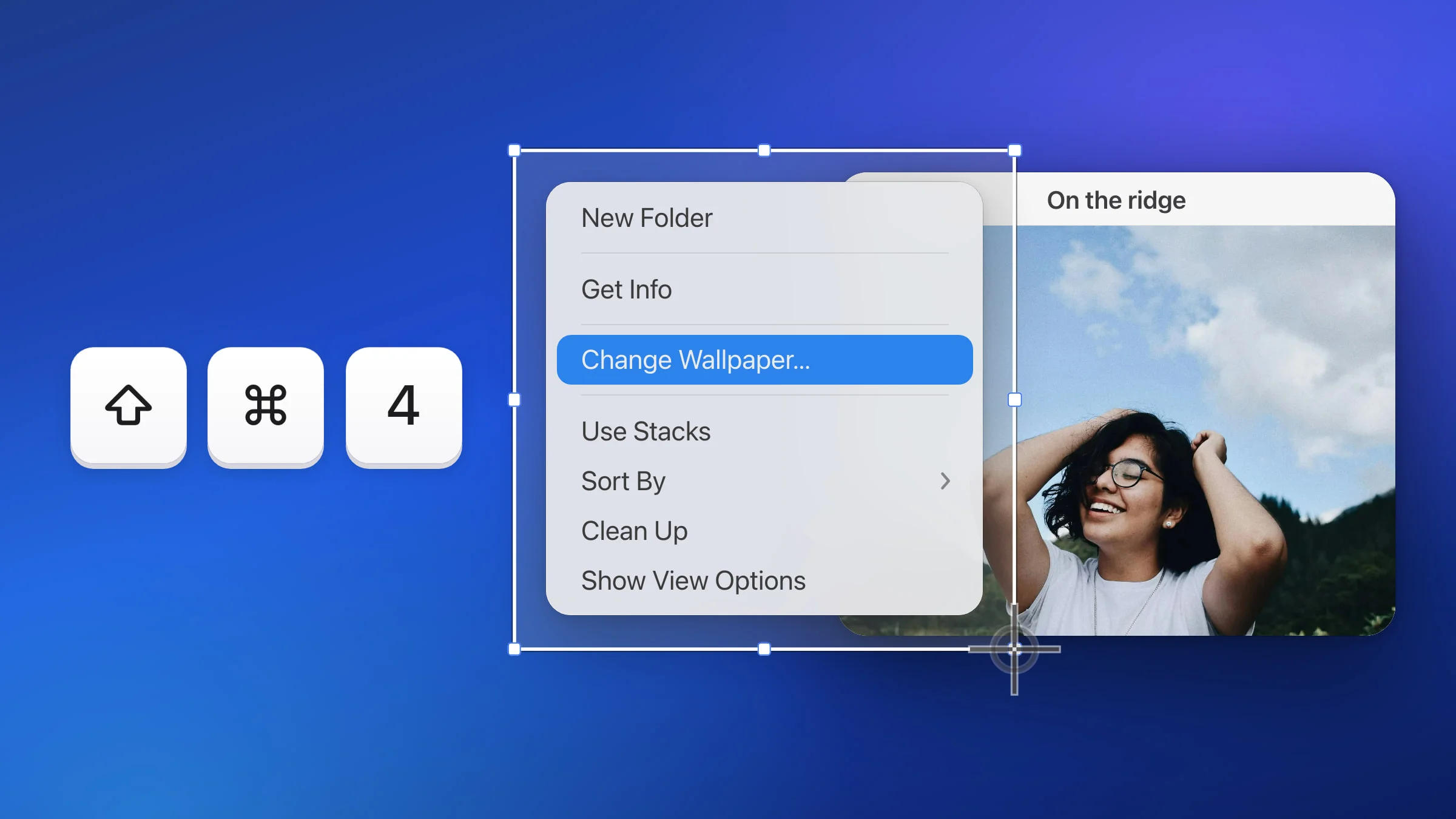
- Drag the area once. Press ⇧⌘4 and drag over a chart, a progress bar or one corner of a design, the same way you’d screenshot part of the screen. Snapix captures it and remembers that rectangle.
- Let things change. Make your edit, wait for the new numbers, or let the download run. Leave the window where it is, because Snapix remembers a place on the screen, not a window.
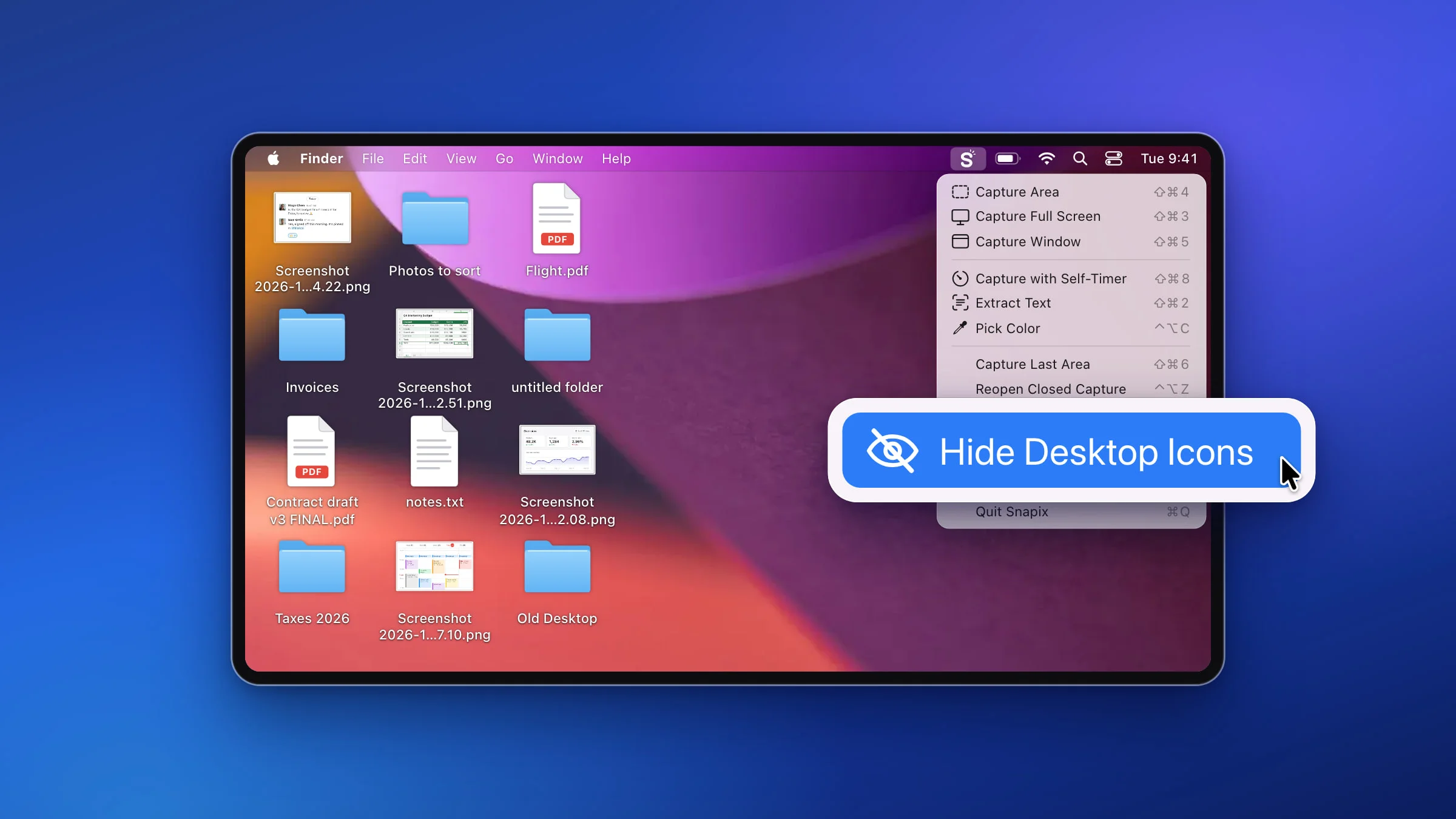
- Press ⇧⌘6. Snapix captures the same rectangle at once, with a shutter sound unless you’ve turned off the screenshot sound. By default a preview appears in the corner and the picture is already on your clipboard. Capture Last Area in the Snapix menu does the same.
- Press ⇧⌘6 again for each new shot. Each press is a new capture of the same spot, with its own preview and its own place in Recent Captures, so every shot in a series has the same size and framing.

Where the remembered area comes from
Snapix keeps one area, from your most recent drag. Any of these sets it:
- A Capture Area drag (⇧⌘4).
- A drag in Capture Window (⇧⌘5) after you press Space to switch to an area.
- An Extract Text drag (⇧⌘2). Pressing ⇧⌘6 after it takes a picture of that area, not its text.
Other captures don’t change it. Clicking a window, a full-screen or self-timer shot, and an aim you cancel with Esc all leave the area as it was. To change it, drag a new one with ⇧⌘4.
Good to know before you rely on it
- It lasts until Snapix quits. The area is kept in memory. After you quit and reopen Snapix, or restart your Mac, the first ⇧⌘6 opens the crosshair so you can drag a new one.
- It’s a place on the screen. If you move or resize the window, ⇧⌘6 still captures the old spot and whatever is there now. Drag a new area to follow the window.
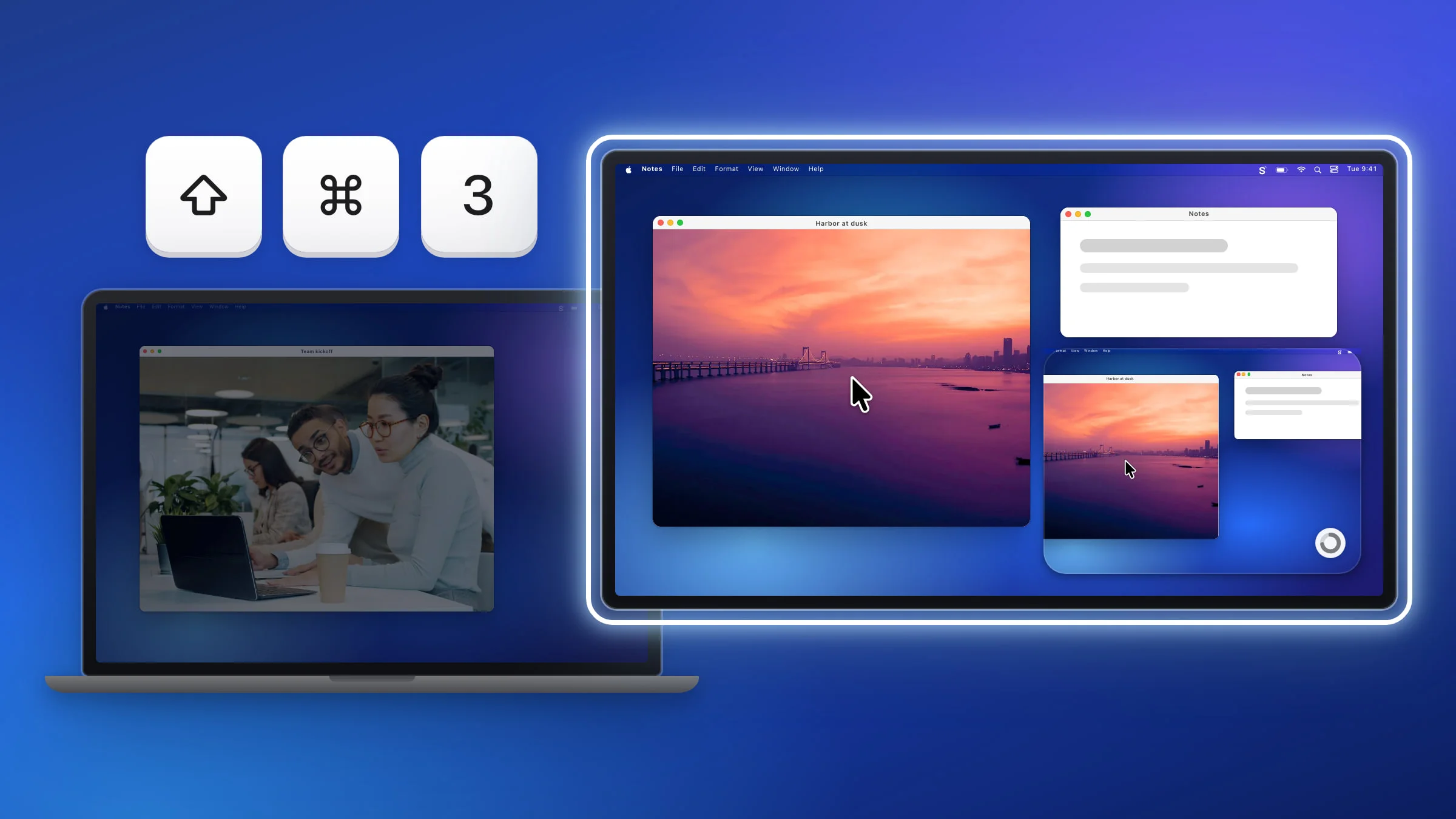
- More than one display. An area that spans two monitors comes back as one stitched image, just like the first drag. By default the preview shows up on the display with the pointer, even when the area is on another one. If you’ve disconnected the display the area was on, drag a new area first. Otherwise ⇧⌘6 captures nothing, or whatever is now at that spot on another display.
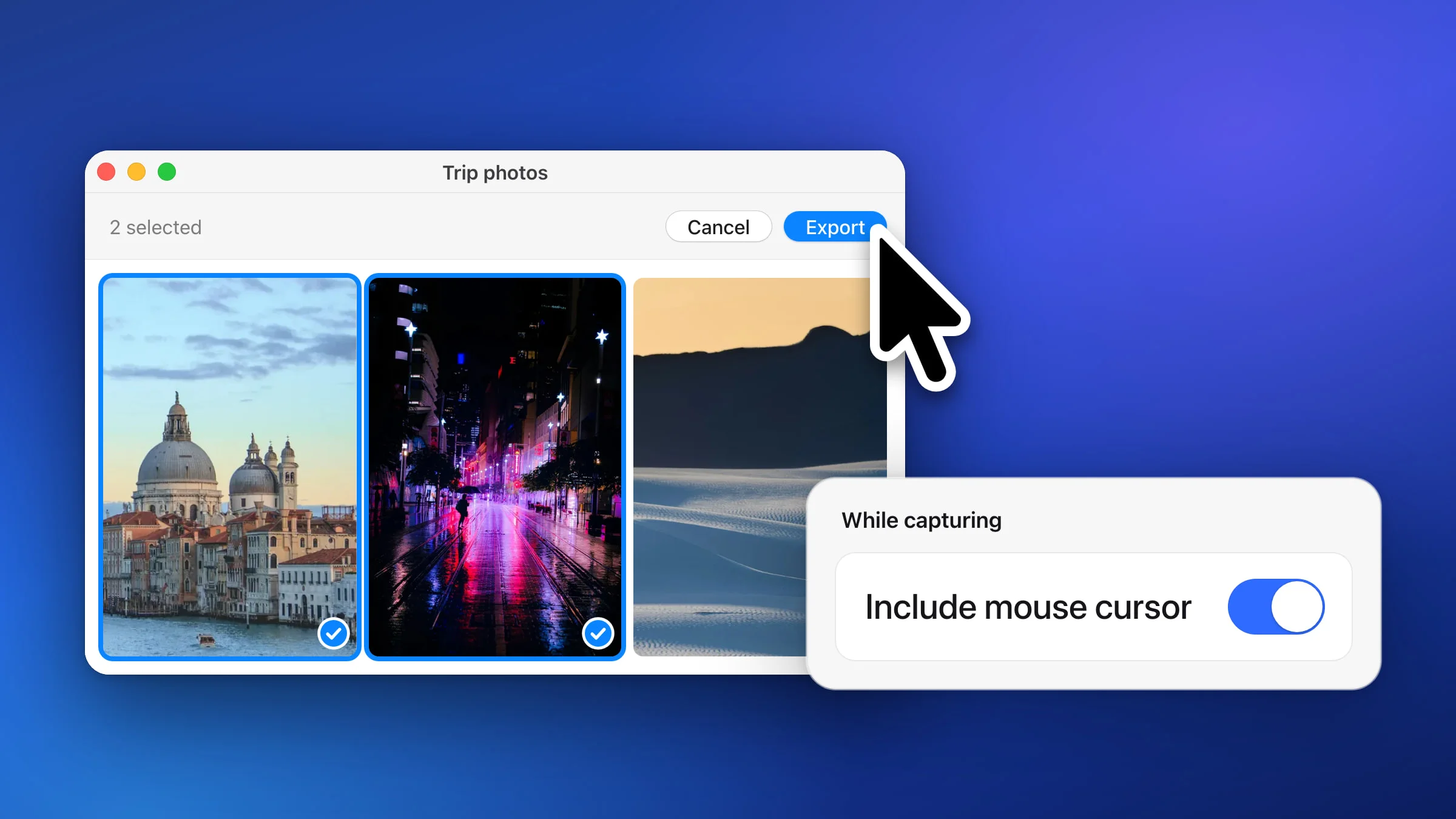
- No pointer. Like every area shot, it never includes the mouse pointer.
Tip: Every shot in the series also lands in Recent Captures (⇧⌘S), newest on the left, each one framed exactly like the last. ⌘-click the before and after shots and drag them into a message or a document in one go.
If ⇧⌘6 does nothing or opens something else
With its default shortcuts, Snapix switches off macOS’s own ⇧⌘3, ⇧⌘4 and ⇧⌘5 so they don’t clash, but it leaves ⇧⌘6 alone. On some Macs, macOS has its own use for that chord:
- On a MacBook Pro with a Touch Bar running macOS 26 or earlier, it saves a picture of the Touch Bar.
- On macOS 27 with Siri AI turned on, it lets you ask Siri about a selected area.
If macOS answers instead of Snapix, open Snapix Settings ▸ Shortcuts, click the shortcut next to Capture Last Area and press the keys you’d like to use. See how to change the screenshot shortcut for the details. If you’d rather keep ⇧⌘6 for Snapix, open System Settings ▸ Keyboard ▸ Keyboard Shortcuts ▸ Screenshots instead and untick Save picture of the Touch Bar as a file (Touch Bar Macs on macOS 26 and earlier) or Ask Siri about selected area (macOS 27).
How to repeat a screenshot area without an app
macOS has no shortcut that captures the last area again, but its Screenshot toolbar can remember where your frame was.
- Press ⇧⌘5 to open the Screenshot toolbar. If Snapix is using that shortcut, open the Screenshot app from Spotlight or Applications ▸ Utilities instead.
- Click Capture Selected Portion, then drag the frame over the area or drag its edges to resize it.
- Click Options and check that Remember Last Selection is ticked. It’s on by default.
- Click Capture. macOS saves the file to your Desktop by default.
- Next time, open the toolbar again. Your last selection is already set up, so you only click Capture.
| Snapix ⇧⌘6 | macOS ⇧⌘5 toolbar | |
|---|---|---|
| Each new shot | One shortcut | Open the toolbar, then click Capture |
| Before you capture | Nothing appears on screen | The frame shows, and you can adjust it |
| Where the shot goes | Clipboard and a preview, by default | A file on the Desktop, by default |
The toolbar takes a couple of extra clicks, but you get to see and nudge the frame before each shot. If you’d rather have one key for it, try Snapix free. For every other way to capture your screen, see how to take a screenshot on a Mac.