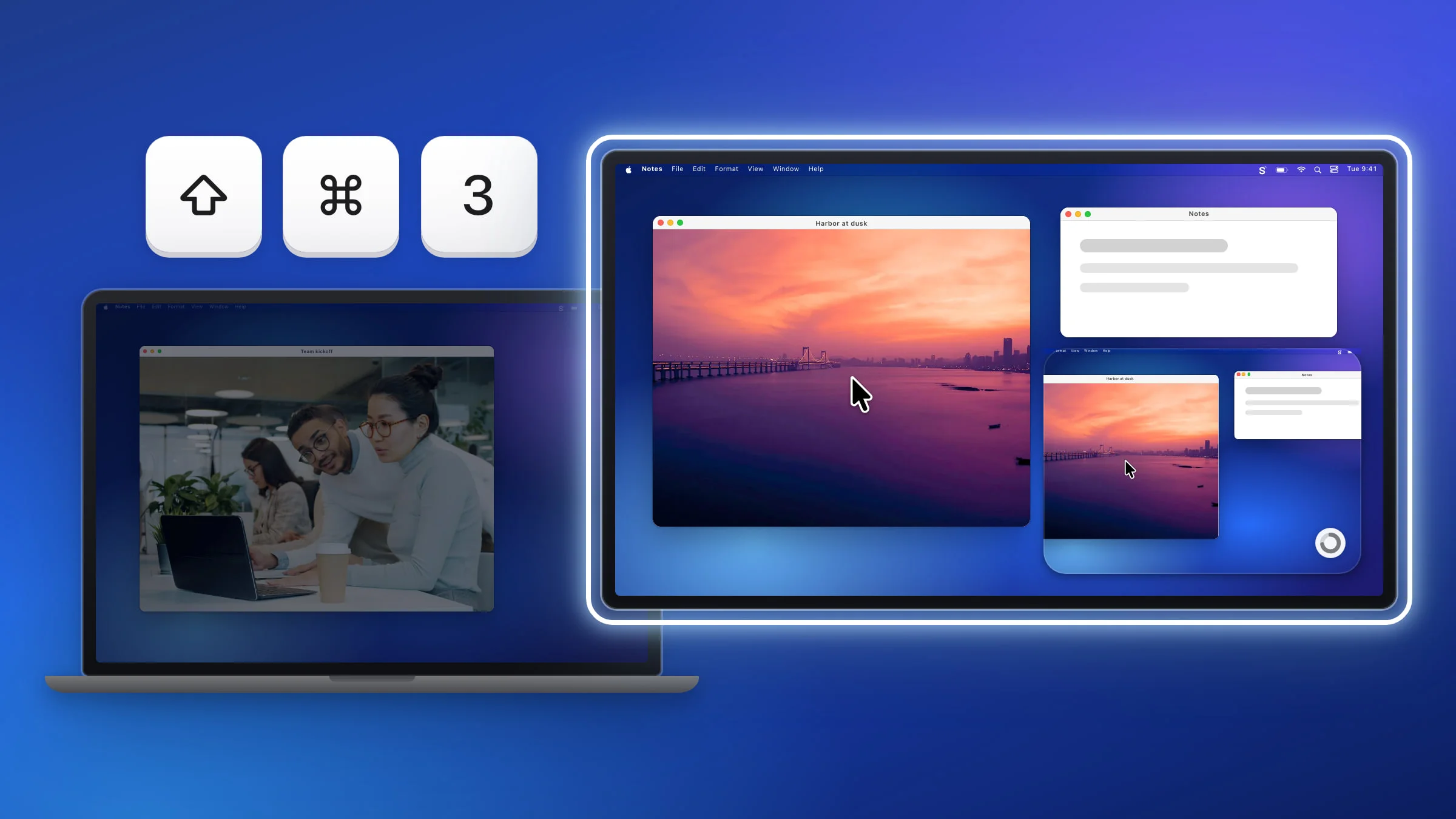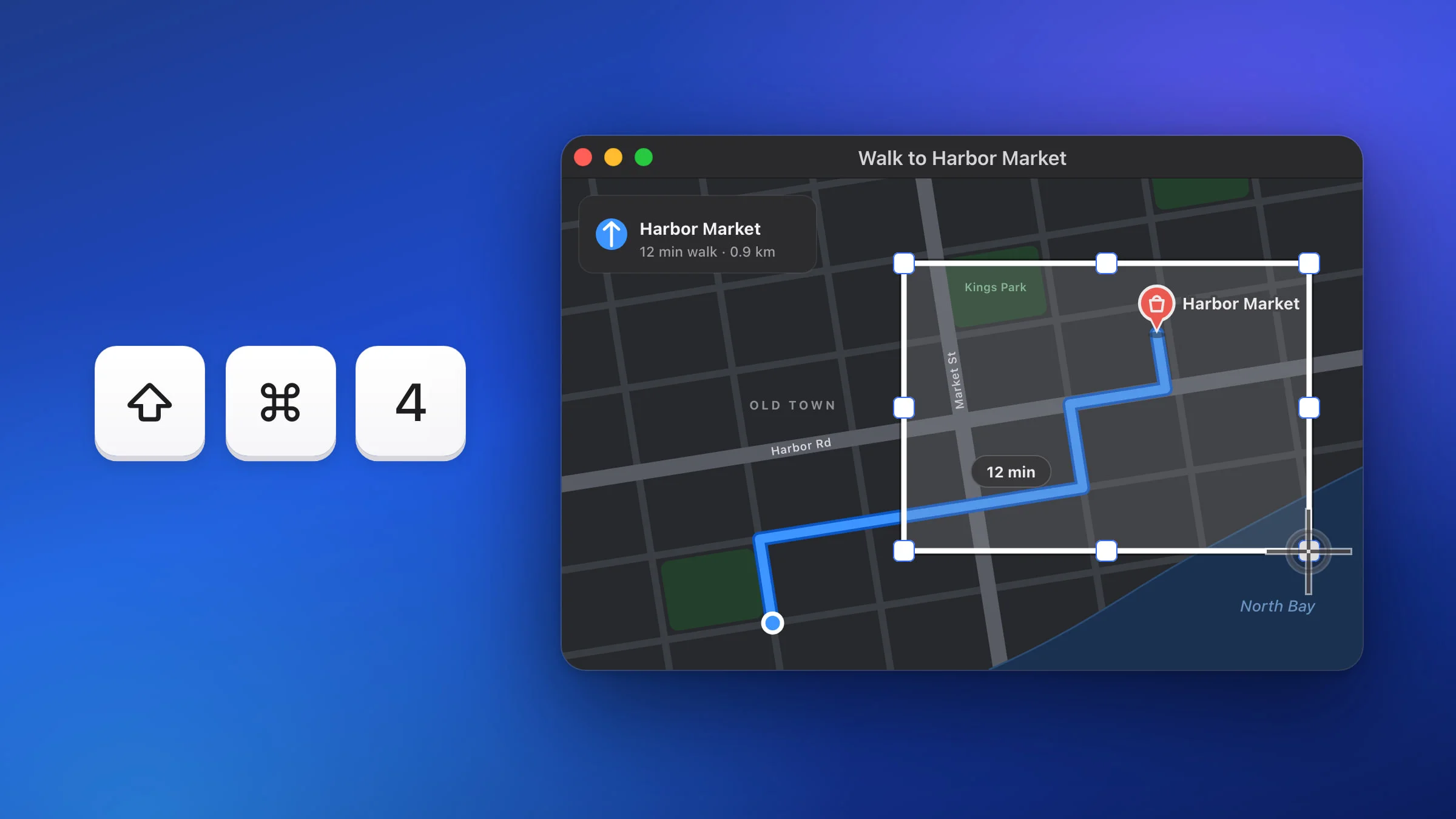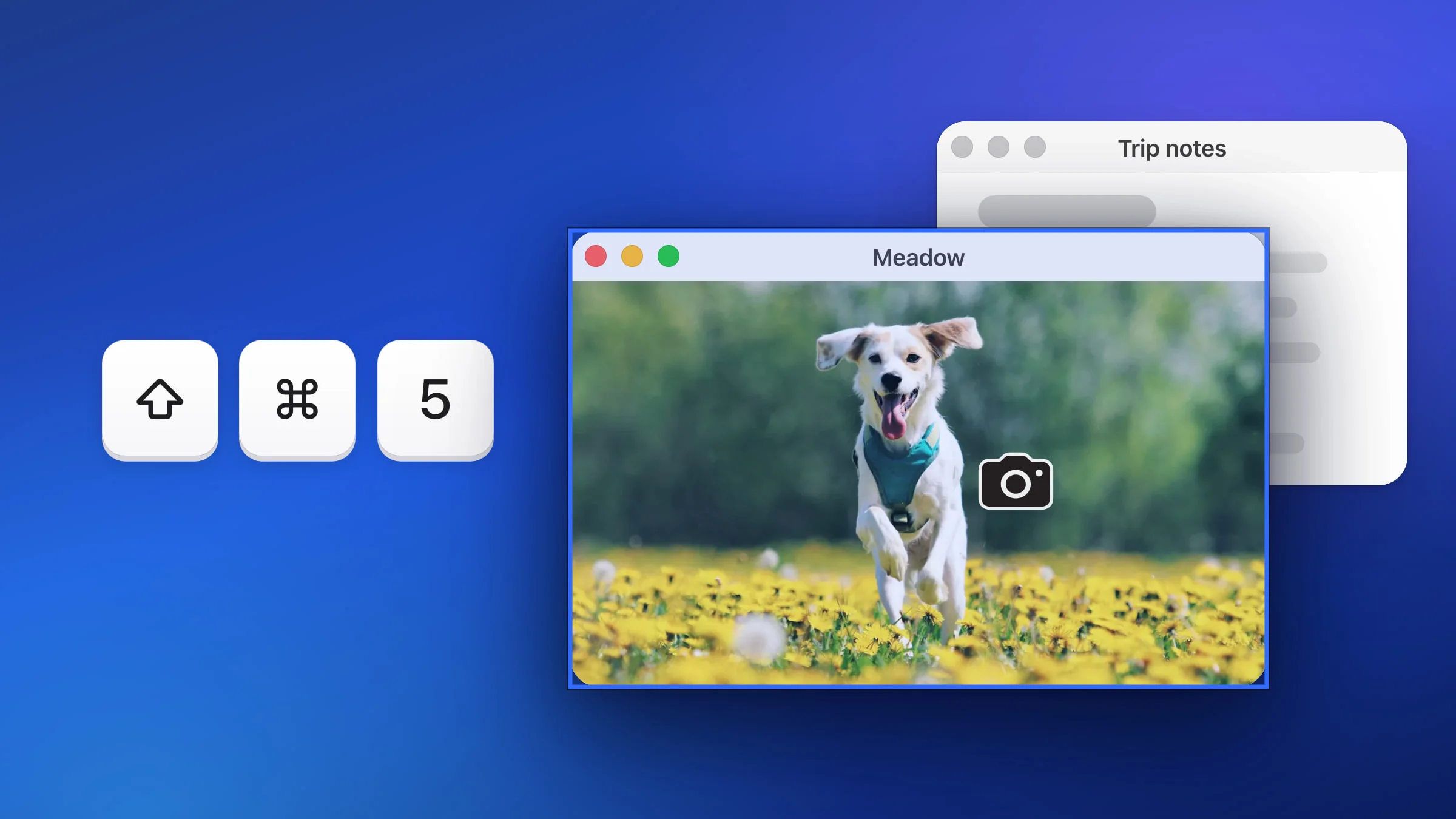
To take a screenshot with the cursor on a Mac, press ⇧⌘5, click Options and choose Show Mouse Pointer, then take the shot from the toolbar. macOS leaves the pointer out by default. In Snapix, a full-screen shot with ⇧⌘3 already includes the pointer, and area and window captures never do.
How to include the mouse pointer in a Mac screenshot
- Press ⇧⌘5. The Screenshot toolbar opens. If Snapix is using that shortcut, open the Screenshot app from Spotlight or Applications ▸ Utilities instead.
- Click Capture Entire Screen. It’s the first button after the close ×.
- Turn on Show Mouse Pointer. Click Options, then choose Show Mouse Pointer so a checkmark appears next to it.
- Set a timer. Click Options again and, under Timer, choose 5 Seconds or 10 Seconds. The countdown gives you time to move the pointer onto the thing you want to show.
- Click Capture, then point. With more than one display, click the display you want instead. Move the pointer onto the button or link and hold it still until the shot is taken. macOS saves the screenshot to the Desktop by default, with the pointer in it.
To leave the pointer out again, choose Show Mouse Pointer once more so the checkmark disappears.

How to show or hide the pointer in Snapix
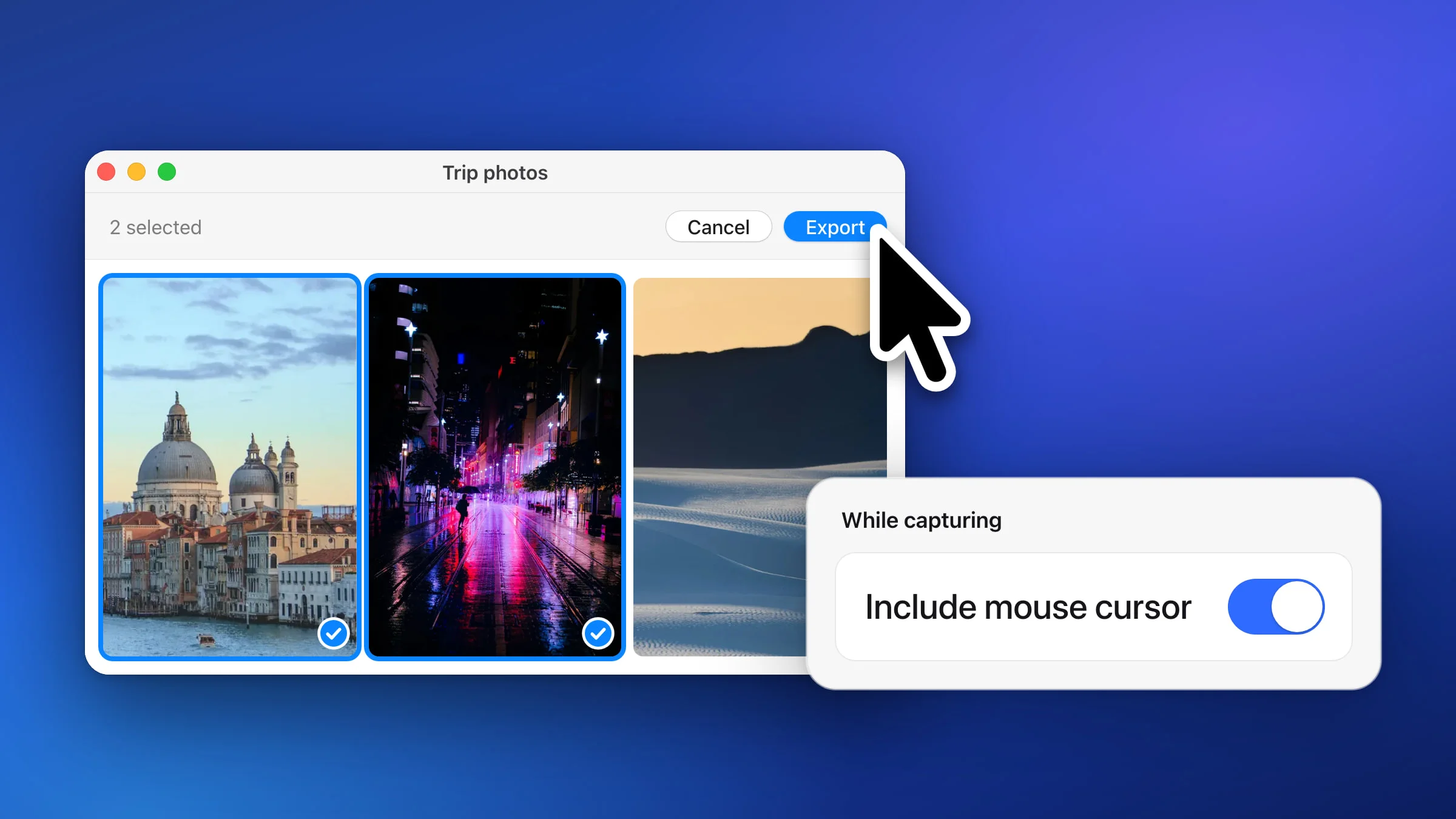
Snapix has one switch for it, Include mouse cursor, and it’s on by default.
- Open Settings. Click the Snapix icon in the menu bar and choose Settings… from the menu.
- Click Capture in the sidebar. The first row under While capturing is Include mouse cursor.
- Turn it on or off. On keeps the pointer in full-screen and self-timer shots. Off leaves it out. Your next shot uses the new setting.
- Press ⇧⌘3 to check. Snapix captures the display your pointer is on. With the switch on, the pointer is in the shot right where it was, in the shape it had at that moment, such as an arrow, a hand or a text cursor.

Tip: In Snapix Settings, press ⌘F, type “cursor” and press Return. Settings jumps to the Capture page and highlights the switch.
Which Snapix captures include the pointer
| Capture | Shortcut | Pointer in the shot |
|---|---|---|
| Capture Full Screen | ⇧⌘3 | Yes, by default |
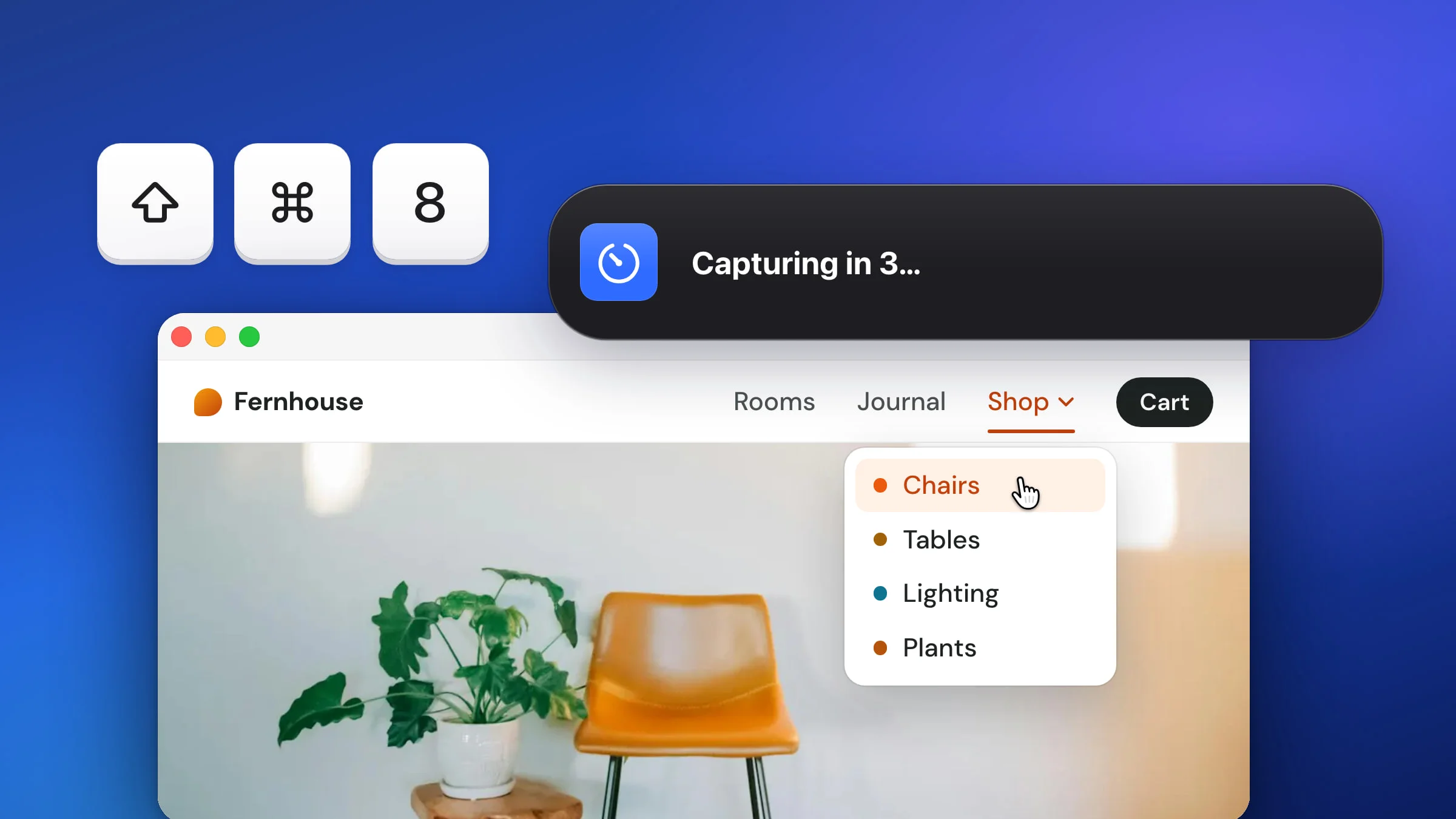
| Capture with Self-Timer | ⇧⌘8 | Yes, by default |
| Capture Area | ⇧⌘4 | Never |
| Capture Window | ⇧⌘5 | Never |
| Capture Last Area | ⇧⌘6 | Never |
Full-screen and self-timer shots include the pointer only while Include mouse cursor is on. Even then, Snapix leaves the pointer out if it sits on a different display from the one being captured, or is hidden at that moment. With several monitors, ⇧⌘3 always takes the one the pointer is on, so it’s in the shot. There’s more on that in how to screenshot one monitor.
Use the self-timer to place the pointer
Press ⇧⌘8 for Capture with Self-Timer. A banner in the top-right corner counts down, Capturing in 5…, and then Snapix captures the whole display you were on when you pressed the keys. Use those seconds to rest the pointer on a button or to open a menu. Nothing is clicked, so the menu stays open in the shot.
The countdown is 5 seconds by default. Choose 2, 3 or 10 seconds in Settings ▸ Capture ▸ Self-timer delay. If you move the pointer to another monitor during the countdown, the shot still comes from the first display, without the pointer. See how to take a timed screenshot for the rest.
Point at something in an area or window shot
Area and window captures never include the pointer, and a small pointer is easy to miss anyway. Mark the spot in the editor instead. Click the preview after you capture, press A for the Arrow tool and drag toward the button. A numbered Step (C) works too, or press ⌃⌘Space and pick a pointing-hand emoji. Click Done to copy the picture with your marks. How to add an arrow to a screenshot covers the rest, or try Snapix free.
Take a screenshot with the pointer from Terminal
macOS’s screencapture command adds the pointer with -C. This command waits 5 seconds so you can put the pointer in place, then saves the screen to your Desktop as pointer.png:
screencapture -C -T 5 ~/Desktop/pointer.pngWith more than one display, it saves only the main one. Add -D 2 to capture the second display instead.
-C only works when you don’t pick an area or window with the mouse. Terminal needs permission under System Settings ▸ Privacy & Security ▸ Screen & System Audio Recording (Screen Recording on older versions of macOS) to capture other apps’ windows.
For every other way to capture your screen, see how to take a screenshot on a Mac.