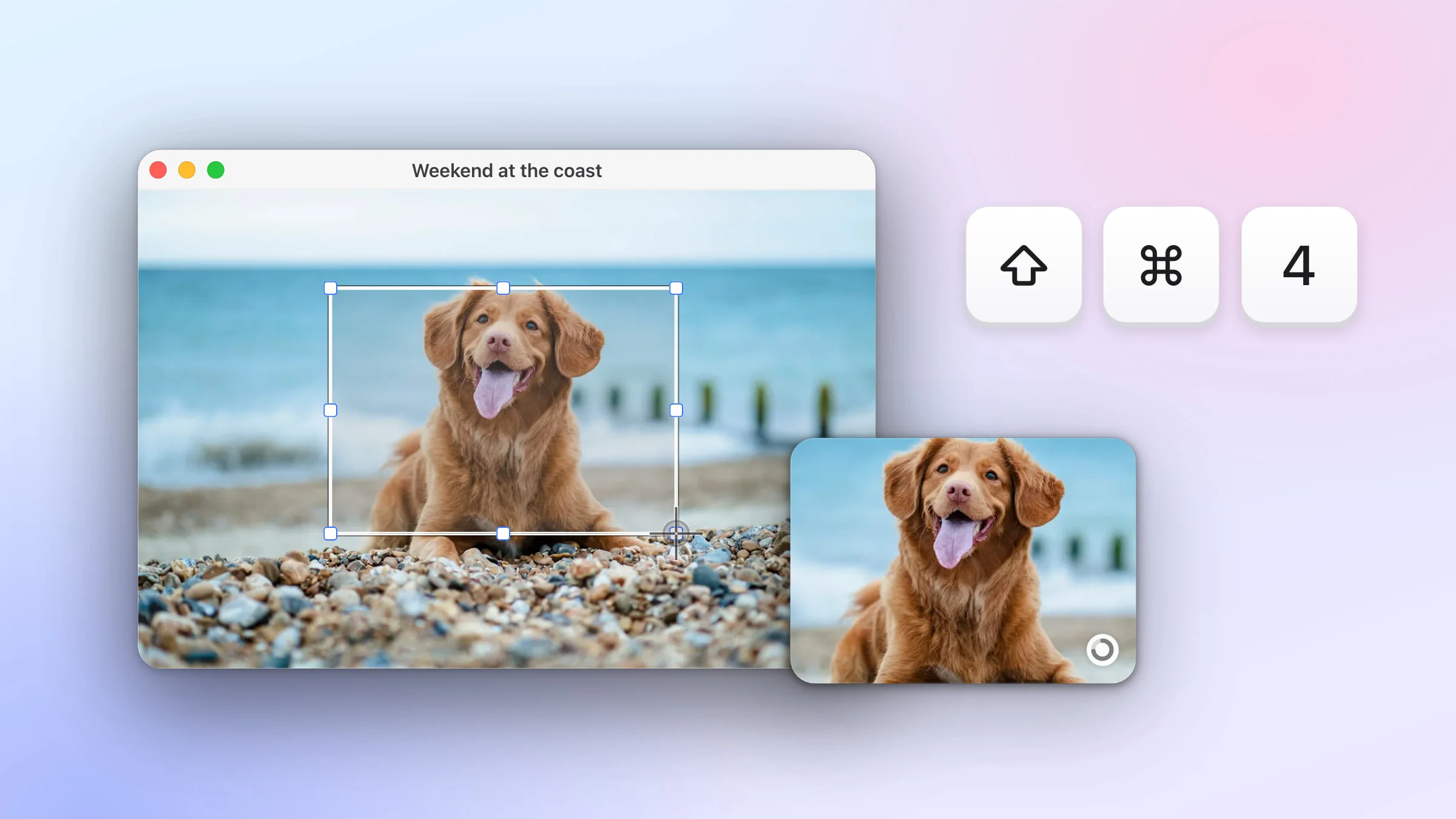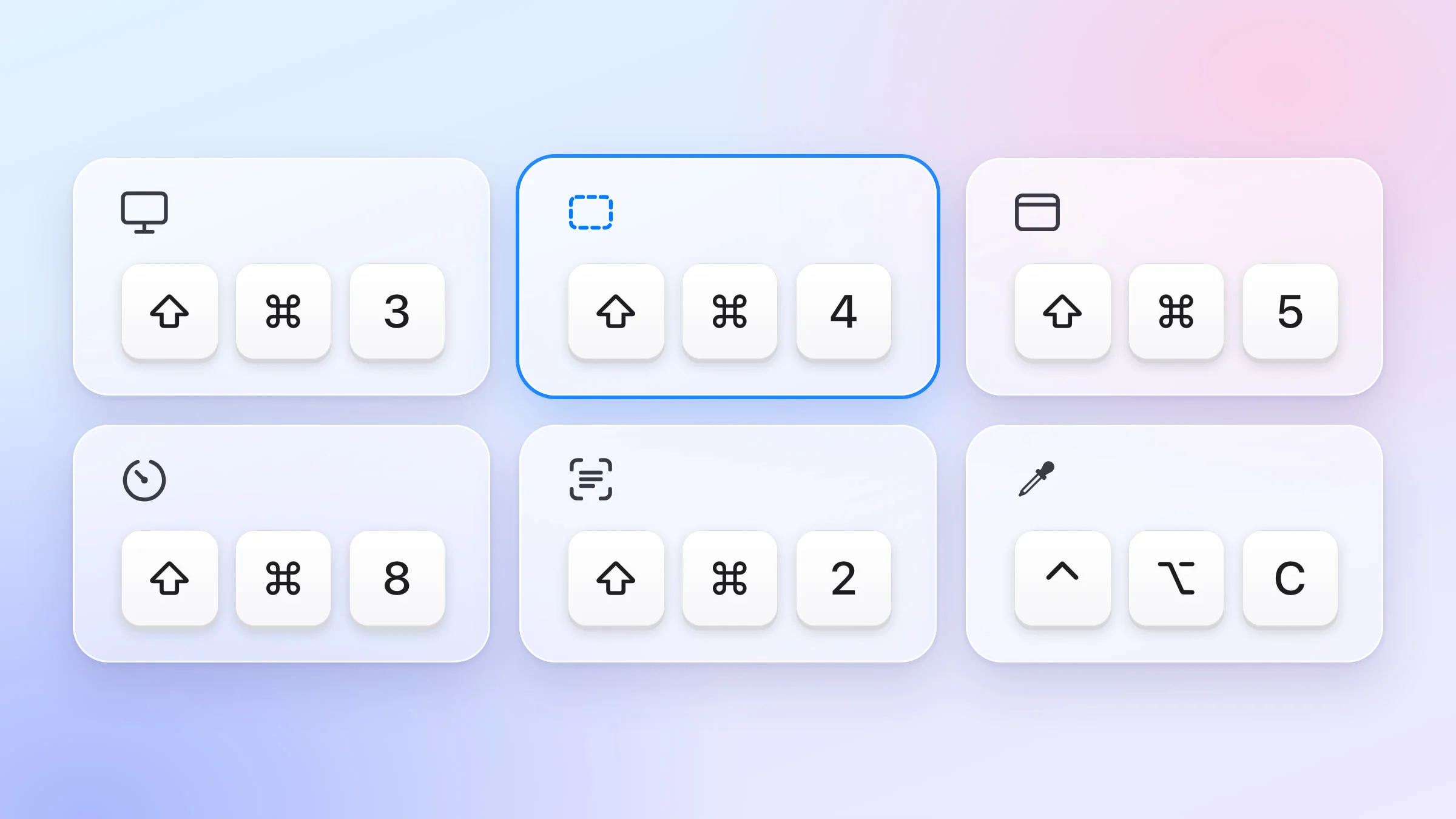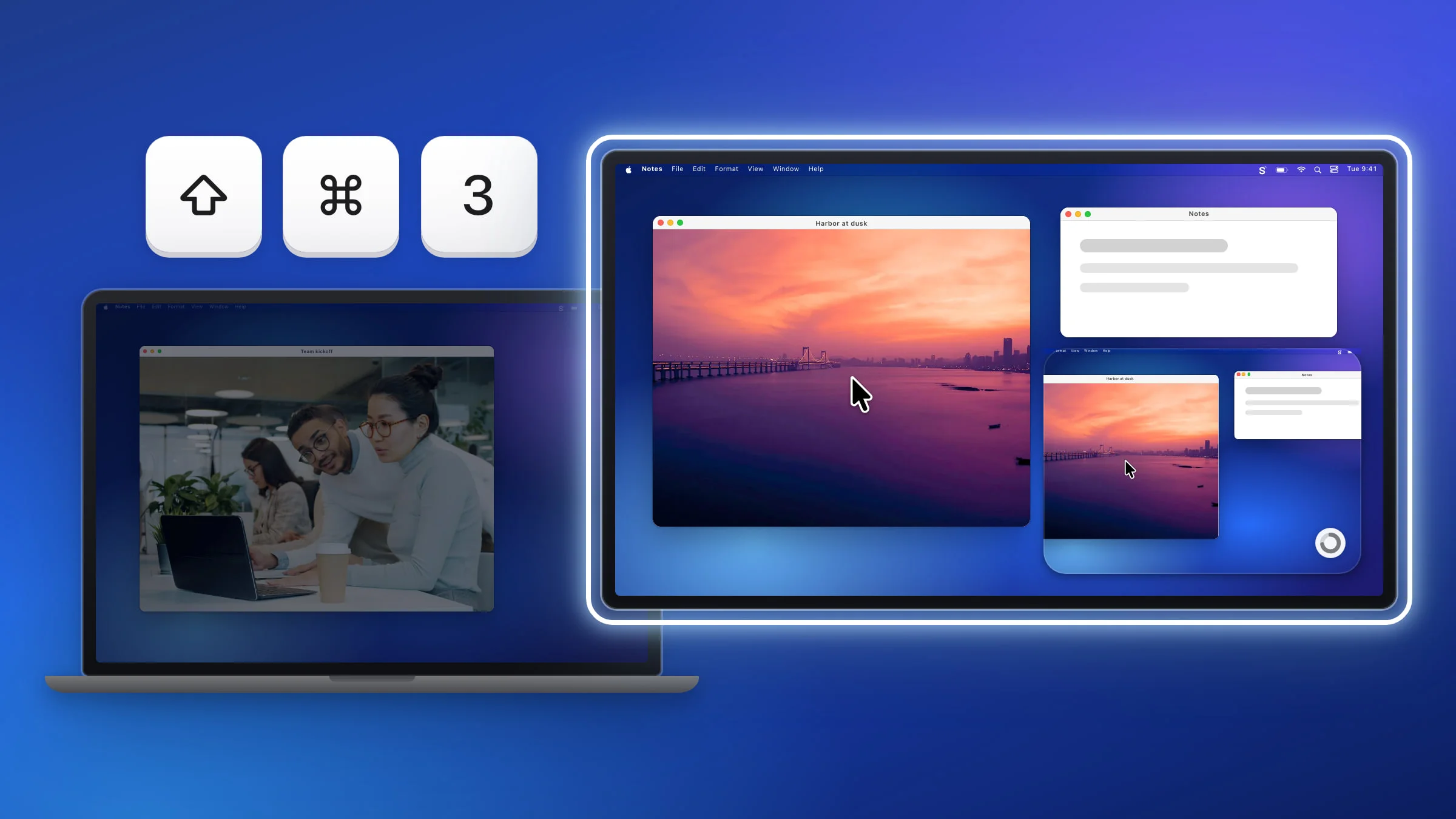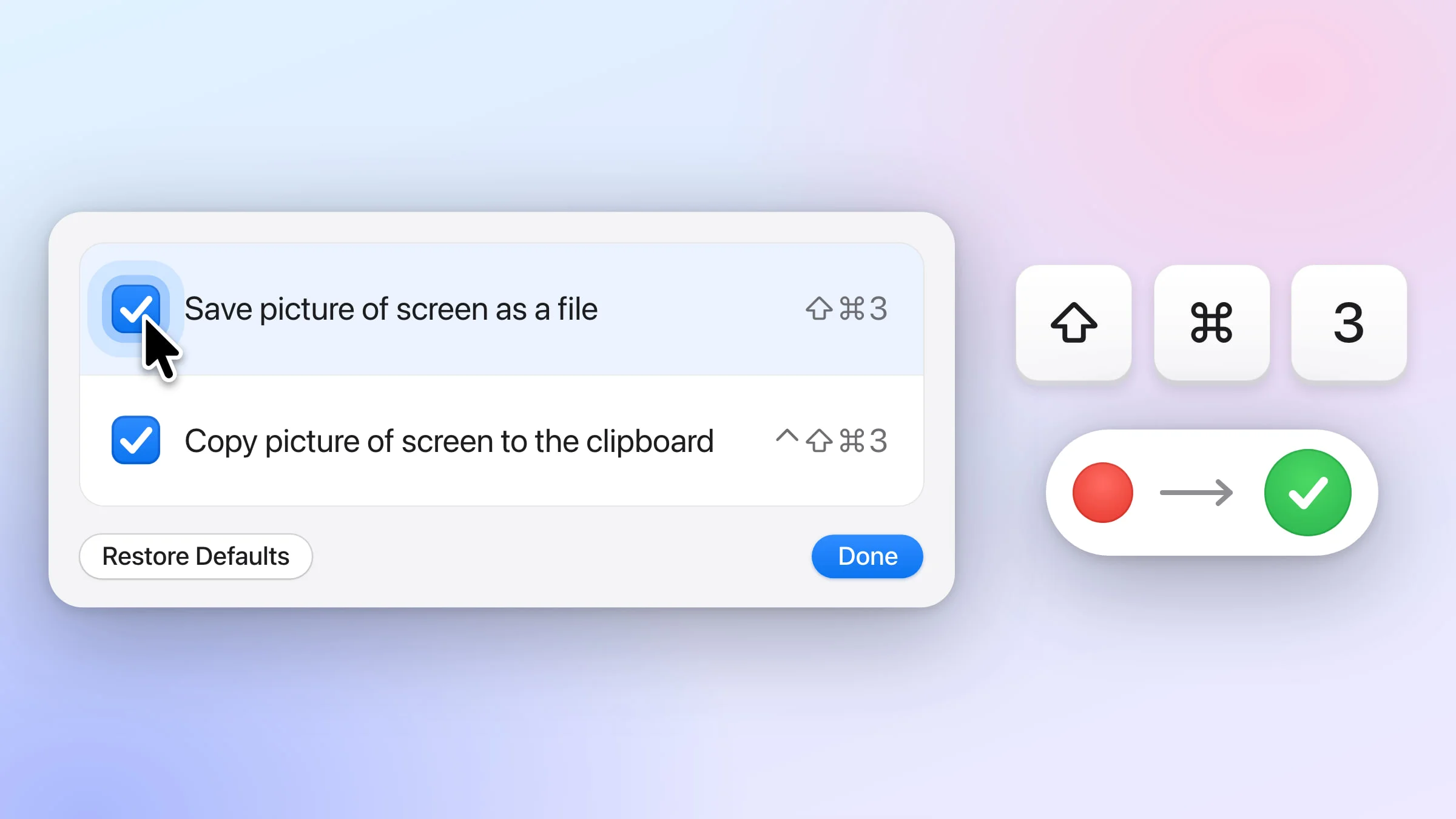
If your screenshot shortcut is not working on your Mac and ⇧⌘3 or ⇧⌘4 does nothing, it has usually been switched off, changed, or taken by another app. Open System Settings ▸ Keyboard ▸ Keyboard Shortcuts ▸ Screenshots and tick its box to turn it back on.
Missing files and wallpaper-only screenshots have their own fixes below. If you use Snapix, it answers those keys itself while it runs and leaves their boxes unticked on purpose, so start with what to check in Snapix.
How to turn the screenshot shortcuts back on
- Open Keyboard settings. Choose Apple menu ▸ System Settings, then click Keyboard in the sidebar. You may need to scroll down to find it.
- Open the screenshot shortcuts. Click Keyboard Shortcuts…, then click Screenshots in the sidebar.
- Tick the boxes. Make sure Save picture of screen as a file (⇧⌘3), Save picture of selected area as a file (⇧⌘4) and Screenshot and recording options (⇧⌘5) are ticked. A row without a tick does nothing when you press its keys. If Snapix is running, these boxes are unticked on purpose, so leave them and see If you use Snapix.
- Check the keys. Each row shows its shortcut on the right. If one was changed, double-click it and press the keys you want, or click Restore Defaults to put the default keys back.
- Try it. Click Done and press ⇧⌘4. The pointer turns into a crosshair.

The two Copy picture rows are the clipboard versions, ⌃⇧⌘3 and ⌃⇧⌘4. On macOS 12 Monterey or earlier, the same boxes are in System Preferences ▸ Keyboard ▸ Shortcuts ▸ Screenshots. For other keys, see how to change the screenshot shortcut.
Another app is using the keys
A screenshot app, or a tool that grabs text from the screen, can take ⇧⌘3, ⇧⌘4 or ⇧⌘5 for itself, and then it answers instead of macOS. Some switch the macOS shortcut off while they hold the keys, as Snapix does, and some ask you to untick it in System Settings yourself.
To find it, quit any screenshot or capture tool in your menu bar and press the shortcut again. If macOS answers now, change that app’s shortcut in its settings. If nothing happens, that app may have left the macOS shortcut switched off, even if you’ve since deleted it. Tick it again with the steps above.
The screenshot was taken, but you can’t find it
By default, macOS saves each screenshot to the desktop as a PNG file named “Screenshot” plus the date and time (“Screen Shot” on macOS 12 Monterey or earlier). If yours aren’t there:
- Wait for the thumbnail. The file is written when the thumbnail in the corner of the screen goes away, a few seconds after the shot. Swipe the thumbnail to the right to save it at once.
- Check where screenshots go. Press ⇧⌘5, click Options and look under Save to. With Clipboard chosen, nothing is saved: the screenshot waits for you to paste it with ⌘V. Pick Desktop, or Other Location… for a folder of your own. The choice applies to ⇧⌘3 and ⇧⌘4 too.
- Leave Control out. Holding Control with the shortcut, as in ⌃⇧⌘4, copies the screenshot to the clipboard instead of saving a file.
- If you use Snapix, it doesn’t save a file by default. It copies each screenshot and keeps it in Recent Captures (⇧⌘S). For files, turn on Save every screenshot automatically in Snapix Settings ▸ Saving. They go to Documents ▸ Snapix unless you click Choose….
If Snapix is using ⇧⌘5, open the Screenshot app from Applications ▸ Utilities to reach the same Options. There’s more in where screenshots go on a Mac.
The screenshot shows only your wallpaper
A screenshot app needs Screen Recording permission to see other apps’ windows. Without it, the shot may show only your desktop wallpaper and the app’s own windows.
- Open System Settings ▸ Privacy & Security ▸ Screen & System Audio Recording (called Screen Recording on older versions of macOS).
- Turn on the switch next to the app.
- Quit the app and open it again, so the permission takes effect.
Some apps don’t allow screenshots
Some apps, such as the Apple TV app, might not let you take screenshots of their windows. That’s the app’s choice, not a broken shortcut.
Still not working?
Restart your Mac and try again. To check whether screenshots work without the keyboard, open the Screenshot app from Applications ▸ Utilities (or find it with Spotlight), click Capture Entire Screen in its toolbar, then click Capture. If that works, the trouble is the shortcut, and the steps at the top of this page fix it. For every way to take one, see how to take a screenshot on a Mac.
If you use Snapix
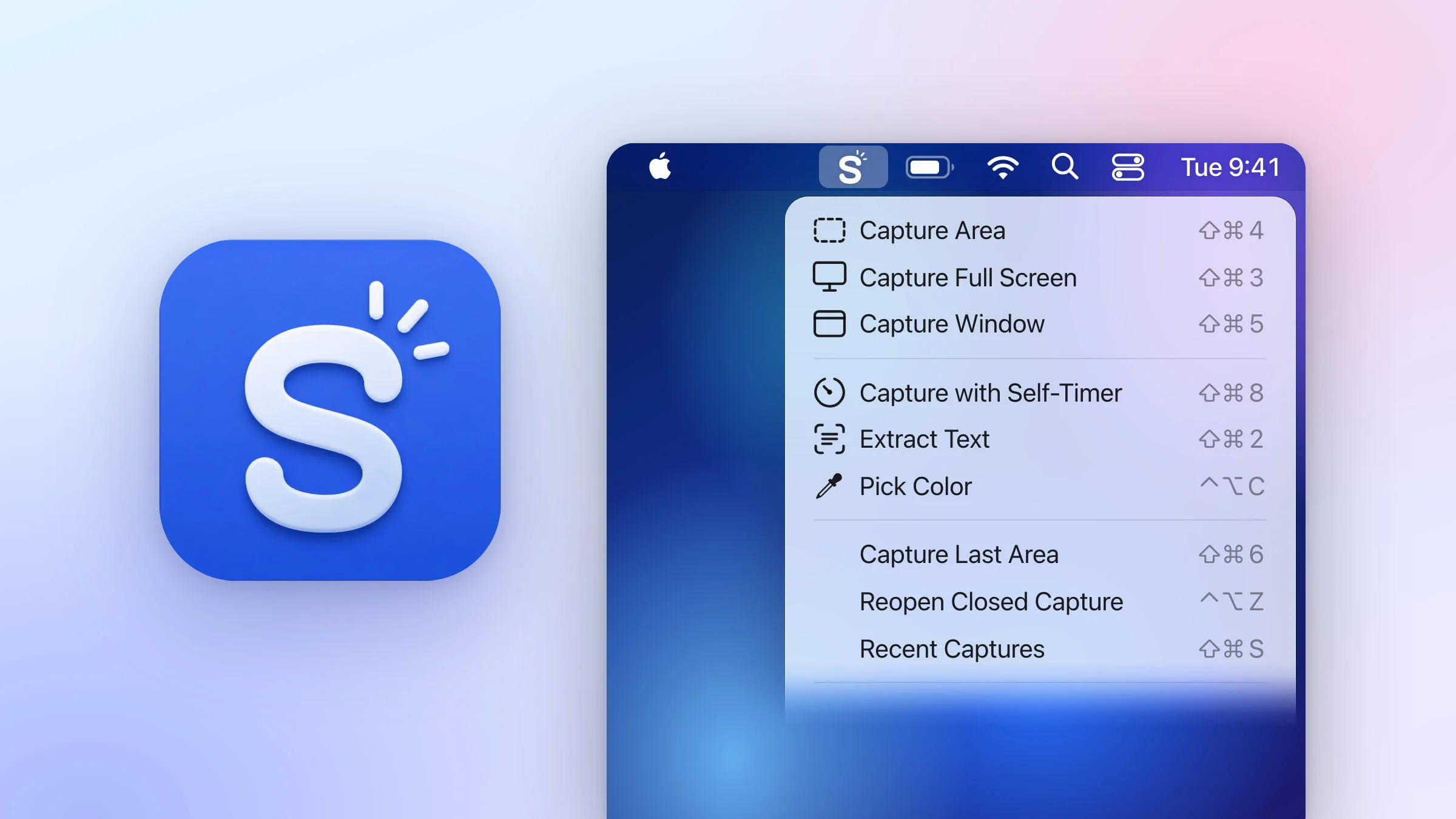
By default, Snapix uses ⇧⌘3, ⇧⌘4 and ⇧⌘5 for Capture Full Screen, Capture Area and Capture Window. While one of its shortcuts sits on those keys, Snapix switches off the macOS shortcut for them, so only one app answers. Their boxes in Keyboard Shortcuts ▸ Screenshots show unticked while it does. That’s expected, so leave them. It’s also why ⇧⌘5 opens Snapix’s window picker instead of the macOS Screenshot toolbar. ⌃⇧⌘3 and ⌃⇧⌘4 are never touched and still copy to the clipboard the macOS way.

- To give the keys back to macOS, open Snapix Settings ▸ Shortcuts and click Hand these back to macOS (Hand ⇧⌘4 back when only one of those keys is Snapix’s). That removes them from Snapix’s shortcuts and ticks their boxes again. Every capture stays in the Snapix menu, ready for other keys. Quitting Snapix or signing out also hands the keys back.
- If the macOS screenshot still appears with Snapix running, Snapix couldn’t switch that key off, and its Settings ▸ Shortcuts says macOS is still handling it. Click Open Keyboard Shortcuts, then untick that row under Screenshots so only Snapix answers.
- If Settings ▸ Shortcuts says a key does nothing, the macOS screenshot is off and no Snapix shortcut uses it. Click Turn back on.
- If you can’t find the file, that’s the default: Snapix copies each screenshot and keeps it in Recent Captures instead of saving one. To get files too, turn on automatic saving.
- If the capture items in the menu are grayed out, choose Sign in… in the same menu if it’s there. Otherwise Snapix needs Screen Recording permission: press a capture shortcut, click Open System Settings in the Allow Screen Recording window, switch Snapix on, then click Quit & Reopen Snapix. Until setup is finished, ⇧⌘3, ⇧⌘4 and ⇧⌘5 still work the macOS way, and Snapix’s other shortcuts, like ⇧⌘8, bring setup back instead. Here’s how to set up Snapix.
- If ⇧⌘6 doesn’t capture the last area, macOS may be using it: for the Touch Bar on Touch Bar Macs, or for Siri on macOS 27 with Siri AI turned on. Snapix doesn’t switch those off, so record another key for Capture Last Area in Settings ▸ Shortcuts.
- If your free trial has ended, Snapix still takes the shot and shows it in a locked preview, but it isn’t copied to the clipboard, and the upgrade window opens.
Note: Before you delete Snapix, click Hand these back to macOS in its Settings ▸ Shortcuts, then quit it from its menu. If a macOS shortcut still does nothing after you quit Snapix, tick its box again with the steps at the top of this page.