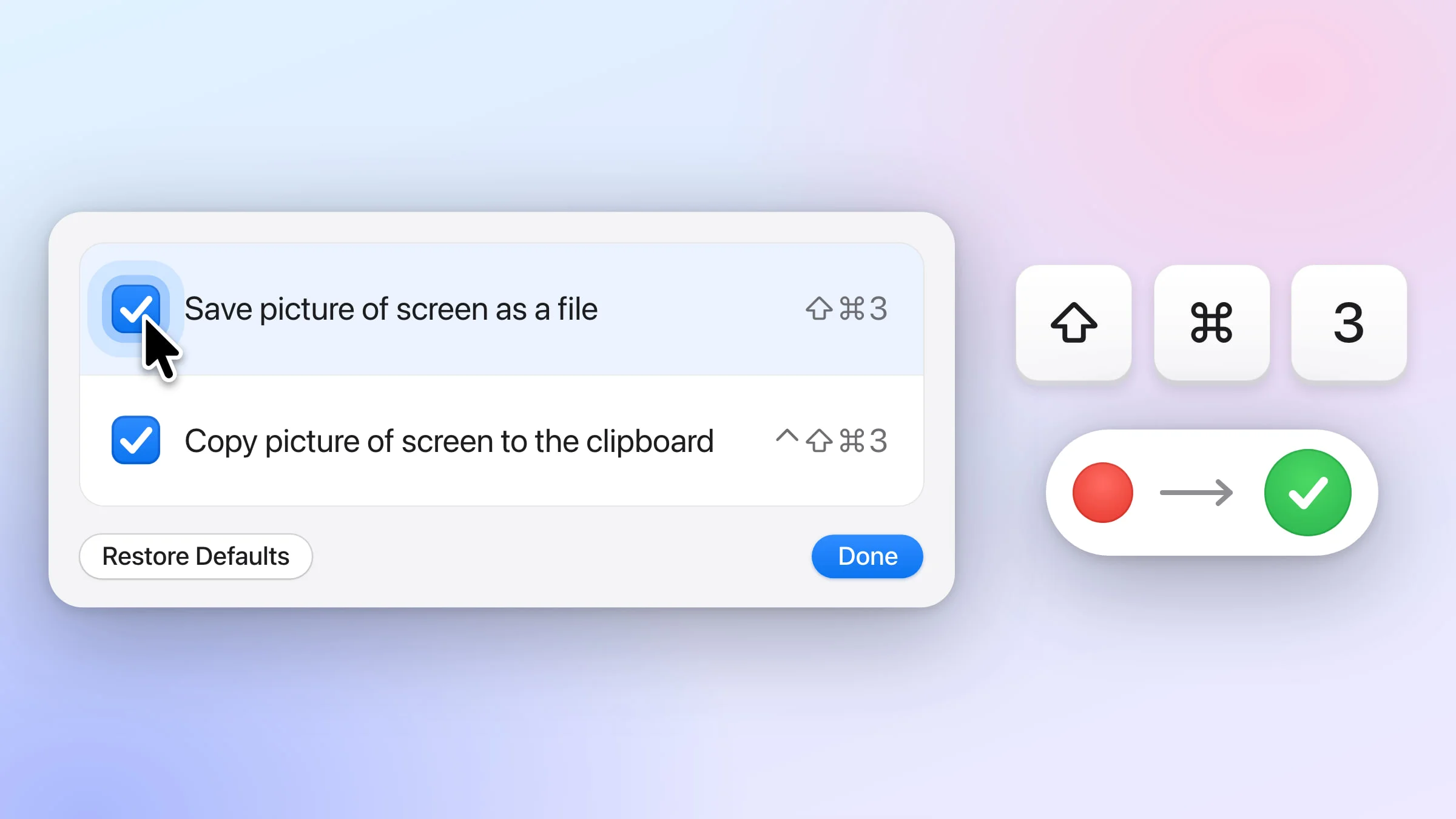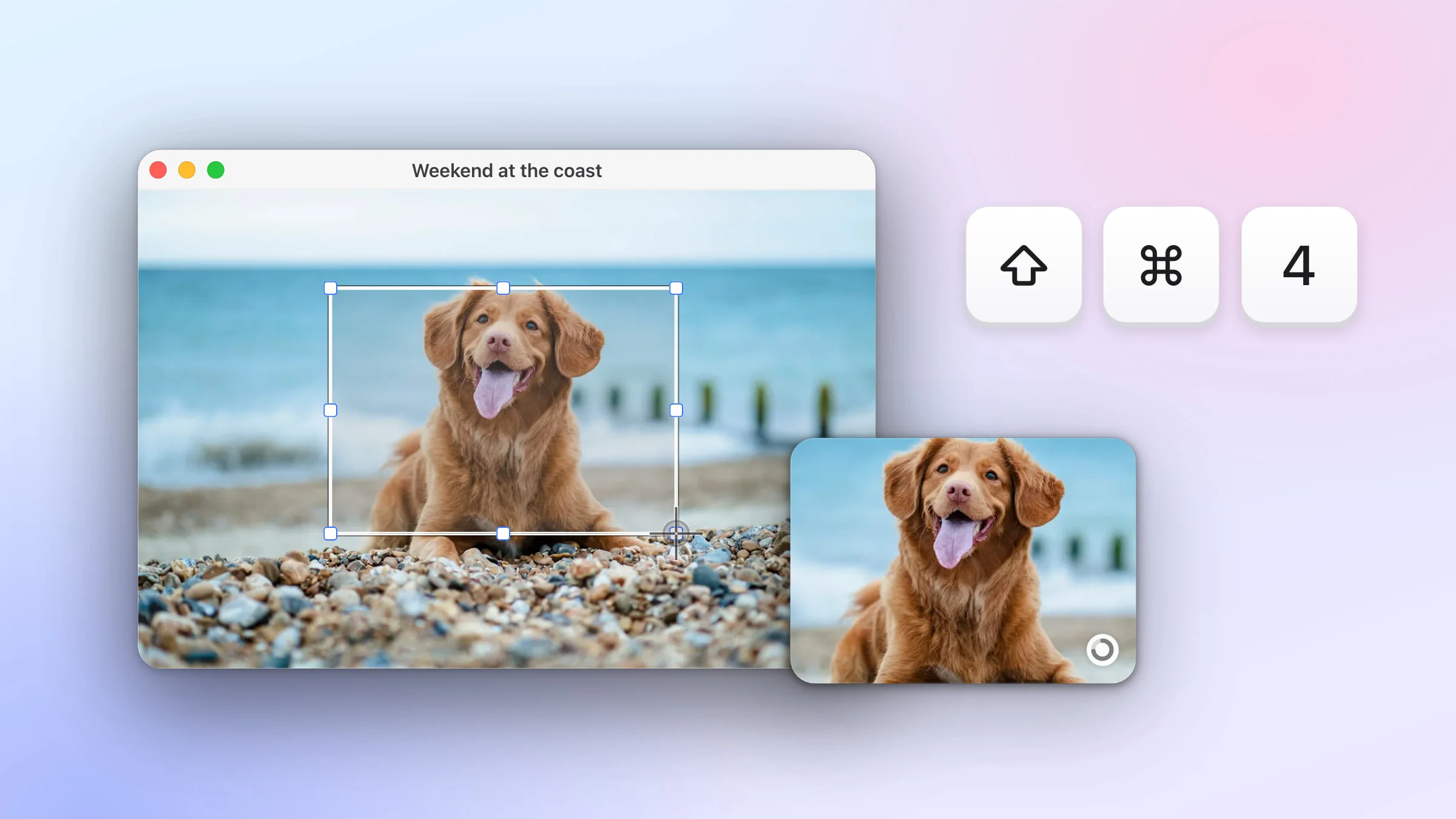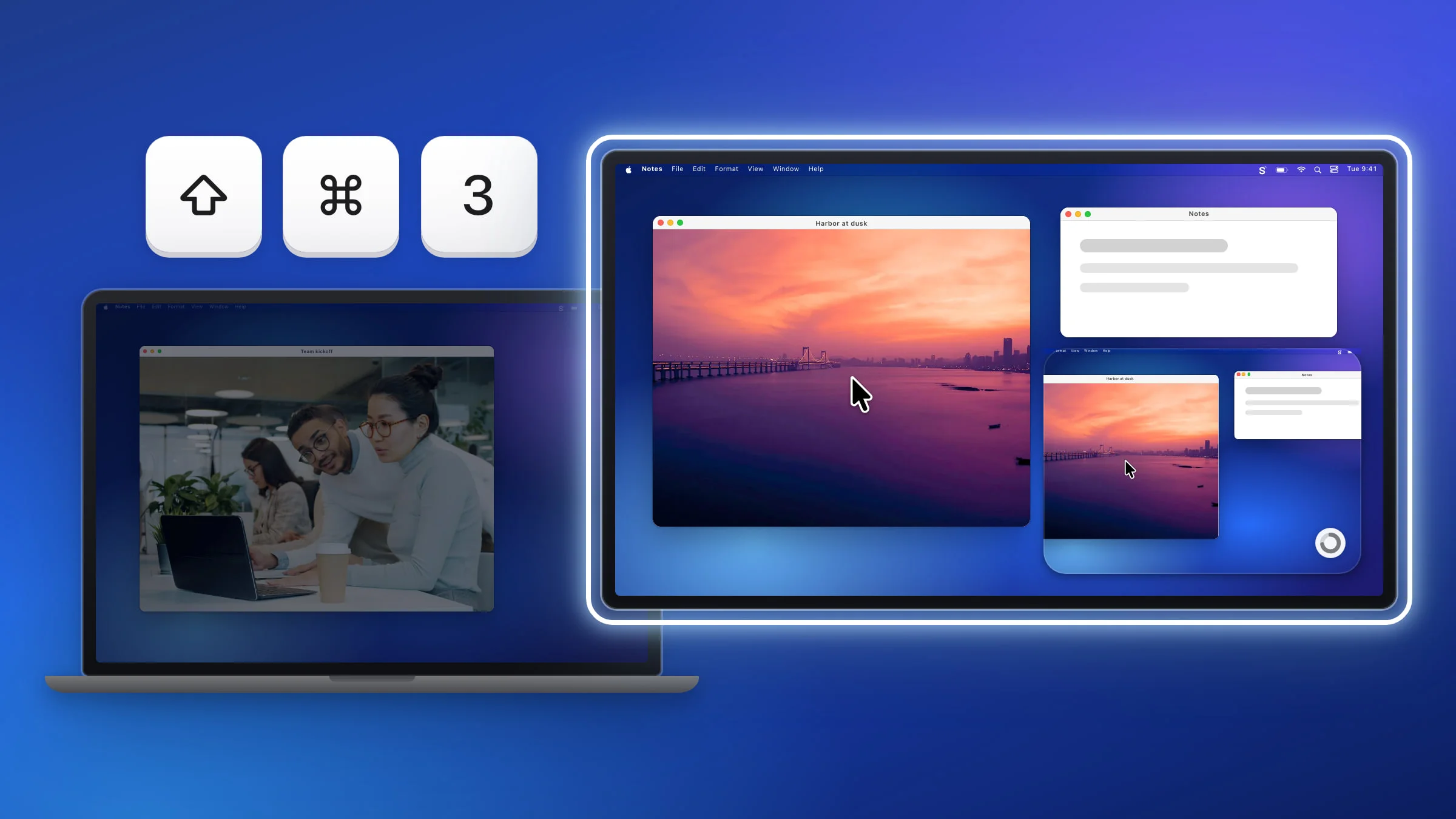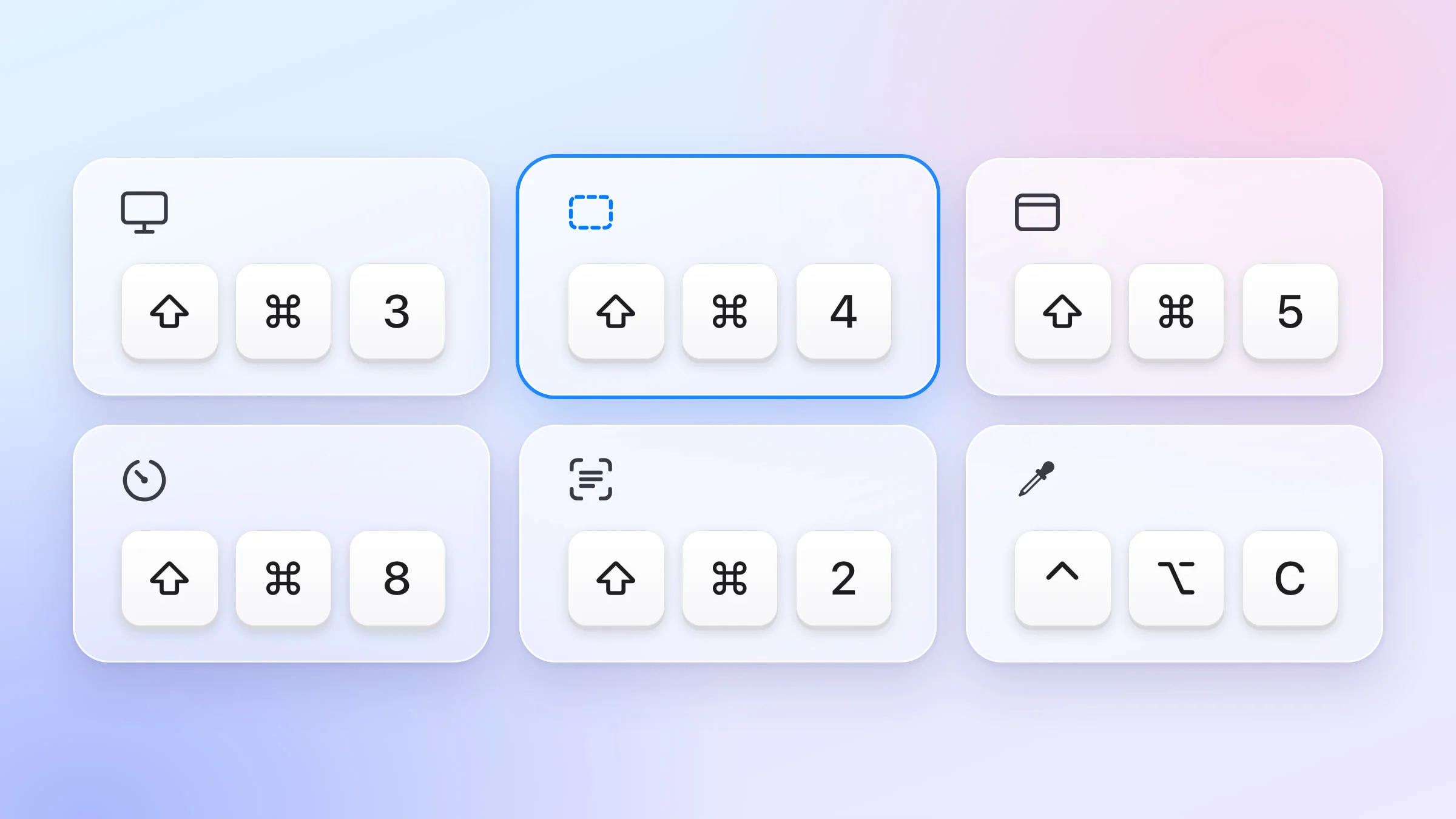
Press ⇧⌘3 to screenshot the whole screen on a Mac, ⇧⌘4 to drag over part of it, or ⇧⌘5 to open the Screenshot toolbar. Add Control to the first two shortcuts (⌃⇧⌘3 or ⌃⇧⌘4) to copy a screenshot to the clipboard instead of saving a file.
Below is every built-in shortcut, then the ones Snapix adds, including the keys for its editor and Recent Captures. For the steps behind each one, see how to take a screenshot on a Mac. If you’re coming from Windows, the Snipping Tool for Mac guide translates each Windows shortcut.
The screenshot shortcuts built into macOS
| Shortcut | What it does |
|---|---|
| ⇧⌘3 | Shift-Command-3 saves the whole screen. With more than one display, each display gets its own file. |
| ⇧⌘4 | Shift-Command-4 saves an area you drag over. |
| Space | After Shift-Command-4, press Space, then click a window, a menu, the menu bar or the Dock to save it. |
| ⌥ | After Space, hold Option as you click the window to leave out its shadow. |
| ⇧⌘5 | Shift-Command-5 opens the Screenshot toolbar, with capture and screen-recording buttons and an Options menu (Save to, Timer and more). |
| ⌃⇧⌘3 | Control-Shift-Command-3 copies the whole screen to the clipboard, with no file. |
| ⌃⇧⌘4 | Control-Shift-Command-4 copies an area, or a window after Space, to the clipboard. |
| ⇧⌘6 | Shift-Command-6 saves a picture of the Touch Bar, on a Mac that has one (macOS 26 or earlier). On macOS 27 with Siri AI on, it asks Siri about an area you select. |
| ⇧⌘Space | On macOS 27 with Siri AI on, Shift-Command-Space asks Siri about the active window. |
While you drag with the macOS ⇧⌘4, a few keys change the box:
- Hold Space to move it without changing its size.
- Hold Shift to change only the width or only the height.
- Hold Option to grow it out from its center.
- Press Esc to cancel.
Snapix’s crosshair takes all four keys the same way. It can also show the box’s width and height as you drag, like macOS: choose Crosshair + Size in Settings ▸ Capture ▸ Area selection cursor.
To change or turn off these shortcuts, or to see which keys your Mac uses, choose Apple menu ▸ System Settings ▸ Keyboard (macOS 13 Ventura or later), click Keyboard Shortcuts…, then click Screenshots.
Snapix screenshot shortcuts
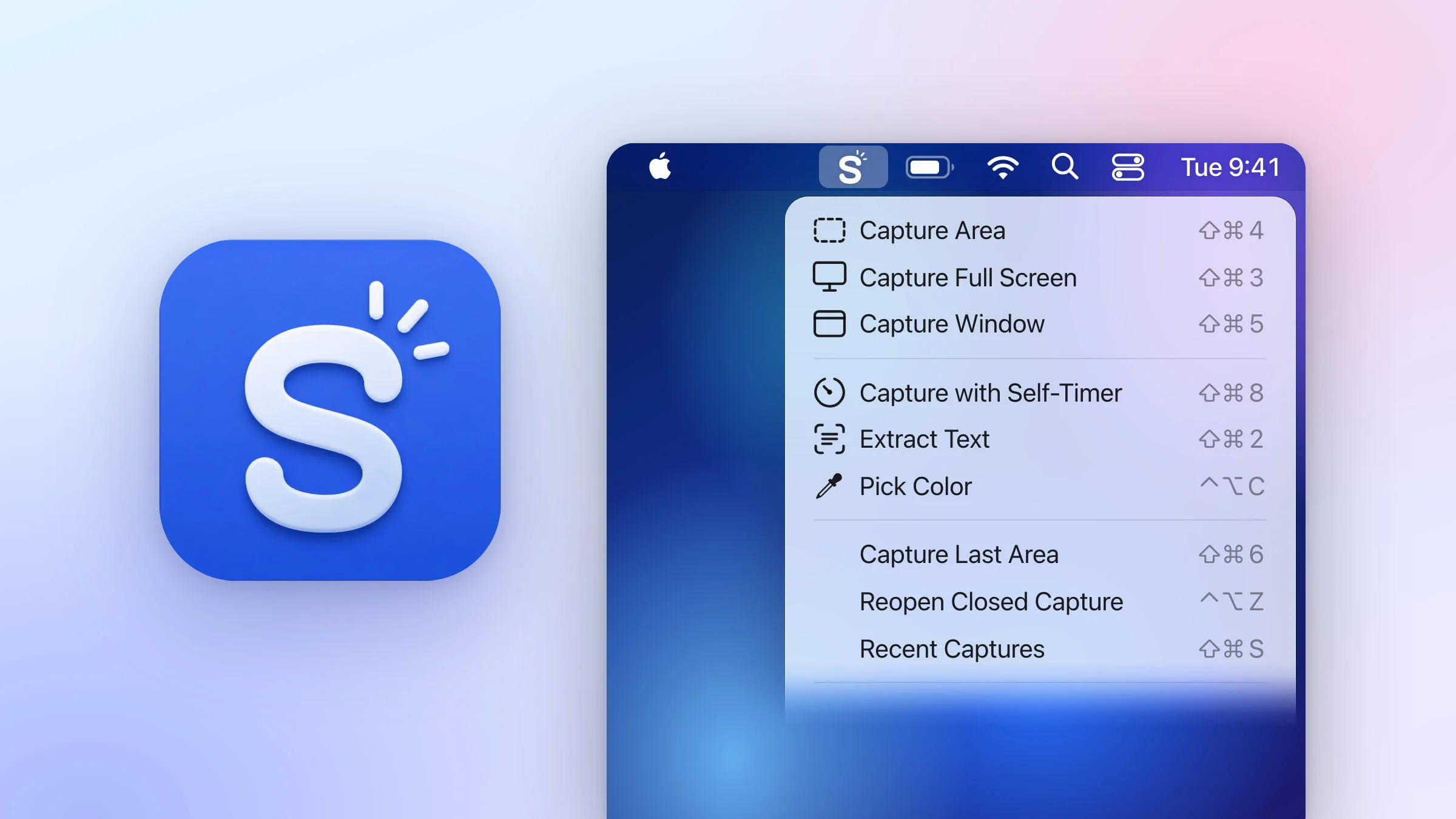
Snapix is a menu bar app for macOS 14 Sonoma or later, and you can try it free. Its shortcuts work from any app, and each one is also in its menu.
| Shortcut | What it does |
|---|---|
| ⇧⌘4 | Capture Area: drag over part of the screen. Press Space to pick a window instead. |
| ⇧⌘3 | Capture Full Screen: takes the display your pointer is on, not every display, so you can screenshot one monitor at a time. |
| ⇧⌘5 | Capture Window: click a window to capture all of it. |
| ⇧⌘8 | Capture with Self-Timer: takes a timed screenshot of the display you’re on after a countdown, 5 seconds by default. |
| ⇧⌘2 | Extract Text: drag over text and the words go to your clipboard, so you can extract text from a screenshot, a PDF or any app. Over a QR code, it copies what the code says: that’s how you scan a QR code on your Mac screen. |
| ⌃⌥C | Pick Color: puts the hex code of any color on screen on your clipboard. |
| ⇧⌘6 | Capture Last Area: captures the same area again, without dragging. If your Mac also uses ⇧⌘6, give it another shortcut. |
| ⌃⌥Z | Reopen Closed Capture: brings back the last preview you closed. |
| ⇧⌘S | Recent Captures: opens or closes your recent screenshots. |
| None | Hide Desktop Icons: hides your desktop icons and widgets. Record a shortcut for it if you use it often. |
Three of these are the same keys macOS uses. While Snapix is running and you’re signed in, ⇧⌘3, ⇧⌘4 and ⇧⌘5 open Snapix instead of the macOS tools, while ⌃⇧⌘3 and ⌃⇧⌘4 still copy the macOS way. Quit Snapix and macOS gets the three keys back. Or click Hand these back to macOS in Settings ▸ Shortcuts: macOS takes them again, and those three Snapix actions are left with no shortcut until you record new ones.
To record different keys, open Snapix’s Settings ▸ Shortcuts, click the shortcut beside an action and press the new keys. The reset arrow beside a changed shortcut puts back its default. Move Capture Area off ⇧⌘4 and macOS takes ⇧⌘4 back. How to change the screenshot shortcut on Mac has the steps and which keys you can use.

Shortcuts in the Snapix editor
To edit or annotate a screenshot, point at its preview card and click the pencil button to open the Snapix editor. Then click a tool in the toolbar, or press the key shown under its name:

The same keys, grouped by what they do:
- Shapes: R Rectangle, F Filled Rectangle, O Ellipse, L Line, A Arrow
- Text and steps: T Text, C Step (numbered badges)
- Hide or focus: P Pixelate, B Blur, X Black, S Spotlight
- Freehand: D Draw, H Highlighter
- The rest: M Measure, K Crop, V Select
- Panels: G Background, ⌃⌘Space Emoji list
And a few chords for the whole picture:
| Shortcut | What it does |
|---|---|
| ⌘C | Copies the picture and closes the editor, like Done, when no mark is selected. |
| ⌘S | Saves it to your save folder (Documents ▸ Snapix by default) and keeps the editor open. |
| ⌘P | Pins it on top of your other windows. |
| ⌘Z | Undoes the last change. ⇧⌘Z redoes it. |
| ⌘R | Turns the picture 90° to the right. ⌘L turns it left. |
| ⌘F | Finds a word in the picture. |
To save under a new name or in another folder, click Save as… at the top of the editor.
Shortcuts for the preview and Recent Captures
Right after a capture, point at the floating preview and press ⌘C to copy it, ⌘S to save it, ⌘E to edit it, ⌘P to pin it or ⌘W to close it. ⌥⌘W closes every preview.
In Recent Captures (⇧⌘S):
| Shortcut | What it does |
|---|---|
| ⌘1–9 | Copies the card with that number and closes the strip. Hold ⌘ to see the numbers. |
| ⌥⌘1–9 | Opens the card with that number in the editor. |
| ⌘F | Searches your captures, including the words inside them. |
| Space | Hold it to see a large preview of the card. |
| Return | Copies the selected card and closes the strip. |
| Esc | Steps back one level, then closes the strip. |
Tip: ⇧⌘S opens Recent Captures from any app while Snapix is running. If you use it for Save As… in other apps, give Recent Captures another shortcut.