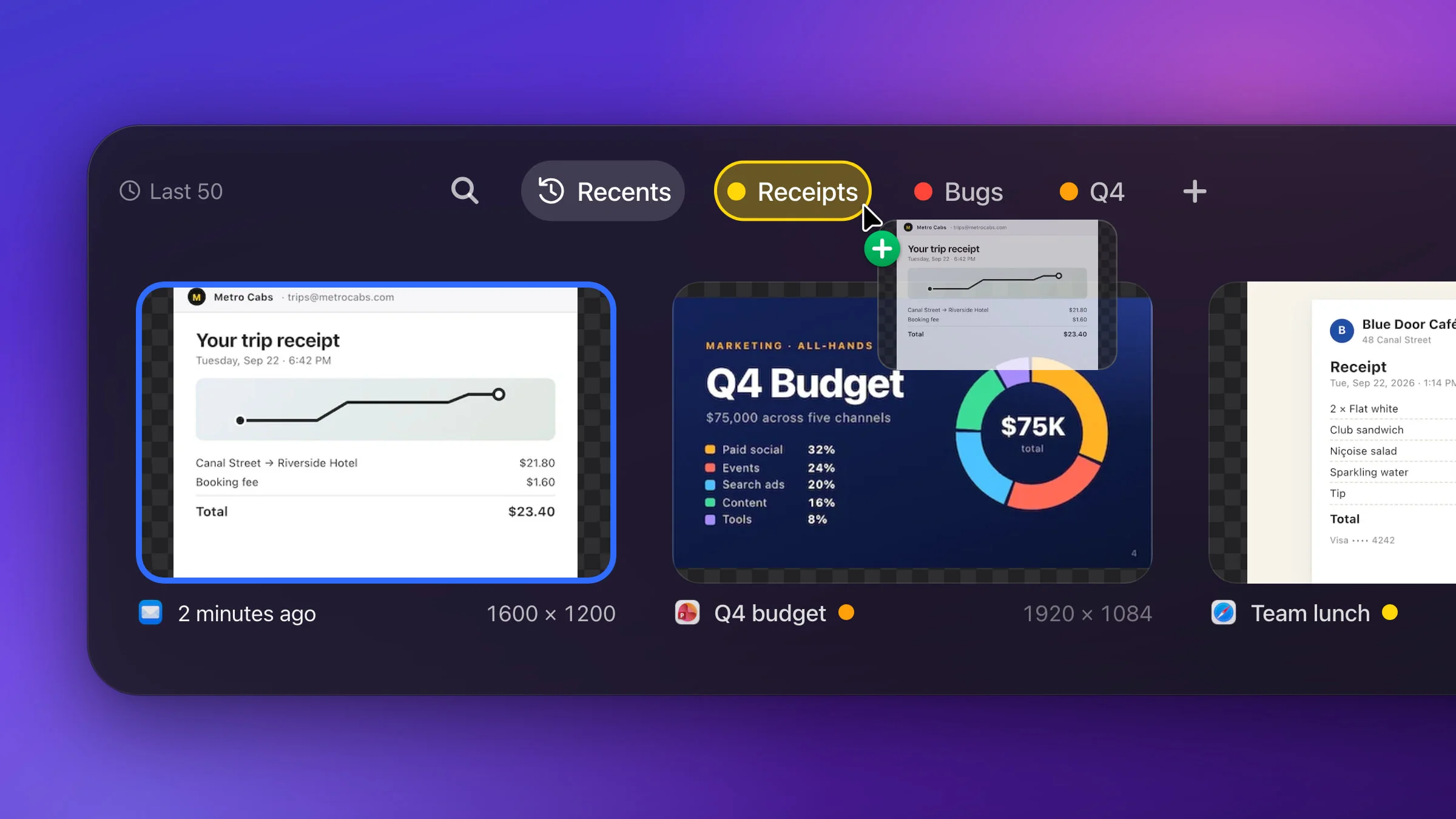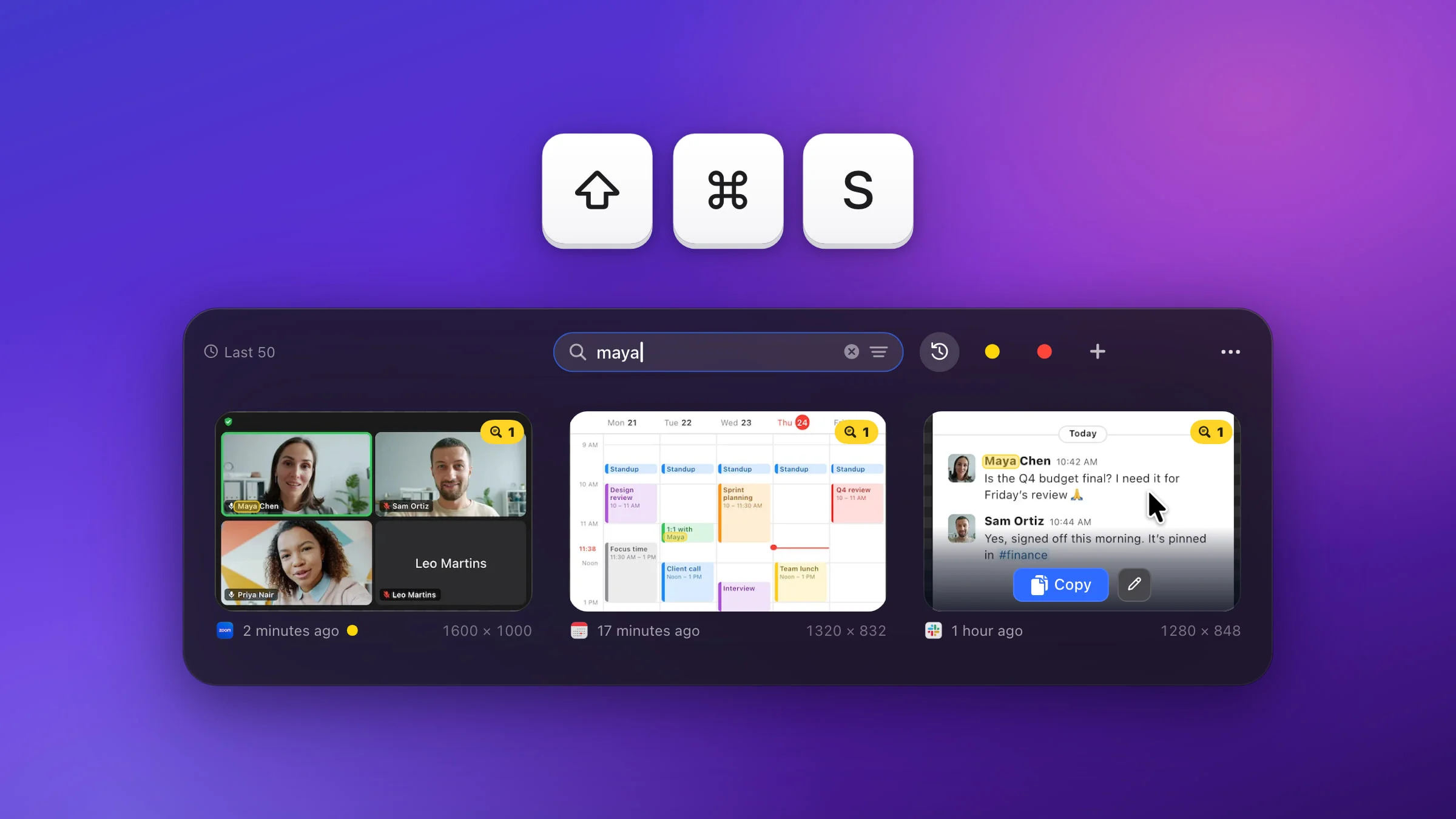
To see your recent screenshots on a Mac, press ⇧⌘S in Snapix. Recent Captures slides up from the bottom of the screen with your newest captures first, and you can find older ones by the words inside each picture. macOS itself keeps no screenshot history: every screenshot is a file, saved to the Desktop by default, so you look for it in Finder or Spotlight.
How to see your recent screenshots with Snapix
- Press ⇧⌘S. Recent Captures slides up along the bottom of the display under the pointer, with the newest capture on the left. You can also choose Recent Captures from the Snapix menu in the menu bar.
- Look through the row. Swipe or scroll sideways, or press ← and → to move from card to card. Each card shows the whole capture, the icon of the app you took it in, how long ago (or the title you gave it) and its size in pixels. To see one large, point at it and hold Space. Let go to close the preview.
- Search if it’s further back. Press ⌘F and type a word that was on screen, the app’s name or a title. The row narrows to the captures that match, still newest first.
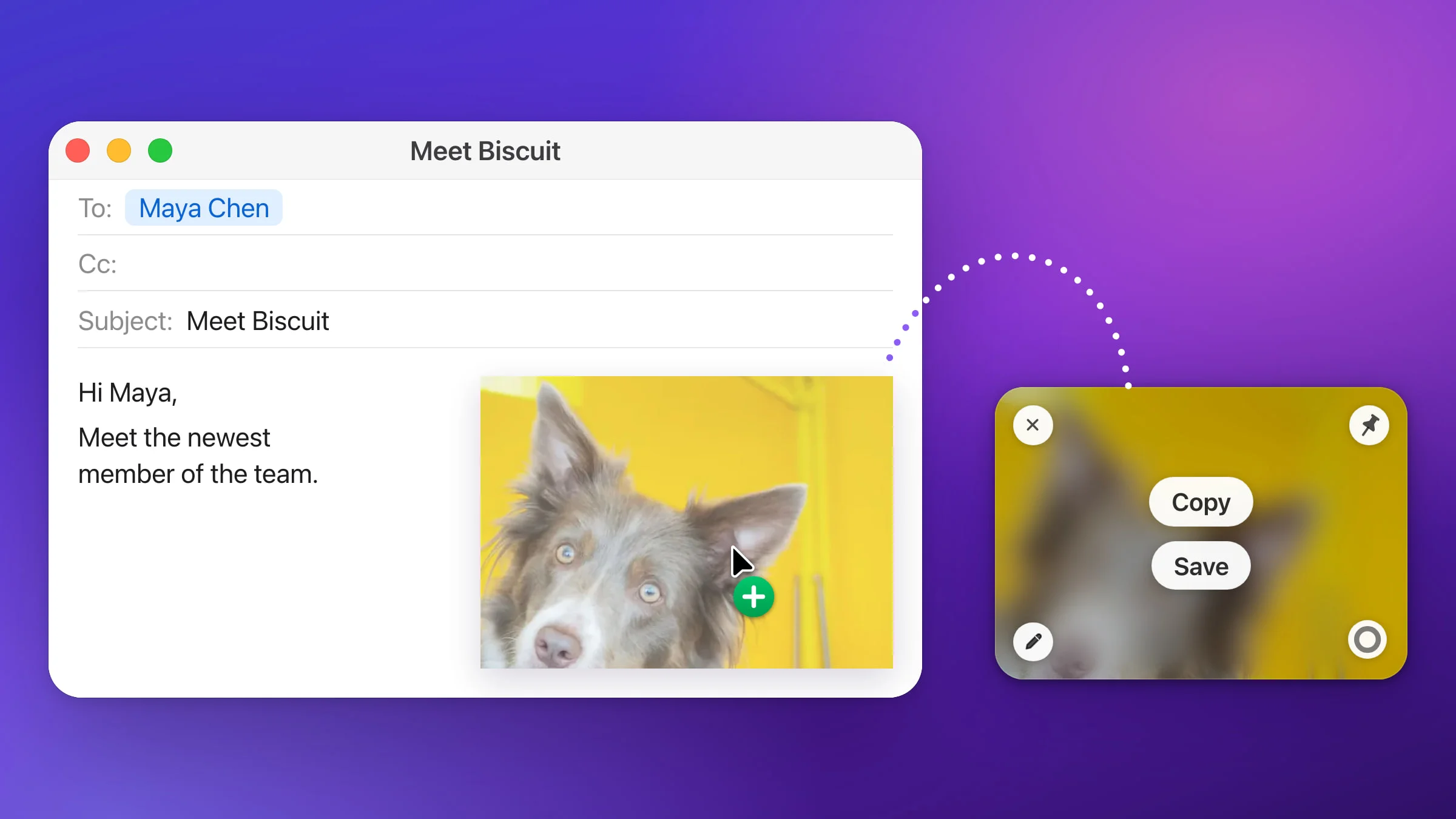
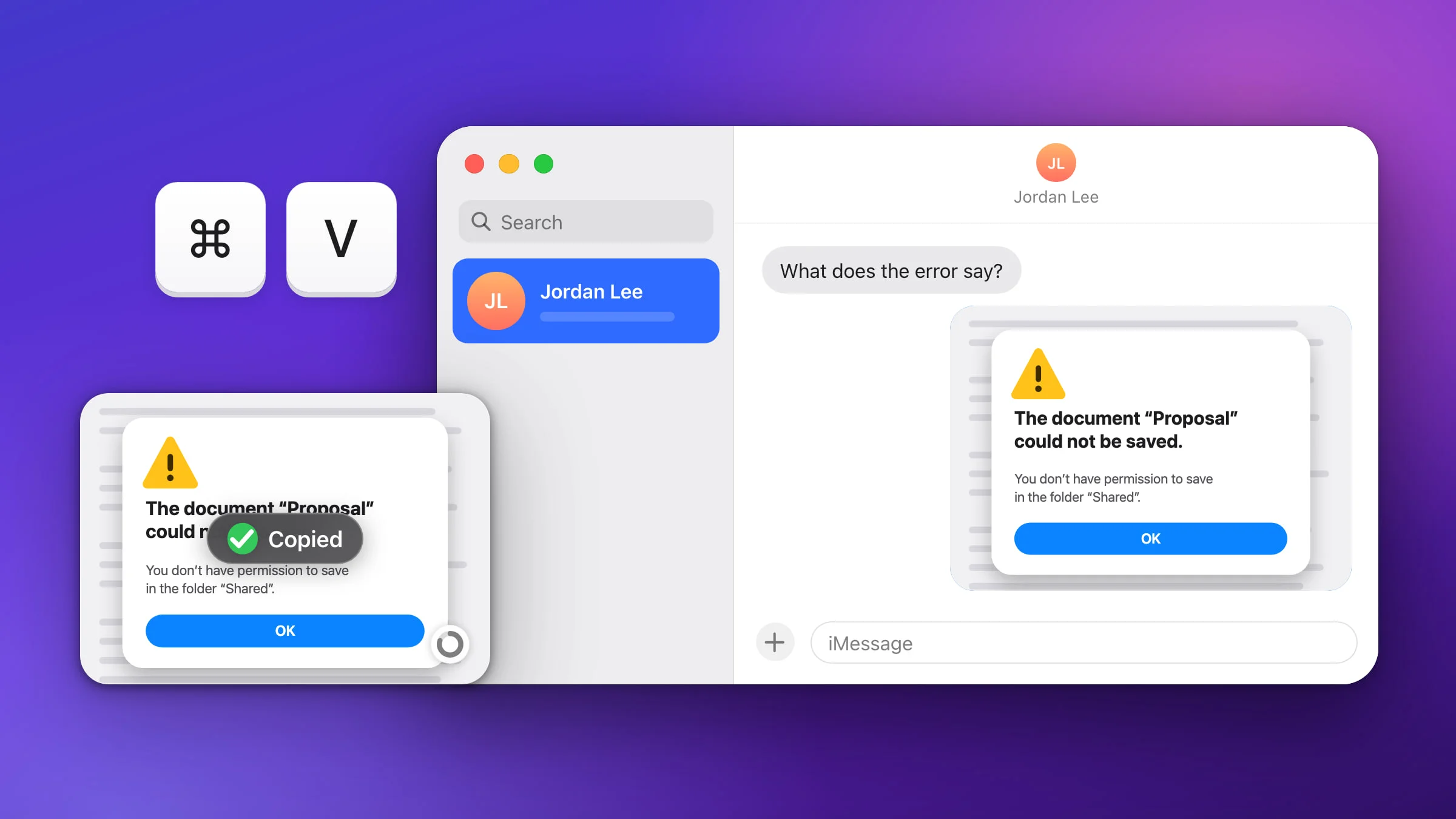
- Use it. Click a card, or press Return to leave the search field and → to pick the first match. Then press Return to copy it at full size and close the strip, and paste it anywhere. Or drag the card straight into Slack, Mail or a browser, or double-click it to open it in the editor.
- Close the strip. Press ⇧⌘S again or click outside it. Esc backs out one step at a time (preview, search, selection) and then closes it.

What Recent Captures can find
Search looks through every capture you have, whichever list you were on. A capture shows up when every word you type is found in at least one of these:
- The words inside the picture. Snapix reads them on your Mac with Apple’s Vision framework.
- The app you took it in, such as Safari or Slack.
- A title you gave it, with Add Title… in a card’s right-click menu.
- The file name, if you saved the capture.
- The kind of capture: Area, Window, Full Screen, Last Area, Self-Timer or Extracted Text.
Capitals and accents don’t matter, and when nothing matches exactly, Snapix forgives a small typo, so “chorme” still finds Chrome. To narrow by date, click the funnel in the search field and pick Today, Yesterday, Last 7 Days or Last 30 Days. The same menu filters by app, kind or list.
Open a capture that matched by its text in the editor, and its find bar already shows your word, which is handy when that word is something you want to blur before sharing.
Note: Snapix reads the text of new captures in the background, about 10 seconds after things go quiet, or as soon as you open search, so a screenshot you took a moment ago may take a few seconds to show up when you search for its words.
Keyboard shortcuts in Recent Captures
| Keys | What they do |
|---|---|
| ← → | Move from card to card |
| Space | Hold to show the card large until you let go |
| Return | Copy the selected captures and close |
| ⌘C | Copy the card under the pointer and close |
| ⌘1 to ⌘9 | Copy card 1 to 9 and close (hold ⌘ to see the numbers) |
| ⌘E | Open the card under the pointer, or the selected one, in the editor |
| ⌘F | Search |
| Delete | Delete the selected capture |
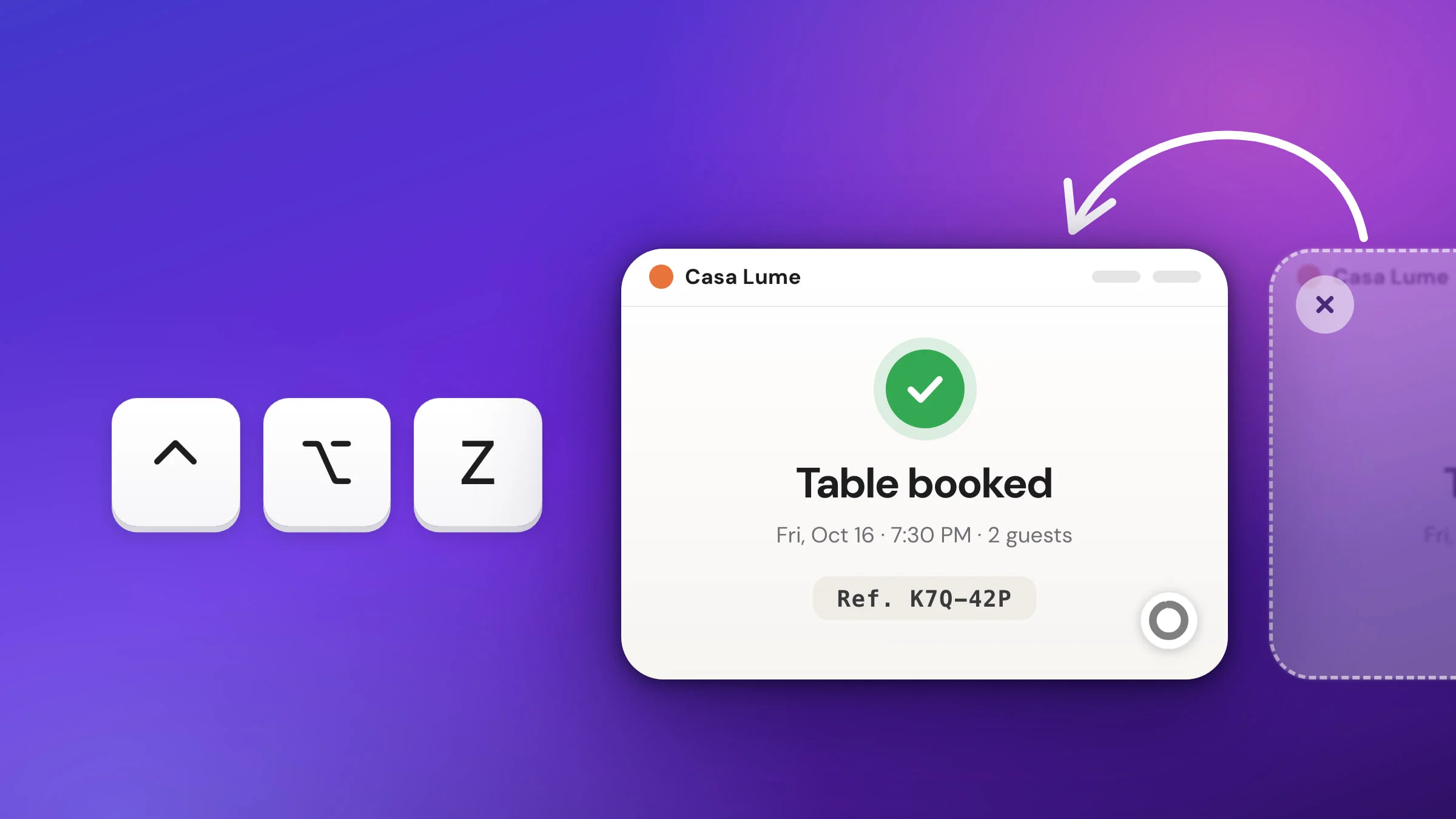
| ⌘Z | Undo a delete, for about 15 seconds |
Tip: The numbers follow what’s showing. Type a word, then press ⌘1 to copy the first match without touching the mouse.
How many screenshots Snapix keeps
By default, Recent Captures keeps your newest 50 captures and removes the oldest as new ones come in. To change that, click ⋯ at the right end of the strip and choose History Size, or open Settings ▸ History ▸ Keep history. You can keep 25, 50, 100 or 200 captures. Off (called Never in Settings) stops Snapix from keeping new ones and, after asking, deletes the recent captures you never saved that aren’t in a list.
- Captures you file in a list don’t count toward the limit, so it never removes them. See how to organize screenshots into lists.
- Lowering the number asks before it deletes the oldest captures.
- Deleting from Recent Captures never touches files you saved somewhere else.
- Your history stays on your Mac, and Snapix encrypts it there.
Snapix doesn’t save a file for each screenshot unless you ask it to. By default it copies the capture to the clipboard and keeps it in Recent Captures. To get a file every time as well, turn on Save every screenshot automatically in Settings ▸ Saving. Files go to a Snapix folder in Documents by default. If you closed a preview a moment ago, ⌃⌥Z brings it back; see how to get back a screenshot you just closed.
How to find recent screenshots on a Mac without an app
macOS saves each screenshot as a file named “Screenshot” plus the date and time, such as “Screenshot 2026-10-13 at 10.15.32 AM.png” (no AM or PM with a 24-hour clock). They go to the Desktop unless you’ve changed it.
- Check where they’re saved. Open the Screenshot app in Applications ▸ Utilities, click Options and look under Save to, or see where screenshots go on a Mac.
- Search with Spotlight. Press ⌘Space and type “Screenshot”.
- Look before you open. Press Space on a result to preview it, or select it and hold ⌘ to locate it in Finder.
While the floating thumbnail is on (the default), a new screenshot lands in its folder only once the thumbnail in the corner slides away, a few seconds later. If Save to is set to Clipboard, there’s no file at all, and ⌘V pastes only the last thing you copied. Snapix keeps your recent captures by default, whether you saved them or not, so try Snapix free and press ⇧⌘S whenever you need one back.