Press ⌃⇧⌘4 (Control-Shift-Command-4) and drag over part of the screen to copy a screenshot to the clipboard on a Mac, or press ⌃⇧⌘3 to copy the whole screen. Nothing is saved to your desktop, and ⌘V pastes the picture wherever you need it.
It’s the usual screenshot shortcut with Control added. If you’d rather not reach for the extra key every time, Snapix copies every screenshot by default and saves a file only when you ask.
How to copy a screenshot to the clipboard on a Mac
- Press ⌃⇧⌘4. Hold Control, Shift and Command, then press 4. The pointer turns into a crosshair.
- Drag over what you want. The screenshot is taken when you let go. To copy a window instead, press Space, then click the window. Press Esc to cancel.
- Click where the picture should go. A message, an email, a note or a document.
- Press ⌘V. The screenshot is pasted. No file was saved, so there’s nothing to tidy up on your desktop later.

Other ways to copy a screenshot in macOS
- The whole screen: press ⌃⇧⌘3. It’s copied right away.
- If you forgot Control: after ⇧⌘4, hold Control as you let go of the mouse or trackpad button, and the shot goes to the clipboard instead of a file.
- After the fact: if you took a regular screenshot, Control-click the thumbnail in the corner of the screen and choose Save to Clipboard.
The last two work with macOS’s own ⇧⌘4 and its thumbnail. While Snapix runs, ⇧⌘4 opens Snapix instead, and Snapix copies every shot anyway.
Note: The clipboard holds one item at a time. Copy anything else, even a word of text, and it replaces your screenshot.
How to make every screenshot go to the clipboard
You can make the regular shortcuts copy, too:
- Press ⇧⌘5 to open the Screenshot toolbar.
- Click Options.
- Under Save to, choose Clipboard.
From then on, ⇧⌘3 and ⇧⌘4 copy instead of saving a file, no Control needed. To get files on your desktop again, choose Desktop in the same menu.
Snapix uses ⇧⌘3, ⇧⌘4 and ⇧⌘5 by default, so while it runs, open the Screenshot app from Applications ▸ Utilities to reach these options.
How to copy every screenshot automatically with Snapix
Snapix is a menu bar app for macOS 14 Sonoma or later, and you can try it free. By default, it copies each screenshot to the clipboard the moment you take it, and it doesn’t save a file until you ask. It all happens on your Mac, and your screenshots stay there.
- Press ⇧⌘4 and drag over an area. Or press ⇧⌘3 for the display under the pointer, or ⇧⌘5 to pick a window.
- Look for “Copied”. A preview slides into the corner of the screen (bottom right by default) and shows Copied for a moment.
- Press ⌘V in any app. The screenshot is already on your clipboard.
The preview goes away on its own after 5 seconds by default. No screenshot file is saved to a folder unless you hover the preview and click Save. To save every shot as well, turn on Settings ▸ Saving ▸ Save every screenshot automatically. The files go to Documents ▸ Snapix unless you choose another folder. There’s more in where screenshots go on a Mac.

The automatic copy is the Copy to clipboard switch in Settings ▸ After Capture. Turn it off and Snapix copies only when you ask. Snapix leaves ⌃⇧⌘3 and ⌃⇧⌘4 to macOS, so the built-in clipboard shortcuts keep working alongside it. There’s more on what Snapix does after the shot.
How to copy a screenshot again in Snapix
You can put a screenshot back on the clipboard from wherever it is:
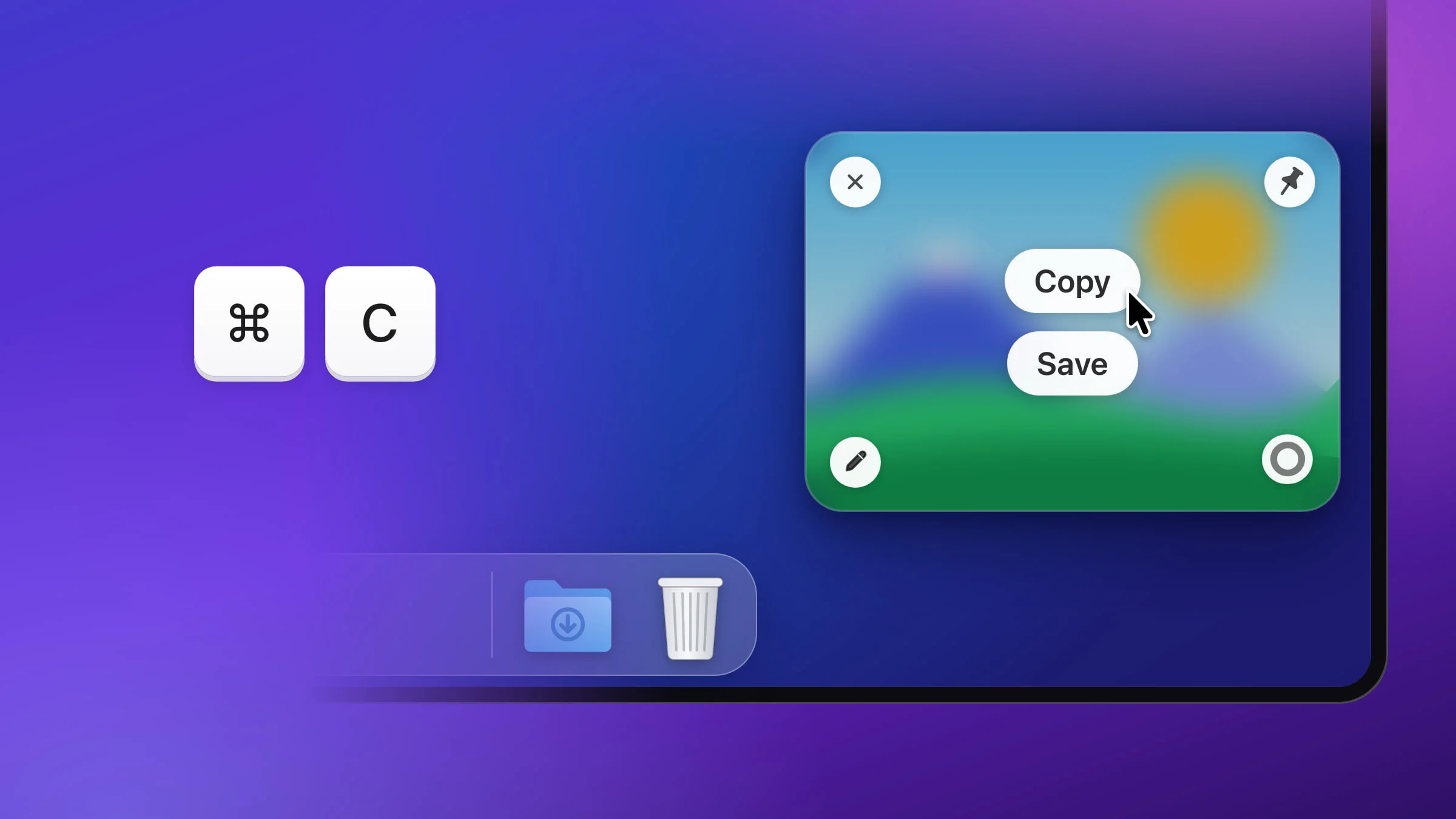
- The preview: hover it and click Copy, or press ⌘C while the pointer is on it. The preview closes a moment later. There’s more on the screenshot preview.
- The editor: click Done. Snapix copies the marked-up picture and keeps your marks so you can change them later. ⌘C does the same when no mark is selected.
- A pinned screenshot: right-click it and choose Copy Image.
- Recent Captures: press ⇧⌘S, hover a shot and click Copy, or press ⌘1 to ⌘9 to copy the card with that number (hold ⌘ to see the numbers). To copy several, ⌘-click them and press Return. They go on the clipboard as files, ready to paste into an email or a Finder folder.
Tip: If you copied something else after your screenshot, it’s still in Recent Captures, which keeps your last 50 by default. Press ⇧⌘S and copy it again. See screenshot history for more.
What Snapix copies
- The full-size picture. On a Retina screen, that’s twice the width and height in pixels of what you see. The file format and Resize Retina screenshots in Settings ▸ Saving apply to files, not to the picture Snapix copies.
- The newest shot. Take several in a row and the last one is what you paste.
- Not a reopened preview. A preview you bring back with ⌃⌥Z isn’t copied again, so click Copy on it.
For every other way to capture your screen, see how to take a screenshot on a Mac.