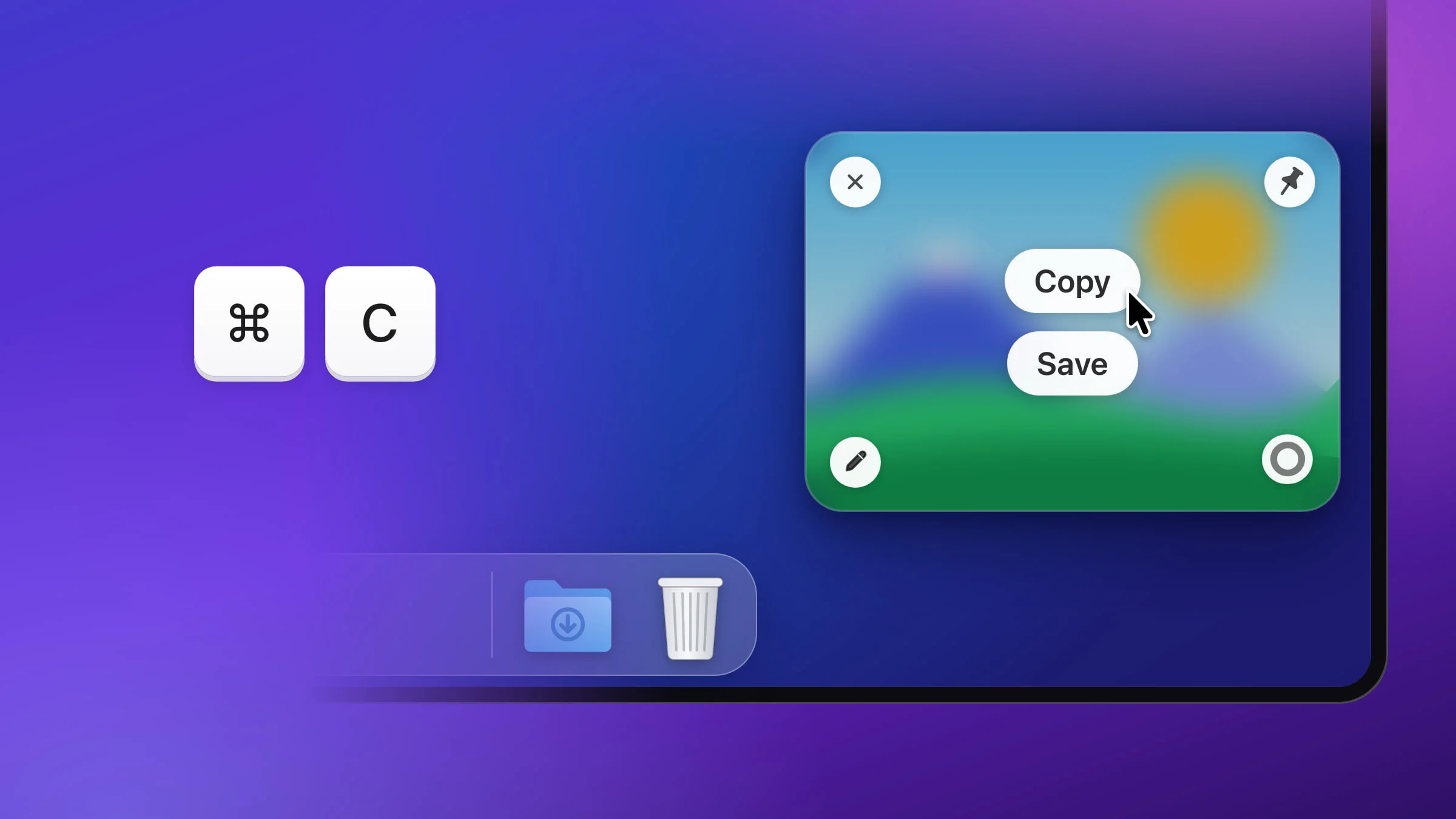
The screenshot thumbnail is the small preview that floats in the corner of your Mac’s screen for a few seconds after you take a screenshot. In Snapix, point at it and press ⌘C to copy or ⌘S to save, drag it into any app, or click it to mark it up. The thumbnail built into macOS works in a similar way, and you can turn it off in the Screenshot app’s Options menu.
How to use the screenshot preview in Snapix
- Take a screenshot. Press ⇧⌘4 and drag over an area, or press ⇧⌘3 for the display under the pointer. By default, a preview slides into the bottom-right corner and the picture is already on your clipboard.
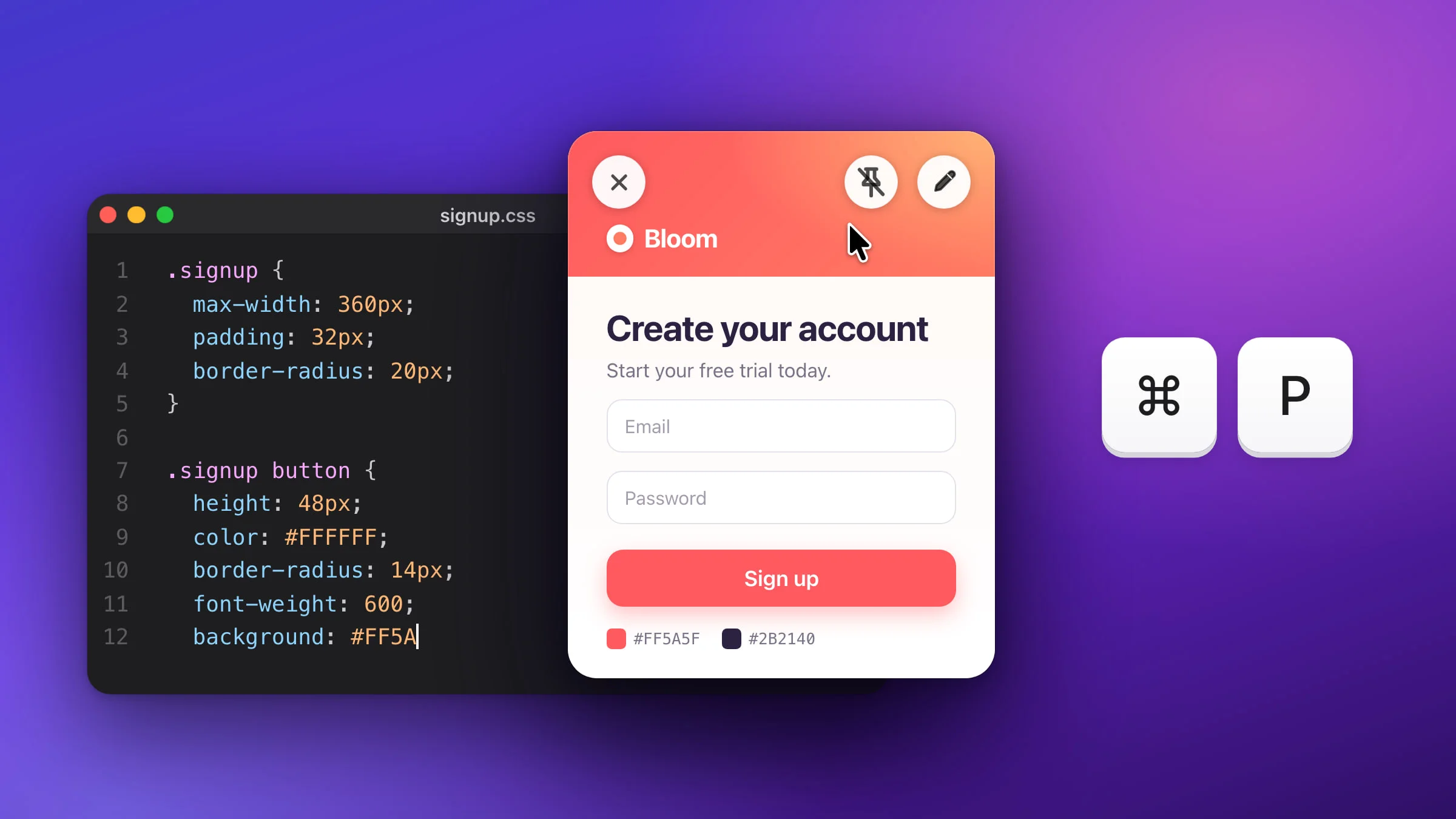
- Point at the preview. The picture blurs and its buttons appear: Copy and Save in the middle, ✕ in the top-left corner, a pin in the top-right and a pencil in the bottom-left. While the pointer is on it, the preview stays put.
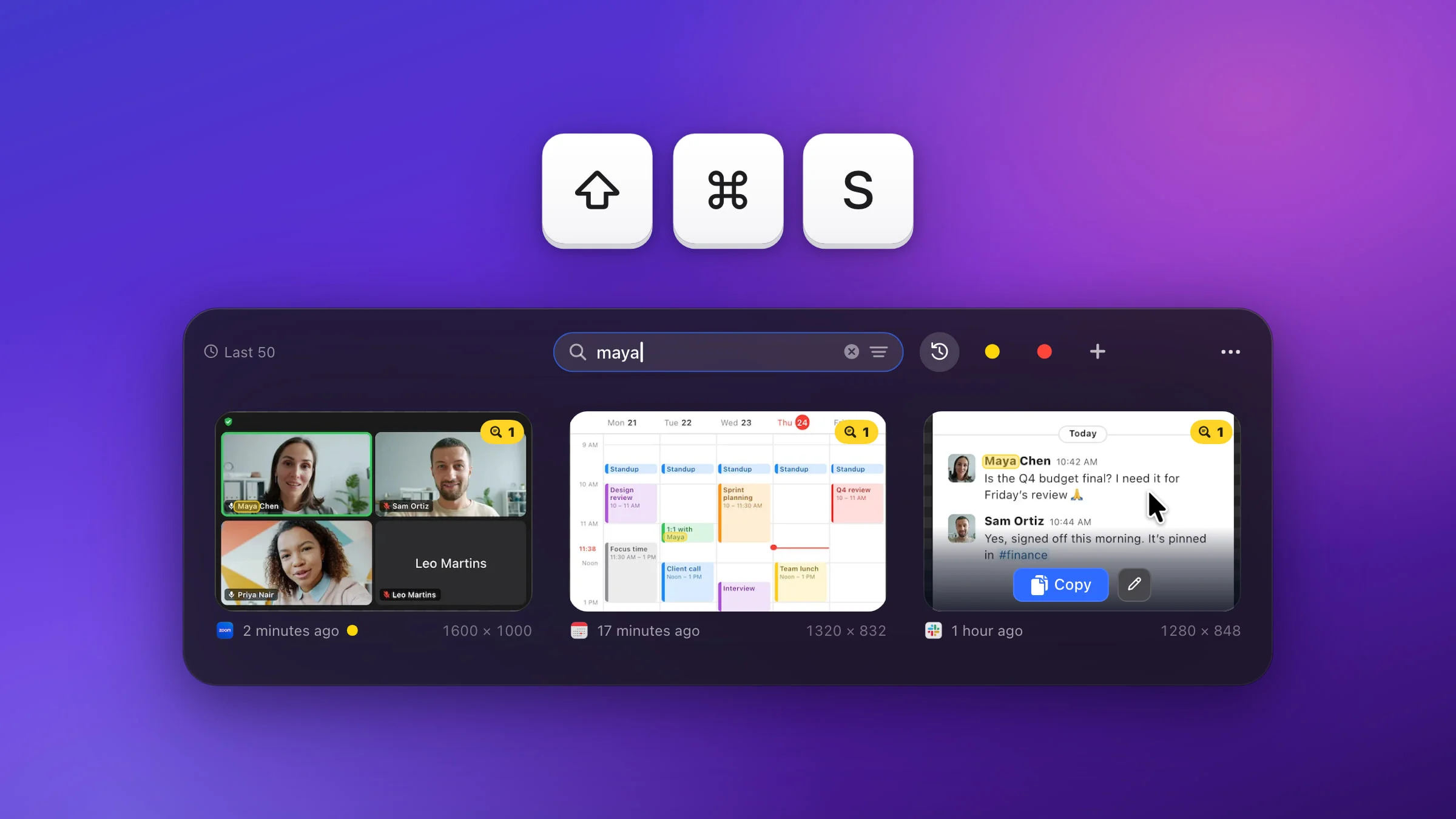
- Copy it or save it. Click Copy, or press ⌘C, to put it on the clipboard (handy if you’ve copied something else since). Click Save, or press ⌘S, to save it as a file, and Snapix shows you the file in Finder. Either way, the preview then closes, unless you’ve set it to stay on screen.
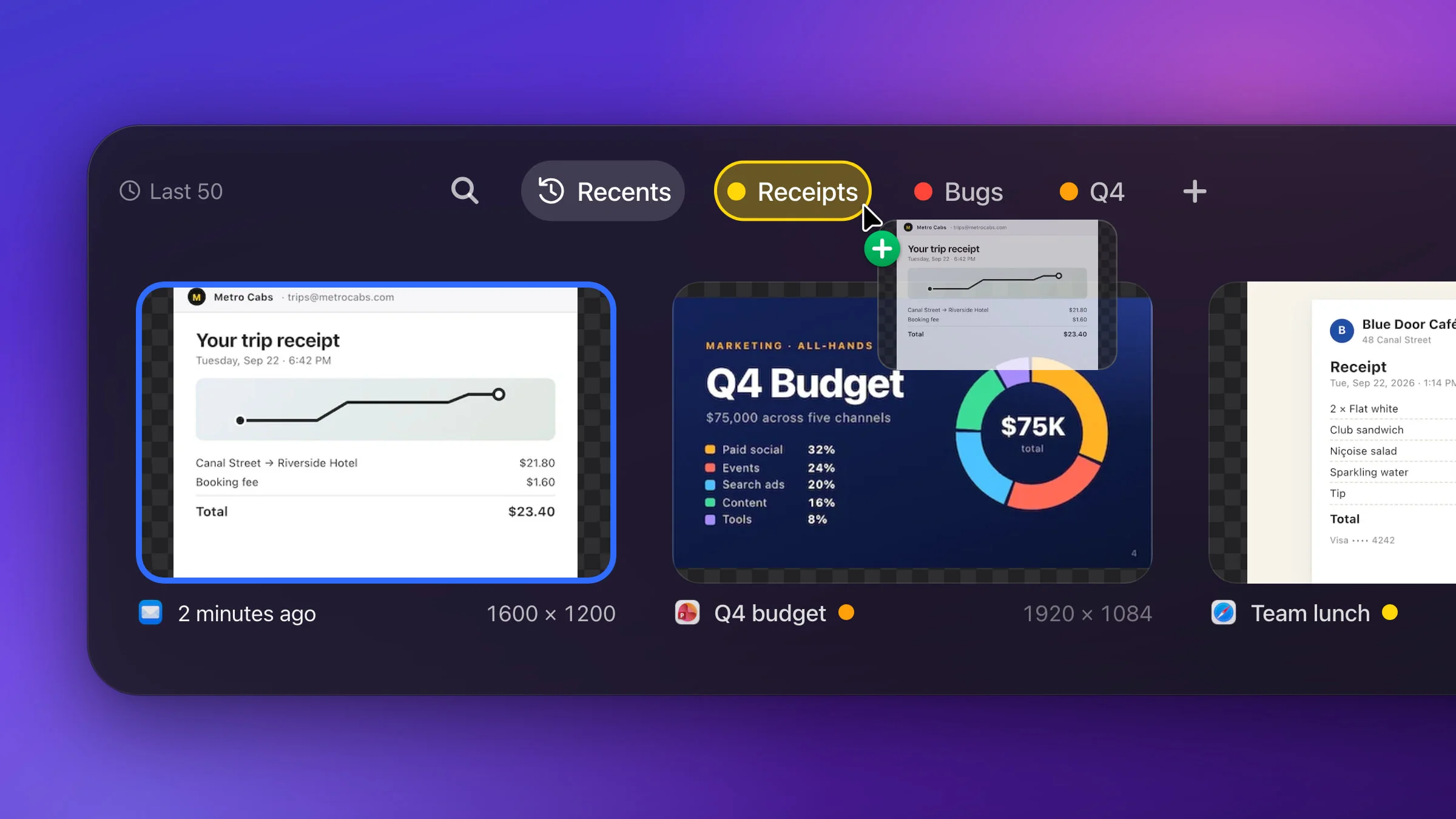
- Or drag it into an app. Press anywhere on the preview and drag it into a chat, an email, a browser’s upload box or a Finder folder. It drops in as a real image file, and the preview closes when the app accepts it.
- Or click it to mark it up. Click the picture, or press ⌘E, to open it in the Snapix editor, where you can add arrows, text and blur.

If the screenshot contains a QR code, a QR code pill also shows on the card’s bottom edge while you point at it. Click it to copy what the code says. There’s more in how to scan a QR code on your Mac screen.
Note: If you haven’t chosen a save folder yet, your first Save asks where to keep your screenshots, starting in Documents ▸ Snapix. Pick a folder and click Save Here. You can change it later in Settings ▸ Saving.
Keyboard shortcuts for the preview
The keys work while the pointer rests on a preview, even when another app is in front. Everywhere else, your keys do what they always do.
| To | Click | Or press |
|---|---|---|
| Copy the picture | Copy | ⌘C |
| Save it as a file | Save | ⌘S |
| Open it in the editor | The picture, or the pencil | ⌘E |
| Pin it above your other windows | The pin | ⌘P |
| Close it | ✕ | ⌘W |
| Close every preview | Close All, under the stack | ⌥⌘W |
| See it bigger | Right-click ▸ Quick Look | Hold Space |
A pinned screenshot pops up in the middle of the screen and floats above every window and the Dock while you work. How to pin a screenshot on Mac covers moving and resizing it.
More options in the right-click menu
Right-click a preview for more. Besides the actions above, you’ll find:
- Rotate Left and Rotate Right turn the picture a quarter turn.
- Show in Finder saves the file if needed and shows it, leaving the preview open.
- Open With opens it in another app, such as Preview.
- Open in Mail… starts a new email with the screenshot attached.
- Temporarily Hide slides the previews off the edge of the screen. Click the small tab left behind, or take another screenshot, to bring them back.
To send it with AirDrop or Messages, open it in the editor and click the Share button (the square with an arrow) at the bottom right. There are more ways to share a screenshot too.
How long the preview stays, and where it appears
Click the Snapix icon in the menu bar, choose Settings… and open After Capture. Under Floating preview:
- Close automatically is set to After 5 seconds by default. You can pick 10, 15 or 30 seconds, or Never, which keeps each preview until you close it.
- Position on screen is Bottom Right by default. Any other corner works too.
- Move the preview list to the monitor I’m working on is on by default, so with several displays the previews follow your pointer. Turn it off to keep them on your main display.
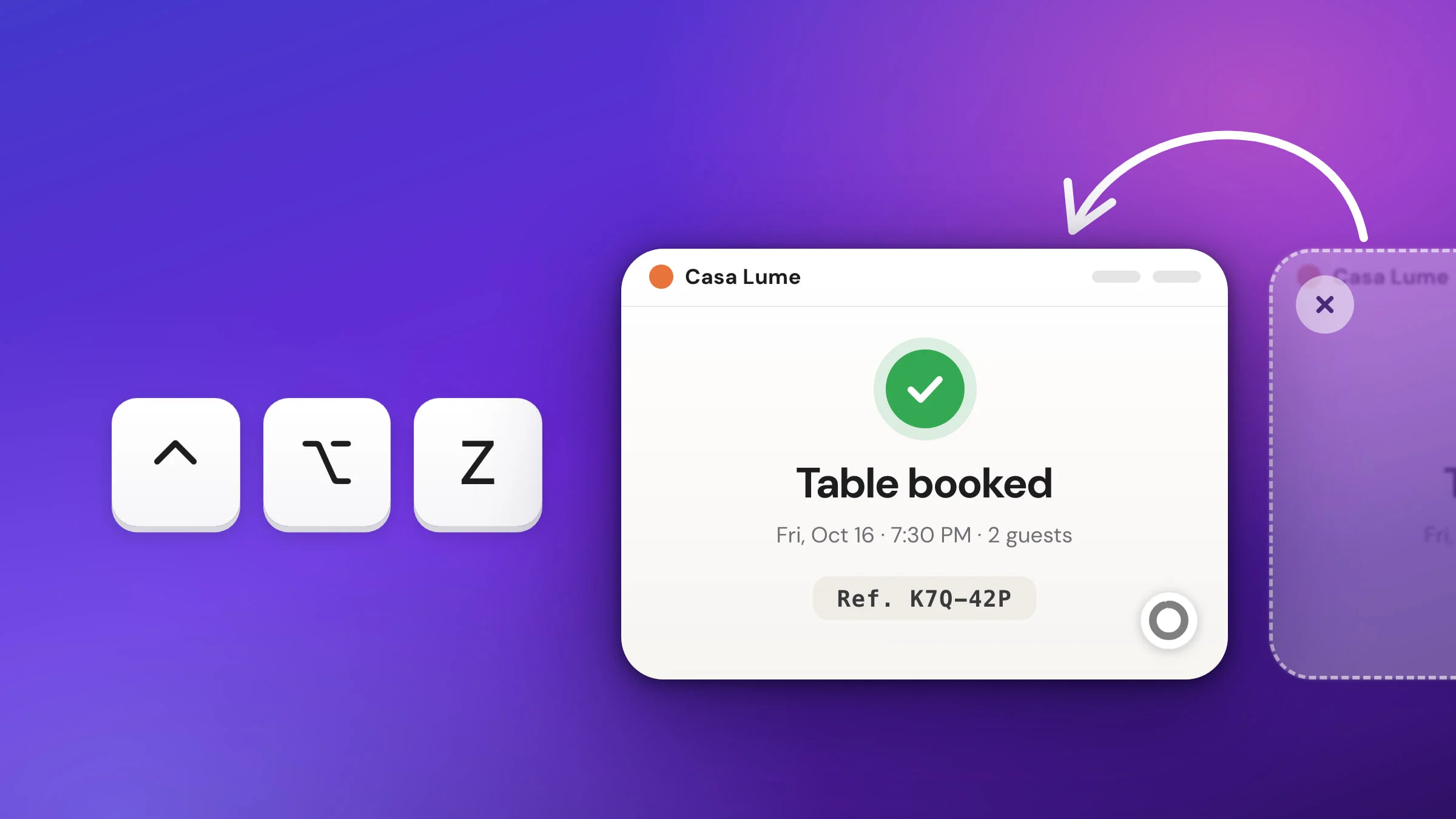
Pointing at any preview pauses the countdown for all of them, and when you move away, each one starts again from the full time. To keep just one, point at it and click the ring in its bottom-right corner. A snowflake replaces it, and the preview stays until you close it.
Several screenshots in a row stack up in a column, the newest nearest the corner, up to six at a time.
Tip: If you close a preview too soon, you can reopen a closed screenshot with ⌃⌥Z (Reopen Closed Capture). It comes back just as you left it.
Snapix’s preview has no off switch. If you’d rather skip it, turn on Open the editor in Settings ▸ After Capture, and each screenshot opens straight in the editor instead.
How to use the macOS screenshot thumbnail
macOS shows its own floating thumbnail in the bottom-right corner after a screenshot, and it does the basics well:
- Click it to open a Markup window, where you can draw, add text, crop or share the screenshot.
- Drag it into a document, an email, a note or a Finder window.
- Swipe right on it to save the file straight away and make it disappear.
- Control-click it for options such as Save to Clipboard, Open in Preview, Show in Finder and Delete.
Hold the pointer over it and it stays until you act on it or move away. One difference to know: macOS writes the file only when the thumbnail goes away, a few seconds after the shot, so a new screenshot can seem to show up late on the Desktop. By default, Snapix copies the screenshot to the clipboard the moment you take it, and saves a file when you click Save or turn on Save every screenshot automatically in Settings ▸ Saving. If you’d rather have the copy right away, try Snapix free.
How to turn off the screenshot thumbnail on Mac
- Press ⇧⌘5 to open the Screenshot toolbar. If Snapix is running with its default shortcuts, ⇧⌘5 is its Capture Window shortcut, so open the Screenshot app from Spotlight or Applications ▸ Utilities instead.
- Click Options.
- Click Show Floating Thumbnail to remove its checkmark.
macOS then saves each screenshot as soon as you take it. Choose the same option again to bring the thumbnail back.