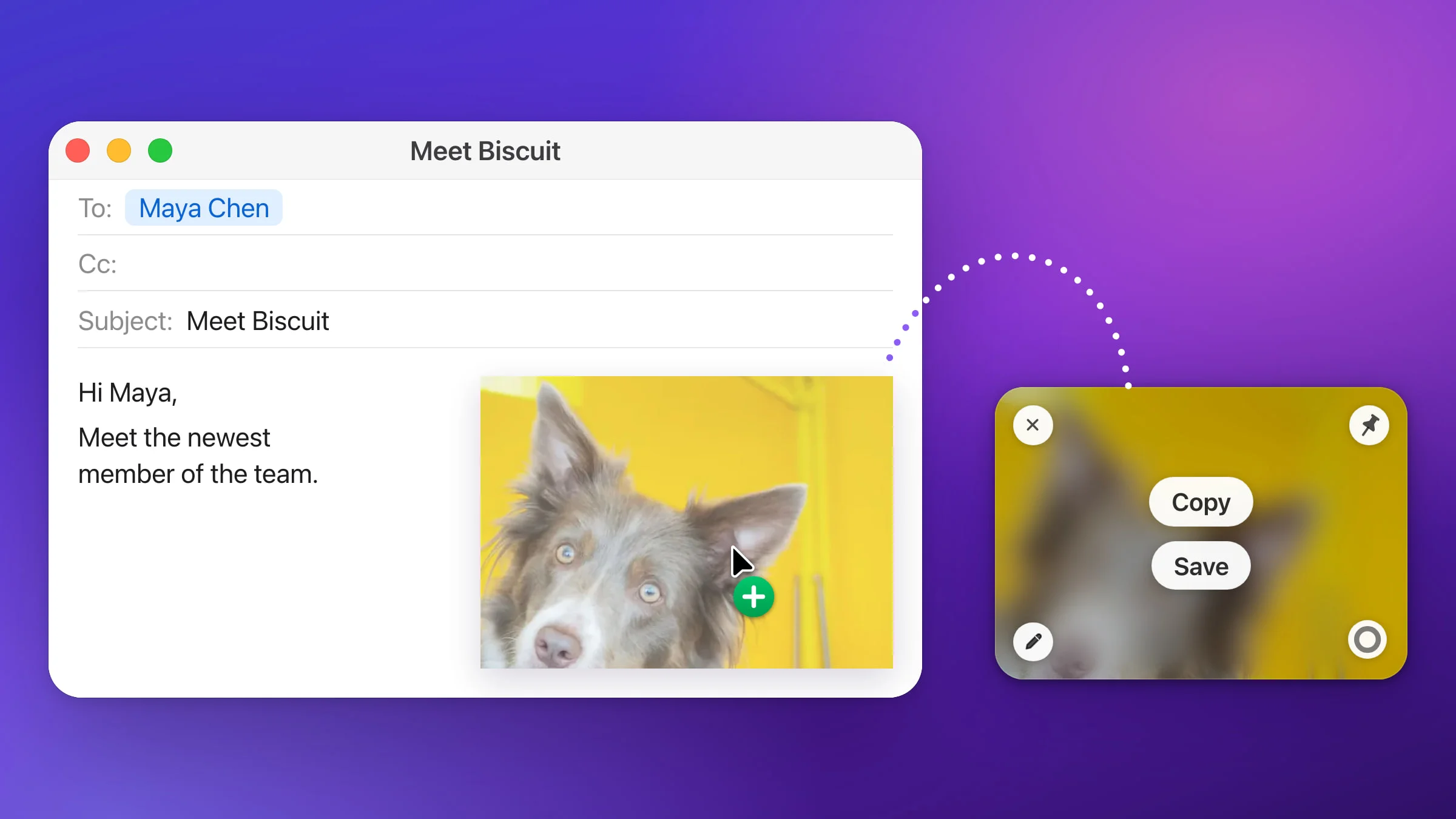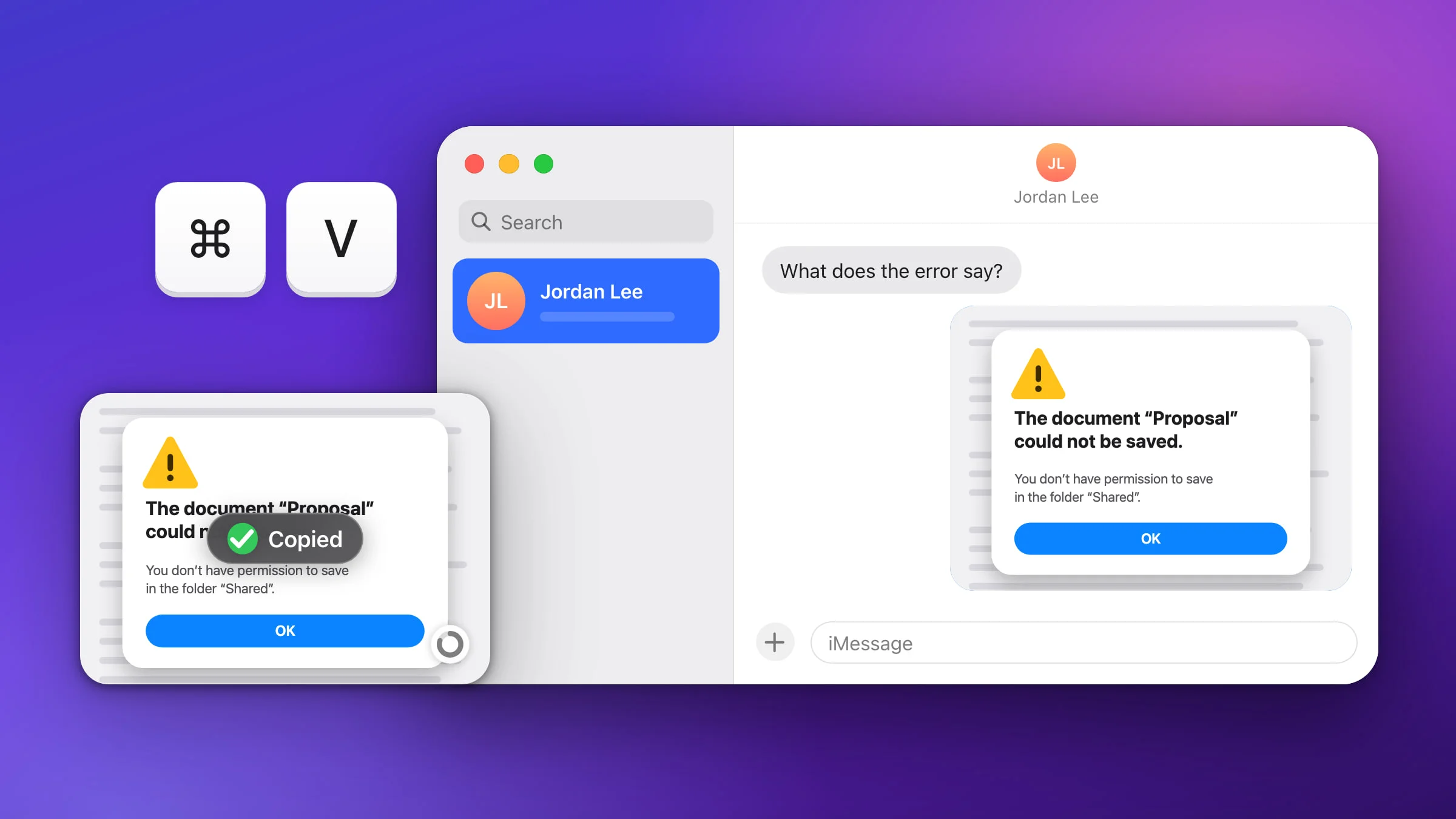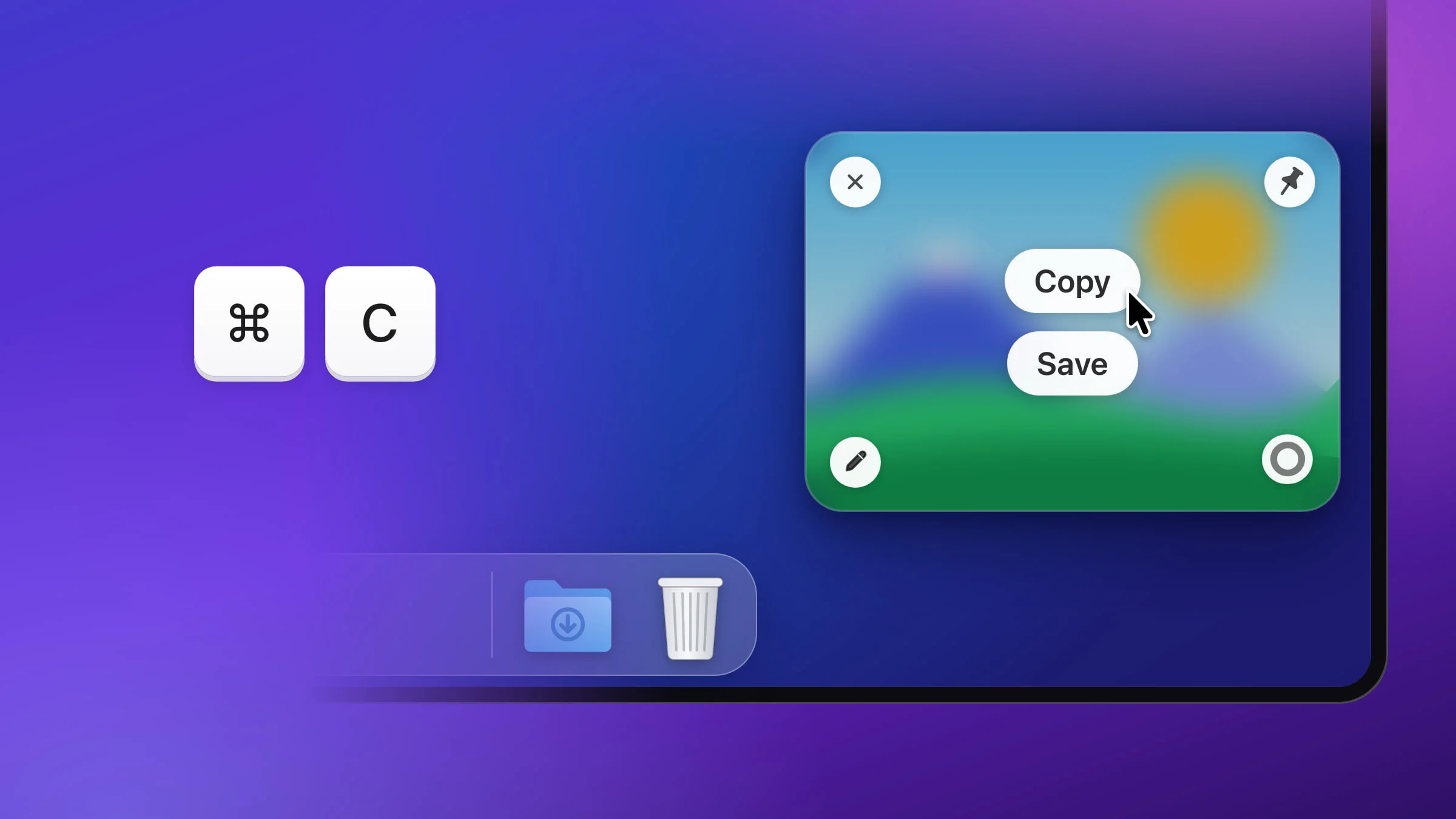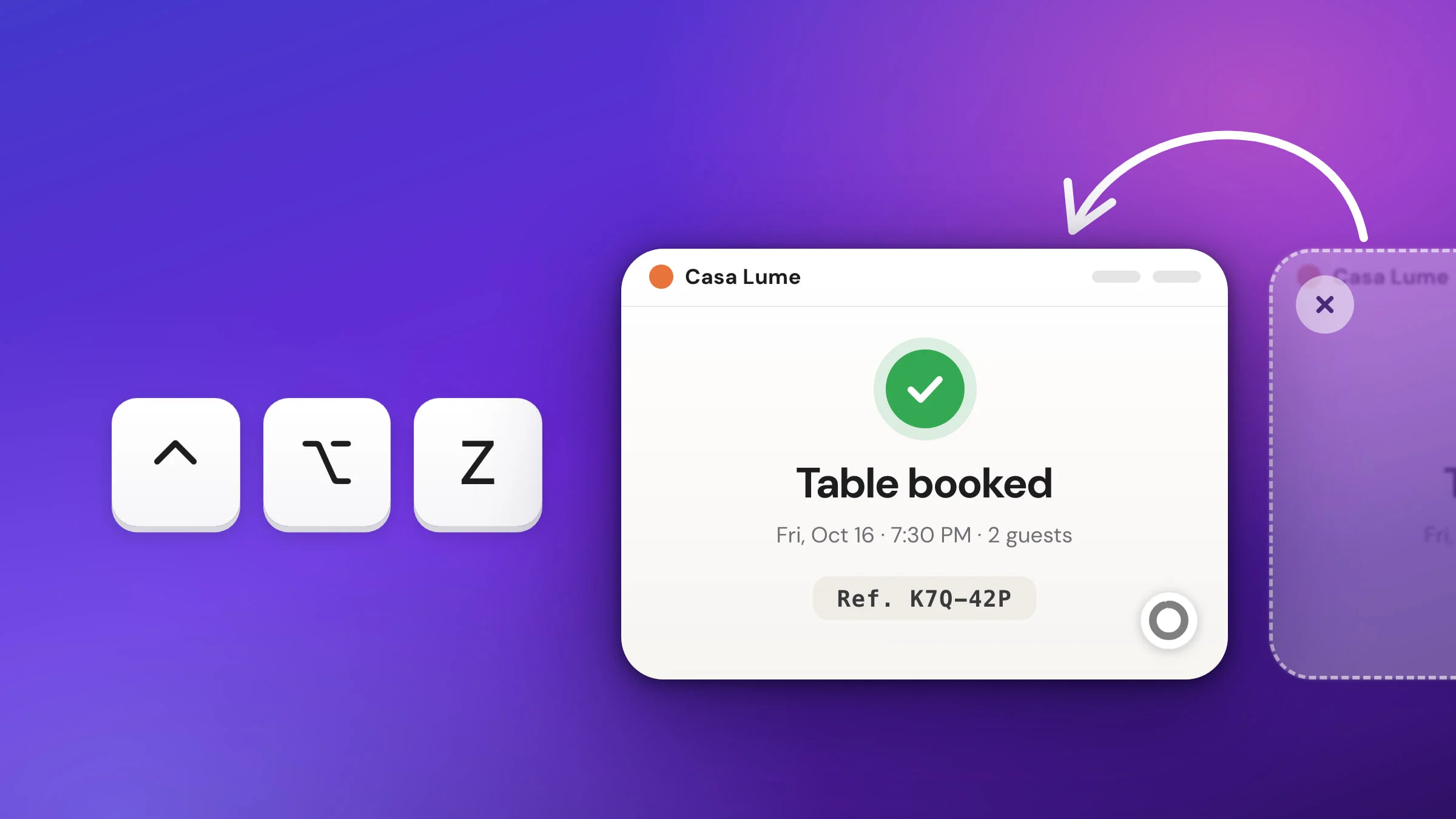
To get back a screenshot you just closed on a Mac, press ⌃⌥Z in Snapix. Your most recent screenshot whose preview has closed comes back to the corner of the screen as you left it, edits included, and pressing it again brings back older ones. The screenshot tools built into macOS have no undo for the thumbnail, but the screenshot is usually not gone: unless you dragged the thumbnail somewhere else, macOS saves the file when the thumbnail leaves, to the Desktop by default.
How to reopen a closed screenshot with Snapix
- Press ⌃⌥Z. It works from any app, and you can change the keys in Settings ▸ Shortcuts. You can also click the Snapix icon in the menu bar and choose Reopen Closed Capture.
- Find it in the corner. Your most recent screenshot whose preview is no longer on screen comes back where your previews appear: by default, the bottom-right corner of the display under the pointer.
- Press ⌃⌥Z again to go further back. Previews still on screen are skipped, so while the ones you brought back are showing, each press brings back the next older screenshot. A reopened preview closes on its own like any other, and then ⌃⌥Z brings it back first.
- Pick up where you left off. The preview comes back as it last looked, with your marks still editable, and Copy, Save, Edit, Pin and dragging all work as before. To keep a file this time, hover it and click Save.

Note: Reopening a preview doesn’t copy it again, so whatever is on your clipboard now stays there. Click Copy on the card, or hover it and press ⌘C, when you want the screenshot back on the clipboard.
What counts as a closed preview
⌃⌥Z brings back any screenshot preview that’s no longer on screen, however it left:
- You closed it with its ✕, with ⌘W while hovering it, or with Close All.
- It timed out. Previews close on their own after 5 seconds by default.
- You used it. Copy, Save and dragging the card into another app all close it when they’re done.
- It was pushed out. At most six previews stack up at once, and the oldest leaves when a new one arrives.
Extract Text grabs, made with ⇧⌘2, are skipped because they put text on your clipboard, not a picture. For those, see how to copy text from a screenshot.
How many closed screenshots you can reopen
Snapix remembers your last 12 previews while it’s running. Past those, and after you quit Snapix, restart your Mac or install an update, ⌃⌥Z carries on through Recent Captures, newest first, as long as history is on, which is the default. For more than a few steps back, opening Recent Captures is quicker.
With history turned off (Settings ▸ History ▸ Keep history ▸ Never, or Off in the strip’s ⋯ menu), ⌃⌥Z can bring back only your last three screenshots, and they’re gone when you quit. Captures you saved or put in a list before you turned history off stay in Recent Captures, so it can still reach those.
When there’s nothing left to reopen, a banner says No closed captures to reopen. If history is off, it adds History is off — turn it on to keep them. Clicking that banner opens Settings ▸ History.
Find an older screenshot in Recent Captures
For anything further back, press ⇧⌘S to open Recent Captures, a strip of your recent screenshots that slides up from the bottom of the screen, newest on the left. It keeps the last 50 by default.
- Double-click its picture to open it in the editor, with its marks still editable.
- Right-click it and choose Show Preview Again to get it back as a floating preview.
- Press ⌘F and type a word from the picture, or the name of the app you took it in, to find it.
There’s more in how to see your screenshot history.
Tip: If you delete one from Recent Captures by mistake, press ⌘Z while the strip is still open. Undo works for about 15 seconds after your last delete, for up to 10 deletes. Clear History can’t be undone, and files you saved elsewhere are never touched.
Keep previews on screen longer
If previews keep leaving before you’re done with them, give them more time. In Snapix Settings ▸ After Capture, set Close automatically to After 10 seconds, After 15 seconds, After 30 seconds or Never. While the pointer is over a preview it stays put, and its countdown starts again when you move away. To keep just one, hover it and click the countdown ring in its bottom-right corner: a snowflake shows it stays until you close it. See how the screenshot preview works for the rest.
How to recover a closed screenshot without an app
macOS can’t bring a thumbnail back, but the screenshot is usually still there. The thumbnail floats in the corner for a few seconds so you can drag it, mark it up or share it, then macOS saves the file. Swiping it to the right only saves it sooner.
There are two exceptions. If you dragged the thumbnail into a document, an email or a Finder window, the screenshot went there instead of the Desktop. If you deleted it, from the thumbnail’s Control-click menu or in its Markup window, it was never saved.
- Look on your Desktop. That’s where screenshots go by default, named “Screenshot” followed by the date and time on macOS Ventura and later (“Screen Shot” before that).
- Check where yours are saved. Press ⇧⌘5, or open the Screenshot app if Snapix has that shortcut (it uses it for Capture Window by default). Click Options and look under Save to. If it says Clipboard, or you held ⌃ as you took it, as in ⌃⇧⌘4, no file was made. The picture went to the clipboard, which holds one image, so the next copy replaces it.
- Search for it. Press ⌘Space and type Screenshot (or Screen Shot for older ones), or open a Finder window and click Recents in the sidebar.
- Look in the Trash. A screenshot you deleted in Finder stays in the Trash until it’s emptied.
To change where the Mac saves screenshots, see where screenshots go on a Mac, or try Snapix free and keep your recent screenshots one shortcut away.