To share a screenshot on a Mac, press ⇧⌘4 to take it, click the thumbnail that appears in the bottom-right corner, then click the Share button and choose AirDrop, Messages or Mail. You can also drag that thumbnail straight into an email or a chat. With Snapix, each screenshot is copied to your clipboard by default, and its preview drags into any app.
How to share a screenshot on Mac
- Take the screenshot. Press ⇧⌘4 and drag over what you want, or press ⇧⌘3 for the whole screen. A thumbnail floats in the bottom-right corner for a few seconds.
- Click the thumbnail. The screenshot opens in a window where you can mark it up before you send it.
- Click the Share button. It’s the square with an arrow pointing up.
- Choose how to send it. Pick AirDrop, Mail, Messages or another option, then choose who gets it.
You don’t have to open the window at all. Drag the thumbnail into a document, an email, a note or a Finder window, or Control-click it and choose Open in Messages.
How to share a screenshot with Snapix
By default, ⇧⌘3, ⇧⌘4 and ⇧⌘5 open Snapix instead of the macOS screenshot while it’s running. Unless you change it, Snapix copies each screenshot and shows a preview card instead of saving a file, so there’s nothing to tidy up after you send it.
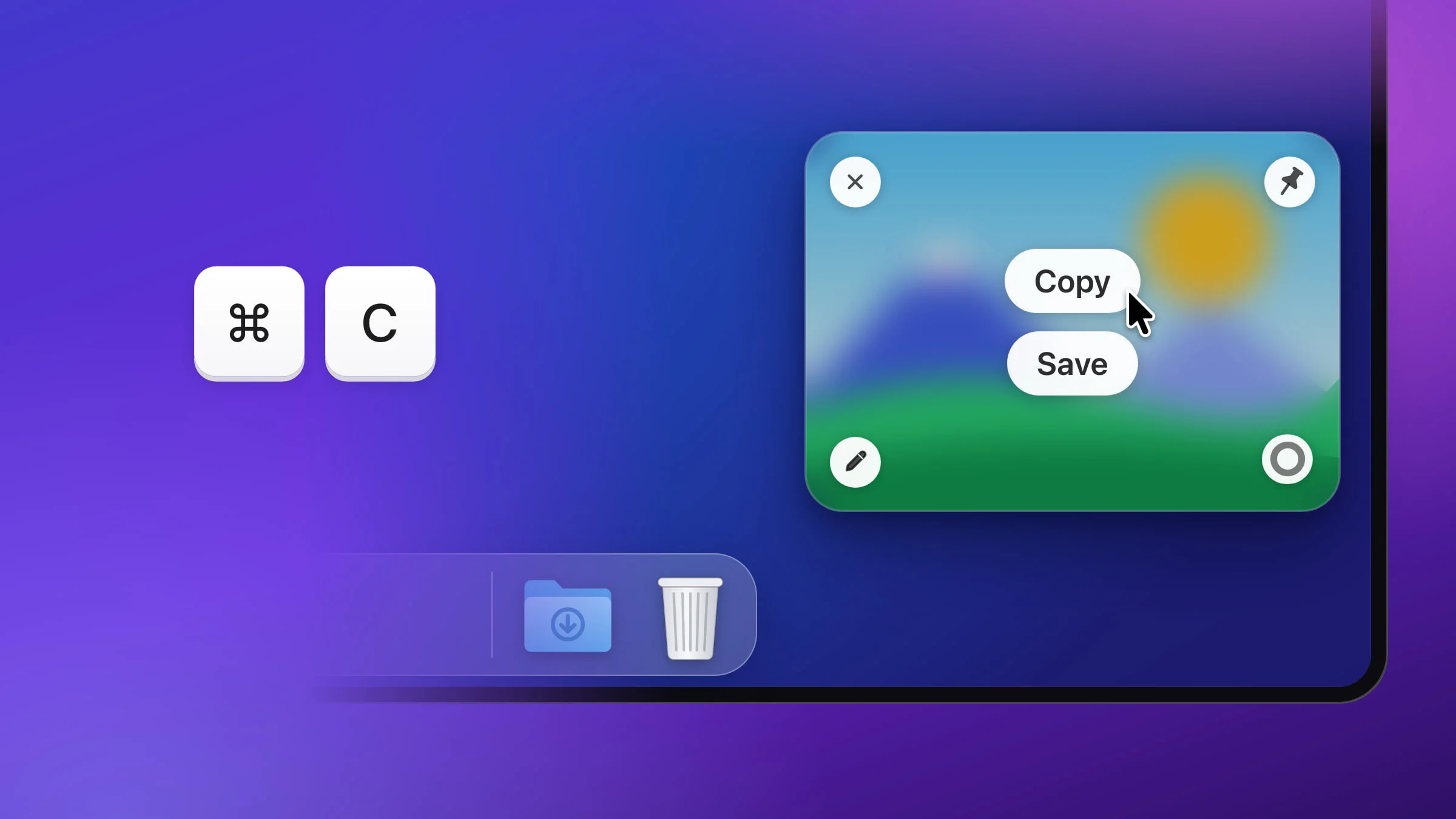
- Press ⇧⌘4 and drag over the area. A preview appears in the bottom-right corner by default, and the picture is already on your clipboard.
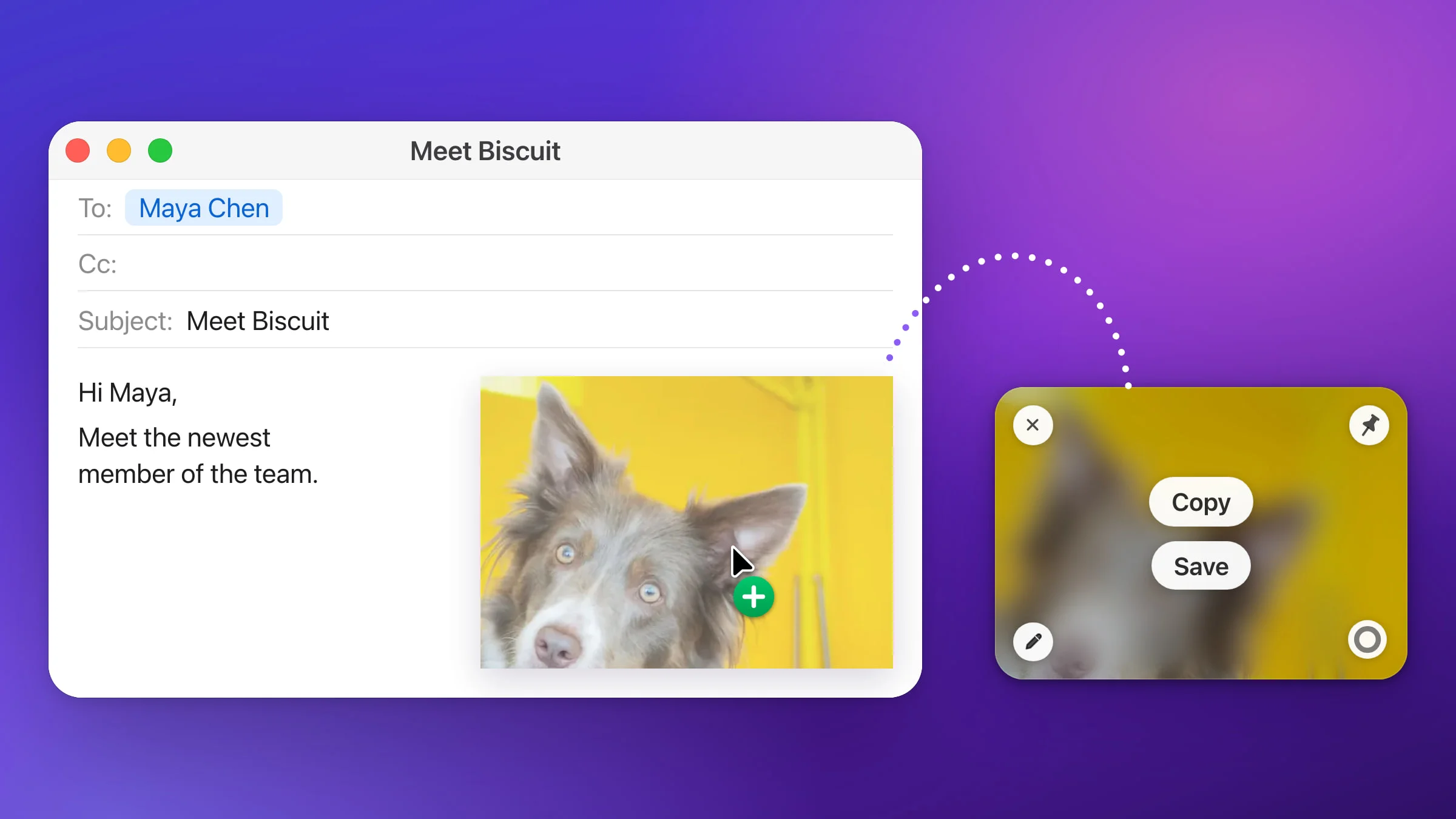
- Paste it or drag it. Click into a conversation or an email and press ⌘V. Or drag the preview into Messages, Mail, Slack or a browser’s upload box. It drops in as a real image file, and the preview closes once the drop lands.
- Click Share for AirDrop, Messages or Mail. Click the preview to open the editor, add an arrow or hide a detail if you need to, then click the Share button (the square with an arrow, next to the pin) at the right of the bottom bar. The macOS share menu opens, with options such as AirDrop, Messages, Mail and Notes, and your marks are part of the picture.
- Or email it in one step. Right-click the preview and choose Open in Mail… to get a new email with the screenshot attached.

Drag a screenshot into any app
Dragging works anywhere you can drop an image file: a chat, an email, a support ticket or a web form.
- From the macOS thumbnail. Drag it into the app before it slides away.
- From the Snapix preview. Press anywhere on the card, even on its buttons, and drag. The card dims in its corner while you drag. A canceled drag leaves it where it was. There’s more on the card in how to use the screenshot preview.
- From the Snapix editor. Drag the Drag me handle in the middle of the bottom bar. Your marks come along. The editor fades out so you can see where you’re dropping, and closes after the drop. Hold ⌥ as you let go to keep it open.
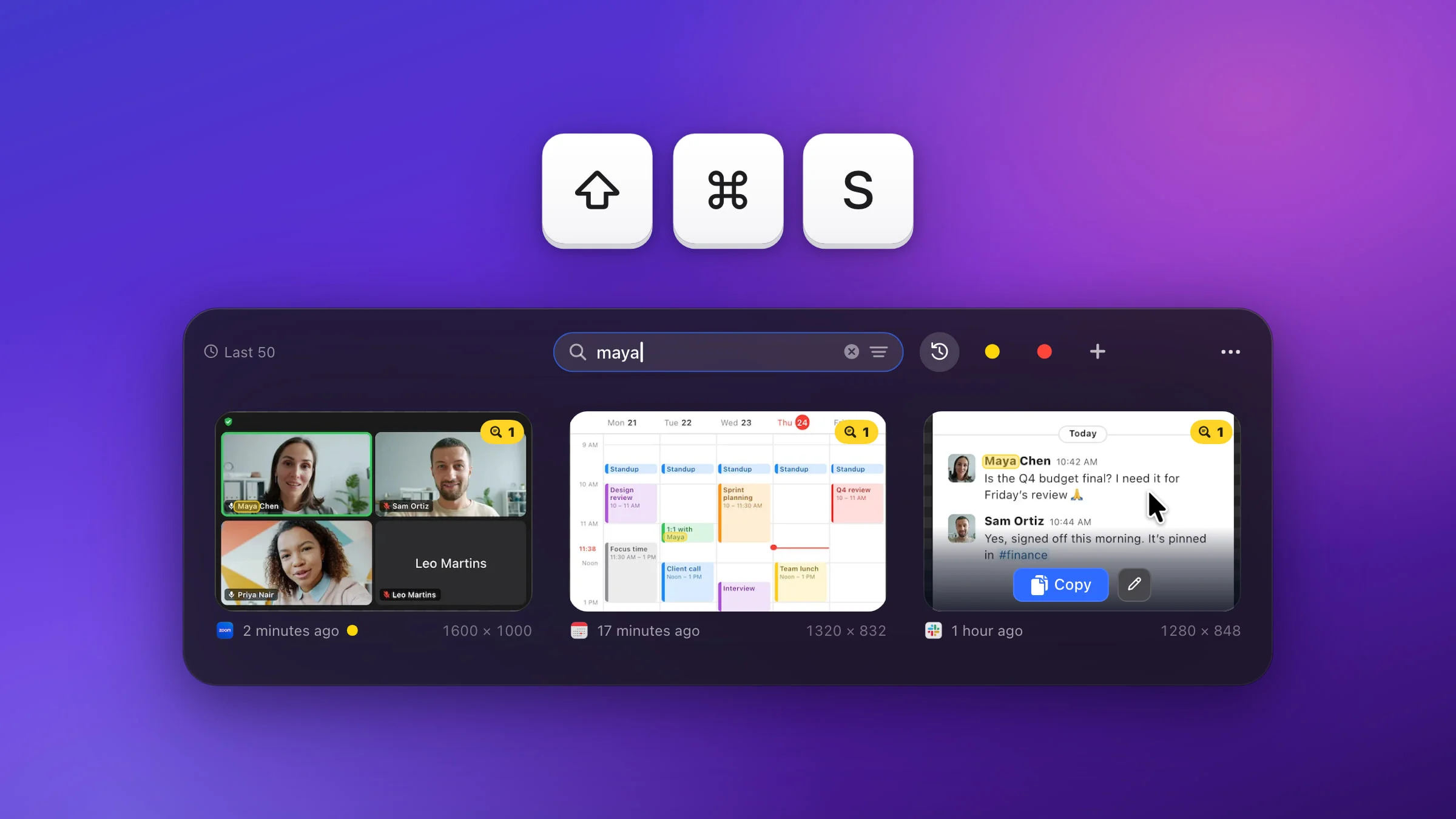
- From Recent Captures. Press ⇧⌘S, then drag a card by its picture.
A file dropped from Snapix gets the name a saved Snapix screenshot would get (by default, “Screenshot” plus the date and time). Dragged from the preview, the editor or Recent Captures, it’s in the format set in Settings ▸ Saving, which is PNG unless you change it.
Note: A pinned screenshot can’t be dragged into another app. Right-click the pin, choose Copy Image and paste it, or unpin it and drag the preview instead.
AirDrop a screenshot from your Mac
AirDrop sends a screenshot to a nearby iPhone, iPad or Mac.
- Right after you take it. Follow the steps at the top and choose AirDrop.
- From Finder. Select the file and click the Share button in the toolbar, then AirDrop. On the desktop, Control-click the file and choose Share. You can also click AirDrop in Finder’s sidebar and drag the file onto the person.
- From Snapix. Open the screenshot in the editor, click the Share button and choose AirDrop. The editor stays open, so you can send it to someone else next.
Both devices need Wi-Fi and Bluetooth turned on, and they need to be within 30 feet (10 meters) of each other. Between your own devices, signed in to the same Apple Account, the screenshot is accepted and saved automatically.
Send a screenshot in Messages or Mail
For a chat, pasting is usually quickest. With the macOS shortcuts, add ⌃ to copy instead of saving: ⌃⇧⌘4 copies an area, and Snapix doesn’t take that shortcut over. Snapix copies every screenshot by default, so ⇧⌘4 and then ⌘V is all it takes. There’s more in how to copy a screenshot to the clipboard.
For email, macOS and Snapix can both start a new message with the screenshot attached. On the macOS thumbnail, Control-click and choose Open in Mail. In Snapix, choose Open in Mail… from the preview’s right-click menu, shown below.

Share several screenshots at once
In Finder, select the files and click the Share button, or drag them into a message together. In Snapix, press ⇧⌘S to open Recent Captures, ⌘-click the screenshots you want, and drag them into the message. They drop in as separate files. You can also right-click the selection and choose Copy 3 Captures (the number follows your selection), then paste them as files. See how to find your recent screenshots for search and lists.
Check what you’re sending
An email address or a sign-in code is easy to miss in a busy screenshot. In the Snapix editor, cover it with Pixelate, Blur or Black before you click the Share button. Our guide on how to blur part of a screenshot shows which one keeps a secret.
Snapix has no share links of its own. Your screenshots stay on your Mac, and each one goes only where you paste, drag or share it. If that’s how you like to work, try Snapix free.