
Image to text converter (OCR)
Turn a picture, photo, or screenshot into selectable, copyable text — free OCR that runs right in your browser.
or drop it here — or press ⌘V to paste or take a photo of the page you need
PNG · JPG · WebP · BMP · GIF
Result
Confidence is low on this one — skim for mistakes and fix them right in the text box. A tighter crop or a sharper, higher-contrast image usually helps. Confidence is low — check the lines against the image in Live Text and fix slips right in the text box. A tighter crop usually helps.
No text found
The engine couldn’t spot any readable text in this image. Try cropping closer to the text or using a sharper image.
Have feedback on Image to Text?
How to extract text from an image
Three steps, and it all happens in your browser.
Upload an image
Drop a screenshot or photo into the box above, click to browse, or press ⌘V to paste — any image your browser can decode works. Tap the box above to take a photo or pick a screenshot from your library — any image your browser can decode works.
Watch it read
Recognition starts the moment the image lands — the OCR runs in your browser and returns clean, selectable text in seconds.
Copy or download
Copy the recognized text to your clipboard, or download it as a .txt file — no sign-up, no watermark.
A real OCR engine, right in the page
The OCR engine runs right in your browser — accelerated on your graphics card where the browser allows it — so there is no upload step and no server queue: recognition starts the instant an image lands.
The engine and its models — about 20 MB — download on your first visit and are cached by your browser, so later extractions start in about a second.
- Runs entirely in your browser
- No sign-up, no watermark, no page quota
- Reads any Latin-script language, cached after first use
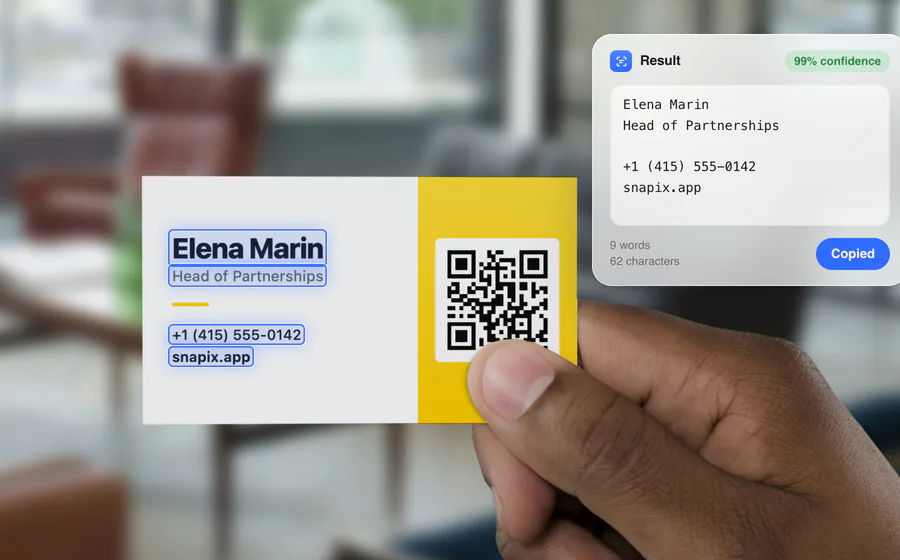
Copy text from screenshots, photos, and scans
A surprising amount of everyday text is trapped in pixels. These are the jobs this tool handles well:
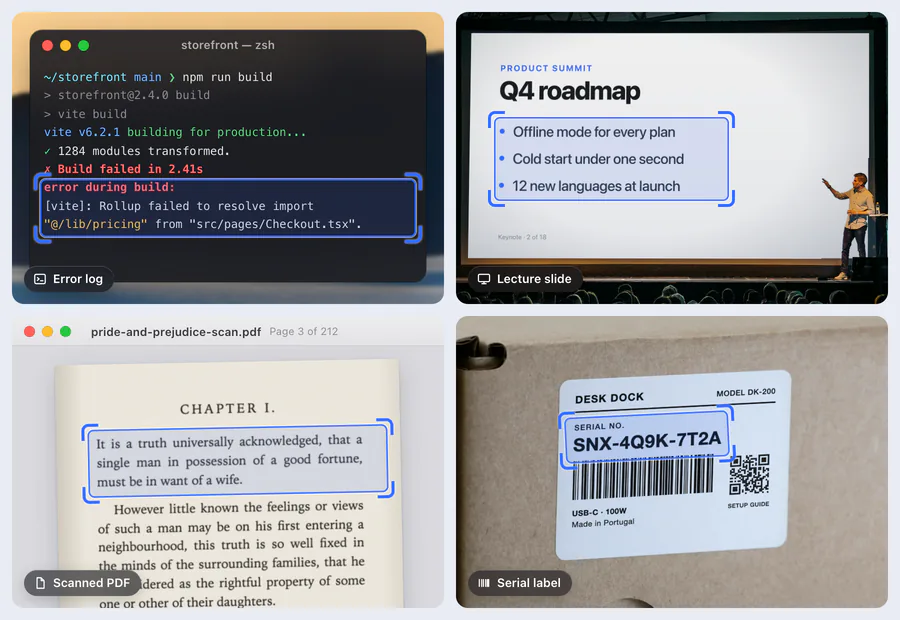
- Error messages & logsError dialogs, terminal output or stack traces — paste them into a bug report or search box instead of retyping.
- Slides & lecturesGrab the bullet points from a photographed talk or lecture slide and skip the transcription.
- Text you can’t selectPDFs rendered as images, e-book pages, protected web views, or a paused frame in a video.
Printed and computer-rendered text is where OCR shines. Handwriting and heavily stylized fonts will need editing.
Getting accurate results
When you want OCR at the system level
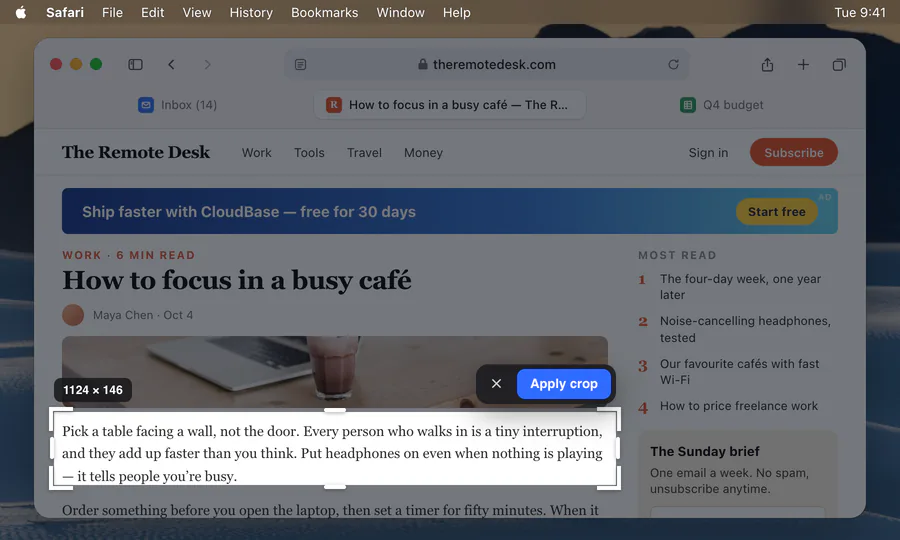
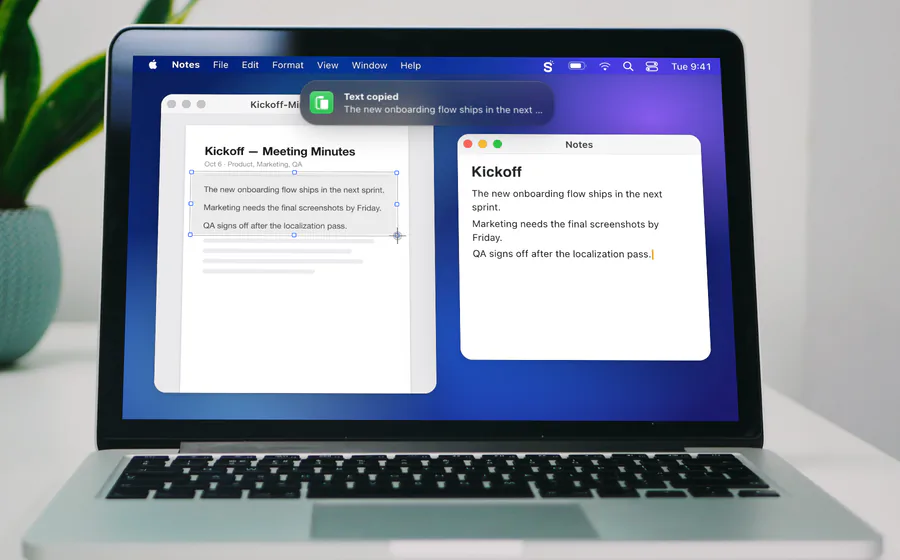
A browser tool is perfect for occasional jobs. If you extract text several times a day on a Mac, a hotkey beats a web page: Snapix binds OCR to ⌘⇧2 — press it, drag across any region of your screen, and the recognized text lands on your clipboard line-by-line, usually in under a second.
Recognition runs on-device through Apple’s Vision framework and works offline — the same job as this page, with a hotkey instead of a browser tab.
Frequently Asked Questions
Does the OCR run on my device?
Yes. The OCR runs inside your browser — PaddleOCR’s PP-OCRv6 models on ONNX Runtime, on your graphics card where the browser allows it and as WebAssembly everywhere else. The engine and its models (about 20 MB) start downloading when the page opens and are cached by your browser, so later runs start in about a second.
Which languages can it read?
Any language written in the Latin alphabet — English, Spanish, French, German, Italian, Portuguese, Dutch, Romanian and dozens more — from one multilingual model, so there’s no language picker: accents and diacritics (é, ü, ș, ț…) come through automatically.
Can it read handwriting?
Not reliably. The engine is trained on printed and computer-rendered text. Very neat, well-separated handwriting sometimes comes out partially right, but for cursive or quick notes you should expect mostly errors.
Why are my results imperfect, and how do I improve them?
OCR accuracy tracks image quality. Crop to just the text and use a sharp image with strong contrast. A sideways capture is detected and straightened automatically, but heavy skew still hurts. Screenshots usually beat phone photos because the pixels are crisp and evenly lit.
Is this free? Are there limits?
It’s free — no sign-up, no watermark, no page quota. Because processing happens in your browser, the only practical limit is your hardware: screenshots are read at full resolution, and only outsized photos (over 6000 pixels, or over about 4 megapixels on phones and tablets) are downscaled to keep memory in check.
Can it convert a JPG or PNG to text?
Yes — anything your browser can decode: PNG, JPG, WebP, BMP and GIF (an animated GIF is read from its first frame). iPhone HEIC photos aren’t supported by most browsers — convert them first with our free HEIC to JPG tool, then extract the text here.
Extract text with one keystroke on your Mac
Press ⌘⇧2, drag over any part of your screen, and Snapix copies the text line-by-line to your clipboard — recognized on-device by Apple Vision, right on your Mac.
How would you rate Image to Text?
A short review helps other people find these free tools. It takes a minute.
Review us on TrustpilotYou can also review us on Trustpilot.