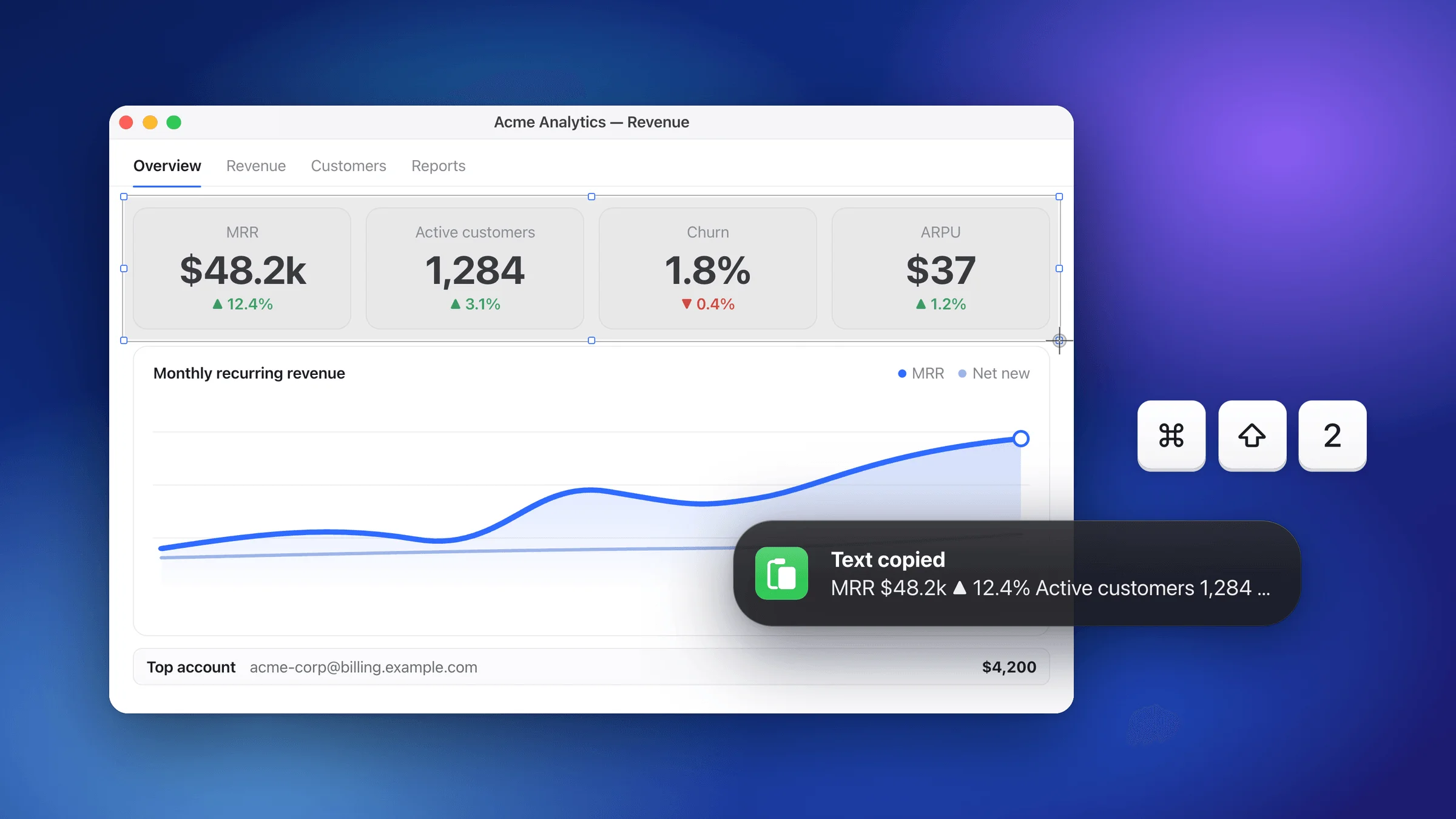
You don’t need extra software to copy text from an image, screenshot, or photo on a Mac — built-in Live Text makes the words in a picture selectable, ready to copy with ⌘C. Snapix goes further: press ⌘⇧2, drag, and the text is already on your clipboard — on-device OCR for any part of your screen.
Copy Text from a Screenshot or Image with Live Text (Built In, Free)

- Press ⌘⇧4 and drag over what you need, or ⌘⇧3 for the full screen.
- Click the floating thumbnail in the bottom-right corner before it slides away — the screenshot preview opens.
- Click the Live Text button in the bottom-right corner of the image — the button most people never notice.
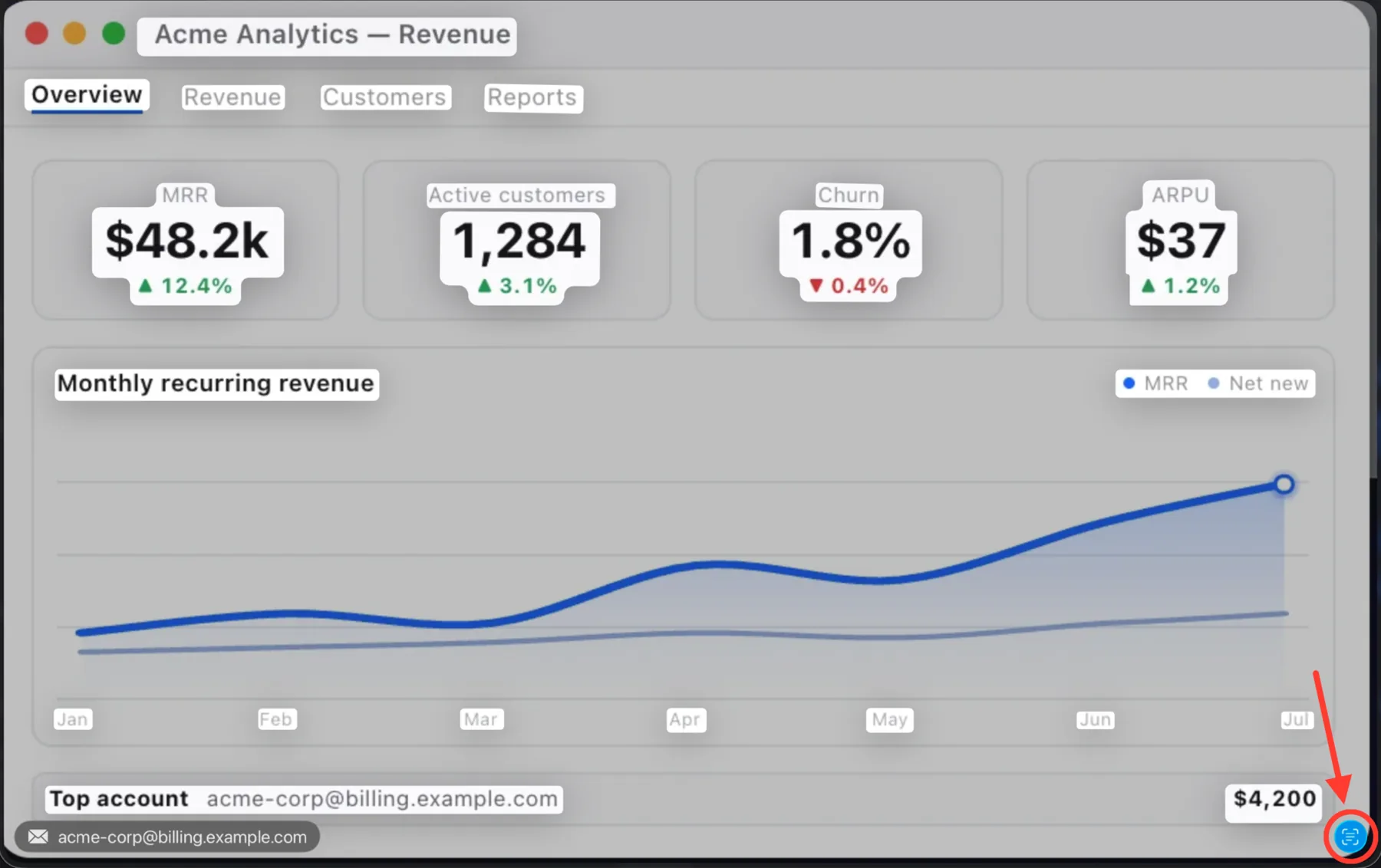
Every piece of detected text lights up at once, a Copy All button appears, and detected emails and links become quick actions along the bottom edge. Drag over what you need and press ⌘C, or hit Copy All.
Worth knowing: the button needs macOS 13 Ventura or later; Live Text itself dates back to Monterey, Intel Macs included. Nothing highlighting? Check System Settings → General → Language & Region → Live Text — upgrades sometimes switch the toggle off.
Doing this many times a day? Snapix collapses screenshot to text into one shortcut: ⌘⇧2, drag, paste. Try it free for 14 days →
Extract Text from Anything On Screen with Snapix (On-Device Mac OCR)
Live Text needs a capture, a preview, a button. Snapix needs one keystroke. ⌘⇧4 gives you pixels; ⌘⇧2 gives you the text — Extract Text is OCR that reads the screen itself, no app to open, no file in between:
- Press ⌘⇧2 — the default hotkey (every Snapix shortcut is customizable).
- Drag over anything on screen — part of a PDF, a Slack message, an error dialog, a paused video.
- Paste. The recognized text is already on your clipboard, line by line, in under a second — a “Text copied” banner previews the start of it so you know it worked, and clicking it opens the capture in the editor.
- Paused video: works over any player, no screenshot first.
- QR codes: detected in captures, link offered. See how to scan a QR code on your Mac screen.
- Offline, many languages: OCR runs on-device via Apple’s Vision framework in accurate mode, auto-detecting major Latin-script languages plus Chinese, Japanese, Korean and more, depending on your macOS version.
Live Text vs Snapix OCR: Which Should You Use?
 macOS Live Text macOS Live Text |  Snapix Snapix | |
|---|---|---|
| Price | Free, built in | See pricing · 14-day free trial |
| Steps to extract | 4 — capture, thumbnail, button, copy | 1 — ⌘⇧2 + drag (copy is automatic) |
| Works on | Images open in a preview — the screenshot preview, Preview, Photos | Any part of the screen — no file needed |
| Video frames & QR codes | Paused frames in supported apps (Ventura+) | Any paused player · QR links |
| Part of a full screenshot workflow | ✗ | ✓ — annotate, blur, pin, history |
The honest answer: extract text from an image once a month? Live Text is enough. OCR daily — support, QA, research, development? The one-gesture flow pays for itself fast.
Choosing a screenshot app for more than grabbing text? Our guide to the best screenshot app for Mac compares Snapix, CleanShot X, Shottr and Snagit side by side.