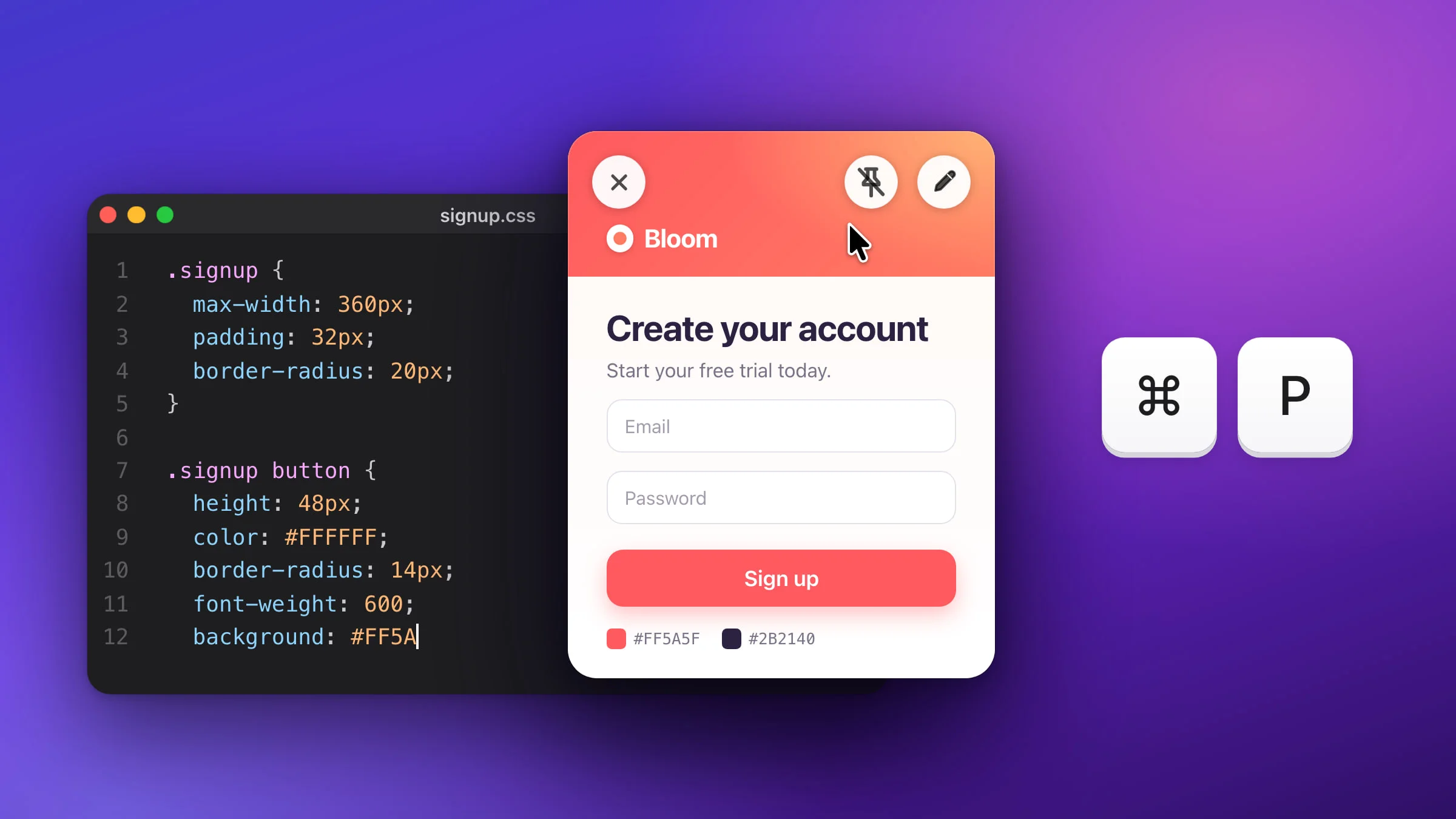
To pin a screenshot on a Mac so it stays on top of other windows, take it with Snapix, hover the preview that appears in the corner and press ⌘P. The screenshot floats above your other apps until you close it, and you keep typing in the window underneath. The macOS screenshot tools can’t do this: their thumbnail goes away after a few seconds, and a picture you open in Preview drops behind the next window you click.
How to pin a screenshot with Snapix
- Take the screenshot. Press ⇧⌘4 to screenshot part of the screen, and drag over what you want to keep in view: a table of numbers you need to type, a design you’re building, or steps you’re following. A preview appears in the bottom-right corner of the screen by default.
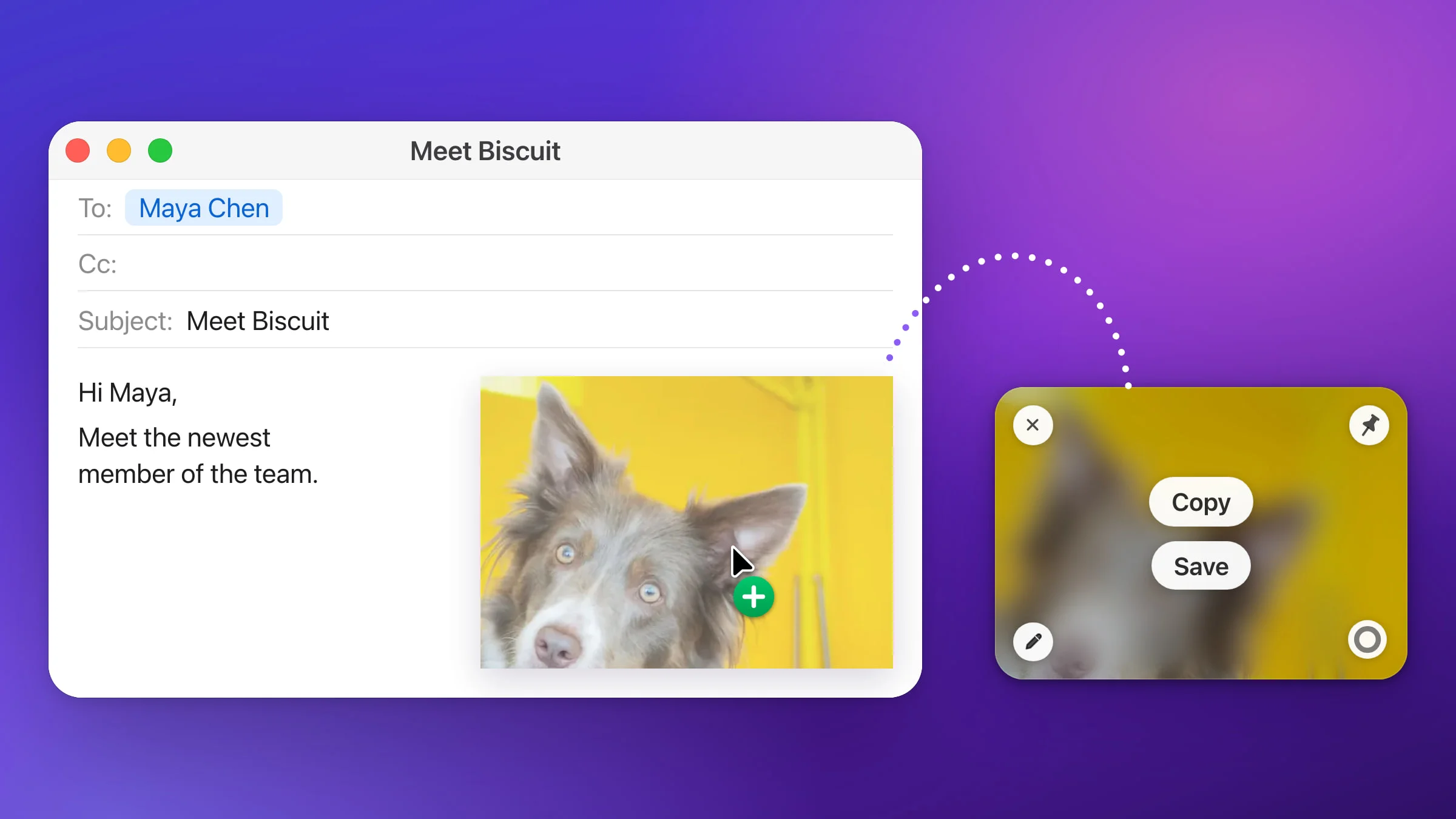
- Hover the preview and press ⌘P. You can also click the pin in the preview’s top-right corner, or right-click the preview and choose Pin to Screen.
- Find the pin in the middle of the screen. It pops up centered on the display the preview was on, at its actual size. A large screenshot is scaled down so it takes no more than 60% of the screen’s width or height. A window screenshot with a Transparent background pins as just the window, without the padding and shadow around it.
- Move it and resize it. Drag anywhere inside the picture to move it, even onto another display. Drag an edge or a corner to resize it. It keeps its proportions, so nothing gets stretched or cut off.
- Keep working. Click into your app and type. The pin stays above the Dock and your other windows, even other apps’ always-on-top ones such as a picture-in-picture video. It shows on every desktop and over full-screen apps, and it never takes the keyboard away from the app you’re using.

Other ways to pin a screenshot
- From the editor. To mark it up first, click the preview to open the editor and edit the screenshot with arrows or text. Then click the pin button (Pin to screen) at the right end of the bottom bar, or press ⌘P. Snapix keeps your marks, closes the editor and pins the result.
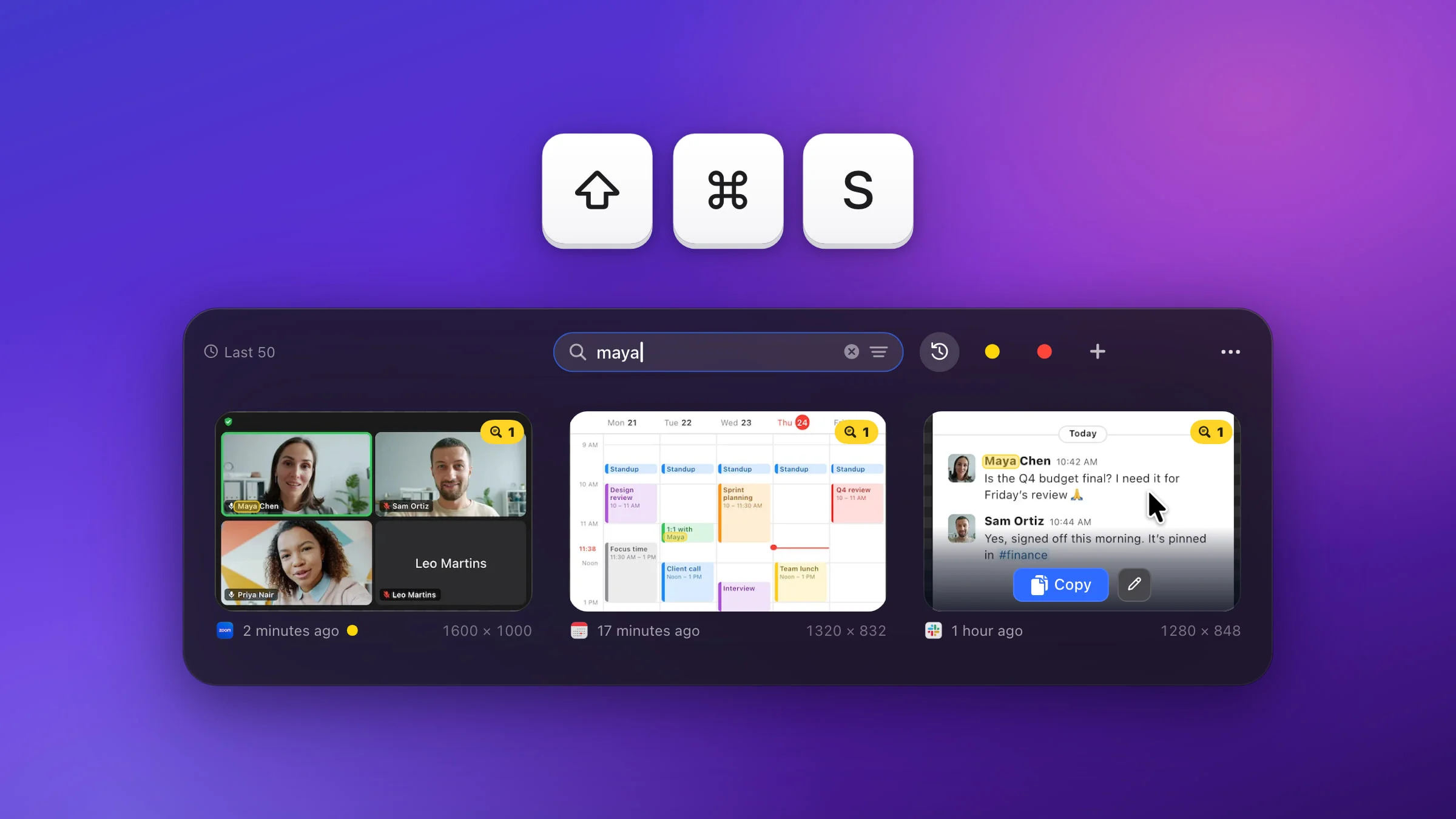
- From Recent Captures. Press ⇧⌘S, right-click an older capture and choose Pin to Screen. To pin several, select them first: the item then reads Pin 3 to Screen (the number matches your selection), and they pin one after another on the display under the pointer. There’s more in how to see your screenshot history.
What you can do with a pinned screenshot
Hover a pin and three buttons appear along its top edge. The ✕ on the left closes it. On the right, the crossed-out pin unpins it and the pencil opens it in the editor.

While the pointer rests on the pin, these keys work too, even with another app in front:
| Key | What it does |
|---|---|
| ⌘E | Opens it in the editor |
| ⌘P | Unpins it |
| ⌘W | Closes it |
| ⌘L / ⌘R | Rotates it a quarter turn left or right |
Right-click the pin (or Control-click it) for the full menu.

- Copy Image puts the picture on your clipboard, turned the way the pin is, and shows a Copied to Clipboard banner.
- Save writes it to your Snapix folder without asking where. That’s ~/Documents/Snapix unless you picked another folder (change it in Settings ▸ Saving ▸ Save to). Once it’s saved, the same item reads Show in Finder.
- Rotate Left and Rotate Right turn it 90°. If you saved it already, the file turns too.
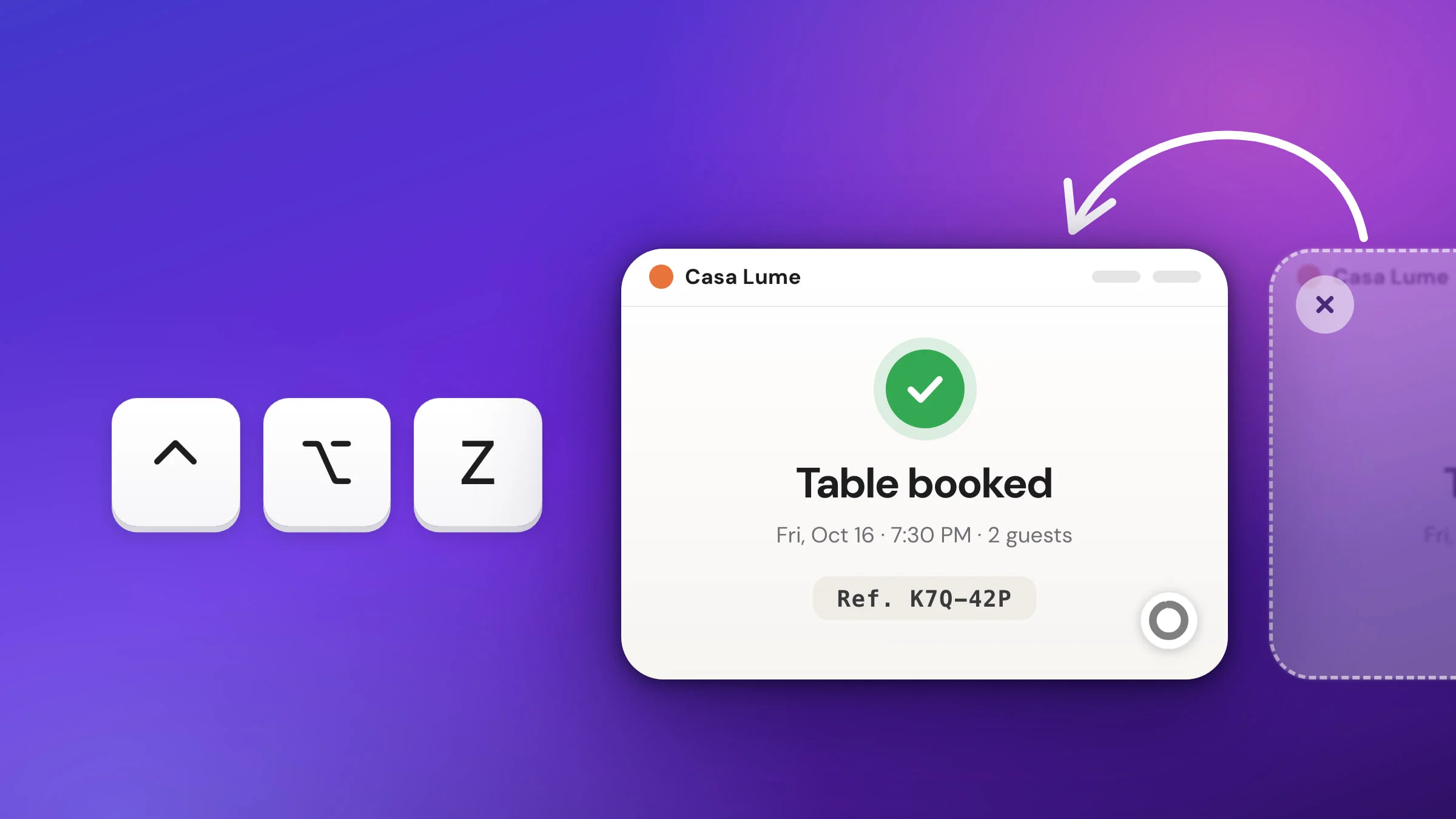
- Edit, Unpin and Close do what the hover buttons do. Edit keeps any marks you added earlier editable. Unpin puts the screenshot back in the floating preview list with its usual countdown. Close removes the pin, and by default the screenshot is still in Recent Captures, so you can pin it again later.
Note: You can’t drag a pin into another app, because dragging it moves it. To paste it somewhere, choose Copy Image. To drop it into an app as a file, unpin it and drag the preview instead.
Pin several screenshots at once
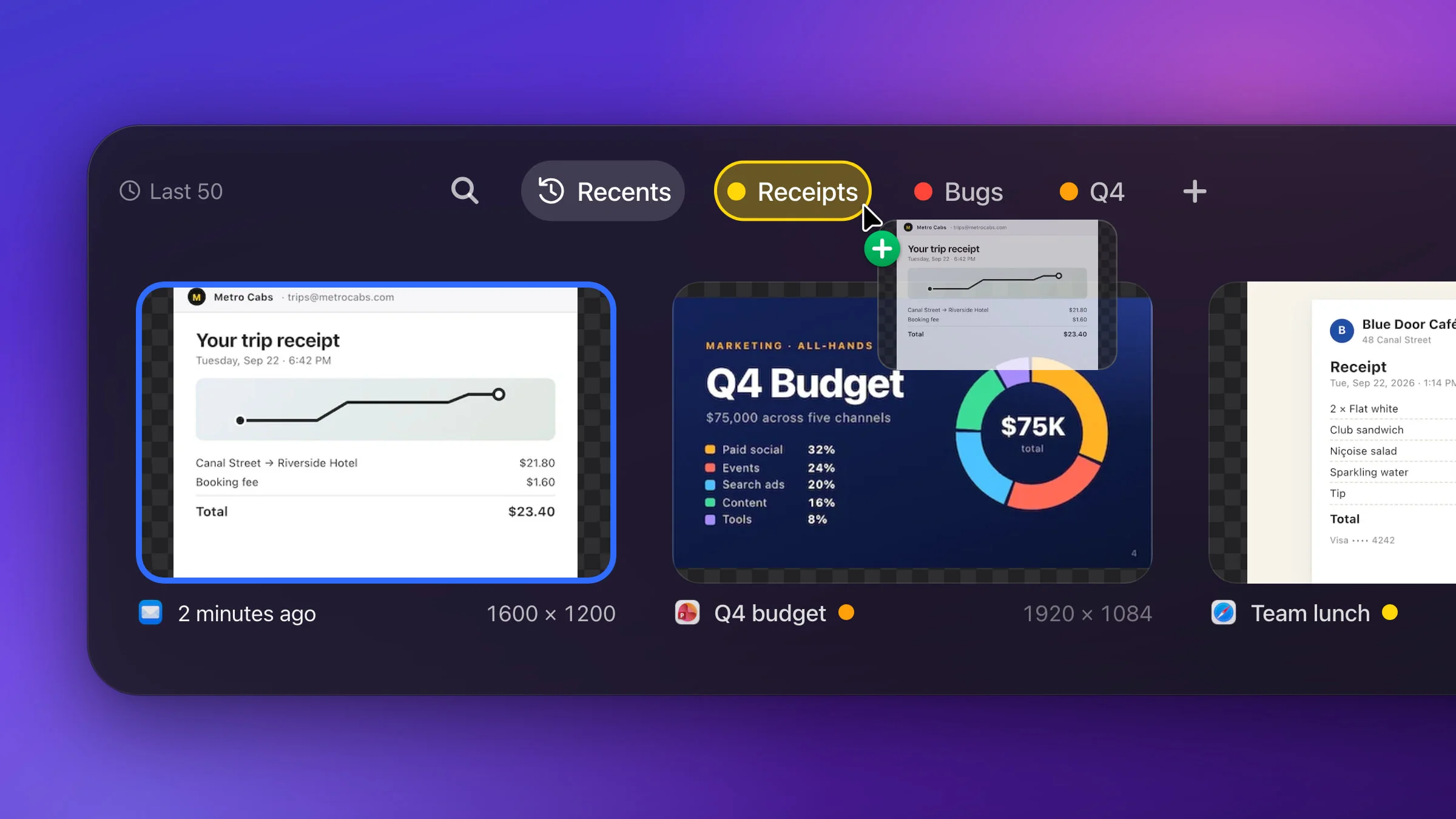
You can pin as many screenshots as you like, and each one moves, resizes and closes on its own. A new pin that would land exactly on top of another one steps down and to the right, so you can see both. That makes it easy to compare two versions of a design side by side, or to keep a few reference shots around while you fill in a form.
Is there a way to pin a screenshot in macOS?
Not with the screenshot tools. Nothing in them keeps a screenshot always on top of other windows. The floating thumbnail stays for a few seconds, or while you hold the pointer over it, and a screenshot opened in Preview is an ordinary window that goes behind whatever you click next.
The closest built-in trick is Stickies. Take the screenshot with ⌃⇧⌘4, which puts it straight on the clipboard. Then open Stickies from your Applications folder, paste the picture into a note and choose Window ▸ Float on Top. The note stays in front of your other windows, with the picture inside a sticky note.
To keep a screenshot in view while you work, try Snapix free and pin it with ⌘P.