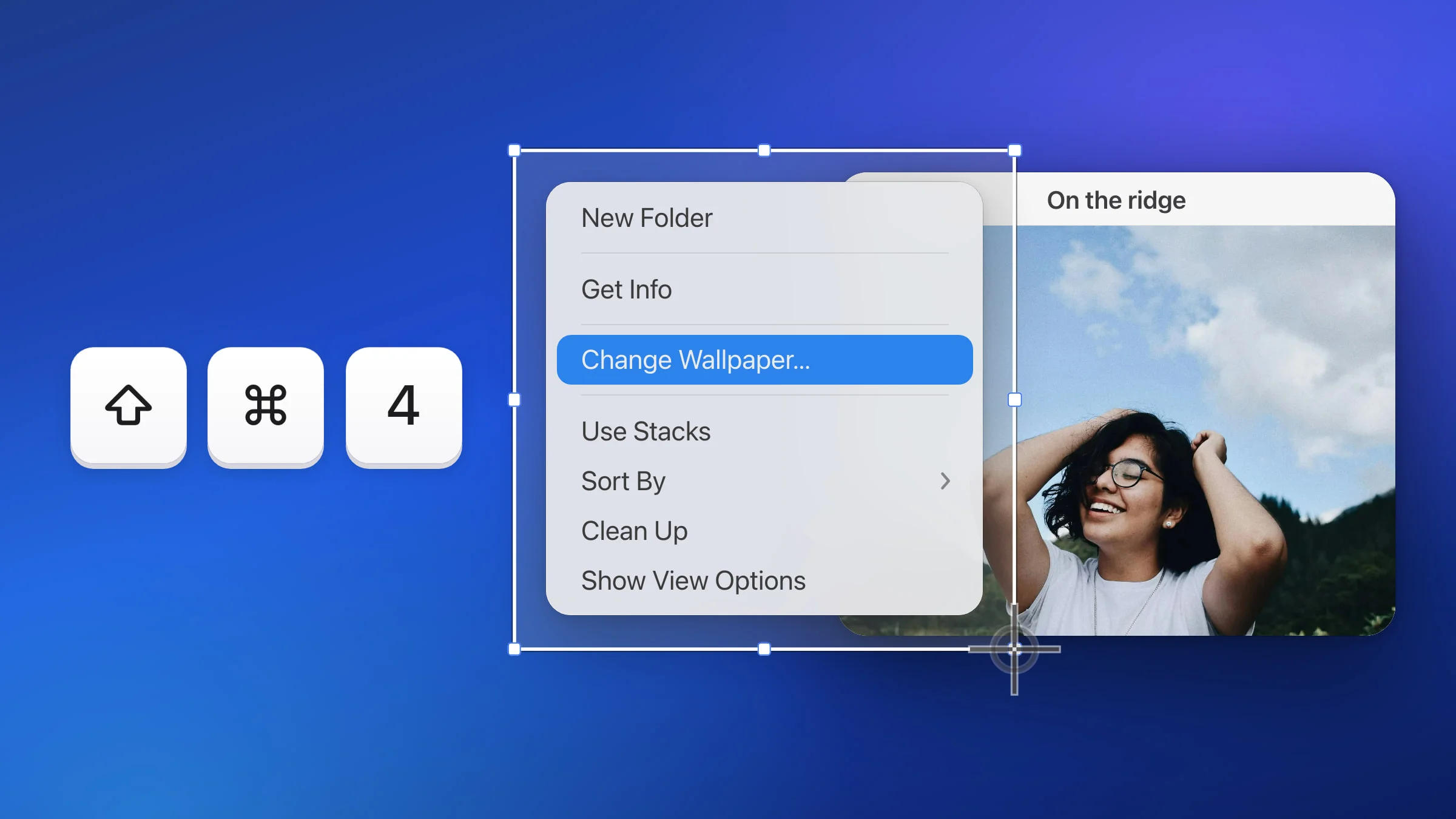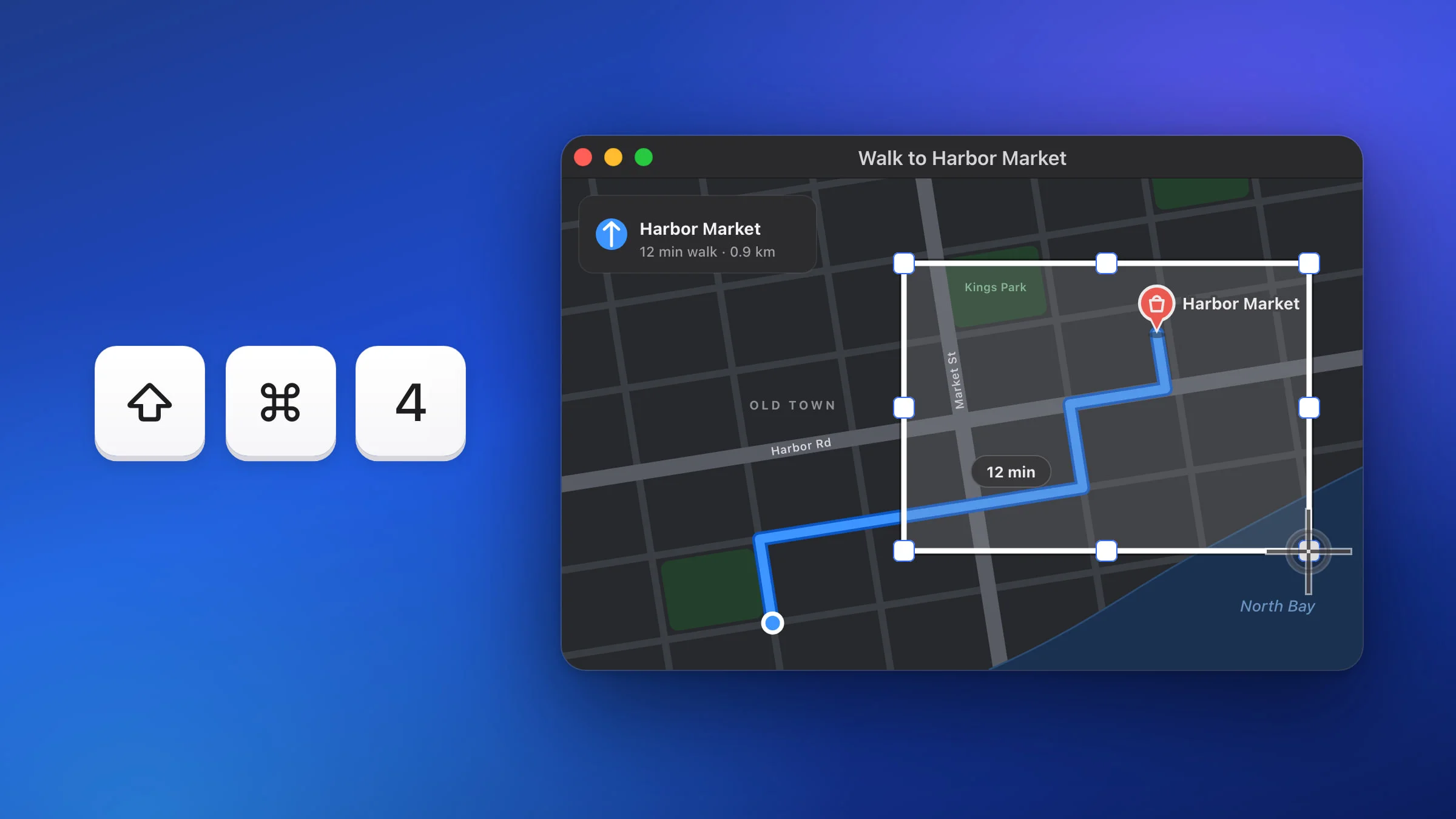
Press ⇧⌘4 (Shift-Command-4) to screenshot part of your screen on a Mac, then drag over the part you want and let go. By default, your Mac saves it as a PNG file on your desktop.
Snapix uses the same shortcut and the same drag, and by default puts the picture on your clipboard instead, ready to paste. For the other shortcuts, see every way to take a screenshot on a Mac.
How to screenshot part of your screen on a Mac
- Press ⇧⌘4. Press and release Shift, Command and 4 together. The pointer turns into a crosshair.
- Drag over the area you want. Click and hold, then drag from one corner of the area to the opposite one. Hold Space while you drag to move the box, Shift to change only its width or height, or Option to resize it from the center.
- Let go to take the screenshot. It’s taken the moment you release the mouse or trackpad button. To cancel, press Esc before you let go.
- Click the thumbnail, or let it save. A thumbnail appears in the corner of the screen. Click it to mark up or crop the screenshot, drag it into a document or an email, or wait a few seconds and it’s saved to your desktop.

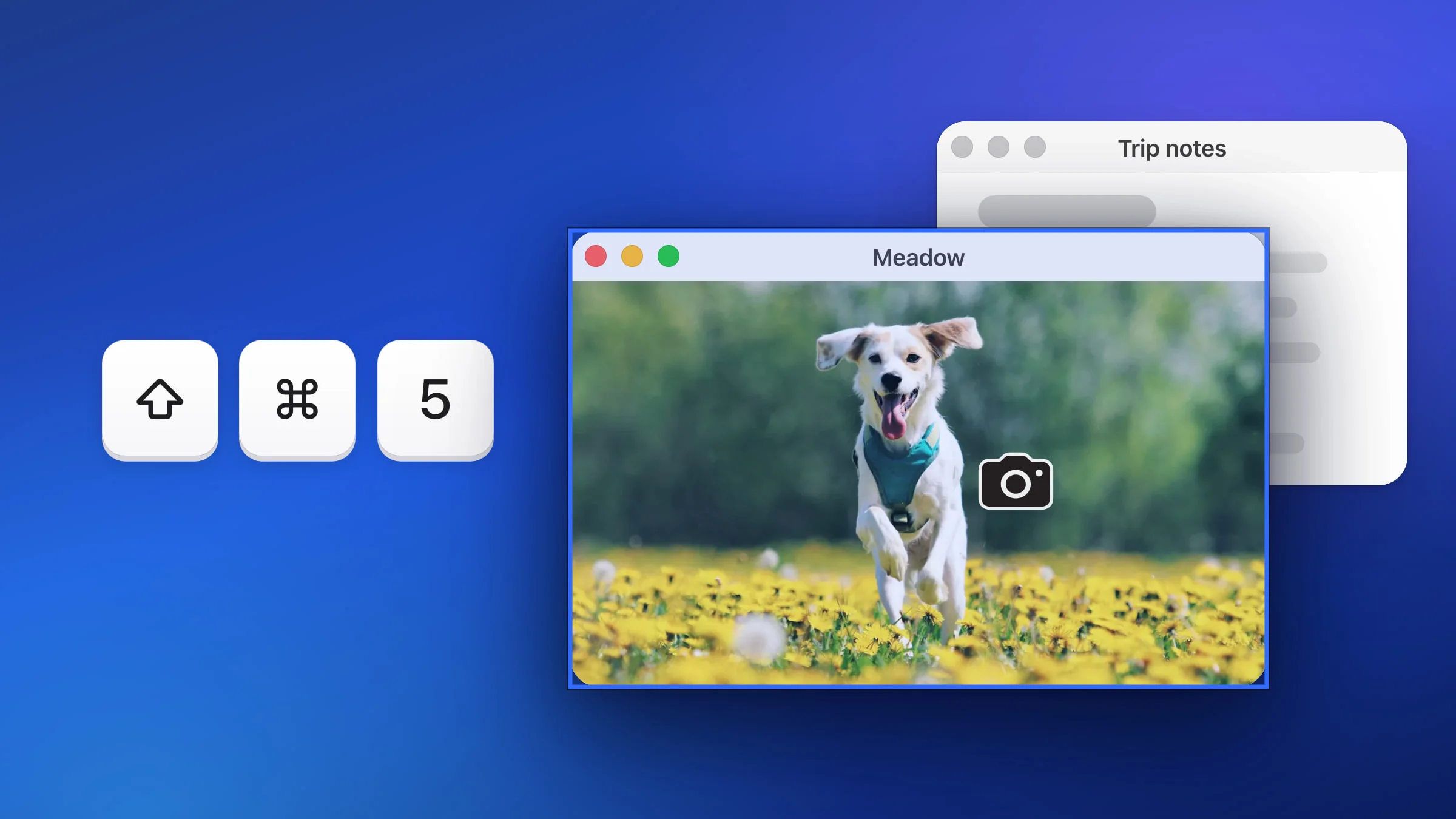
Tap Space before you start dragging and the pointer turns into a camera instead, for capturing a whole window. Tap it again to go back to the crosshair. There’s more in how to screenshot a window.
How to copy part of the screen to the clipboard
Add Control to the shortcut: press ⌃⇧⌘4, drag over the area and let go. Nothing lands on your desktop. Paste the picture with ⌘V into a message, an email or a document.
There’s more, including how to make every screenshot go to the clipboard, in how to copy a screenshot to the clipboard.
How to adjust the area before you take it
With ⇧⌘4, letting go takes the shot. The Screenshot toolbar gives you a frame you can fix first:
- Press ⇧⌘5, or open the Screenshot app from the Utilities folder in Applications. While Snapix is running, open the app instead, because Snapix answers ⇧⌘5.
- Click Capture Selected Portion.
- Drag the frame to move it, or drag its edges to change its size.
- Click Capture.
In the toolbar’s Options, you can set a Timer of 5 or 10 seconds or choose a folder under Save to. With Remember Last Selection turned on there, the frame is waiting in the same place next time.
How to screenshot part of the screen with Snapix
Snapix is a menu bar app for macOS 14 Sonoma or later. Its Capture Area uses the same ⇧⌘4 and the same crosshair, then copies the picture and shows a preview you can mark up, pin or drag into any app. It all happens on your Mac.
- Press ⇧⌘4. Or click the Snapix icon in the menu bar and choose Capture Area. The first few times the crosshair appears, a hint at the bottom of the screen reads “Drag to select an area · Space for a window · Esc to cancel”.
- Drag over the area you want. A white box with small square handles follows the pointer, and Snapix doesn’t dim the rest of the screen. As in macOS, hold Space while you drag to move the box, Shift to change only its width or height, or Option to resize it from the center.
- Let go. Snapix takes the screenshot the moment you release and plays its shutter sound (turn off the screenshot sound if you’d rather not hear it). You can also press Return to take it before you let go.
- Paste it, or use the preview. By default, the picture is already on your clipboard, so ⌘V drops it into a chat, an email or a document. A preview also floats in the bottom-right corner, for 5 seconds by default. Hover it to Copy or Save, click it to mark it up, or drag it into any app.

What to know about Snapix’s Capture Area
- Cancel any time. Press Esc, even with Shift and Command still held, or click without dragging. A click never makes an empty screenshot.
- Switch to a window. Tap Space before you drag and the pointer turns into a camera, as in macOS. Click a window to capture all of it, or tap Space again to go back.
- See the size as you drag. Choose Crosshair + Size in Settings ▸ Capture ▸ Area selection cursor (it’s off by default), and the width and height follow the crosshair, as in macOS. They’re in points, like the macOS numbers, so on a Retina screen the picture has twice as many pixels each way. There’s no magnifier.
- Shift from the shortcut doesn’t count. If you’re still holding Shift from ⇧⌘4 when you start dragging, it doesn’t lock anything. Let go of it, then press it again to change only the width or height.
- Letting go takes the shot, as it does in macOS. The handles are only drawn, so you can’t drag them afterward. If the box was a little too big, crop the screenshot in the editor.
- No pointer. Area screenshots never include the mouse pointer.
- Across monitors. Start on one display and drag onto another, and you get one picture of both parts. A macOS selection stays on one screen.
- Open menus stay open. Open a menu or a right-click menu first, then press ⇧⌘4 and drag around it. It stays open and lands in the shot. More in how to screenshot a menu on Mac.
- Freeze moving content. Turn on Freeze the screen while I select in Settings ▸ Capture (it’s off by default), and the screen holds still while you drag, so a video frame or a tooltip lands exactly as you see it.
Note: While Snapix is running with its default shortcuts, the screenshot shortcuts from ⇧⌘3 to ⇧⌘5 open Snapix instead of the macOS tools. To give them back, click Hand these back to macOS in Snapix Settings ▸ Shortcuts. Snapix’s Capture Area, Capture Full Screen and Capture Window then have no shortcut until you record new ones there. ⌃⇧⌘4 always stays with macOS.
Tip: To grab the same rectangle again, say for a before-and-after pair, press ⇧⌘6 for Capture Last Area. Snapix captures it right away, with no crosshair, and remembers the area until you quit the app. If ⇧⌘6 does nothing on your Mac, record another shortcut in Settings ▸ Shortcuts. There’s more in how to screenshot the same area again.
If you take area screenshots all day, try Snapix free.