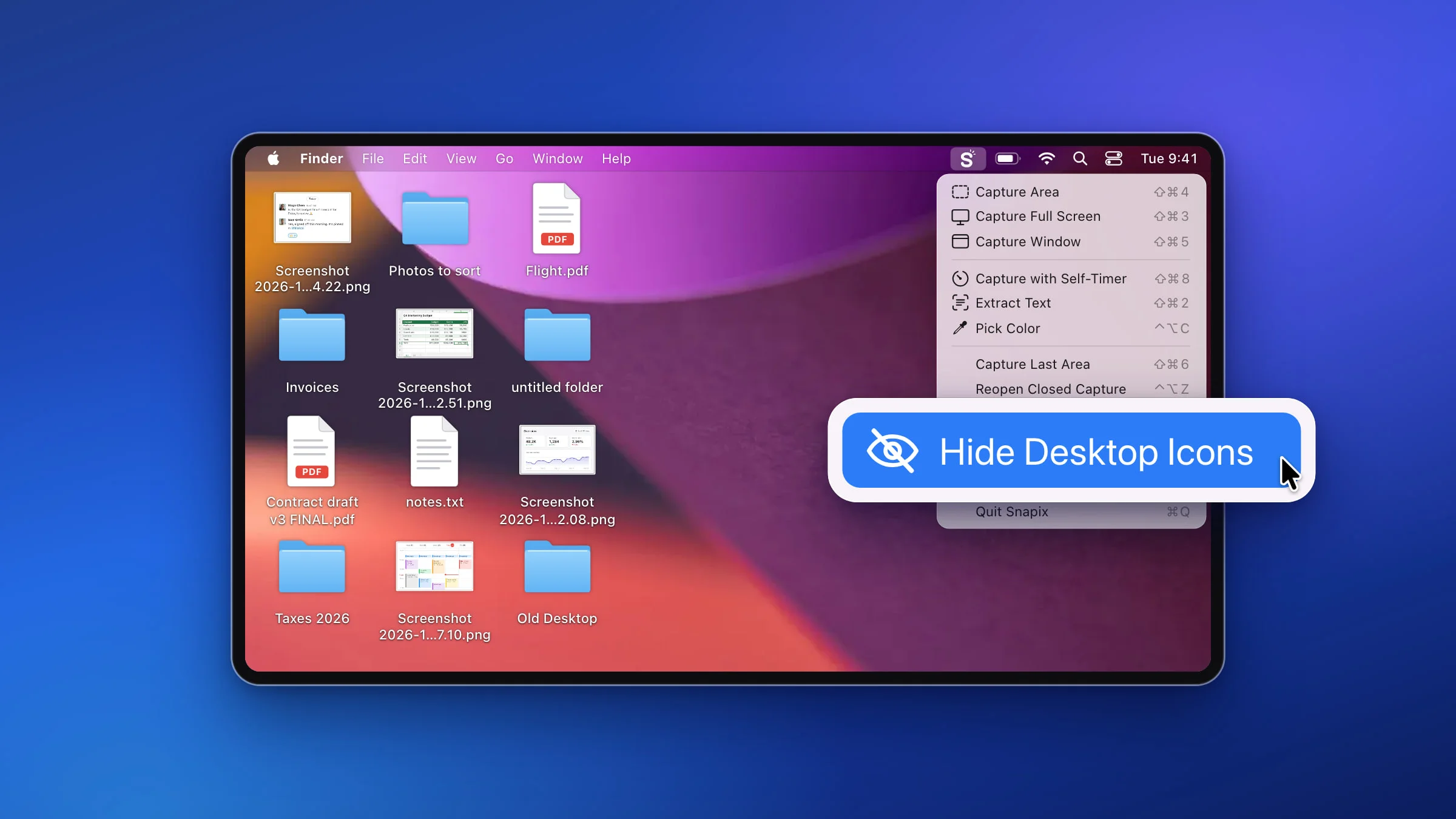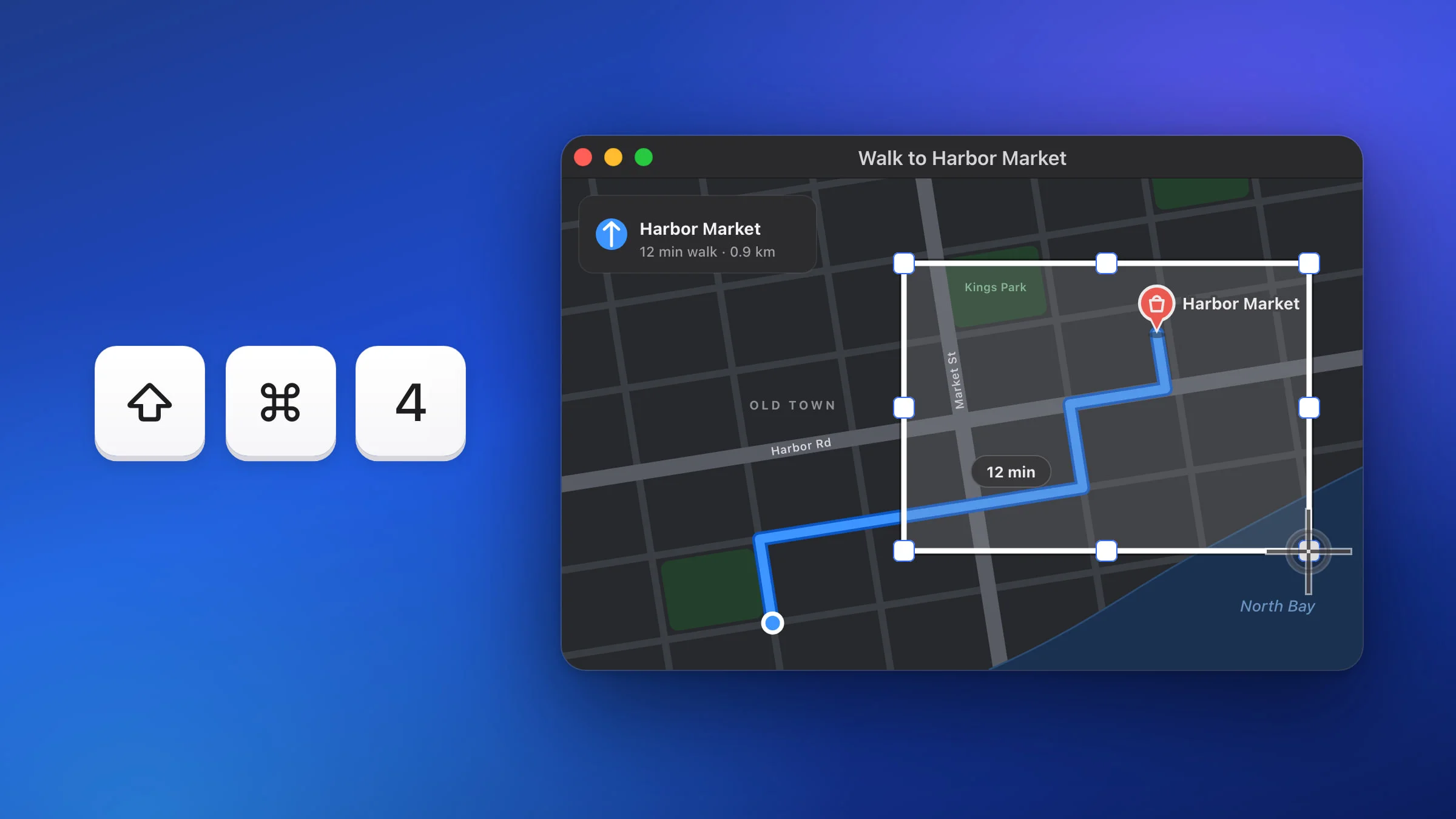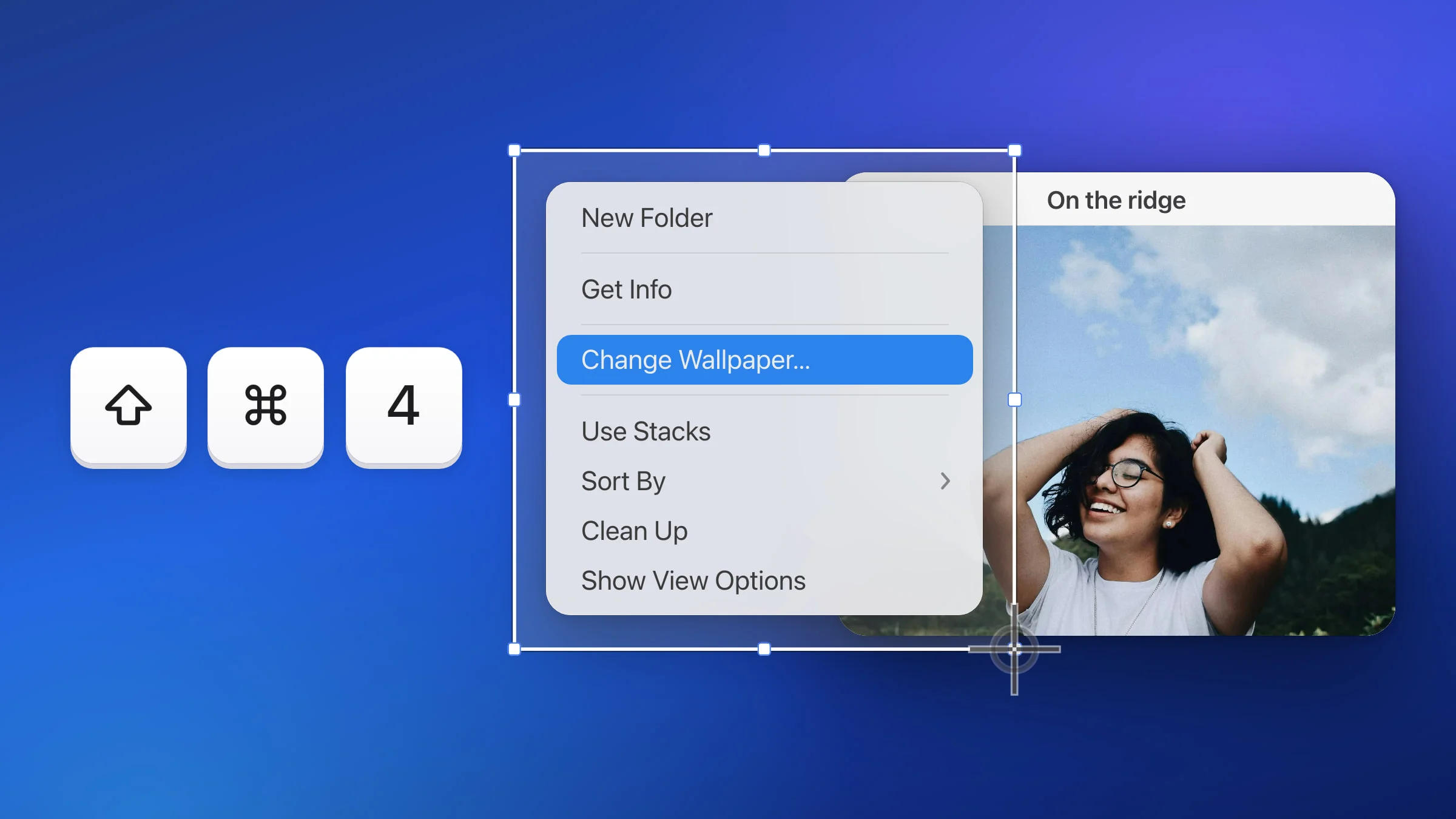
To screenshot a menu on a Mac, open the menu first, then press ⇧⌘4 and drag a box around it. In Snapix, the menu stays open while you aim and drag, whether it’s a right-click menu, a menu in the menu bar or a dropdown on a web page that opens when you hover. The screenshot tool built into macOS can take menus too, and it’s covered further down.
How to screenshot a menu on Mac with Snapix
- Open the menu. Right-click for a context menu, click a menu in the menu bar, or hover over a website’s dropdown until it opens.
- Press ⇧⌘4. The pointer turns into a crosshair, and the menu stays on screen. Use the shortcut rather than the Snapix menu here, because opening another menu would close the one you want.
- Drag a box around the menu. Start in an empty spot just outside one corner and drag past the opposite one. The click that starts your drag never reaches the menu, so it stays open. Press Esc to cancel.
- Let go. The screenshot is taken the moment you release, menu included. By default it’s already on your clipboard, and a preview appears in the bottom-right corner of the screen for 5 seconds.

What Snapix keeps open
While you aim, Snapix keeps the app underneath from hearing your click and your pointer moving, which is what normally makes a menu close. So these stay on screen:
- Right-click menus in other apps and on the desktop.
- Menus in the menu bar, like an app’s File or View menu.
- Dropdowns on web pages that open on hover. Snapix also keeps the page from being told the pointer left when the crosshair comes up, so the dropdown doesn’t fold away.
- Snapix’s own menus, like its menu bar menu or a preview’s right-click menu. Press ⇧⌘4 while one is open, and Snapix puts a picture of the menu in its place so you can drag around it. The menu itself closes and doesn’t come back after the shot.
Note: Snapix holds a menu open for up to 30 seconds after you press ⇧⌘4. If you take longer, the screenshot still works, but the menu may close.
Which shortcut catches an open menu
⇧⌘4 is the same area capture you’d use to screenshot part of the screen, and it’s the one to reach for. Here’s what each Snapix shortcut does with a menu open:
- Capture Area (⇧⌘4) takes just the box you drag. The pointer is never in the shot.
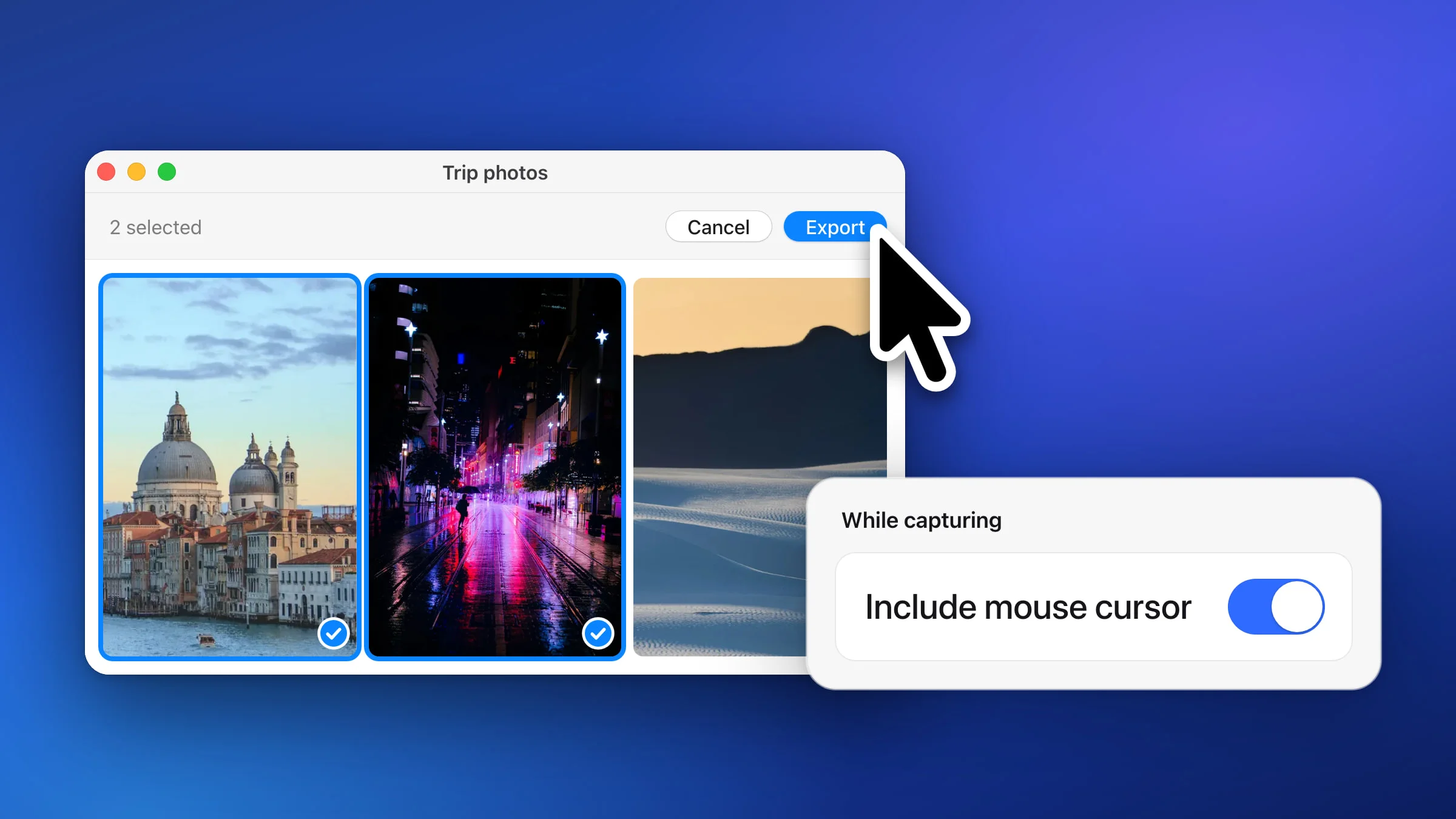
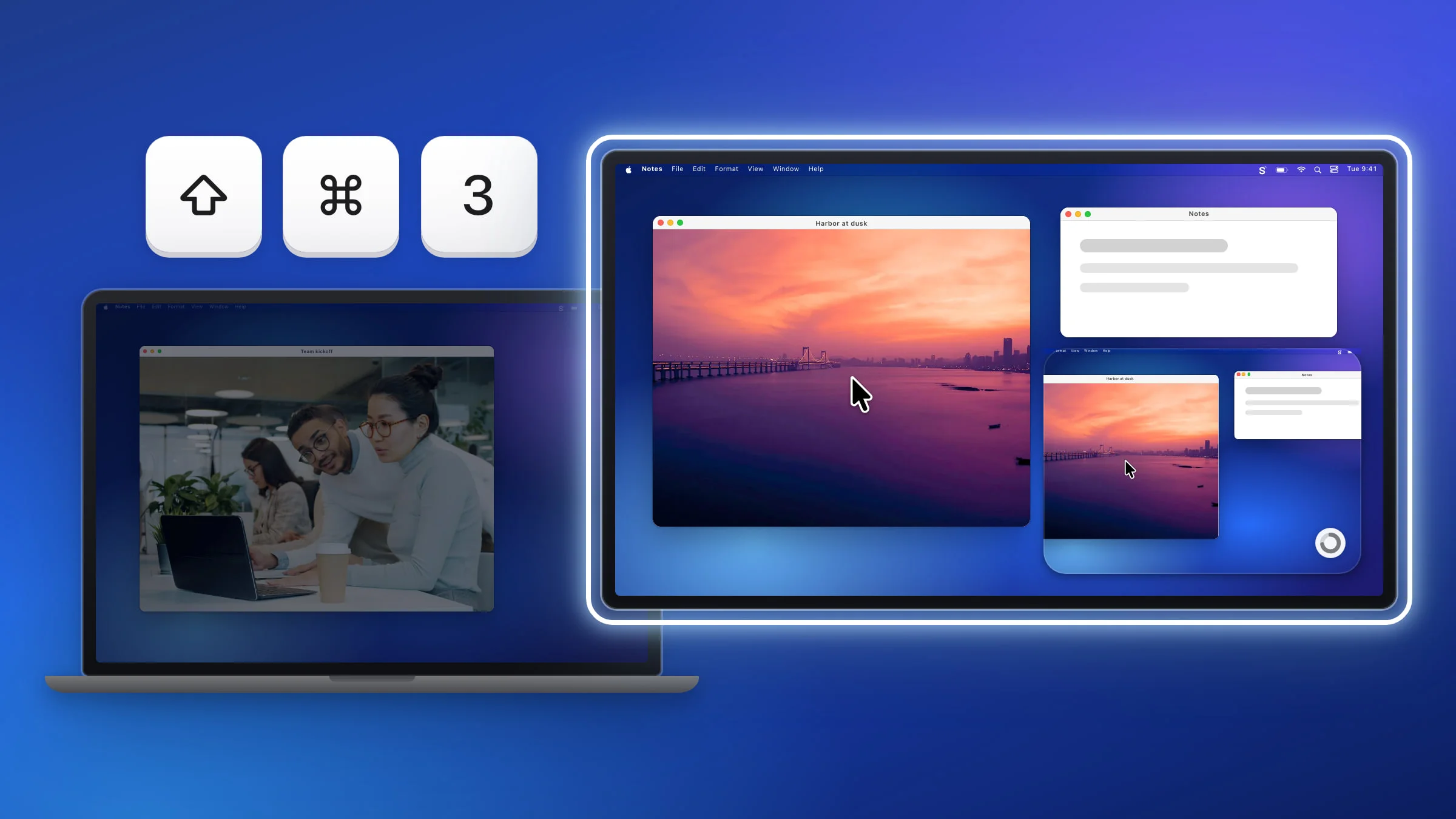
- Capture Full Screen (⇧⌘3) takes the whole display under the pointer, menu included. The pointer is in the shot by default.
- Capture with Self-Timer (⇧⌘8) counts down, then takes the whole display. Open the menu during the countdown.
- Capture Window (⇧⌘5) can’t pick a menu, and neither can Space while you aim ⇧⌘4. Both only pick app windows, so drag instead.
If you took the whole screen, crop the screenshot down to the menu afterward.
How to screenshot a tooltip or hover state
A tooltip or a hover effect only shows while the pointer rests on something, and an animated menu won’t sit still while you drag. Snapix has two ways around that.
Freeze the screen. Turn on Freeze the screen while I select in Settings ▸ Capture. It’s off by default. Hover until the tooltip appears, then press ⇧⌘4. A moment after the crosshair comes up, Snapix swaps the live screen for a still picture of it, and the still is what you capture, so you get exactly what you dragged over. It works for area captures, not for picking a window. Menus don’t need it, since they stay open anyway.

Use the self-timer. Press ⇧⌘8, then move the pointer onto the button or link and keep it there. A banner in the top-right corner counts down (“Capturing in 5…” by default), then Snapix takes the whole display you were on when you pressed the keys. Set the delay to 2, 3, 5 or 10 seconds in Settings ▸ Capture ▸ Self-timer delay. There’s more in how to take a timed screenshot.
Tip: Full-screen and self-timer shots include the pointer by default, so they show what you were pointing at. Area captures never do. See how to screenshot with the cursor.
How to screenshot a menu without an app
The screenshot tool built into macOS can take a menu too:
- Open the menu you want.
- Press ⇧⌘4 and drag over the menu items you want to capture.
To take just the menu without dragging, press Space after ⇧⌘4. The pointer turns into a camera, and a click on the menu captures it.
macOS saves the screenshot to your Desktop as a PNG by default. With Snapix’s default shortcuts, ⇧⌘4 opens Snapix instead, but ⌃⇧⌘4 always stays with macOS. It works the same way, Space included, and copies the screenshot to the clipboard rather than saving a file.
For a hover state, press ⇧⌘5 to open the Screenshot toolbar, pick what to capture, choose 5 Seconds or 10 Seconds under Options ▸ Timer, then click Capture and hover while it counts down. If Snapix is using ⇧⌘5, open the Screenshot app from Applications ▸ Utilities instead.
Snapix runs on macOS 14 Sonoma or later. For every other way to capture your screen, see how to take a screenshot on a Mac, or try Snapix free.