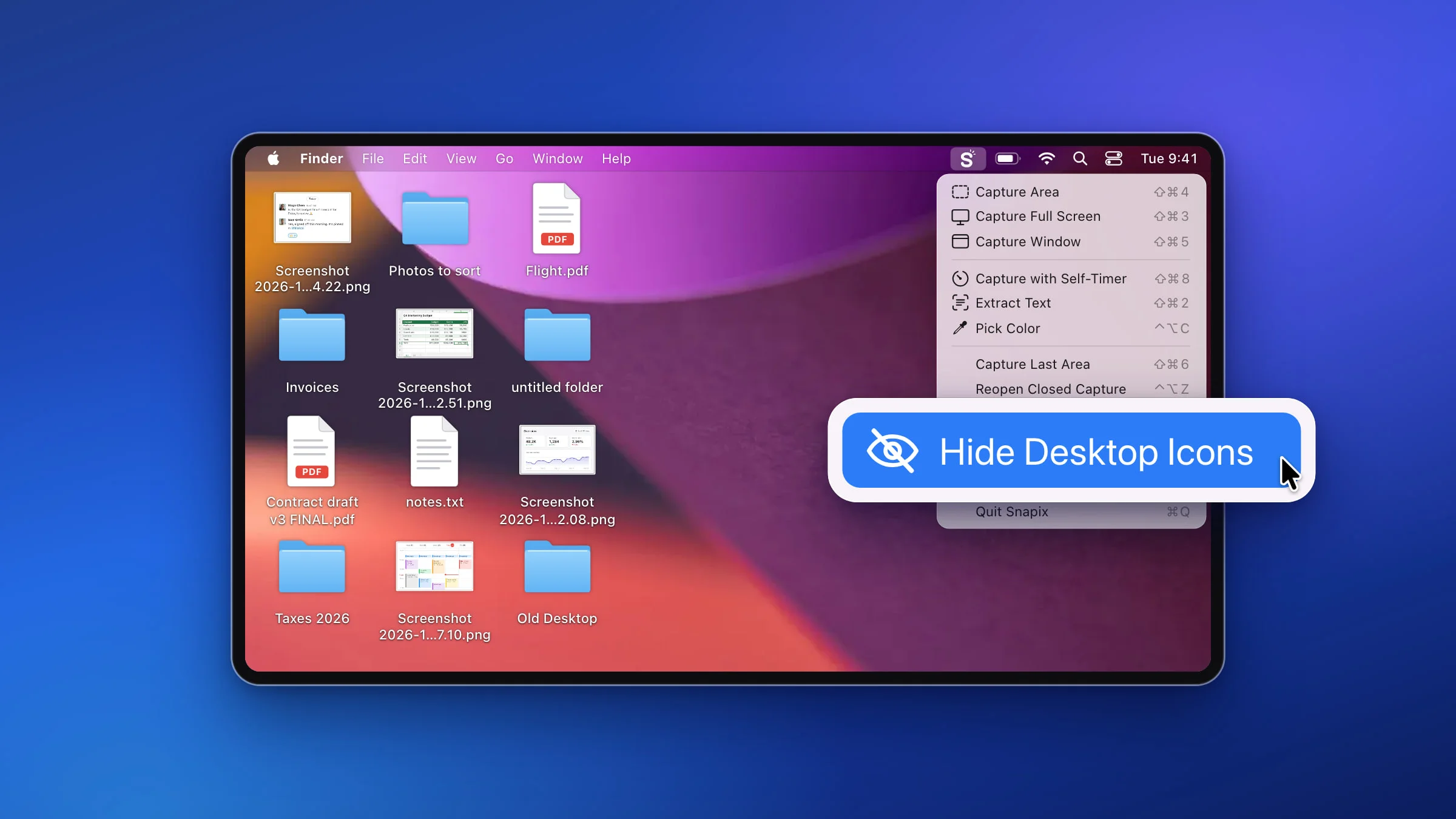
To hide desktop icons on a Mac for a screenshot, click the Snapix icon in the menu bar and choose Hide Desktop Icons. A picture of your bare wallpaper covers the icons and widgets on every display, and choosing Show Desktop Icons brings them back. Without an app, you can turn desktop items off in System Settings ▸ Desktop & Dock.
How to hide desktop icons with Snapix
- Click the Snapix icon in the menu bar. The Snapix menu opens under it.
- Choose Hide Desktop Icons. Snapix covers the icons and widgets on every display with a picture of your bare wallpaper. Your app windows stay above it, right where they were.
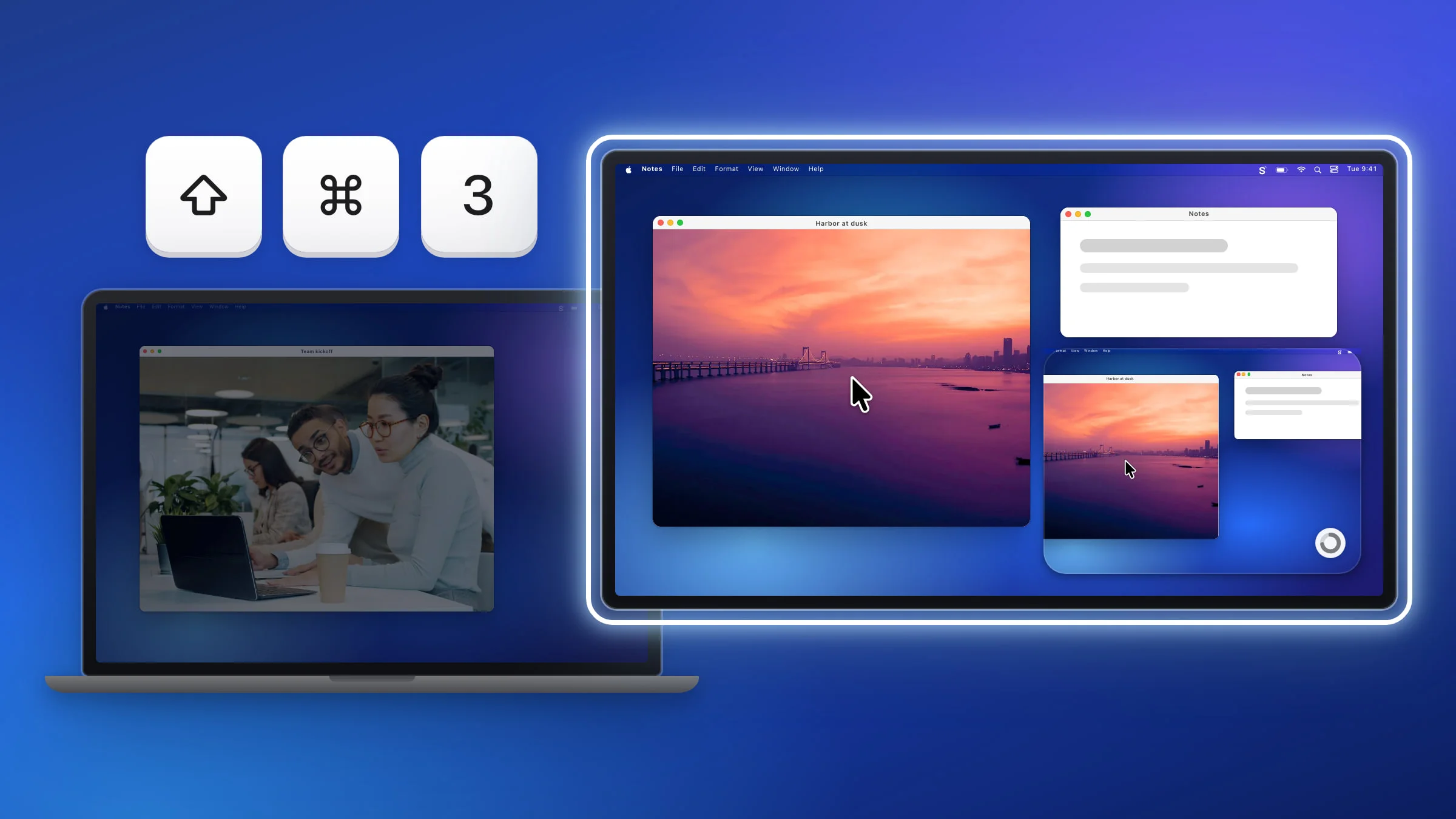
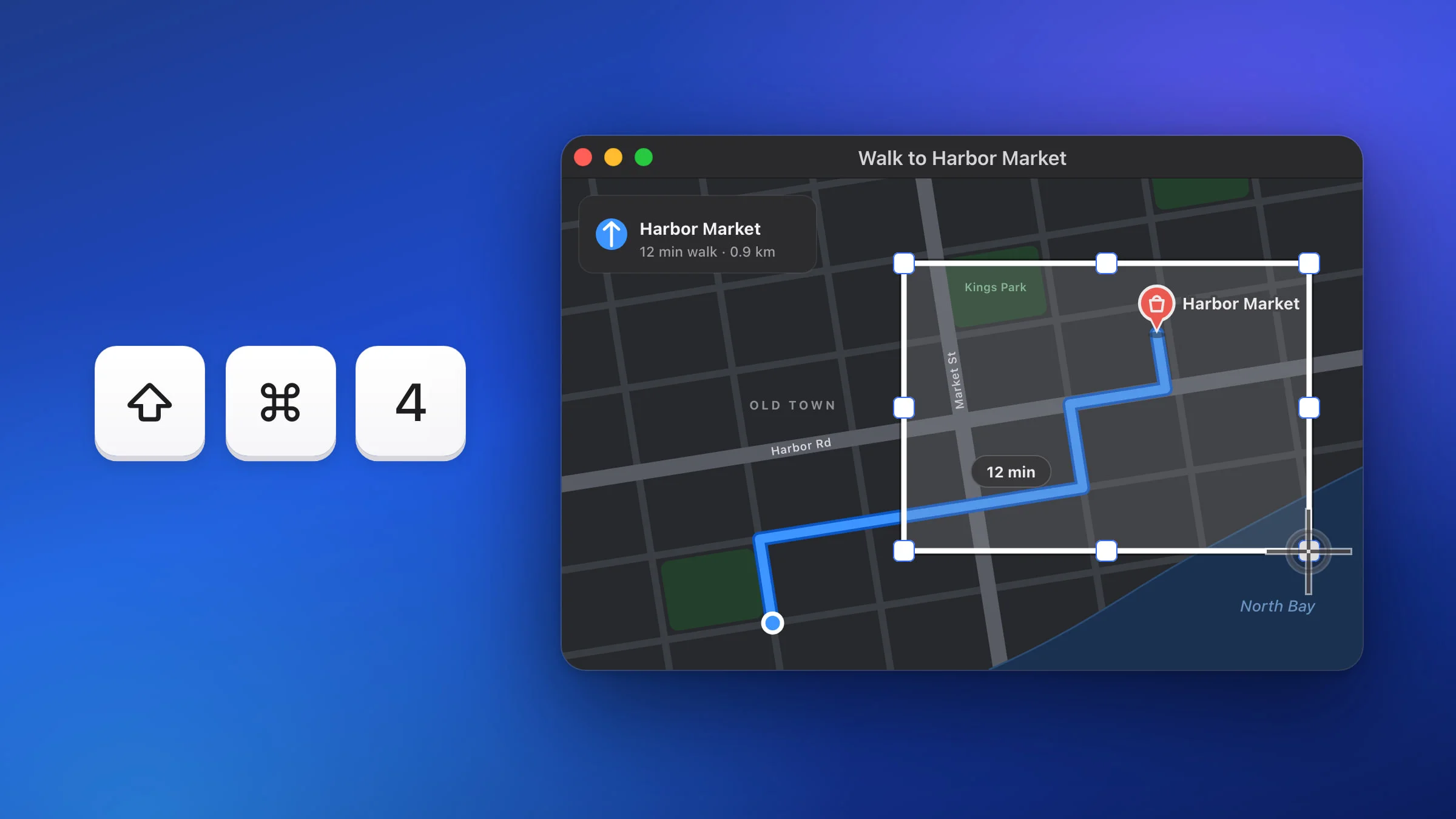
- Take your screenshot or start sharing. Press ⇧⌘3 for the display under the pointer or ⇧⌘4 to drag over an area (Snapix’s default shortcuts). Snapix’s screenshots leave the icons out, and screen shares, recordings and other apps’ screenshots see the clean wallpaper too.
- Choose Show Desktop Icons when you’re done. While the icons are hidden, the same row in the menu reads Show Desktop Icons. Quitting Snapix brings them back as well.

Tip: Hide Desktop Icons has no shortcut out of the box. Record one in Snapix Settings ▸ Shortcuts (see how to change the screenshot shortcut) and the same keys will show the icons again.
Keep desktop icons out of every screenshot
If you’d rather leave your desktop as it is and only keep the clutter out of the pictures, Snapix has a setting for that.
- Choose Settings… in the Snapix menu and click Capture.
- Under While capturing, find Hide desktop icons and notifications.
- Pick one of the three choices:
- Never. The default: screenshots show your desktop as it is.
- Hidden from the result. You still see your icons while you take the shot, but the picture shows the wallpaper where they were.
- While I select, too. The icons and widgets fade away as soon as the crosshair appears for an area shot (and during a self-timer countdown), then come back after the shot.

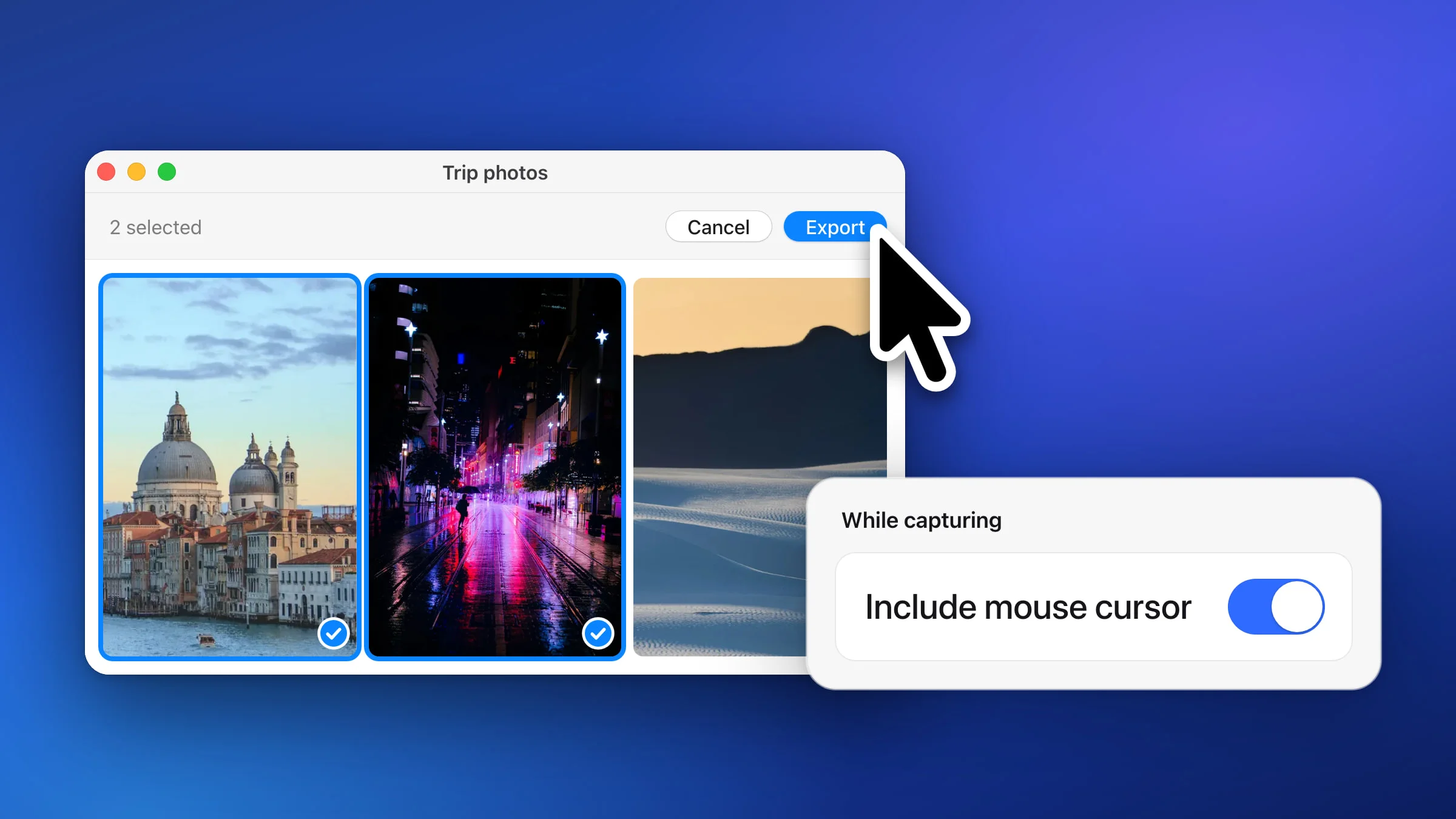
Both of the other choices also leave out notification banners, even one that pops up just as you take the shot. It works for area, full-screen, last-area and self-timer shots. A window capture holds only the window, so there’s nothing to hide, and Extract Text reads the screen as you see it. The same section has Include mouse cursor, covered in how to screenshot with the cursor.
Note: Notification Center’s panel shares a window with the banners, so it’s left out too while this setting is on. To screenshot Notification Center itself, set it back to Never first.
Screen sharing or screenshots: which one to use
| What changes | Menu switch | Settings option |
|---|---|---|
| Hides | Icons and widgets | Icons, widgets and banners |
| Your screen | Clean until you show the icons | As it is, or clean while you select |
| Screen shares | Clean wallpaper | Same as your screen |
| After you quit Snapix | Icons come back | Remembered for next time |
Use the menu switch (Hide Desktop Icons) for screen sharing, presentations and a batch of screenshots. Use the Settings option if you want every screenshot clean without touching your desktop.
How to hide desktop icons on Mac without an app
macOS can hide desktop items too, from System Settings.
- On recent versions of macOS, choose Apple menu ▸ System Settings, then click Desktop & Dock in the sidebar.
- In the Desktop & Stage Manager section, next to Show items, turn off On Desktop.
- To hide widgets as well (macOS Sonoma and later), turn off On Desktop next to Show Widgets.
If you use Stage Manager, also turn off In Stage Manager in both rows.
The macOS setting is a good choice if you want a tidy desktop all the time. Your files stay in the Desktop folder in Finder. For a single screenshot it means two trips into System Settings, one to hide the icons and one to bring them back.
Good to know
- Every display. The wallpaper picture goes over the desktop of each connected display. A display showing an app in full screen has no desktop to cover, so it stays as it is.
- Clicks still work. A click where a hidden icon sits counts as a click on the wallpaper, so anything macOS does when you click the wallpaper still happens. You can’t drop files onto hidden icons.
- Grayed out? Snapix needs you signed in and needs Screen Recording permission before it can hide the icons. If the row is gray, see what to do when screenshots aren’t working. Hide Desktop Icons keeps working after the free trial ends, and Show Desktop Icons is never grayed out.
For every other way to capture your screen, see how to take a screenshot on a Mac, or try Snapix free.