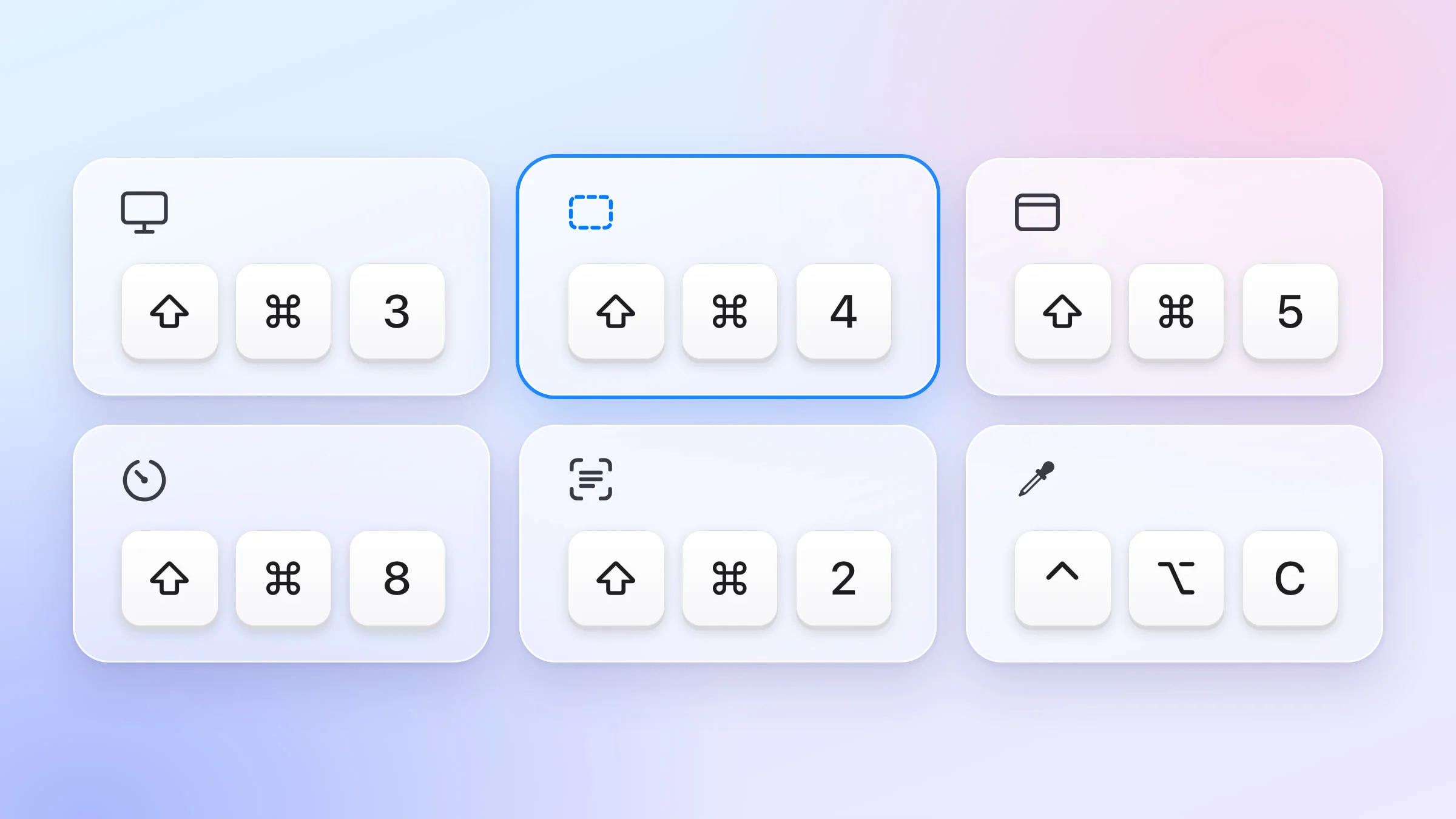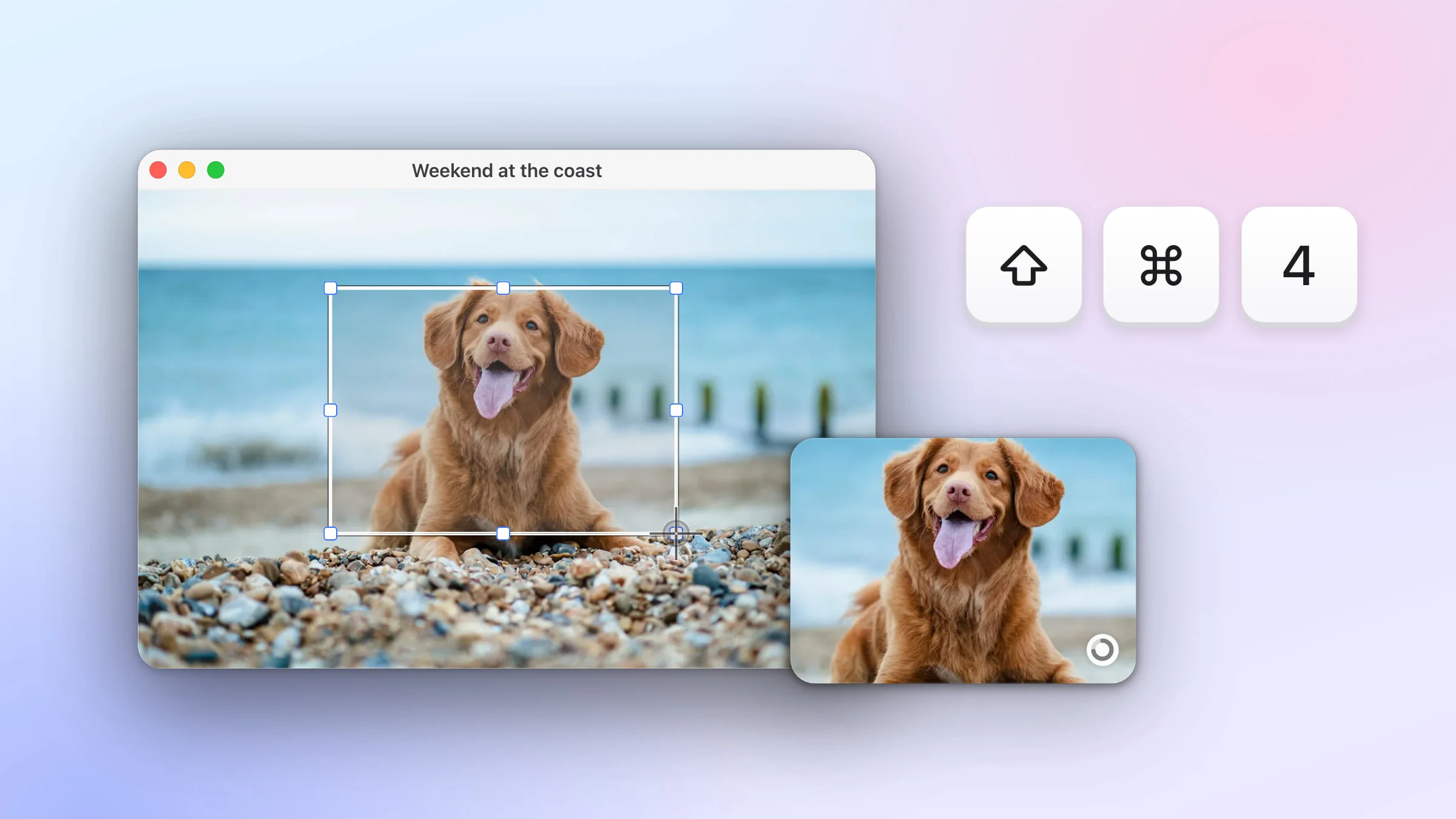
Press ⇧⌘3 (Shift-Command-3) to take a screenshot of your whole screen on a Mac, or ⇧⌘4 (Shift-Command-4) to drag over just part of it. ⇧⌘5 (Shift-Command-5) opens the Screenshot toolbar, and by default every screenshot is saved as a PNG file on your desktop.
The keys are the same on a MacBook Air, MacBook Pro, MacBook Neo, iMac or Mac mini. Below is each built-in way, step by step, then how Snapix puts every shot on your clipboard with a preview you can mark up, pin or drag into any app.
How to take a screenshot on a Mac
- Press ⇧⌘3 for the whole screen or ⇧⌘4 for part of it. Press and release the three keys together. ⇧⌘3 takes the shot right away, so go on to step 3.
- For part of the screen, drag over it. The pointer turns into a crosshair. Click and hold, drag a box around what you want, then let go to take the shot. Press Esc to cancel.
- Find it on your desktop. A thumbnail appears in the corner of the screen. A few seconds later it slides away, and the screenshot is saved to your desktop as a PNG file.
- Or click the thumbnail to mark it up. Click it before it slides away to draw on, crop or share the screenshot first.

The built-in ways at a glance
| Shortcut | What it does |
|---|---|
| ⇧⌘3 | Saves the whole screen. With several displays, each one becomes its own file. |
| ⇧⌘4 | Saves an area you drag over. |
| ⇧⌘4 then Space | Saves a window, a menu, the menu bar or the Dock. |
| ⇧⌘5 | Opens the toolbar: screen, window or area, plus a timer and options. |
| ⌃⇧⌘3 or ⌃⇧⌘4 | Copies the whole screen or an area to the clipboard, with no file. |
Saved screenshots go to the desktop by default. Pick another folder once in the toolbar, and ⇧⌘3 and ⇧⌘4 save there too. For Snapix’s shortcuts and the rarer ones, see every Mac screenshot shortcut. If a shortcut does nothing, see screenshot not working on Mac for the fixes.
How to take a full screen screenshot
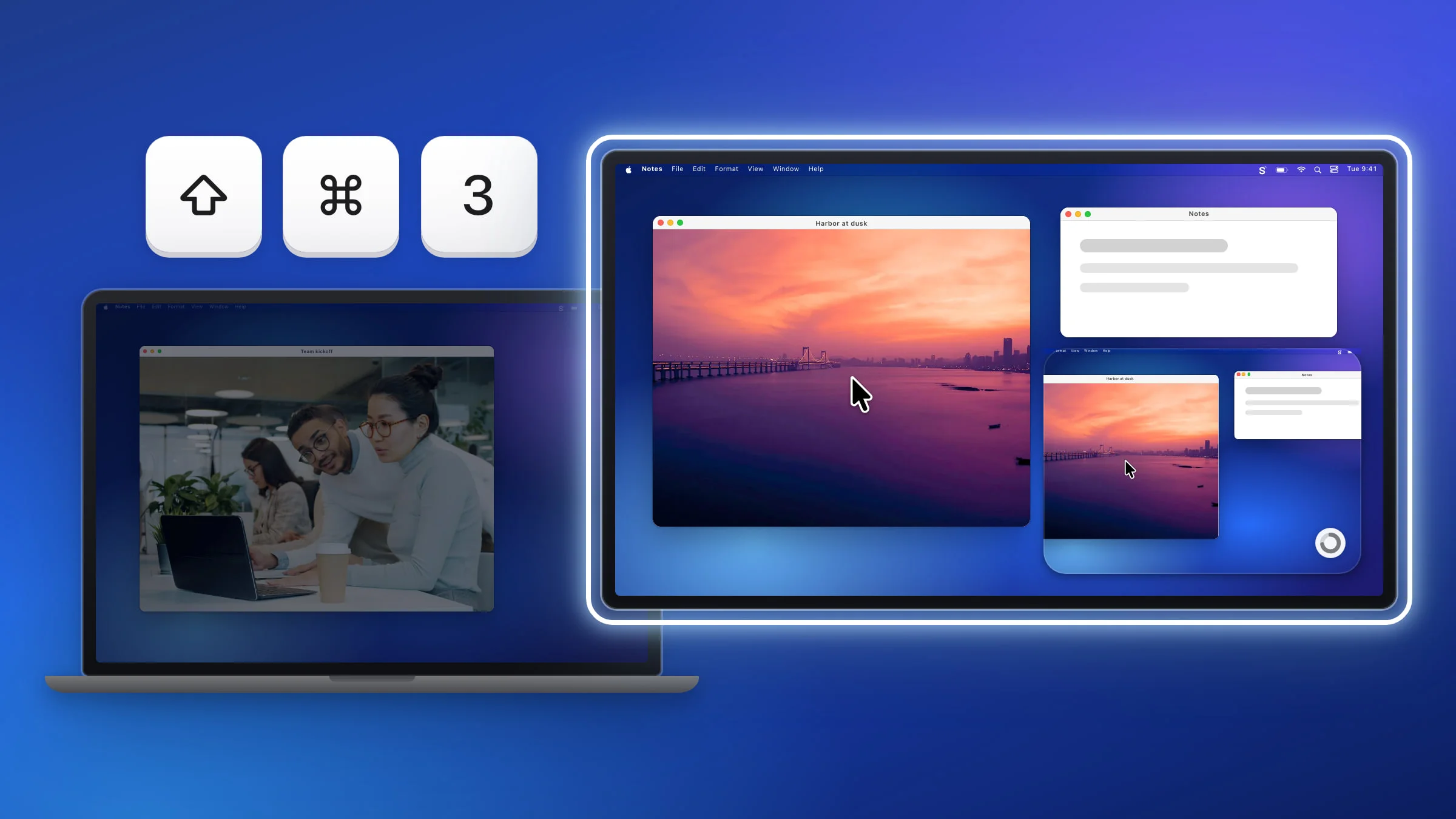
Press ⇧⌘3 to screenshot the full screen. Your Mac takes the shot right away and shows a thumbnail in the corner. If you have two or more displays connected, you get one file for each display.
How to screenshot part of the screen
The steps at the top of this page use ⇧⌘4. While you drag, a few keys change the box:
- Hold Space to move the box without changing its size.
- Hold Shift to change only the width or only the height.
- Hold Option to grow the box out from its center.
To capture a menu, open it first, then press ⇧⌘4 and drag over it. There’s more in how to screenshot part of your screen, and for menus and tooltips see how to screenshot a menu.
How to screenshot a window
- Press ⇧⌘4, then press Space. The pointer turns into a camera.
- Move the camera over the window you want. It’s highlighted.
- Click. Hold Option as you click to leave out the window’s shadow.
This works for a window even when other windows cover part of it, and for the menu bar and the Dock too. For more, including how to drop the shadow for good, see how to screenshot a window on Mac.
How to use the Screenshot toolbar
- Press ⇧⌘5. You can also open the Screenshot app from the Utilities folder in Applications.
- Choose Capture Entire Screen, Capture Selected Window or Capture Selected Portion.
- Click Options to set a Timer of 5 or 10 seconds, choose a folder under Save to, or turn on Show Mouse Pointer.
- Click Capture. For a window, click the window instead.
Press Esc to close the toolbar without taking anything.
How to copy a screenshot instead of saving it
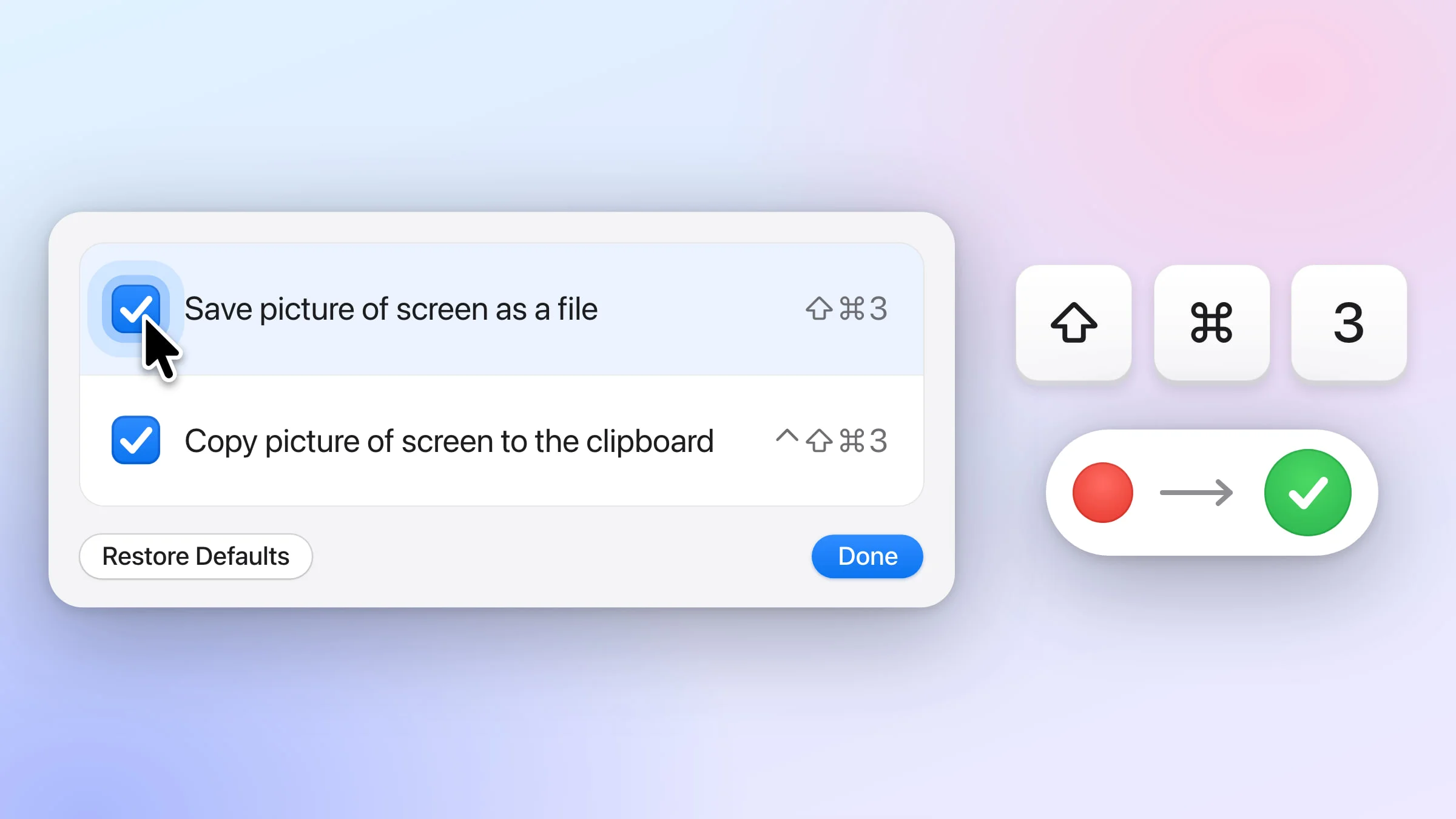
Add Control to the shortcut. ⌃⇧⌘3 copies the whole screen and ⌃⇧⌘4 copies an area, or a window if you press Space. Nothing lands on the desktop. Paste it with ⌘V into a message, an email or a document. The clipboard holds one image, so the next copy replaces it.
To copy every time without adding Control, press ⇧⌘5, click Options and choose Clipboard under Save to. See copy a screenshot to the clipboard for more.
What you can do with the thumbnail
For a few seconds after each shot, the thumbnail in the corner is your screenshot. You can:
- Click it to mark up, crop or share the screenshot.
- Drag it straight into an email, a document, a note or a Finder window.
- Swipe it to the right to save the file at once.
- Control-click it for more, like Save to Clipboard, Show in Finder or Delete.
Hold the pointer over it and it stays on screen until you’re ready. There’s more in how to use the screenshot thumbnail.
Where screenshots are saved on a Mac
By default, screenshots go to your desktop as PNG files named with the date and time, like “Screenshot 2026-10-13 at 10.15.32 AM.png” (no AM or PM with a 24-hour clock). The file is written when the thumbnail slides away, a few seconds after the shot, which is why it can seem to show up late.
Tip: Turn off Show Floating Thumbnail in the toolbar’s Options, and screenshots save the moment you take them.
To use another folder, press ⇧⌘5, click Options and pick a place under Save to (Other Location… lets you choose any folder). There’s more in where screenshots go on a Mac.
How to take a screenshot with Snapix
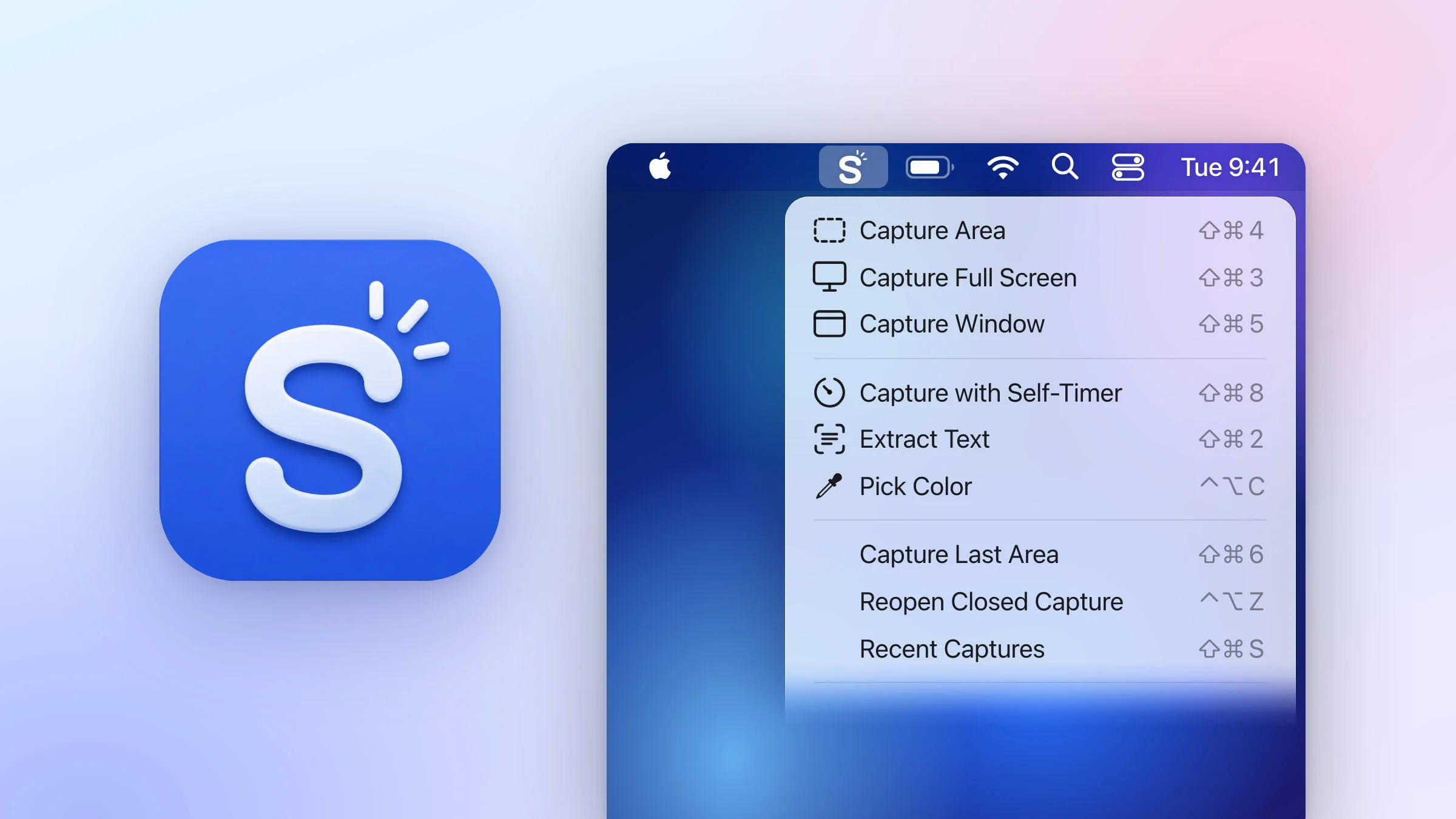
By default, macOS saves each screenshot as a file on your desktop. Snapix is a menu bar app for macOS 14 Sonoma or later that puts each shot on your clipboard first, with a floating preview you can copy, save, mark up, pin or drag into any app. It all happens on your Mac, and your screenshots stay there. An area shot uses the same ⇧⌘4:
- Press ⇧⌘4. The crosshair appears. You can also click the Snapix icon in the menu bar and choose Capture Area.
- Drag over what you want, then let go. Press Space before you drag to pick a window instead, or hold it while you drag to move the box. Shift and Option work as they do in macOS. Press Esc to cancel.
- Paste it. The screenshot is already on your clipboard, so ⌘V drops it into a chat, an email or a document.
- Or use the preview. A preview floats in the bottom-right corner, for 5 seconds by default. Hover it to Copy or Save, click it to mark it up, or drag it into any app.
By default, Snapix doesn’t save a file until you click Save, and the first time, it asks which folder to use. Every shot also goes to Recent Captures (⇧⌘S), which keeps your last 50 by default, saved or not. You can try Snapix free.

The other two shortcuts do different jobs from macOS:
- Capture Full Screen (⇧⌘3) takes the display your pointer is on, not every display. Move the pointer to the monitor you want first. The shot includes the mouse pointer by default. To leave it out, turn off Settings ▸ Capture ▸ Include mouse cursor.
- Capture Window (⇧⌘5) takes the place of the macOS Screenshot toolbar. The pointer turns into a camera. Click a window and Snapix captures all of it, even the parts hidden behind other windows, and places it on your desktop wallpaper by default. You can change that in Settings ▸ Capture.
Note: Snapix asks you to sign in and to allow Screen Recording before it takes its first screenshot. Here’s how to set up Snapix.
Using Snapix alongside the macOS shortcuts
While a Snapix shortcut sits on ⇧⌘3, ⇧⌘4 or ⇧⌘5, Snapix switches off macOS’s own shortcut for it, so only one app answers. ⌃⇧⌘3 and ⌃⇧⌘4 are never touched and still copy to the clipboard the macOS way.
macOS gets its shortcuts back when you quit Snapix or sign out, or when you click Hand these back to macOS in Settings ▸ Shortcuts. Snapix’s captures stay in its menu, and you can change the screenshot shortcuts to other keys.
Do more with a screenshot
- Screenshot just one monitor when you have more than one display.
- Take a timed screenshot to catch a menu or a tooltip.
- Edit a screenshot with arrows, text and numbered steps.
- Crop a screenshot after you take it.
- Pin a screenshot on top of your other windows.
- Find your recent screenshots when you need one again.
- Turn off the screenshot sound for quiet captures.
Coming from Windows? See the Snipping Tool for Mac guide.