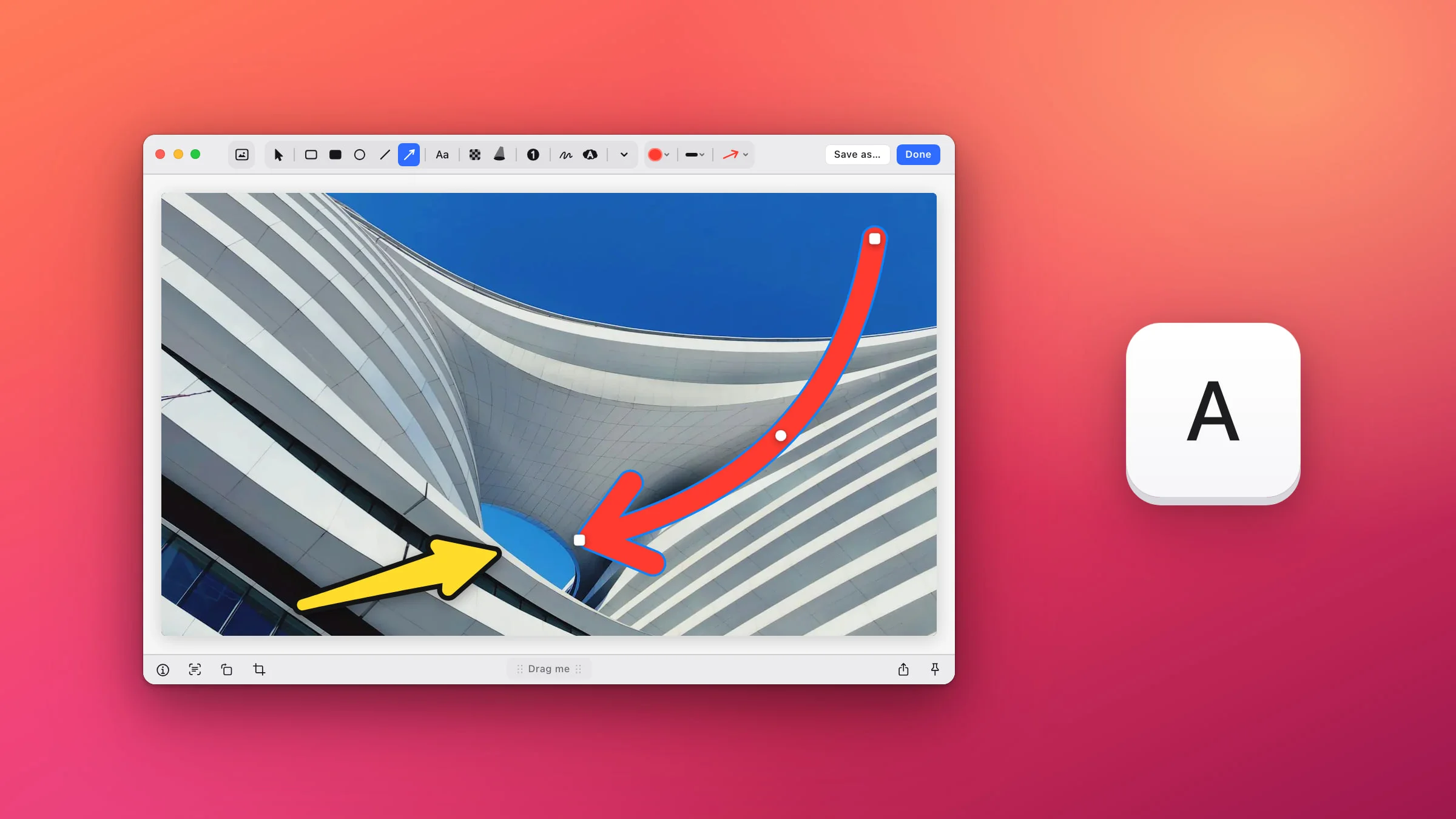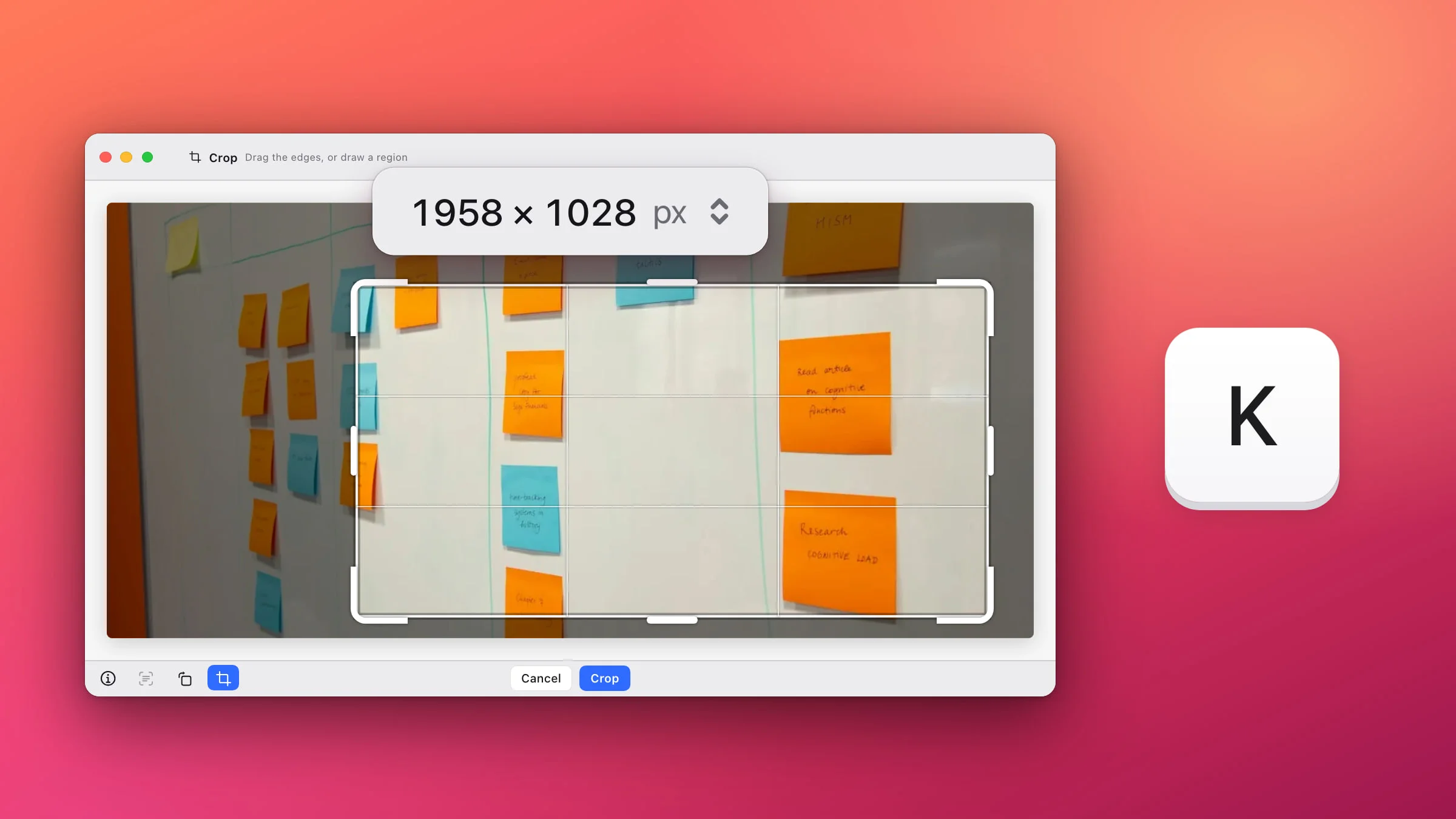
To crop a screenshot on a Mac, click the thumbnail that appears right after you take it, click the Crop tool and drag the handles in. For a screenshot you’ve already saved, open it in Preview, select the part you want to keep and press ⌘K. In Snapix, press K in the editor, pull the frame in and press Return. It can make the picture smaller in the same step.
How to crop a screenshot on Mac
- Take the screenshot. Press ⇧⌘3 for the whole screen or ⇧⌘4 to drag over part of it. A thumbnail appears in the bottom-right corner of the screen.
- Click the thumbnail before it slides away. It stays for a few seconds, and for as long as you hold the pointer over it. A window opens with the Markup tools. If you let it go, the full screenshot is saved as it is.
- Click the Crop tool. A frame with handles appears around the picture.
- Drag the corner handles in. Stop when just the part you want is inside the frame. Drag the frame itself to move it.
- Click Crop again, then Done. The cropped screenshot is saved where your screenshots go, the desktop by default.

Tip: You can often skip cropping. Press ⇧⌘4 and drag over only the part you want, and the screenshot comes out the right size. There’s more in how to screenshot part of the screen.
How to crop a saved screenshot in Preview
- Control-click the screenshot in Finder and choose Open With ▸ Preview.
- Choose Tools ▸ Rectangular Selection.
- Drag over the part you want to keep. Drag the handles to adjust it.
- Press ⌘K, or choose Tools ▸ Crop.
If you cut too much, Edit ▸ Undo Crop puts it back right away. Later on, File ▸ Revert To ▸ Browse All Versions… lets you go back to an earlier version of the file.
If the screenshot is in Photos, double-click it, click Edit, then click Crop in the toolbar. Drag the frame around the part you want and click Done.
How to crop a screenshot with Snapix
With Snapix running, ⇧⌘3, ⇧⌘4 and ⇧⌘5 take Snapix screenshots by default, and a Snapix preview appears in the corner instead of the macOS thumbnail. Its editor crops and resizes in one go, and you can try Snapix free.
- Open the screenshot in the editor. Click the picture in the preview, or hover it and press ⌘E. For a file that’s already on your Mac, Control-click it in Finder and choose Open With ▸ Snapix.
- Press K. Or click the crop button in the editor’s bottom bar (its tooltip reads Crop & resize). The whole picture is selected, and the top bar shows its size in pixels.
- Set the frame. Drag a corner, or the short bar in the middle of an edge, until the frame holds just the part you want. Drag inside the frame to move it, or outside it to draw a new one. Hold Space while you drag a handle to move the whole frame instead.
- Press Return. Or click Crop in the bottom bar, or double-click inside the frame. Esc or Cancel leaves without cutting anything.
- Click Done. The cropped picture goes on your clipboard, and the preview and Recent Captures show the cropped version. Click Save as… if you’d rather have a file.
Note: For an image you opened from Finder, Done and Save as… both write the crop back into that file, and Snapix keeps no backup. Work on a copy if you want to keep the original. There’s more on editing files in how to annotate an image on Mac.
Make the screenshot smaller while you crop
The size in the middle of the top bar is a menu. Click it to choose the size of the result:
- Actual size, 75%, 50% or 25%. Each row shows the size in pixels and the file size it makes.
- Custom, to type a width and height in pixels. The lock between them keeps the proportions.
The picture shows your pick right away, and the bottom of the menu shows how the file size changes. Click Apply to crop and resize at once. Leave the whole picture selected and it only resizes, which is handy for a Retina screenshot that has twice the pixels you need. In Preview, choose Tools ▸ Adjust Size… to resize.

Get back what you cut off
If you cropped too tight, press ⌘Z to undo the crop. Or press K again: the part you cut off shows dimmed around the picture, and the top bar reads Drag the edges — the dimmed part comes back. Drag the frame back out over it and press Return.
This works until you close the editor, as long as you haven’t resized the picture. While the frame reaches into the dimmed part, the size menu is off (its tooltip says Pull the frame back inside to resize), so get the crop right first and resize after.
How to rotate a screenshot on Mac
- In Snapix: press ⌘R, or click the rotate button in the editor’s bottom bar (Rotate 90°), to turn the picture clockwise. ⌘L turns it the other way. It works while you crop too, and the frame turns with the picture. When the editor isn’t open, you can also right-click the Snapix preview and choose Rotate Left or Rotate Right.
- In Preview: choose Tools ▸ Rotate Left (⌘L) or Tools ▸ Rotate Right (⌘R).
- In the Markup window: click the Rotate Left tool. Hold Option as you click to turn right instead.
For arrows, text, blurring private details and the rest of the editor, see how to edit a screenshot on Mac. On a Mac where you can’t install apps, our free Annotate Screenshot tool crops right in your browser.