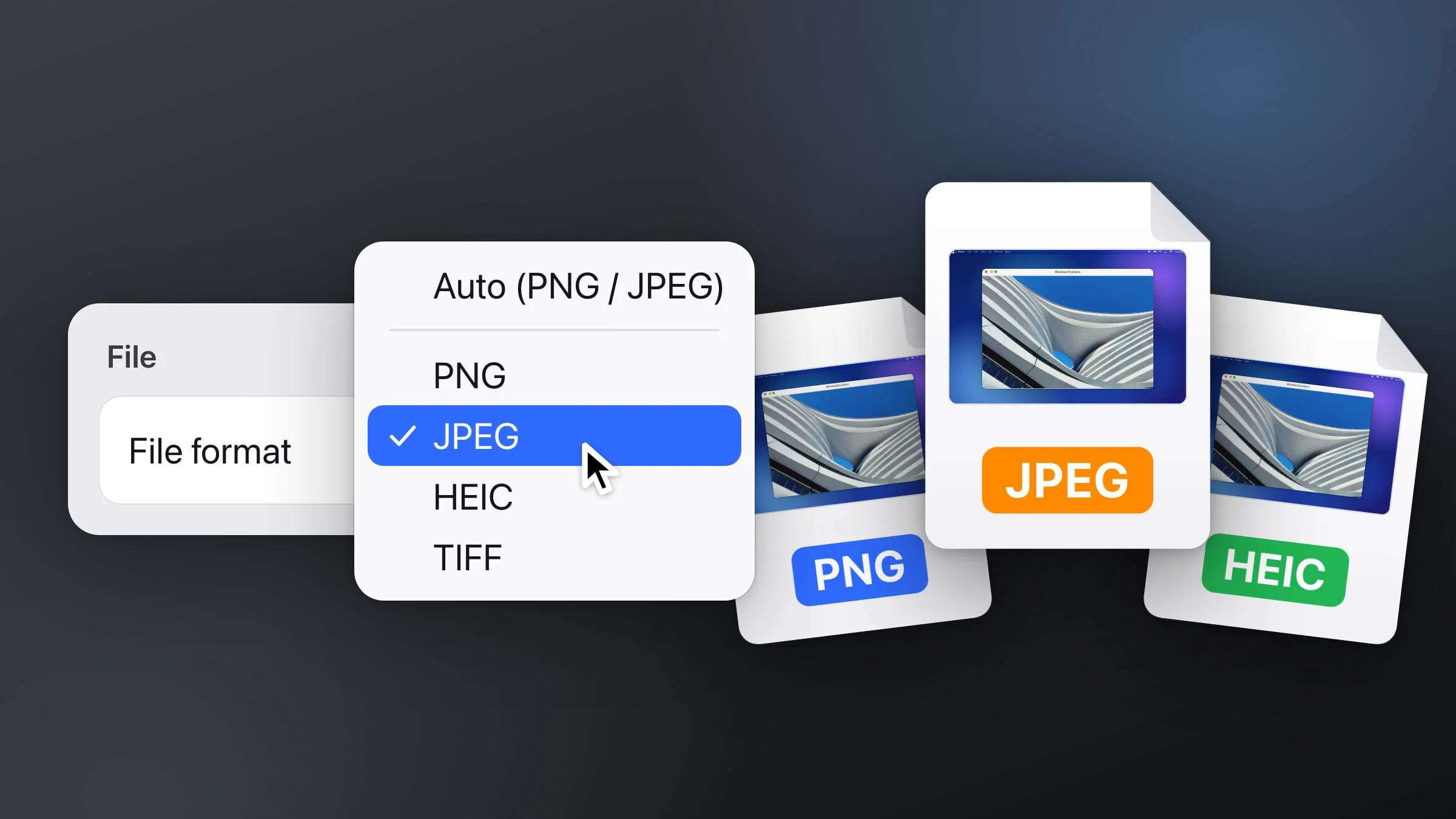
Mac screenshots are PNG files by default. To save them as JPG instead, open Terminal and run defaults write com.apple.screencapture type jpg (use heic, tiff or pdf in place of jpg for those formats). In Snapix, you pick the format from a menu in its settings: PNG, JPEG, HEIC, TIFF or Auto.
How to change the screenshot format on Mac
macOS has no menu for JPG. On macOS Tahoe 26 or later, its Screenshot toolbar can switch between SDR (PNG) and HDR (HEIF) on supported Macs, and that’s all. One Terminal command changes the format of the screenshots macOS takes with ⇧⌘3, ⇧⌘4 and ⇧⌘5.
- Open Terminal. It’s in Applications ▸ Utilities, or press ⌘Space and type Terminal.
- Run the command. Type the line below and press Return. For other formats, replace jpg with heic, tiff, pdf or png.
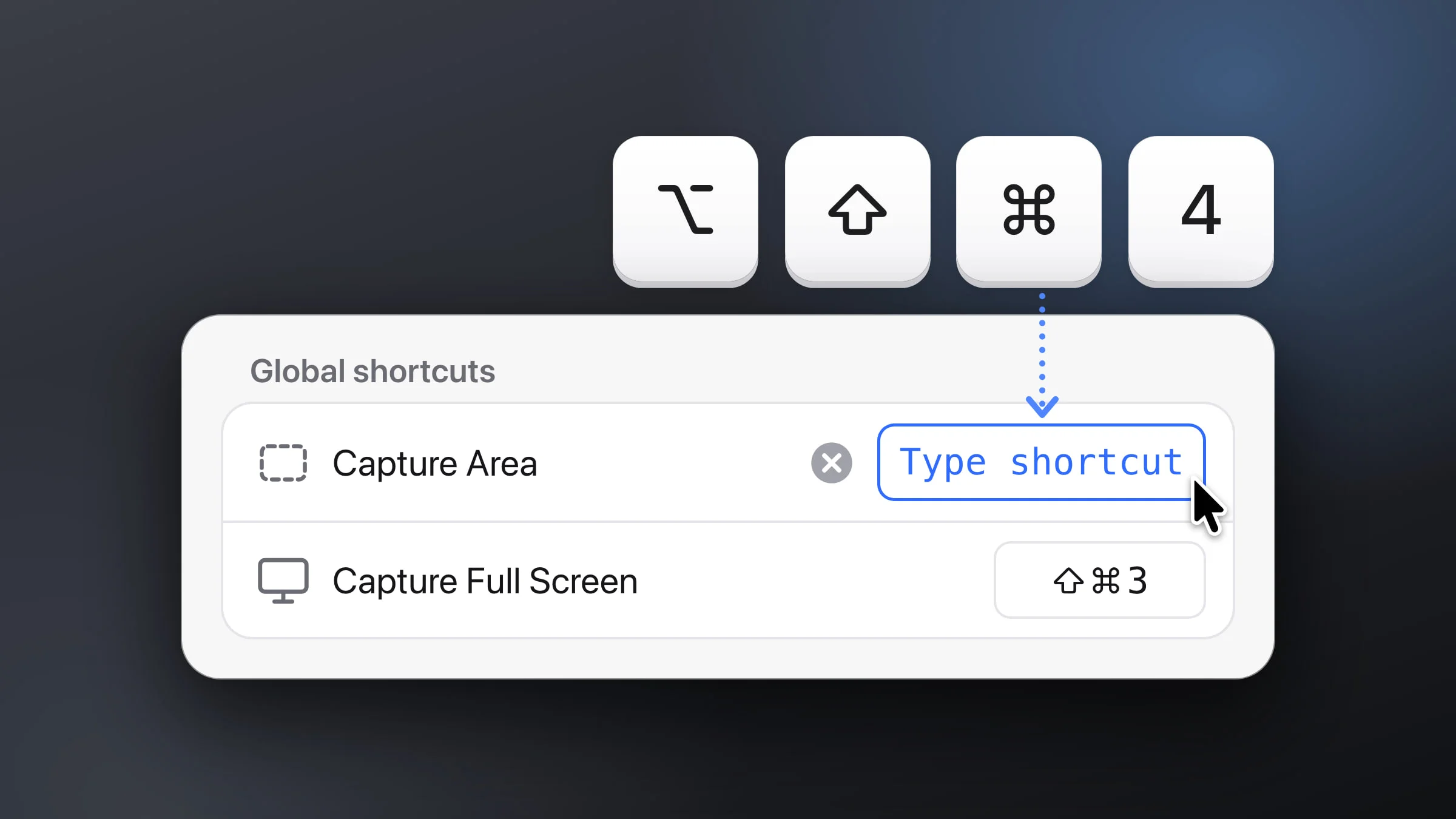
defaults write com.apple.screencapture type jpg - Take a screenshot to check. Press ⇧⌘4 and drag over part of the screen. The new file is saved as a JPG, on your Desktop unless you’ve moved your screenshots. If Snapix is using ⇧⌘4 on your Mac, take the test shot from the Screenshot app in Applications ▸ Utilities instead.
- Undo it any time. To go back to PNG, run:
defaults delete com.apple.screencapture type
Older guides add a second command after the one in step 2. It does no harm, but it usually isn’t needed anymore. If the next screenshot still comes out as a PNG, run it once:
killall SystemUIServerHow to choose the screenshot format in Snapix
Snapix keeps its own format setting, so the Terminal command above doesn’t change it. It saves PNG files until you pick something else.
- Open Snapix Settings. Click the Snapix icon in the menu bar and choose Settings… from its menu.
- Click Saving in the sidebar.
- Pick a File format. Under File, choose PNG, JPEG, HEIC or TIFF. Auto (PNG / JPEG) decides for each screenshot.
- Set the Quality. For JPEG, HEIC and Auto, a Quality slider appears. Drag it toward Least for smaller files or Best for sharper ones. It starts close to Best.
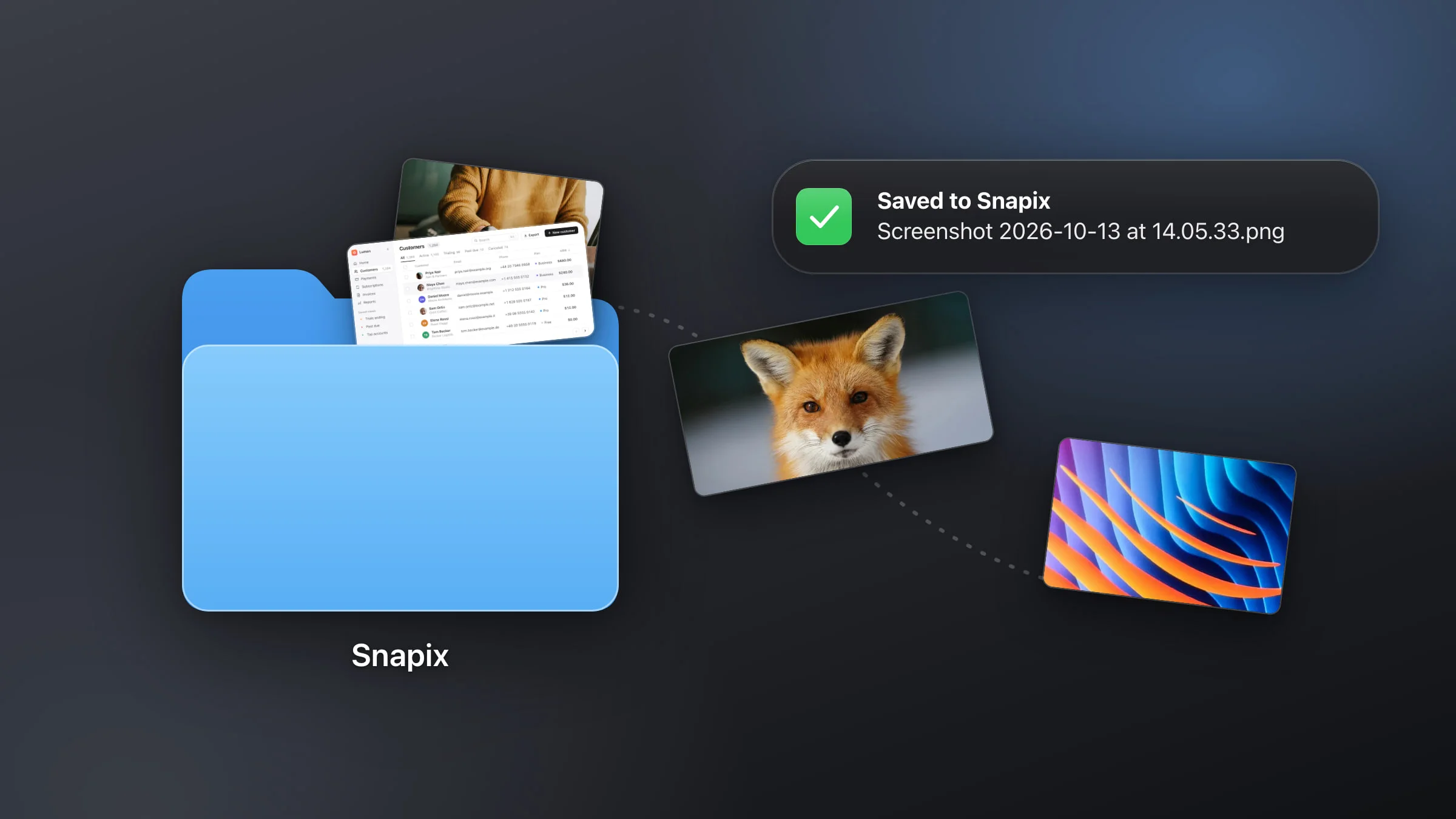
- Save a screenshot. Hover the preview that appears after a capture and click Save (the first time, Snapix asks which folder to use), or turn on Save every screenshot automatically at the top of the same page.

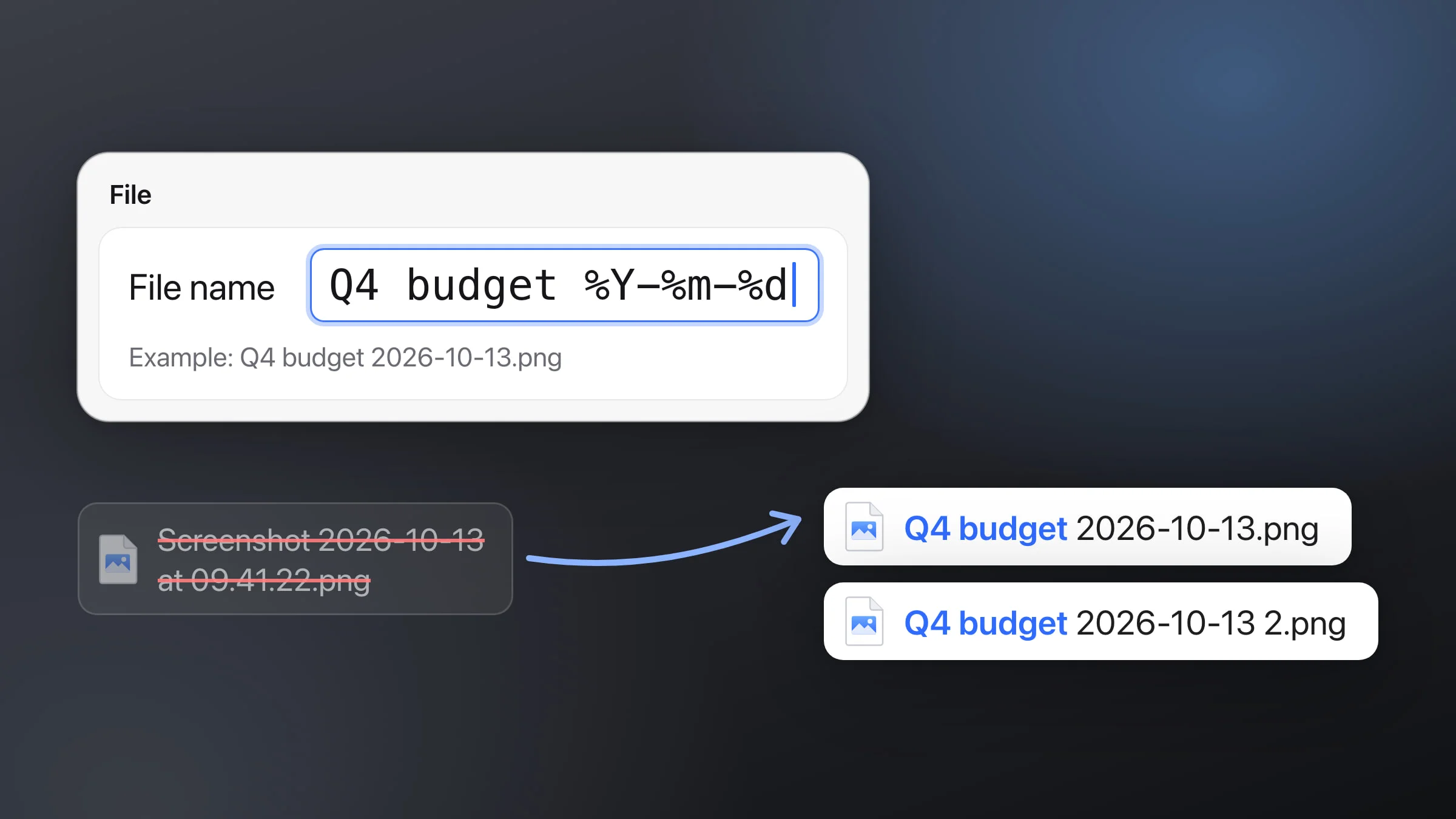
The format applies to every new screenshot file Snapix saves: the preview’s Save, automatic saving, the editor’s Save as… and a screenshot you drag into another app. Snapix names JPEG files .jpeg, not .jpg, as the Example line under File name shows. When Snapix saves your edits over a file that already exists, such as an image you opened from Finder, that file keeps its own format.
On the same page, File name sets what the files are called (see how to rename screenshots) and Save to picks the folder (see where screenshots go).
Note: The format only changes files. What Snapix copies to your clipboard is always the full-size picture, so pasting into a chat or a document isn’t affected.
PNG, JPEG or HEIC: which should you use?
- PNG keeps every pixel exactly as it was. Text and app windows stay crisp, and transparent corners stay transparent. Photos make big PNG files.
- JPEG makes photos and video frames much smaller, and it opens almost anywhere. It can’t hold transparency, so Snapix fills transparent areas with white.
- HEIC made the smallest full-size files in our test. Apple devices open it, but some websites and apps don’t accept it yet.
- TIFF keeps every pixel, like PNG, but Snapix saves it uncompressed: a 2880 × 1800 screenshot is 15.6 MB as a TIFF, whether it shows text or a photo. Pick it only when an app asks for TIFF.
- Auto (PNG / JPEG) chooses per screenshot. Small shots (under a million pixels) and anything with transparency stay PNG, and larger ones become JPEG.

So there’s no single best format. If you mostly capture apps, web pages and documents, PNG is a fine default. If you capture photos or frames from videos, JPEG or HEIC will save a lot of space.
Why are my Mac screenshots HEIC?
On macOS Tahoe 26 or later, Macs that support it can take HDR screenshots, and those are saved as HEIF images (.heic files) instead of PNG. Apple’s note on the option says HDR “captures more brightness and color, but requires an HDR display to see the difference.”
To get PNG files again, press ⇧⌘5, click Options, and under Capture Format choose SDR (Most compatible). If Snapix is using ⇧⌘5, open the Screenshot app from Spotlight or Applications ▸ Utilities instead. And if you once ran the Terminal command with heic, this takes it back out:
defaults delete com.apple.screencapture typeHow to make screenshot files smaller
- Switch to JPEG or HEIC. For photos it’s the biggest saving (see the chart above). On macOS, run the Terminal command with jpg or heic. In Snapix, pick it under File format.
- Save at 1×. A Retina display has twice the pixels across and down, and so do its screenshots. Turn on Resize Retina screenshots in Snapix’s Settings ▸ Saving to save files at half the width and height. In our test it took the photo’s PNG from 7.2 MB to 2.2 MB. It applies to files saved to your save folder, not to the clipboard, Save as… or a drag into another app.
- Lower the Quality. With JPEG, HEIC or Auto in Snapix, move the Quality slider toward Least.
- Capture less. A shot of the part you need is smaller than the whole screen. See how to screenshot part of the screen. For one you already took, trim it or scale it down when you crop the screenshot.
How to convert a screenshot you already have
Open the file in Preview and choose File ▸ Export As… (File ▸ Export… on older versions of macOS). Pick a format such as JPEG or HEIC, and click Save. Got a HEIC file a website won’t take? Our free HEIC to JPG converter turns it into a JPG right in your browser.
Tip: In Snapix Settings, press ⌘F and type jpg or format to jump straight to the File format row. Don’t have Snapix yet? Try Snapix free.