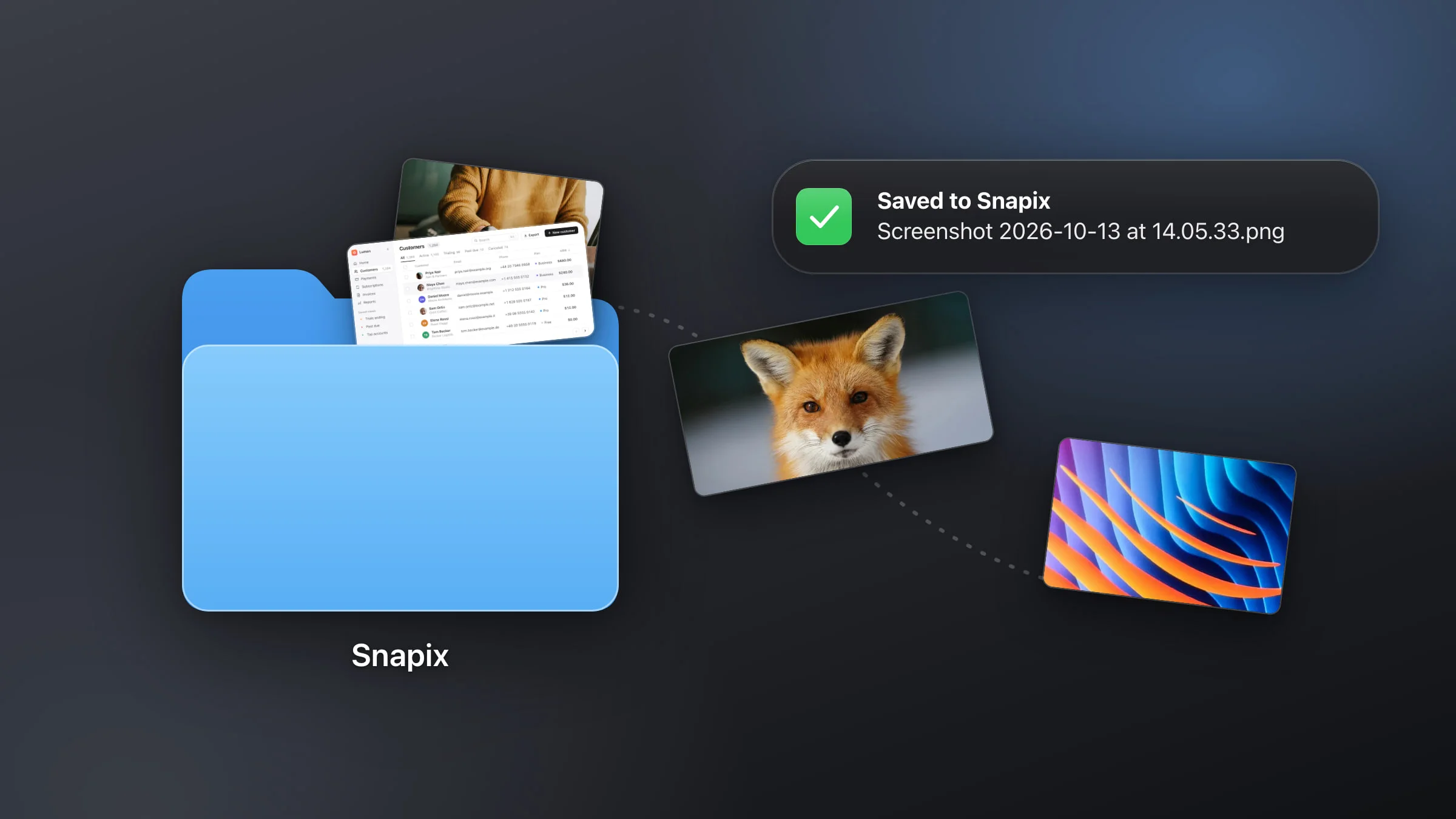
Your Mac names every screenshot the same way: “Screenshot”, then the date and time, like Screenshot 2026-10-13 at 9.41.22 AM.png (09.41.22 with no AM or PM on a 24-hour clock). To change it, open Terminal and run defaults write com.apple.screencapture name "Shot", and new screenshots start with “Shot” instead. There’s no option for the name in System Settings or the Screenshot toolbar. Snapix lets you write the whole name in its settings, and Finder renames the screenshots you already have.
How to change the screenshot name on Mac
-
Open Terminal. It’s in Applications ▸ Utilities, or search for it with Spotlight.
-
Change the word at the start. Run this, with your own word between the quotes:
defaults write com.apple.screencapture name "Shot" -
Leave out the date and time, if you like. Run this:
defaults write com.apple.screencapture include-date -bool false -
Take a screenshot to check. Press ⇧⌘4, drag over an area and look at the new file’s name. If it hasn’t changed, run
killall SystemUIServerand try again.
Note: While Snapix runs with its default shortcuts, ⇧⌘3, ⇧⌘4 and ⇧⌘5 take Snapix screenshots, and those follow Snapix’s own File name setting below, not the Terminal one. To check the Terminal setting while Snapix runs, take the screenshot with the Screenshot app in Applications ▸ Utilities.

To go back to the usual name, run:
defaults delete com.apple.screencapture nameTo bring back the date and time, run:
defaults delete com.apple.screencapture include-dateThe type setting changes the format the same way, which is covered in how to change the screenshot format.
How to set your own file name pattern in Snapix
In Snapix you write the whole name: your own words, the date and time in any order, or no date at all.
- Open Snapix Settings. Click the Snapix icon in the menu bar and choose Settings… from its menu.
- Click Saving. The File name field is in the File section. You can also press ⌘F in Settings and type “file name”.
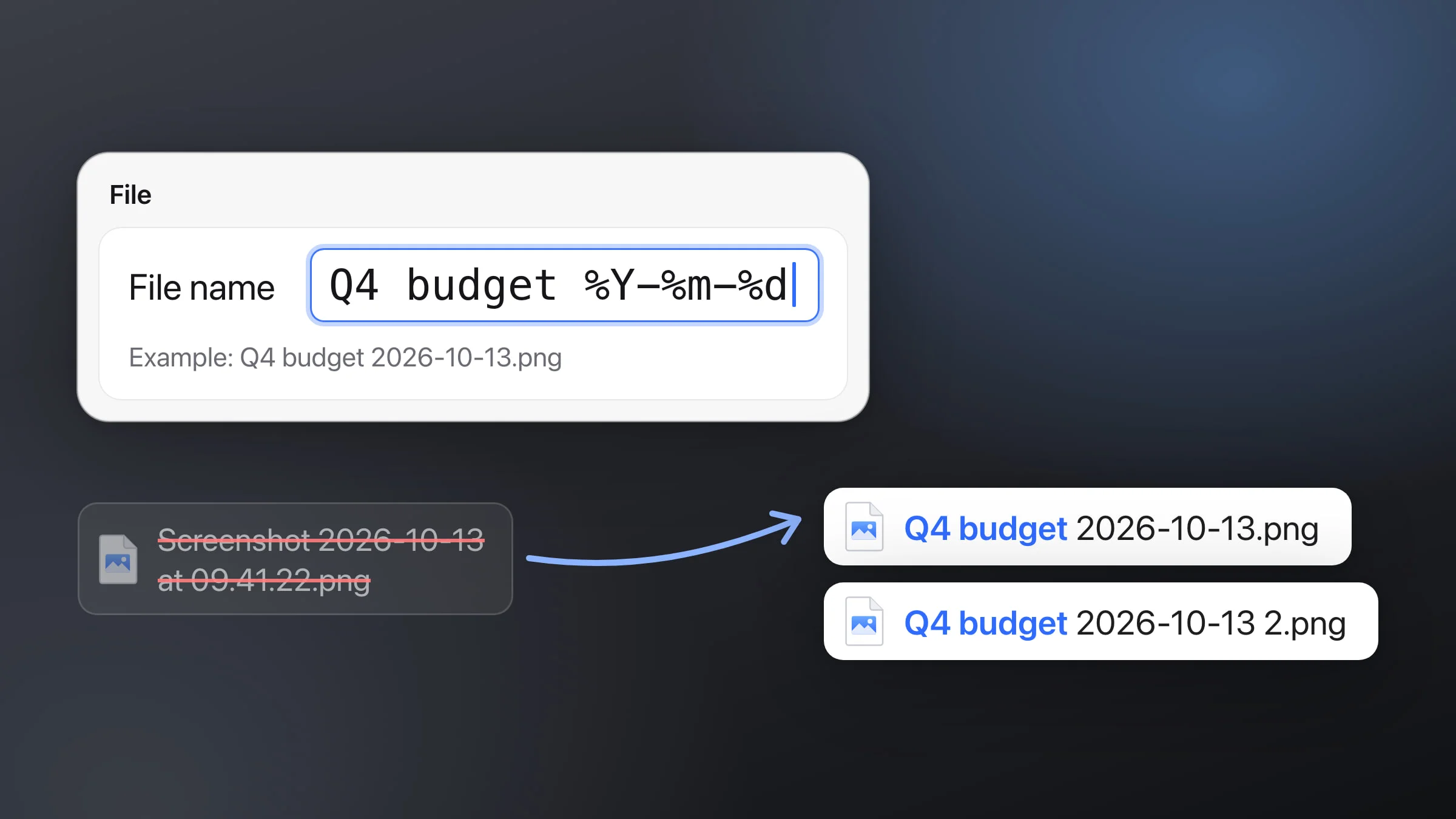
- Type your pattern. Words stay as you type them, and the tokens in the table below turn into the date and time. The default,
Screenshot %Y-%m-%d at %H.%M.%S, reads like the name macOS uses, always with a 24-hour time. - Check the example. The Example: line under the field shows what a screenshot saved now would be called. With the Auto (PNG / JPEG) format it shows .png, even though large screenshots are saved as .jpeg. There’s nothing to confirm: the next file you save gets the new name.

| Token | Turns into | Example |
|---|---|---|
%Y | Year, 4 digits | 2026 |
%m | Month, 2 digits | 10 |
%d | Day, 2 digits | 13 |
%H | Hour, 24-hour clock | 09 |
%M | Minute | 41 |
%S | Second | 22 |
Capitals matter: %m is the month and %M the minute. These six are the only tokens. Any other %, and the characters / : \ ? * | " < >, become a dash, so separate hours and minutes with dots or dashes. If you clear the field, files are named “Snapix”.
File name patterns that work well
%Y-%m-%d %H.%M.%Sgives 2026-10-13 09.41.22.png. With the date first, sorting by name also sorts by date.%Y%m%d-%H%M%Sgives 20261013-094122.png, with no spaces, which is handy for uploads and code.Q4 budget %Y-%m-%dgives Q4 budget 2026-10-13.png. Put a project or client name first, and change it when you switch projects.Invoicegives Invoice.png. With no time in the pattern, the next one is Invoice 2.png, then Invoice 3.png, so a new file never replaces an older one.
Which files get the new name
By default, Snapix copies each screenshot to the clipboard and saves a file only when you ask. The pattern names these files:
- Screenshots you save with Save on the preview or on a pin, with ⌘S in the editor, and every shot when Save every screenshot automatically is on. They go to Documents ▸ Snapix unless you change where screenshots are saved.
- A screenshot you drag into another app from the preview, from Recent Captures or from the editor’s Drag me.
- Save as… in the editor, which suggests the name and lets you type a different one.
Changing the pattern doesn’t rename files you’ve already saved. You can try Snapix free and set a pattern before your next screenshot.
Tip: A clear name pays off in Recent Captures (⇧⌘S), whose search looks through the file name a screenshot was saved under. A title you add there with right-click ▸ Add Title… (Rename… once it has one) is searchable too, but it doesn’t rename the file. There’s more in screenshot history.
How to rename screenshots you already have
Finder renames files you’ve already saved, whichever app took them.
- One file: click it, press Return, type the new name and press Return again. A name can’t contain a colon or start with a period. If the name ends in .png, leave that part as it is so the file opens as before.
- Many files: select them, Control-click one and choose Rename (with three selected it reads Rename 3 Items…). In the pop-up under Rename Finder Items, choose Replace Text to swap a word (
Screenshotin Find, your word in Replace with), Add Text to put text before or after each name, or Format to give them all one name with a number or the date before or after it. Then click Rename. Screenshots from before macOS Ventura start with “Screen Shot”, so put that in Find for older files.