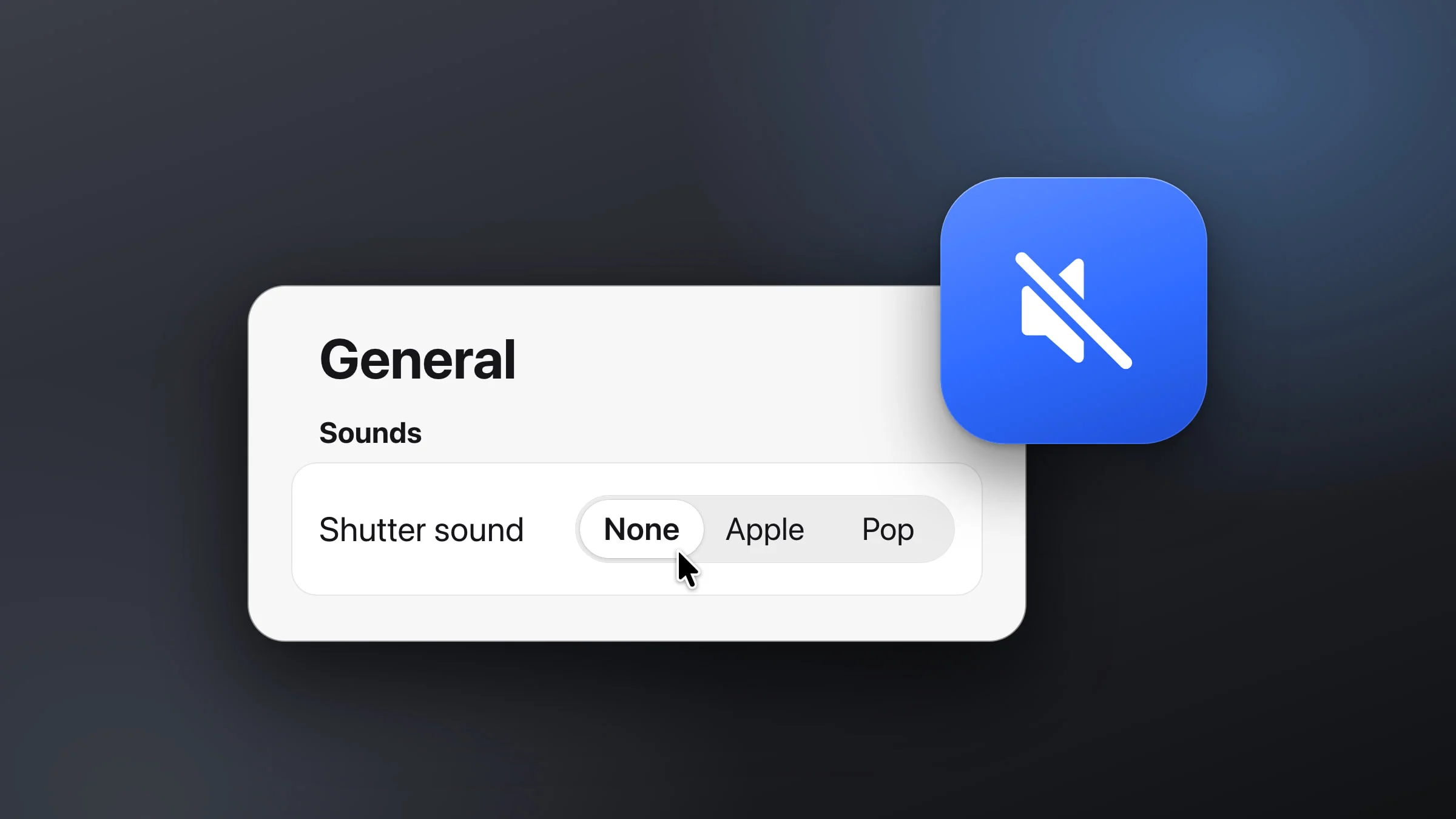
To turn off the screenshot sound on a Mac, open System Settings ▸ Sound and switch off Play user interface sound effects. Muting your Mac works too, but macOS has no switch for the screenshot sound alone, so either way you lose other sounds as well. Snapix has its own Shutter sound setting, which turns off just the shutter.
How to turn off the screenshot sound in macOS
- Open System Settings. Choose Apple menu ▸ System Settings, then click Sound in the sidebar. You may need to scroll down to see it.
- Find Sound Effects. This group holds the alert sound, the alert volume and a few switches.
- Turn off Play user interface sound effects. The camera-shutter sound stops, along with other interface sounds, like the one you hear when you drag an item to the Trash.
- Take a test screenshot. Press ⇧⌘4 and drag over a small area. If you still hear a sound, another app is taking your screenshots. Snapix’s own setting is further down.

Other ways to mute the screenshot sound
-
Mute your Mac. Press the mute key on your keyboard, or click Output in System Settings ▸ Sound and turn on Mute. This silences everything, including music and calls, so it works best for a quick shot.
-
Use Terminal. The
screencapturecommand takes a picture without any sound when you add-x. For example, in a new Terminal window, this saves shot.png to your home folder without a sound:screencapture -x shot.pngTerminal needs Screen & System Audio Recording permission in System Settings ▸ Privacy & Security, or the picture shows only your desktop and Terminal’s own windows.
The Screenshot toolbar (⇧⌘5, or the Screenshot app in Applications ▸ Utilities) has no sound setting in its Options menu, and macOS has no setting to pick a different screenshot sound.
How to turn off the shutter sound in Snapix
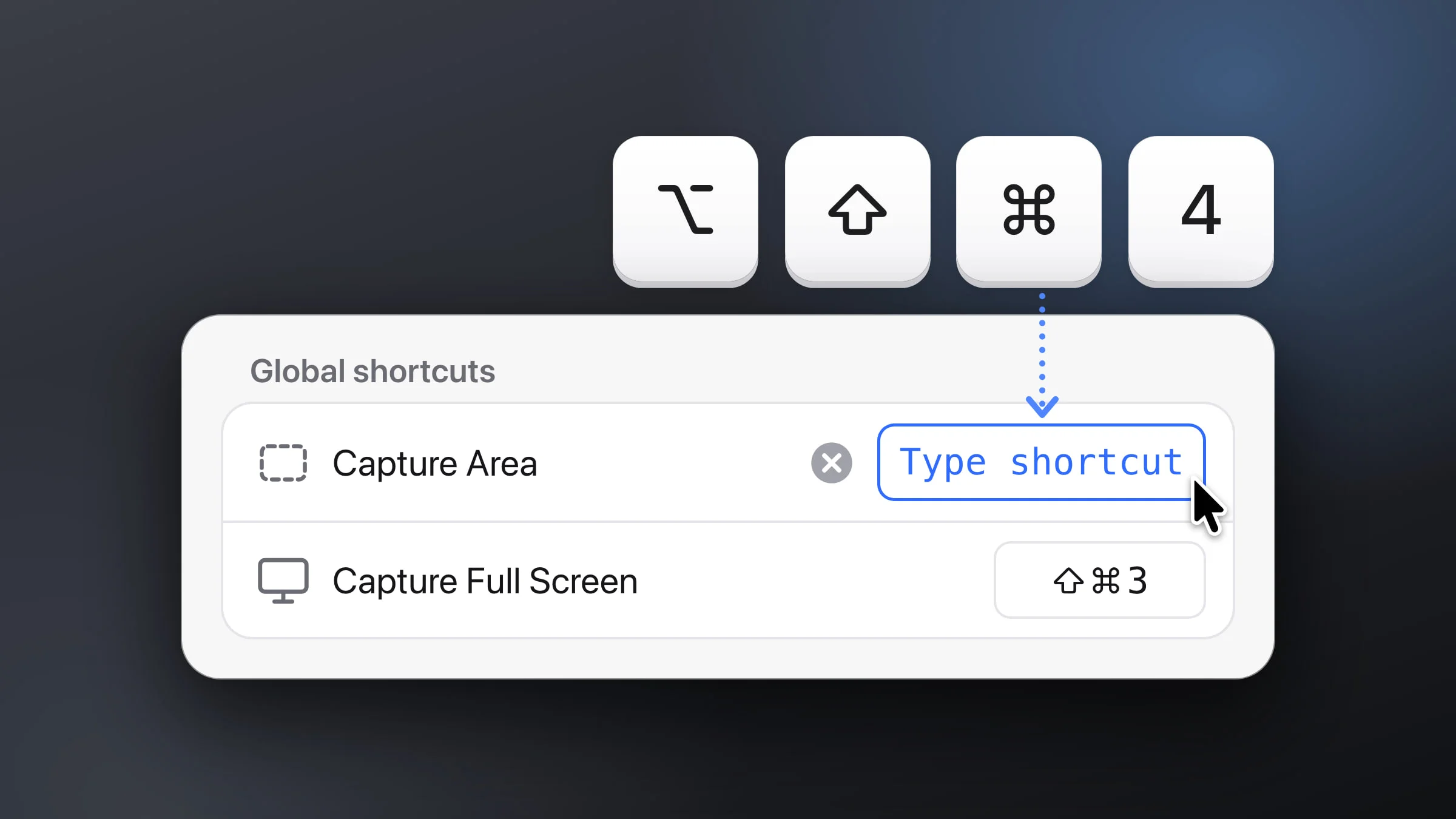
Snapix plays its own shutter, so the macOS switch above doesn’t silence it. With its default shortcuts, Snapix answers ⇧⌘3, ⇧⌘4 and ⇧⌘5 while it’s running. If you turned off the macOS sound and still hear a pop on those keys, it’s coming from Snapix.
- Open Snapix Settings. Click the Snapix icon in the menu bar, then choose Settings… from the menu.
- Click General in the sidebar. The Sounds section is on this page. You can also press ⌘F in Settings, type “sound” and pick Shutter sound to jump straight to it.
- Set Shutter sound to None. Your next capture is silent. Snapix plays Apple and Pop when you click them, so you can try each one before you decide.
- Turn off the confirmation sound too, if you like. Set Confirmation sound to None. It’s the soft chime that plays with the “Copied” and “Saved” banners.

What each Snapix sound setting does
- Shutter sound: None, Apple or Pop. Pop, the default, is macOS’s short Pop sound, so a Snapix capture doesn’t sound like a macOS screenshot. Apple is the camera sound macOS plays for its own screenshots. The shutter plays the moment the picture is taken for an area, a window, the full screen, the last area and the self-timer. It doesn’t play when you cancel.
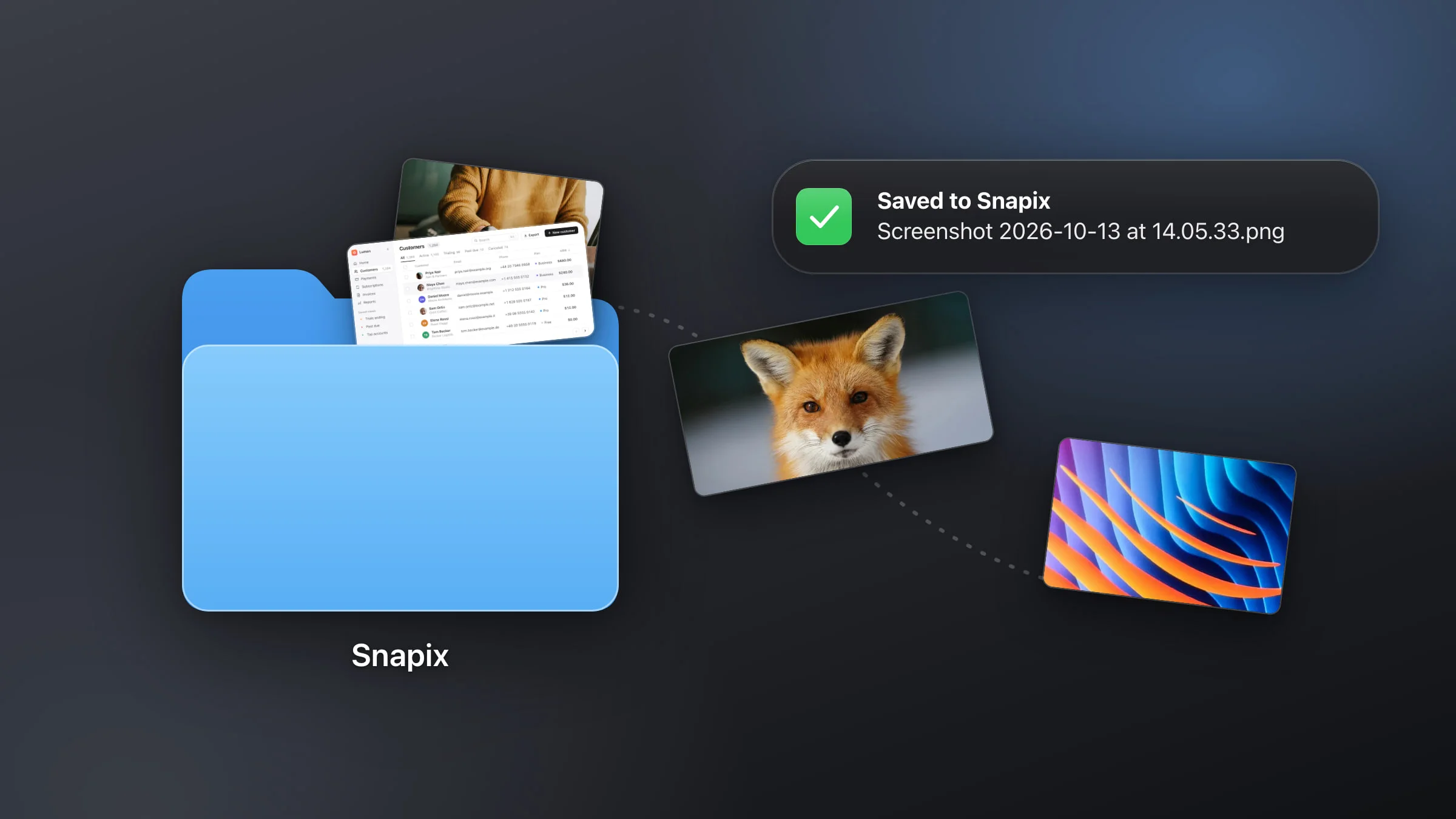
- Confirmation sound: None, Glass or Tink. Glass is the default. It plays only when a banner shows, such as “Saved to Snapix” (or whichever folder you save to) after you save a capture from its preview. The automatic copy after a capture only flashes “Copied” on the preview, with no banner, so it stays silent.
- Volume. One slider for both sounds, at full by default. Drag it all the way to the left to mute Snapix without touching anything else on your Mac. It plays a sample when you let go.
Extract Text (⇧⌘2) never plays the shutter, though its “Text copied” banner plays the confirmation sound. Snapix’s sounds play through your speakers or headphones like any app’s audio, so muting your Mac silences them too.
Note: ⌃⇧⌘3 and ⌃⇧⌘4, which copy a screenshot to the clipboard, always stay with macOS, so they follow the macOS setting. To give ⇧⌘3, ⇧⌘4 and ⇧⌘5 back to macOS as well, change the screenshot shortcuts in Snapix Settings ▸ Shortcuts.
For every other way to capture your screen, see how to take a screenshot on a Mac, or try Snapix free.