Screenshots on a Mac go to your desktop by default, as PNG files named “Screenshot” plus the date and time. To send them somewhere else, press ⇧⌘5 (Shift-Command-5), click Options and pick a folder under Save to.
If you use Snapix, it works a little differently: by default, each shot goes to your clipboard and to Recent Captures, and a file shows up in a folder only when you save one.
How to change where screenshots are saved on a Mac
- Press ⇧⌘5. The Screenshot toolbar opens. You can also open the Screenshot app from the Utilities folder in Applications.
- Click Options. The places you can save to are at the top of the menu, under Save to.
- Pick a place. Choose Desktop, Documents or Clipboard, send each shot to Mail, Messages or Preview, or click Other Location… to choose any folder.
- Close the toolbar. Press Esc. From now on, ⇧⌘3 and ⇧⌘4 save to the place you picked too.

A folder of their own keeps screenshots off your desktop. To sort them from there with stacks, tags or Smart Folders, see how to organize screenshots on Mac.
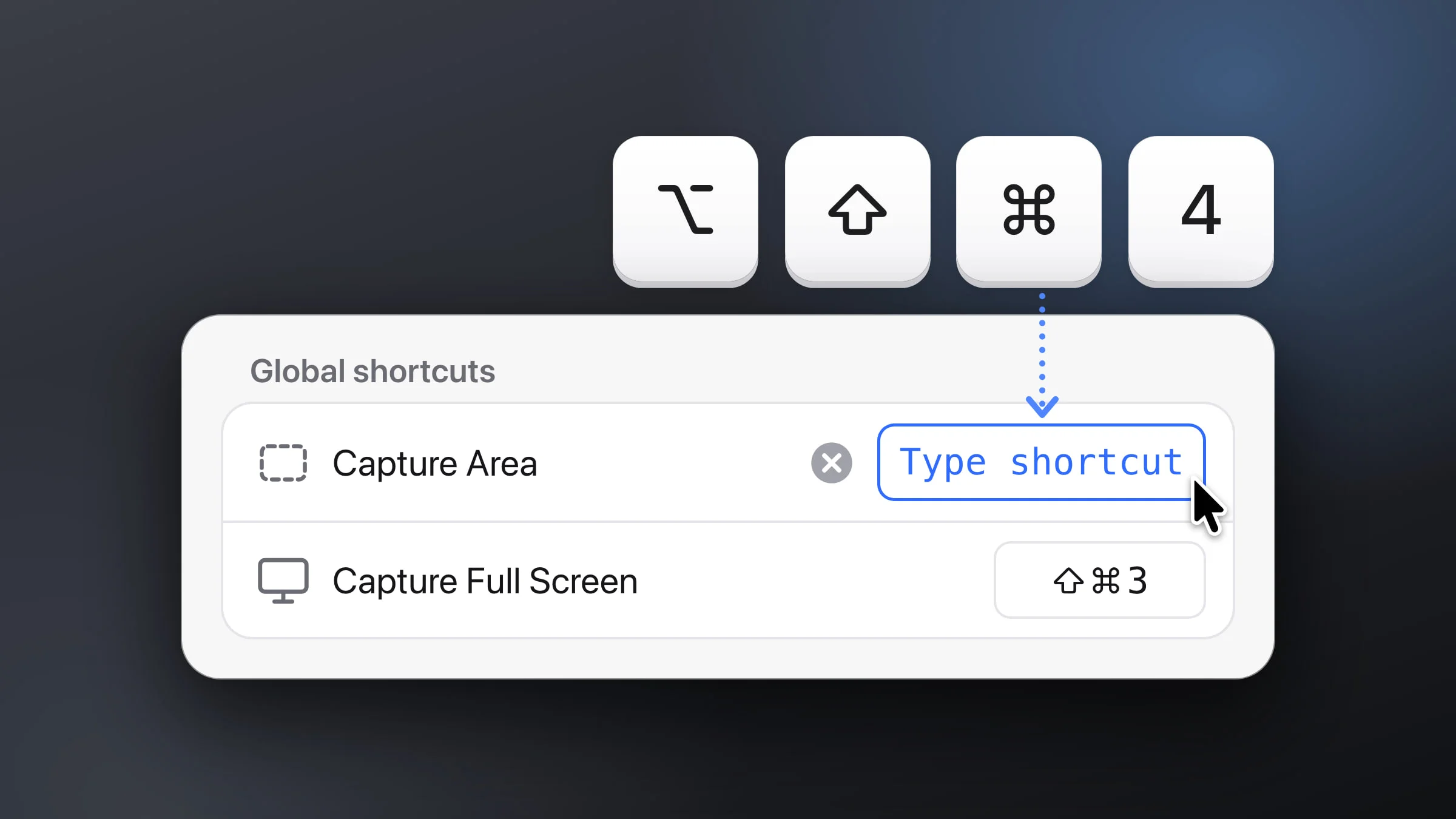
Note: Once Snapix is set up, its default shortcuts take over ⇧⌘3, ⇧⌘4 and ⇧⌘5 while it runs. The first two then follow Snapix’s own saving settings (below), and ⇧⌘5 starts Snapix’s Capture Window instead of opening the toolbar. To reach these options, open the Screenshot app from Applications ▸ Utilities.
Where to find a screenshot you just took
Look on your desktop for a file with a name like “Screenshot 2026-10-13 at 10.15.32 AM.png” (no AM or PM with a 24-hour clock). If it isn’t there yet, the thumbnail is probably still in the corner of your screen. The file is saved when it slides away, a few seconds after the shot. Swipe the thumbnail to the right to save it at once.
| What you did | Where the screenshot goes |
|---|---|
| Pressed ⇧⌘3 or ⇧⌘4 without Snapix | A PNG on the desktop, or wherever Save to points |
| Pressed ⌃⇧⌘3 or ⌃⇧⌘4 | The clipboard only, with no file. Paste it with ⌘V. |
| Took a shot with Snapix (default settings) | The clipboard and Recent Captures, which keeps its own encrypted copy on your Mac. No file in your folders until you save it. |
| Took a shot with Snapix, automatic saving on | Also a file in the Snapix folder in Documents, or the folder you chose |
How to change the screenshot location in Terminal
If you’d rather type it, open Terminal and run two commands. This works on macOS 26 Tahoe and earlier. On macOS 27, it may be ignored.
-
Make a folder for them. Run:
mkdir -p ~/Pictures/Screenshots -
Point screenshots at it. Run:
defaults write com.apple.screencapture location ~/Pictures/Screenshots
To go back to the desktop, run:
defaults delete com.apple.screencapture locationOlder guides also run killall SystemUIServer. It does no harm, but it usually isn’t needed anymore. If your next screenshot still lands in the old place, use the Options menu above instead.
How to choose where Snapix saves screenshots
Snapix doesn’t save a file for every shot unless you ask it to. By default, each capture is copied to your clipboard, floats as a preview in the corner, and stays in Recent Captures (⇧⌘S), which keeps your last 50. See what happens after the shot, or try Snapix free if you don’t have it yet.
To pick the folder, or save everything automatically:
- Open Saving settings. Click the Snapix icon in the menu bar, choose Settings…, then click Saving.
- Click Choose… next to Save to. Pick a folder. Out of the box, it’s a Snapix folder inside Documents. Click the folder’s name to show it in Finder.
- Turn on Save every screenshot automatically if you want a file for every shot. Snapix writes each one to that folder without opening Finder, and the preview’s Save button reads Saved.

How to save one screenshot at a time with Snapix
You don’t need automatic saving to keep a file. From the floating preview:
- Hover it and click Save, or press ⌘S with the pointer on it. Finder opens with the file selected, and a banner says Saved to and the folder’s name.
- If you haven’t picked a folder yet, the first save asks Where should Snapix save your screenshots? Choose one and click Save Here. It won’t ask again.
- Right-click it and choose Show in Finder to save it and see the file, while the preview stays on screen.
- Click it to open the editor, then click Save as… to choose a folder and a name for just this shot.
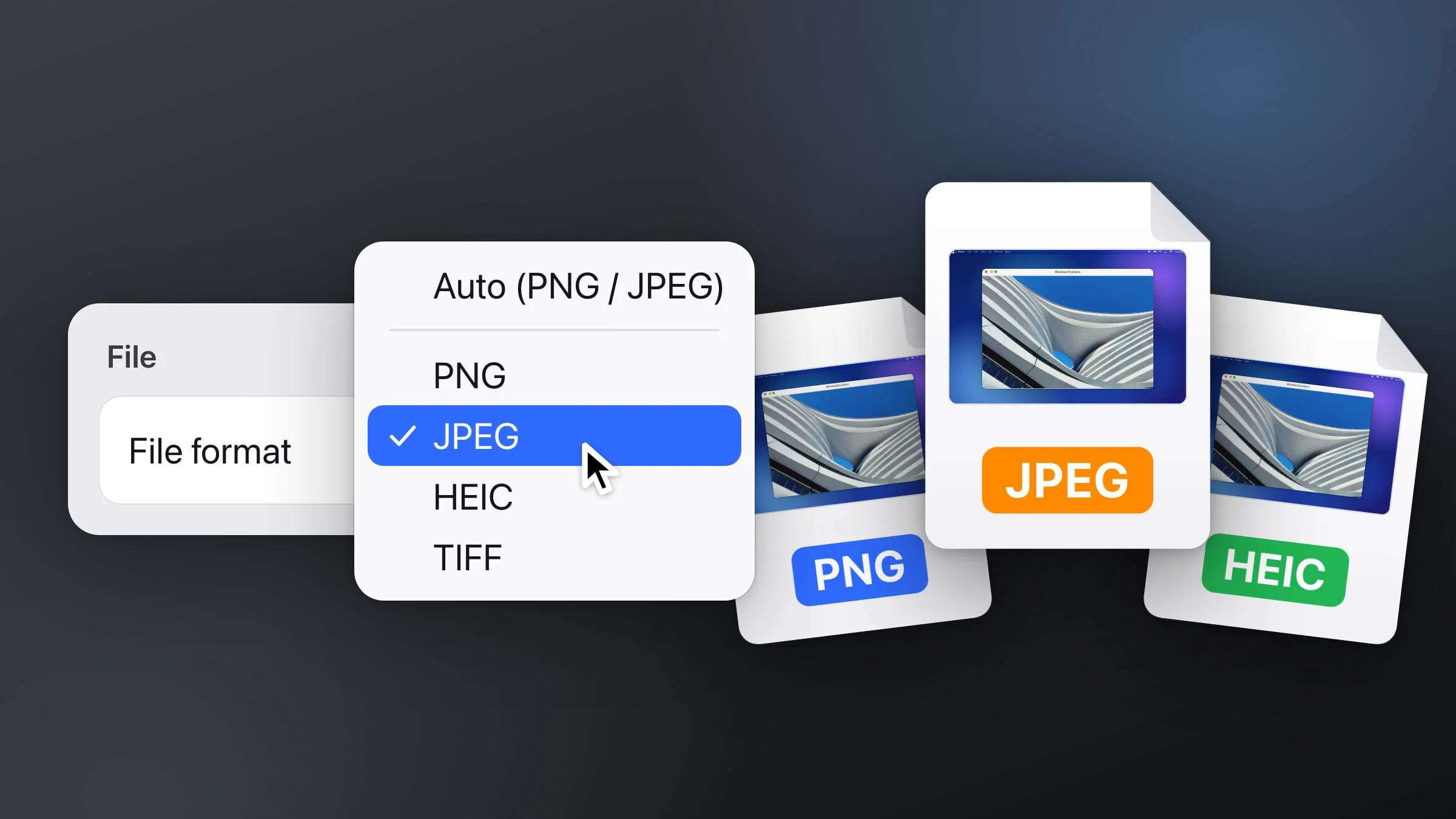
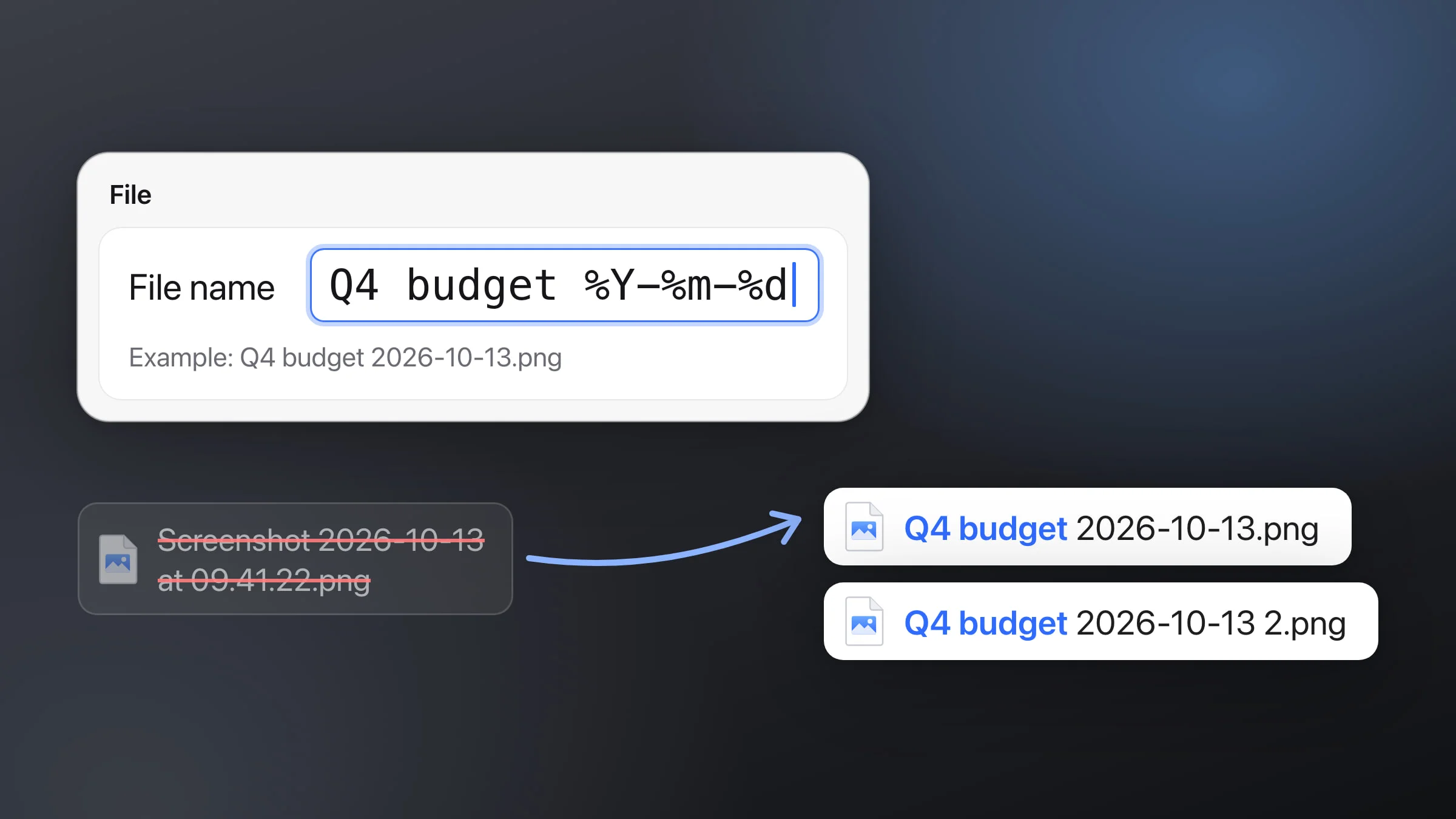
By default, Snapix names files the same way, always with a 24-hour time, like “Screenshot 2026-10-13 at 14.05.33.png”. You can rename screenshots with your own pattern, or change the format to JPEG or HEIC, on the same Saving page.
Tip: If you closed a preview before saving it, press ⌃⌥Z to reopen the closed screenshot, then click Save. Older shots stay in Recent Captures (⇧⌘S), your screenshot history: double-click one to open it in the editor and save it from there.