To organize screenshots on a Mac, file them into lists in Snapix: press ⇧⌘S to open Recent Captures, click + to make a list, then drag screenshots onto the list’s name at the top. A filed screenshot stays until you take it out, even after older captures are cleared away. If you’d rather sort the files themselves, Finder’s stacks, tags and Smart Folders are covered further down.
How to organize screenshots into lists with Snapix
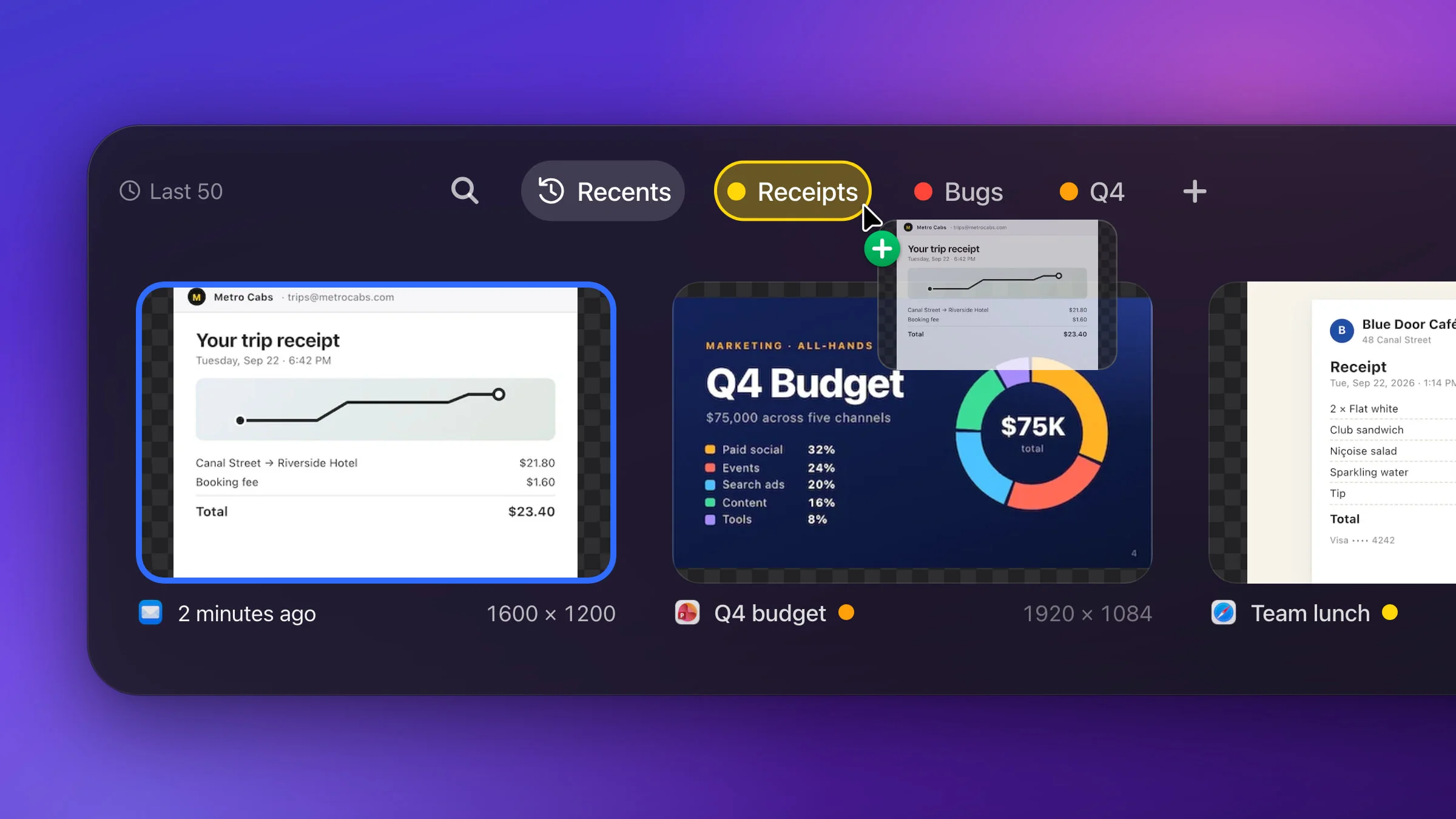
- Press ⇧⌘S. Recent Captures slides up from the bottom of the screen, with your newest screenshot on the left. Or choose it from the Snapix icon in the menu bar.
- Click + to make a list. It sits at the end of the row of list names (pills) along the top. A new pill named Untitled appears with its name ready to edit. Type a name, such as a client, Receipts or Bugs, and press Return.
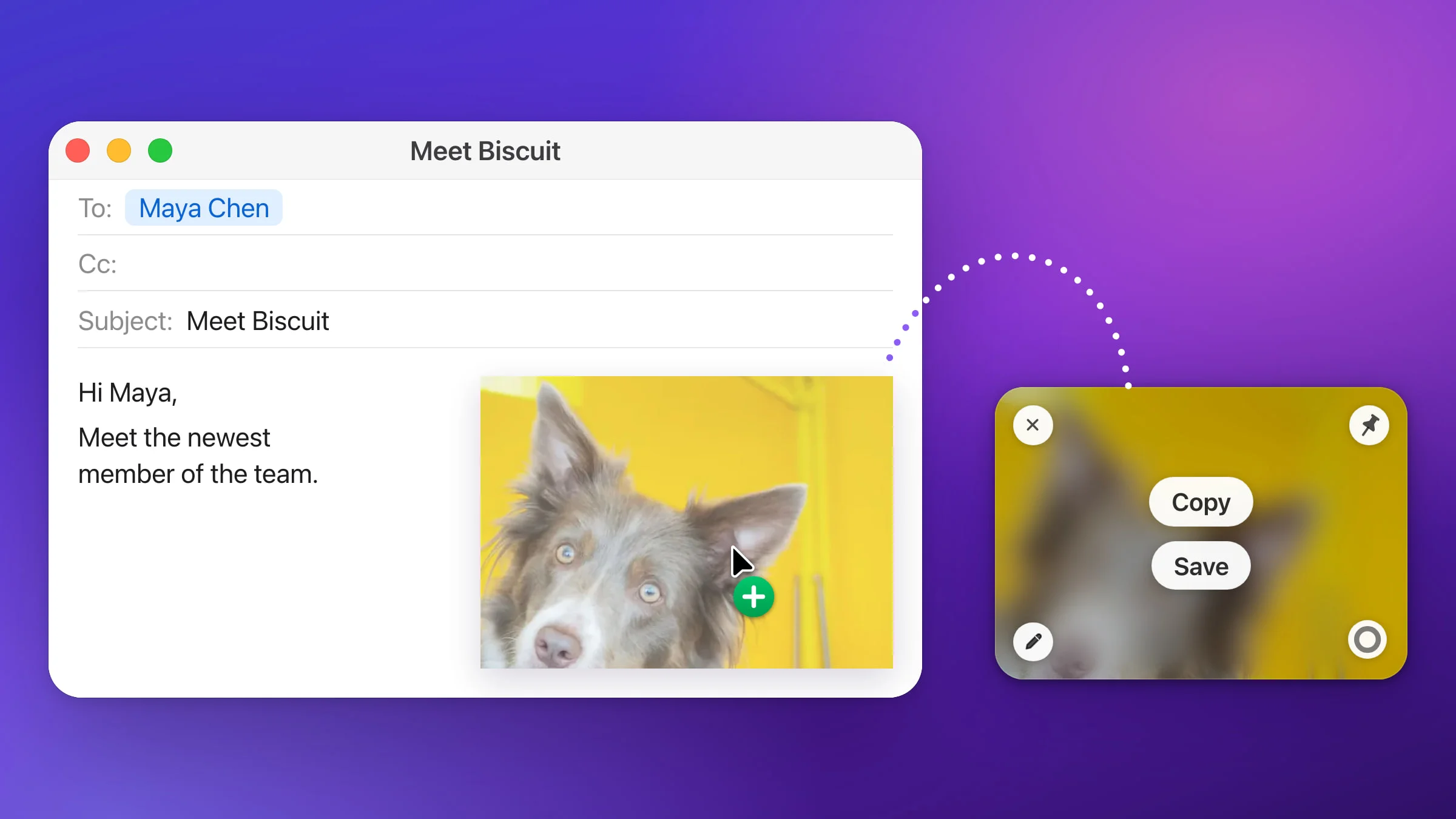
- Drag a screenshot onto the pill. Press on the picture (above the Copy and pencil buttons that appear when you point at it) and drag it up. The pill lights up in the list’s color, and when you let go the screenshot is filed. To file several at once, hold ⌘ as you click each one (or ⇧ to select a run), then drag any one of them.
- Click the pill to see the list. The ones you added last come first. Click Recents to go back.

Other ways to file a screenshot
- From the menu. Right-click a screenshot, choose Add to List, then pick a list. New List… at the bottom makes a list and files it in one go.
- Onto +. Drop screenshots on + to file them in a new list, named Untitled (or Untitled 2 and so on) until you double-click its pill to rename it.
- From Finder. Drag image files from Finder or the Desktop onto a pill, up to 50 at a time. Each one becomes a capture in that list, and the original file stays where it was.
How Snapix lists work
- One list per screenshot. A screenshot can be in only one list. Dropping it on another pill moves it there. Once it’s filed, the right-click menu says Move to List instead of Add to List.
- Filed screenshots stay in Recents. Filing a screenshot doesn’t take it out of Recents, which shows every capture you haven’t removed from it. A dot in its list’s color sits in the card’s caption, so you can see where it’s filed.
- Filed screenshots are kept. Recent Captures keeps your newest 50 captures by default and removes the oldest as new ones arrive (choose 25, 50, 100 or 200 in Settings ▸ History ▸ Keep history). Screenshots in a list don’t count toward that number, and Clear History… leaves them alone too.
- A list isn’t a folder. It points to screenshots Snapix already keeps, so filing one doesn’t copy it or create anything in Finder. Like the rest of your history, it stays on your Mac, encrypted.
Rename, recolor, reorder or delete a list
- Rename: double-click the pill, or choose Rename… from its right-click menu. You can rename Recents the same way.
- Color: right-click the pill and click one of the ten colors at the bottom of the menu. New lists take the first color not in use: yellow, then red, orange, blue and so on.
- Order: drag a pill along the row. Inside a list, drag screenshots into any order, as long as no search or filter is on. Recents always stays in time order.
- Delete: right-click the pill and choose Delete. If the list has anything in it, Snapix asks first. The screenshots themselves aren’t deleted. They become ordinary recent captures again, and if that puts you over your history size, the oldest captures are cleared out. To bring the list back with everything on it, press ⌘Z within about 15 seconds, while Recent Captures is still open.
To take one screenshot out of a list, right-click it and choose Remove from This List inside the list, or Remove from Receipts (or your list’s name) in Recents. It becomes an ordinary recent capture again, so if it’s older than the newest 50 you keep (or your Keep history number), Snapix deletes it straight away, for good.
Note: Pressing Delete inside a list deletes the screenshot from Snapix altogether, Recents included. In Recents, deleting a filed screenshot only takes it out of Recents, and it stays on its list.
Find a screenshot in a list
Press ⌘F in Recent Captures and type. To narrow the results to one list, click the funnel and pick it under List. A title makes a screenshot easier to find: choose Add Title… from its right-click menu. There’s more on searching in how to see your recent screenshots.
How to organize screenshots in Finder without an app
macOS has no screenshot library: screenshots are files, saved to the Desktop by default with names that begin with “Screenshot” (on macOS Ventura and later; older versions use “Screen Shot”). To keep them in order:
- Stack them on the Desktop. Click the desktop, then choose View ▸ Use Stacks (or press ⌃⌘0). Your screenshots gather into one Screenshots stack. Click it to expand it.
- Give them their own folder. Open the Screenshot app from Applications ▸ Utilities (or press ⇧⌘5 if Snapix isn’t using that shortcut), click Options, choose Other Location… under Save to and pick a folder. Screenshots you take with macOS’s own tools go there from then on.
- Tag them. Control-click screenshots in Finder and choose a tag color, or choose Tags… to pick or type another tag. With a file selected, ⌃1 to ⌃7 add or remove your favorite tags. Click a tag in the Finder sidebar to see everything that wears it.
- Make a Smart Folder. In Finder, choose File ▸ New Smart Folder, click + under the search field, and set the new rule’s menus to Name and begins with, then type Screenshot. Click Save and give it a name. It updates itself as screenshots come and go.
Screenshots you save from Snapix go to the folder set in Settings ▸ Saving: Documents ▸ Snapix unless you pick another, and the first time you click Save on a preview, Snapix asks you to confirm it. By default their names begin with “Screenshot” too, so the same tags and Smart Folders work on them. If you rename your screenshots with a pattern of your own, set the Smart Folder’s rule to match. See where screenshots go to change either folder. Filing into lists is part of the free trial and Snapix Pro. Try Snapix free to start.