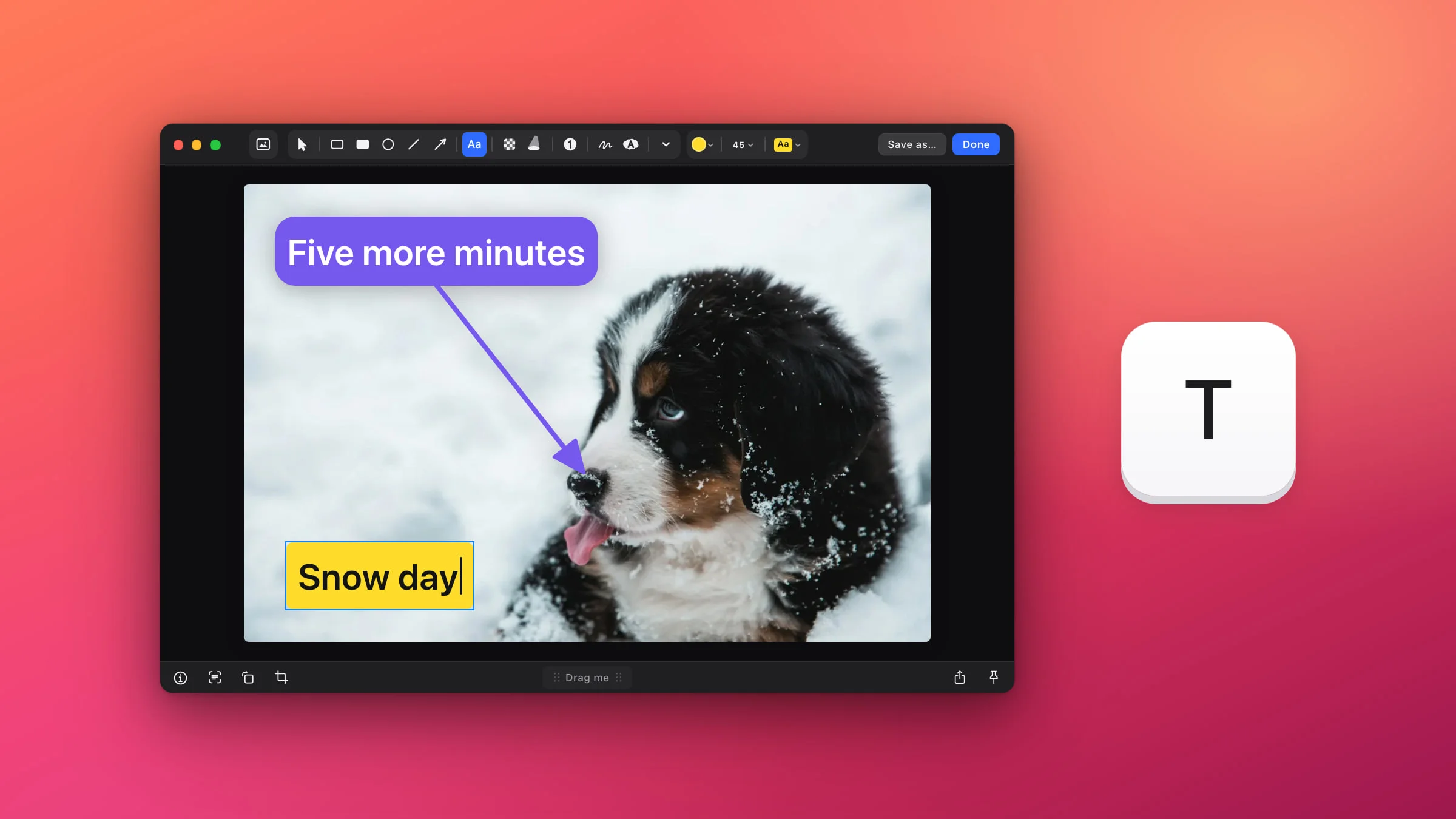
To add text to a screenshot on a Mac, open it in the Snapix editor, press T, click where the words should go and type. By default the label is a yellow chip, and one menu turns it into plain letters, outlined letters or a speech bubble that points at something. If you’d rather not install anything, Markup, the editor built into macOS, has a Text tool too.
How to add text to a screenshot with Snapix
- Open the screenshot in the editor. Press ⇧⌘4 and drag over what you need. Hover the preview that slides into the corner and click its pencil (Edit), or press ⌘E. For a PNG, JPEG, HEIC or TIFF that’s already on your Mac, Control-click it in Finder and choose Open With ▸ Snapix.
- Press T. This picks the Text tool, the Aa button in the toolbar.
- Click where the text should go, and type. A caret appears with the placeholder “Type…”. Press Return for a new line. Long lines wrap by themselves.
- Press Esc or click outside the label. Typing ends and the label stays selected, so you can drag it into place, restyle it or resize it right away. For another label, press T again.
- Click Done. The screenshot, text included, is copied to your clipboard and ready to paste. To save a file instead, click Save as….

Choose a text style
The Text style menu sits in the toolbar after the color button and the Text size menu. Hover a row to preview it on the selected label, and click to apply it. Snapix remembers your pick for the next label.
- Plain is just the letters, in your color. It suits a calm, even area.
- Outline gives the letters a contrasting edge, dark around very light colors like yellow and white around the rest, so they read on a busy photo.
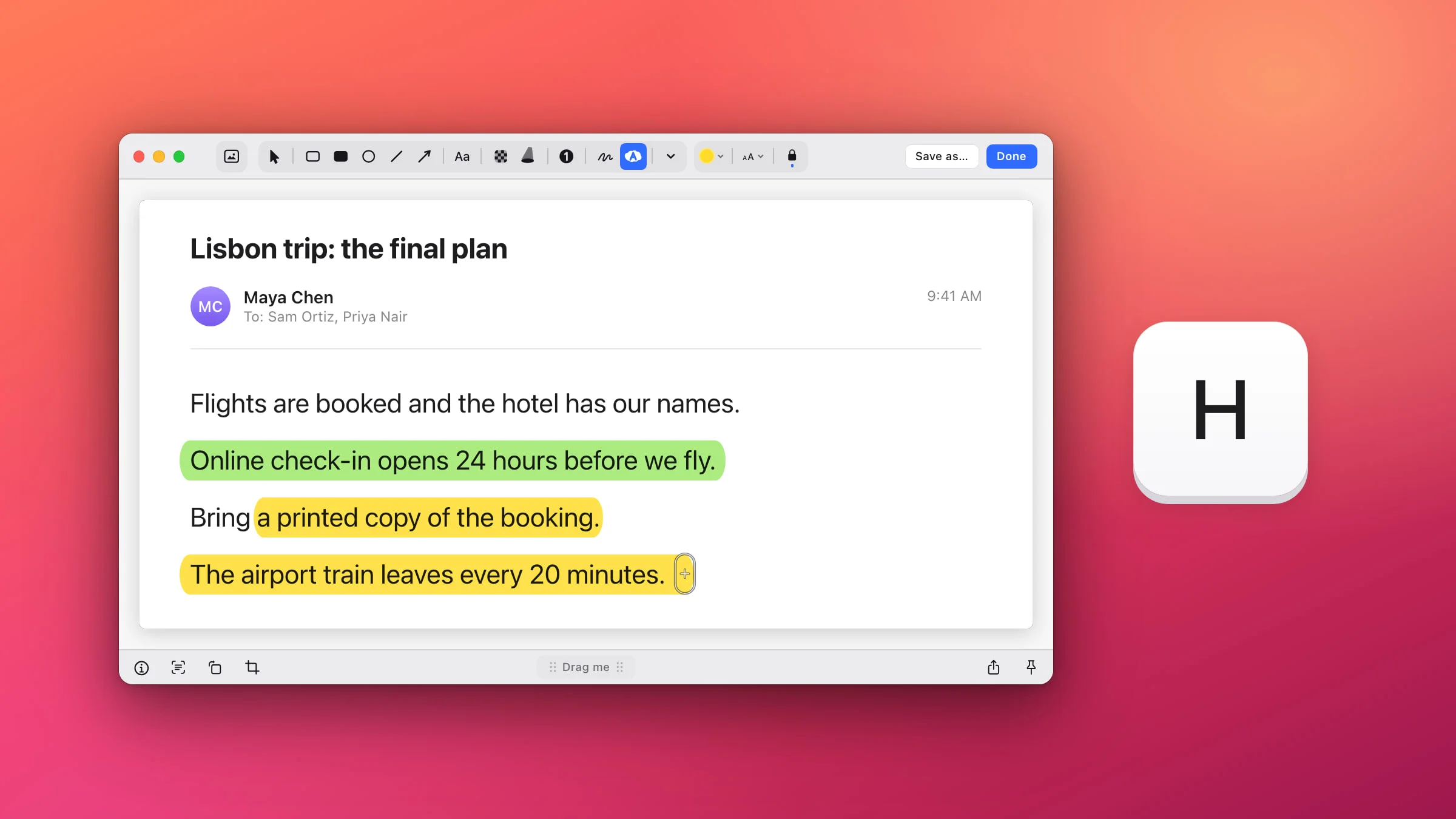
- Background puts the letters on a rounded chip in your color and turns them black or white to stay readable.
- Bubble is a rounder chip with a thin pointer that ends in an arrowhead.
The color button opens ten presets, any Favorites you’ve saved, a custom color picker and an eyedropper that picks any color on the screen. There’s no font menu: labels use the Mac’s system font in semibold.
Point a speech bubble at something
Choose Bubble and type. Until you aim it, the pointer hangs straight down from the bubble. With the bubble selected, a small circle sits at the tip of the pointer. Drag it onto the button, the number or the face you’re talking about. The pointer leaves from the middle of the side that faces its target, and a target very close to the bubble, or nearly level with one of its edges, gets a beak straight off the nearest edge instead. Once you’ve aimed it, the tip stays put when you move the bubble.

Resize, move and rotate a label
A selected label has no corner handles. Two grips size it, and you move and turn it like any other mark:
- Text size. Drag the small square in the middle of the bottom edge down to make the text bigger, or up to make it smaller. The Text size menu has seven sizes from 14 to 90 points too. Your next label uses the size you dragged to, kept within that range.
- Wrap width. Drag the slim bar on the left or right side to fit the text into more or fewer lines.
- Position. Drag the label, or nudge it with the arrow keys (hold ⇧ for bigger steps). ⌥-drag pulls off a copy.
- Angle. Point just outside a corner until the curved rotate pointer appears, then drag. Hold ⇧ for 15° steps.
If you turn the whole picture with ⌘R, your labels move with it but stay upright.
Change or delete a label
- Change the words. Double-click the label and the caret lands where you clicked. Or select it and press Return to retype it with all the text selected.
- Add an emoji. While you type, press ⌃⌘Space to open the macOS Emoji & Symbols picker. For a big emoji sticker instead, see how to add emoji to a screenshot.
- Delete it. Select the label and press Delete. ⌘Z brings it back.
Labels stay editable after you click Done. Open the capture again from its preview or from Recent Captures (⇧⌘S) and double-click any label to change it.
Tip: Set the style, color and size you like once. Snapix keeps them for the next label, in this editor and the next one, so a batch of screenshots gets matching captions.
Note: If you opened an image from Finder, Done, Save as… and the other ways of keeping your edits write the text into that original file, and Snapix keeps no backup. Make a copy first if you want the untouched version.
How to add text to a screenshot in Preview or Markup
Markup, the editor behind the screenshot thumbnail and Preview, can add text too, and it lets you pick a font.
- Open the image in Markup. After a macOS screenshot, click the thumbnail before it slides away. For an image already on your Mac, open it in Preview and click the Show Markup Toolbar button if the tools aren’t showing.
- Click the Text tool and type your text.
- Drag the text box where you want it.
- Click Text Style to change the font, the style and the color.
- Click Done. In Preview, press ⌘S to save the image instead.
Apple notes that once you save an annotated image in Preview, the annotations can’t be edited, moved or deleted. If you can’t install anything, Annotate Screenshot has the same four text styles and runs in your browser, and Screenshot Mockup frames a screenshot in a browser window and adds a caption.
Labels pair well with arrows and boxes. See how to add an arrow to a screenshot and how to edit a screenshot on Mac for the other tools, or try Snapix on your own screenshots.