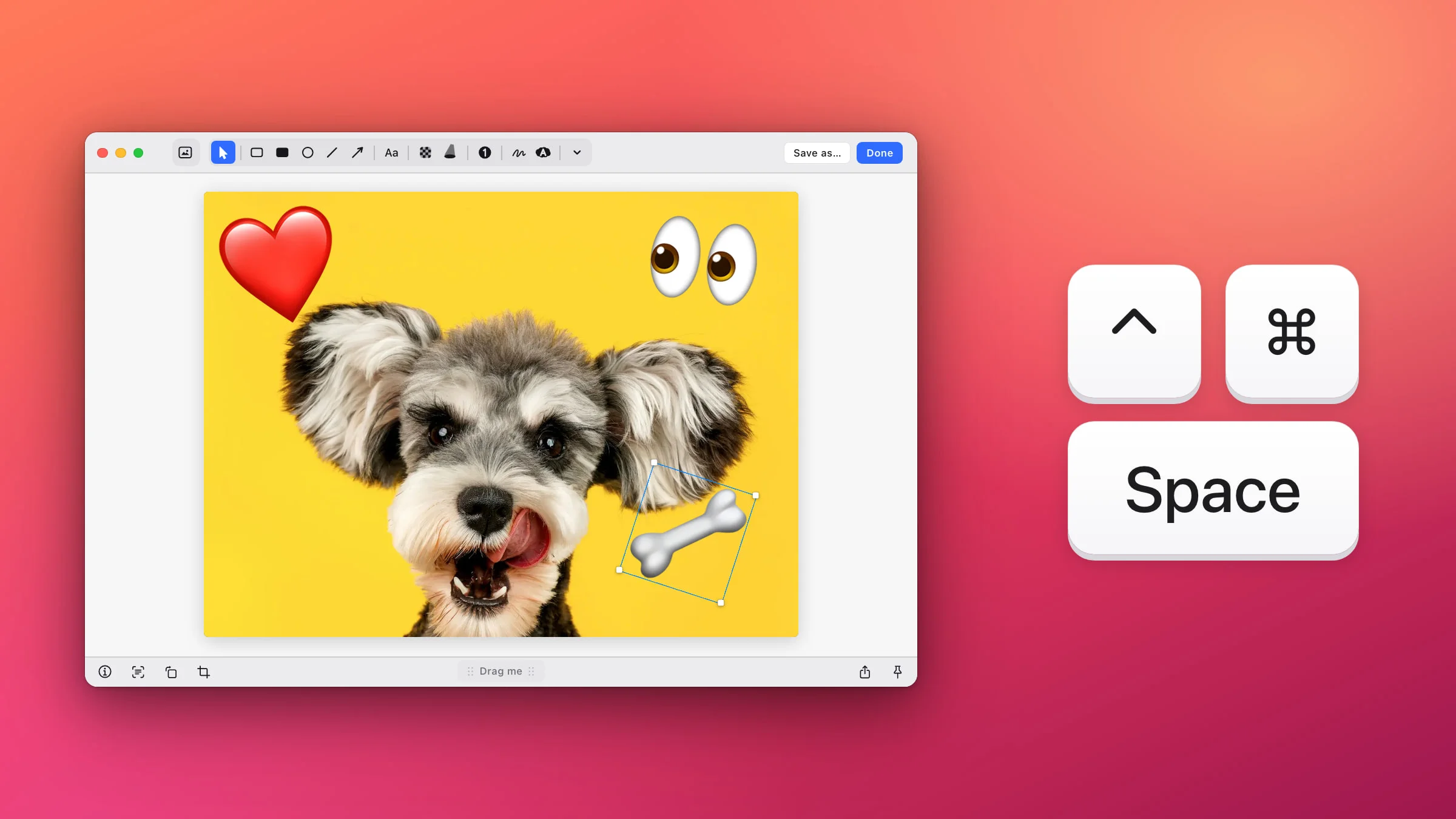
To add emoji to a screenshot on a Mac, open it in the Snapix editor, point where the emoji should go and press ⌃⌘Space. A list of 1,870 emoji opens right there, and the one you click lands on the picture as a sticker you can resize, turn and move. Markup, the editor built into macOS, has no stickers, but it can put an emoji in a text box.
How to add emoji to a screenshot with Snapix
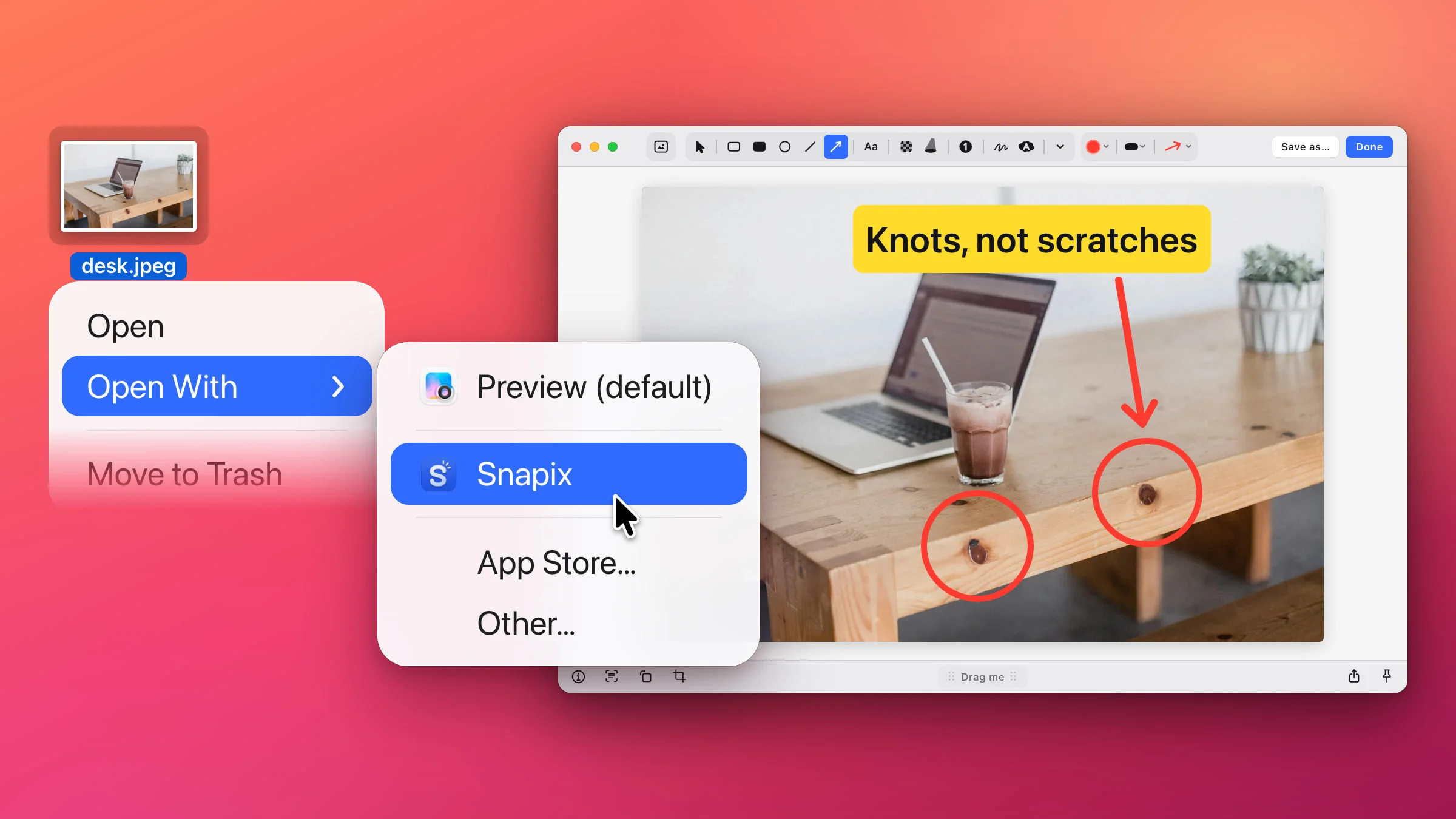
- Open the screenshot in the editor. Press ⇧⌘4 and drag over what you need. Click the preview that slides into the corner, or point at it and press ⌘E. For a photo or other image that’s already on your Mac, Control-click it in Finder and choose Open With ▸ Snapix.
- Point where the emoji should go and press ⌃⌘Space. The emoji list opens at the pointer. You can also click ⌄ (More tools), after the last tool in the toolbar, and choose Emoji.
- Find the emoji. Start typing to search, for example “heart” or “tada” (search reads each emoji’s keywords as well as its name), and press Return to take the first match. You can also scroll, or jump to a category with the bar at the bottom. Your latest picks wait under Recently Used.
- Click it. The emoji lands as a sticker where you pointed, already selected, so you can drag it into place or pull a corner to make it bigger right away. If you opened the list from the ⌄ menu, it lands in the middle of the picture.
- Click Done. The screenshot, stickers and all, is copied to your clipboard and ready to paste. To save it as a file instead, click Save as… and choose where it goes. An image you opened from Finder works differently: Done and Save as… also write the stickers into the original file, and Snapix keeps no backup, so duplicate the file first if you want to keep it as it was.

The list holds every emoji up to Emoji 15.0, in nine categories from Smileys & Emotion to Flags, each in its default skin tone. Press Esc, or ⌃⌘Space again, to close it without picking.
Resize, turn and move a sticker
A sticker you’ve just placed is selected: a blue frame with a white handle at each corner.
- Resize. Drag a corner handle. An emoji sticker always keeps its proportions, and it stays sharp as it grows.
- Turn. Point just outside a corner until the curved rotate pointer appears, then drag. Hold ⇧ to turn in 15° steps.
- Move. Drag the sticker, or nudge it with the arrow keys (hold ⇧ for bigger steps).
- Copy. ⌥-drag pulls off a copy, and ⌘D duplicates the selected sticker.
- Stack. With a sticker selected, press ] to bring it to the front or [ to send it to the back.
- Remove. Select it and press Delete. ⌘Z brings it back.

Note: Stickers stay editable. Open the capture again from its preview or from Recent Captures (⇧⌘S) and every sticker can still be moved, resized or deleted. Finish with Done (or Save as…, ⌘S or Pin) to keep them that way. Leaving with Esc copies the picture, stickers included, but the preview and Recent Captures keep the screenshot as it was, without the stickers.
Add your own image or logo to a screenshot
Stickers aren’t only emoji. Drag an image file from Finder, or a picture from another app, onto the screenshot in the editor, and it becomes a sticker where you drop it. It works for a logo, a product photo or a signature.
- A big picture is shrunk to fit within 60% of the screenshot. Drop several files at once and they fan out, and one ⌘Z removes the whole drop.
- The corners keep the image’s proportions. Hold ⇧ on a corner to stretch it freely, or drag a side handle to stretch one side.
- It turns from just outside a corner, like an emoji.
- Pasting a picture with ⌘V doesn’t work. In the editor, ⌘V pastes marks you copied inside Snapix, so drag images in instead.
Put an emoji inside a text label
To add an emoji to a line of text, such as a thumbs-up after “Approved”, pick the Text tool (T), click and type. Press ⌃⌘Space while you’re typing, and the Mac’s own Character Viewer opens at the caret instead of Snapix’s list. The emoji you pick becomes part of the label. There’s more on labels in how to add text to a screenshot.
How to add emoji to a screenshot without an app
Markup opens when you click a screenshot’s thumbnail, and it’s built into Preview too. The emoji goes into a text box:
- Open the image in Markup. After a macOS screenshot, click the thumbnail before it slides away. For an image already on your Mac, open it in Preview and click the Show Markup Toolbar button if the tools aren’t showing.
- Click the Text tool.
- With the caret in the text box, press ⌃⌘Space to open the Character Viewer, and click an emoji to type it in.
- Drag the text box where you want it. Text Style changes its font.
- In the screenshot’s Markup window, click Done. In Preview, choose File ▸ Save.
Apple notes that once you save an annotated image in Preview, its annotations can’t be edited, moved or deleted. If you’d rather not install anything, the free Annotate Screenshot tool has an emoji list too, and it runs in your browser.
For arrows, boxes and the other tools, see how to edit a screenshot on Mac, or try Snapix free.