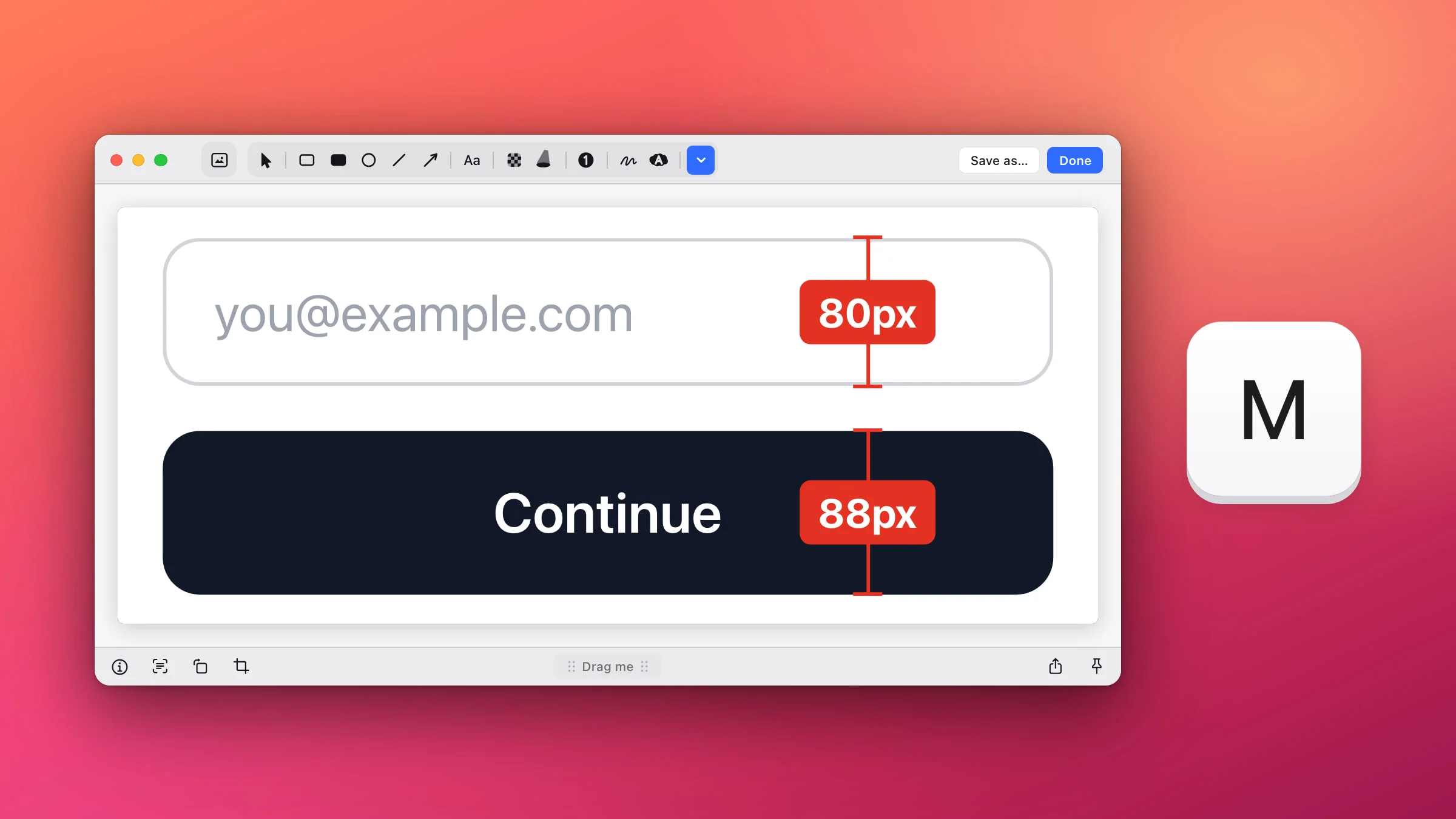
To measure pixels in a screenshot on a Mac, open it in the Snapix editor, press M and drag across the gap, the padding or the button you want to check. A red ruler snaps to the edges, and its label shows the distance, for example 88px. Snapix measures inside a screenshot, not live on your screen, so capture first and measure second.
How to measure pixels in a screenshot with Snapix
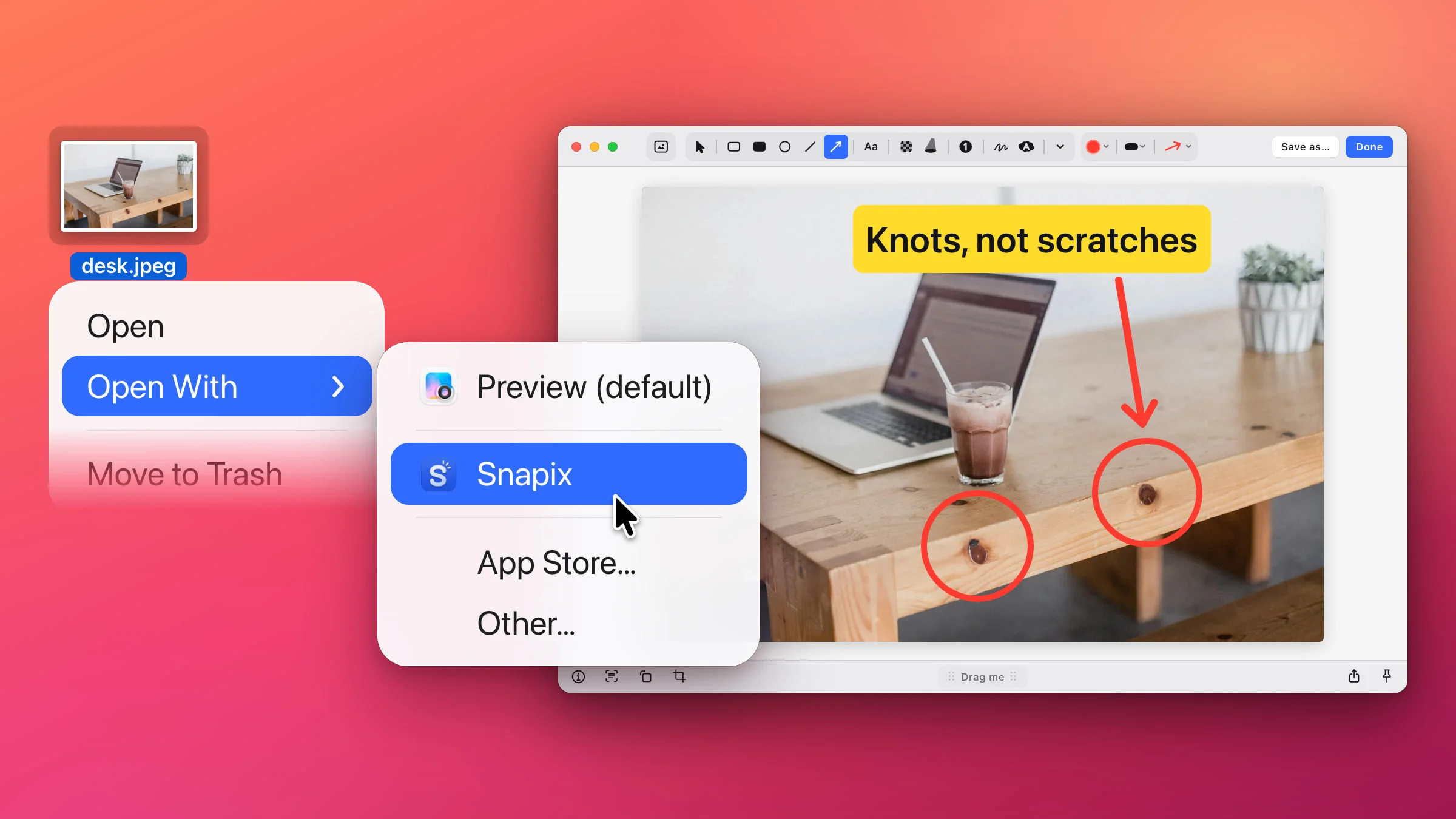
- Take the screenshot and open it in the editor. Press ⇧⌘4 and drag over the part of the screen you want to check. Click the preview that slides into the corner, or hover it and press ⌘E. For a PNG, JPEG, HEIC or TIFF that’s already on your Mac, Control-click it in Finder and choose Open With ▸ Snapix.
- Press M. This arms the Measure tool, which lives in the ⌄ menu (More tools) after the last drawing tool in the toolbar. The first time, a short card called Measure distances explains the tool. Click Got It.
- Drag across what you want to measure. The ruler runs straight across or straight down, whichever way you drag further, and its ends snap to nearby edges. Hold ⌘ while you drag to place the ends freely.
- Read the label. When you let go, the ruler stays on the picture with the distance on a red label, like 88px. The tool stays armed, so you can drag the next one right away.
- Click Done. The screenshot, rulers included, is copied to your clipboard, ready to paste into a bug report or a chat. For a file, click Save as… instead.

Tip: Zoom in with ⌘= before you measure something small. The snap reaches about the same distance on screen at any zoom, so zooming in lets you pick between edges that sit close together. ⌘0 fits the whole picture again.
Measure without dragging: hold 1 or 2
You can also let Snapix find the edges. With Measure armed, hold 1 and move the pointer over the screenshot. A live ruler spans the area of the same color under the pointer, from one edge to the other. Hold 2 to measure down instead. The arrow keys work too: ← or → measures across, and ↑ or ↓ measures down. It’s the quickest way to read the width of a field, the height of a button or the spacing between two boxes.
- Click to stamp the ruler on the picture and keep going.
- Scroll to stretch it across the next edge, or scroll the other way to pull it back. Scrolling moves the right end of a horizontal ruler and the top end of a vertical one.

Pixels or points
By default the label shows pixels, the real dots in your screenshot. Points are pixels divided by the screen’s scale. A Retina display has 2 pixels to a point, so a button that measures 88px in a Retina screenshot is 44pt.
- While you measure, press P during a drag, or while you hold 1, 2 or an arrow key, to switch units. The choice sticks, because it also changes Ruler units in Settings. At any other moment, P picks the Pixelate tool.
- To set the default, open Snapix Settings ▸ Editor and choose Pixels or Points under Ruler units.
- An image you opened from Finder counts each of its pixels as one point, so both units give the same number there.
Move, fit or remove a ruler
- Move it. Drag a ruler by its line or its label, even with Measure still armed. Hold ⇧ to keep it on one axis. Rulers can’t leave the picture.
- Fit it. Click a ruler to select it, then drag one of its end squares. The end stays on the ruler’s axis and snaps to edges again, and the label updates as you go.
- Remove it. Select it and press Delete, or press ⌘Z right after you make it. To cancel a ruler you’re still dragging, press Esc.
Note: If you opened the image from Finder, Done and Save as… write the rulers into that original file, and Snapix keeps no backup. Make a copy first if you need a clean version.
What the Measure tool can’t do
- Measure live on screen. It works on a screenshot or an image. To check something on screen, screenshot that part of the screen first.
- Measure diagonals or angles. Every ruler is horizontal or vertical. Use two rulers for the width and height of a box.
- Pick a style. Every ruler comes out in the same red, and the Measure tool has no color or size options.
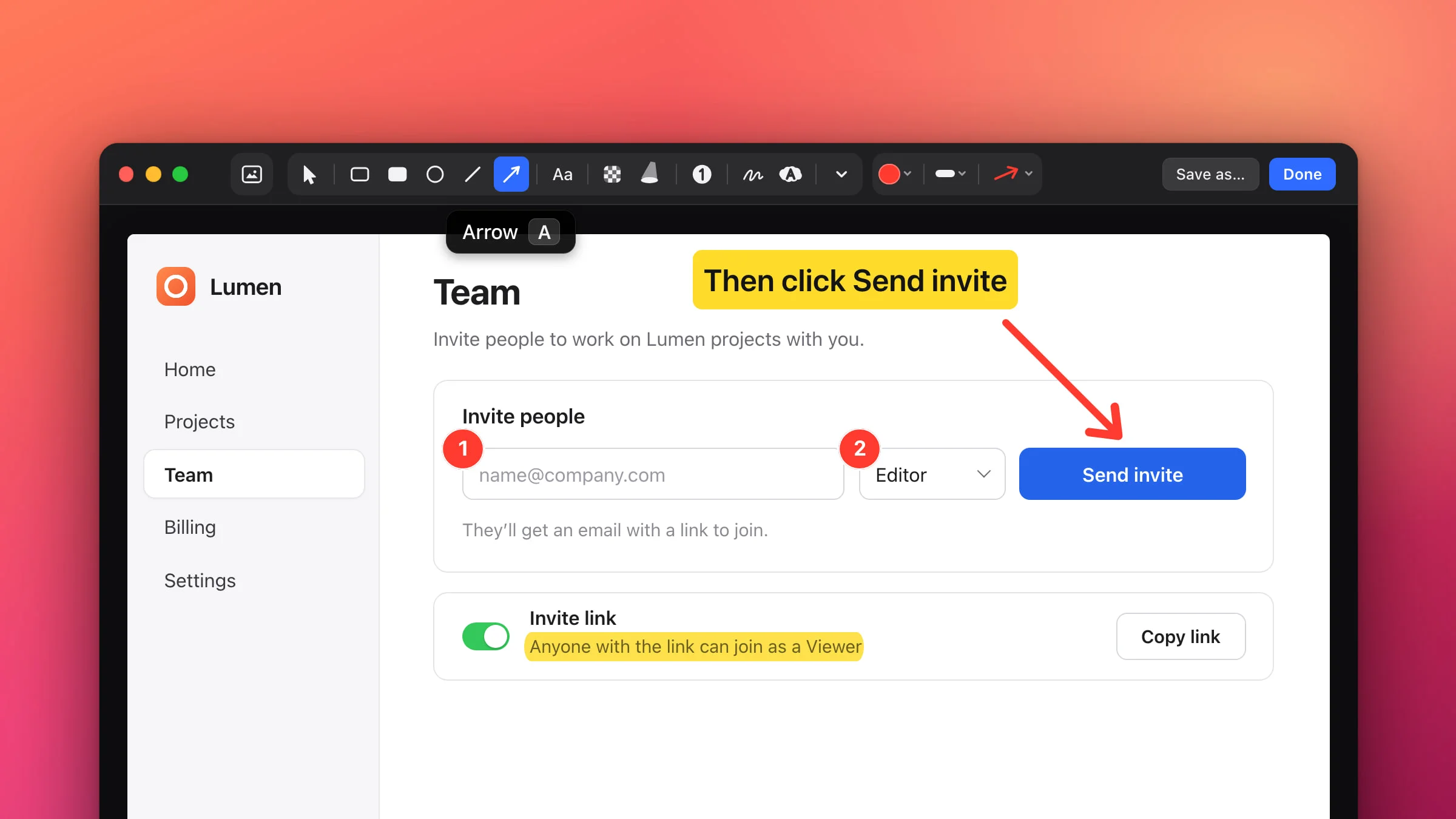
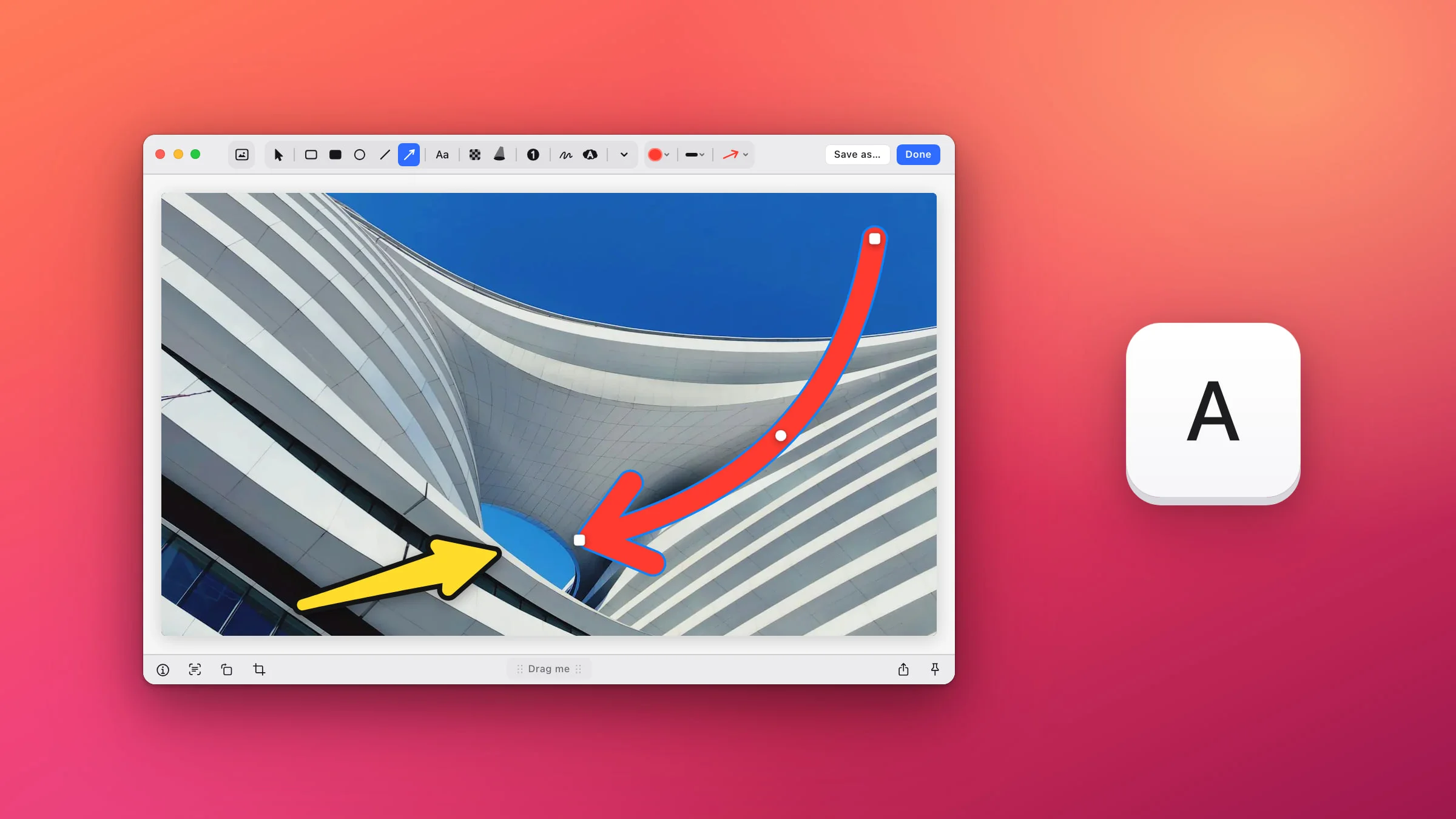
Rulers sit alongside every other mark, so you can add an arrow or a label next to a measurement. How to edit a screenshot on a Mac covers the rest of the tools. To check a design’s colors as well, pick a color from the screen. If the picture shows anything private, blur part of the screenshot before you send it outside your team.
Is there a way to measure pixels on a Mac without an app?
Not with a ruler. Preview and Markup, the editors built into macOS, can draw shapes, text and a magnifying loupe on a picture, but neither has a ruler that stays on it. For a rough size of something on screen, the screenshot crosshair can help:
- Press ⌃⇧⌘4. It’s the clipboard version of ⇧⌘4, and macOS keeps it even while Snapix is running.
- Drag over the thing you want to size. Numbers next to the crosshair show the width and height of your selection as you drag. On a Retina screen they may count points rather than pixels.
- Press Esc before you let go, so nothing is captured.
That’s fine for a quick check, but the numbers are gone as soon as the selection ends, and they never make it into the picture. In Snapix each measurement stays on the screenshot for whoever you send it to. Try Snapix free to measure your next screenshot.