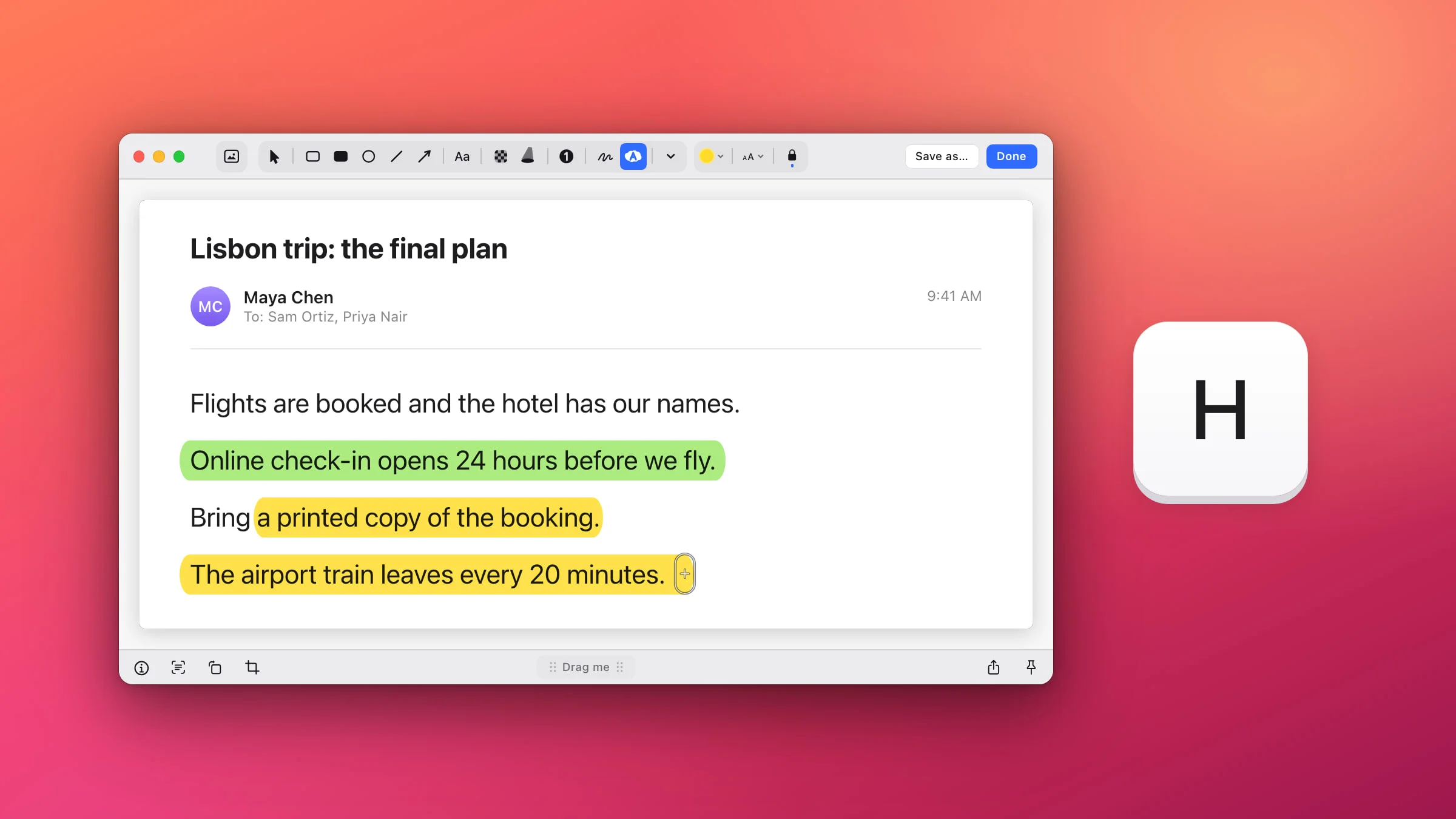
To highlight text in a screenshot on a Mac, open it in the Snapix editor, press H and drag along the line. Snapix fits the yellow band to the height of the text under your pointer and, by default, keeps it level, so it looks like a careful marker stroke. The Markup tools built into macOS have no highlighter pen for images, but they can draw a box around a line instead.
How to highlight text in a screenshot with Snapix
- Open the screenshot in the editor. Press ⇧⌘4 and drag over the text you need. Click the preview that slides into the corner, or hover it and press ⌘E. For an image that’s already on your Mac, Control-click it in Finder and choose Open With ▸ Snapix.
- Press H. This picks the Highlighter, the button next to Draw in the toolbar. It’s yellow until you choose another color.
- Point at the line. The pointer turns into the marker’s tip. With Auto on (the default), it takes the height of the text under it, which is the height of the band you’ll get.
- Drag along the words. Press just before the first word and let go after the last. The band runs level from where you pressed, even if your hand drifts. The Highlighter stays picked, so you can go straight on to the next line.
- Click Done. The screenshot, highlights included, is copied to your clipboard and ready to paste. For a file, click Save as… instead.

Note: If you opened an image from Finder, Done and Save as… both save the highlights into that file itself (Save as… also writes a copy where you choose), and Snapix keeps no backup of the original.
Auto size, or a size you pick
Auto reads the words in your screenshot, right on your Mac, and sizes the band to the line under your pointer. Three things to know:
- It sets the height, not the position. The band starts where you press, so aim at the middle of the line. Snapix doesn’t move a stroke onto the text for you.
- Away from any text, the band keeps the size it had. That’s useful for marking an icon or part of a picture.
- You can pick a fixed size instead. Click Stroke size, the chip with a small and a large A next to the color, and choose 11, 13, 16, 20, 24 or 32 pt. Each one fits text of that size. Keys 1 to 6 pick them too.
Choosing a fixed size turns Auto off. Choose Auto in the same menu, or press 0, to turn it back on.

Straight or freehand strokes
The padlock next to the size chip (its tooltip says Straight lines) is locked by default. Every stroke then runs level from where you press, as if you were holding ⇧. Click the padlock to unlock it, and the marker follows your hand, which suits a slanted line or a loop around a word. While it’s unlocked, hold ⇧ to level a stroke.
Marker colors
Click the round swatch for the Highlighter’s own eight colors: yellow, green, pink, blue, orange, purple, turquoise and coral. All of them are light enough to keep dark text readable. For any other color, click the color well under them, or the eyedropper to pick one from the screen. The Highlighter keeps its color and size separate from your other tools, and it doesn’t use your Favorites.
The band acts like real marker ink. On a light page it darkens the paper, and on a dark page it tints the background while light text stays bright. Going over the same spot twice in the same color doesn’t make it darker, and highlights always sit under your arrows, boxes and text.
Other ways to highlight part of a screenshot
A band suits a sentence. For a button, a number in a table or a whole panel, another mark can work better:
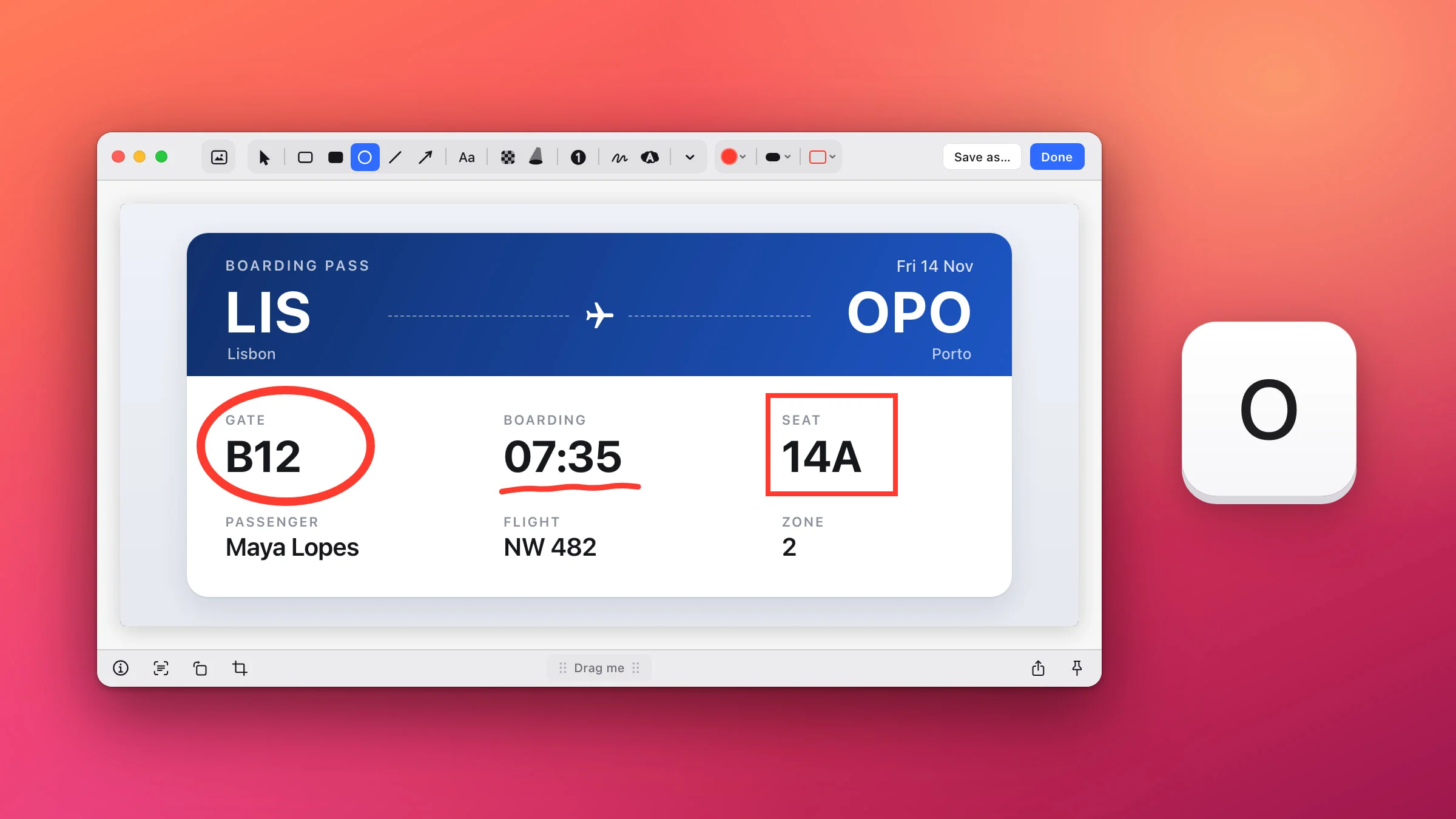
- Box it. Press R for Rectangle and drag around it. It draws a thin red outline by default, and Rounded corners in the toolbar softens it.
- Dim everything else. Press S for Spotlight and drag over the part that matters. The rest of the screenshot darkens around it. See how to spotlight part of a screenshot.
- Underline or circle it by hand. Press D for Draw, the freehand pen. There’s more in how to draw on a screenshot.
When the point is to hide something, like a password or a name, blur that part of the screenshot instead.
Can you highlight a screenshot on a Mac without an app?
Not with a marker. Markup, the editor behind the screenshot thumbnail and Preview, has a Highlight Selection tool, but it highlights text you can select, as in a PDF. Apple’s guide to annotating an image in Preview doesn’t list it. For a screenshot, draw a box around the line instead:
- Open the screenshot in Markup. Right after you take it with ⇧⌘4, click the thumbnail in the corner of the screen before it slides away. For an image already on your Mac, open it in Preview and click the Markup button.
- Click Shapes and choose the rectangle.
- Drag it around the line. Use its blue handles to resize it.
- Make it stand out. Set Border Color to a bright color, and use Shape Style for a thicker line.
- Click Done in the screenshot’s window. Preview has no Done button: choose File ▸ Save instead.
Shapes also has a Highlight shape, but it isn’t a marker: it keeps the box you drag bright and darkens the rest of the picture, much like Snapix’s Spotlight. Once you save an image in Preview, Apple notes that its annotations can’t be edited, moved or deleted.
On a Mac without Snapix, the free Annotate Screenshot tool has a highlighter too, right in your browser. For every other kind of mark, see how to edit a screenshot on a Mac, or try Snapix free.