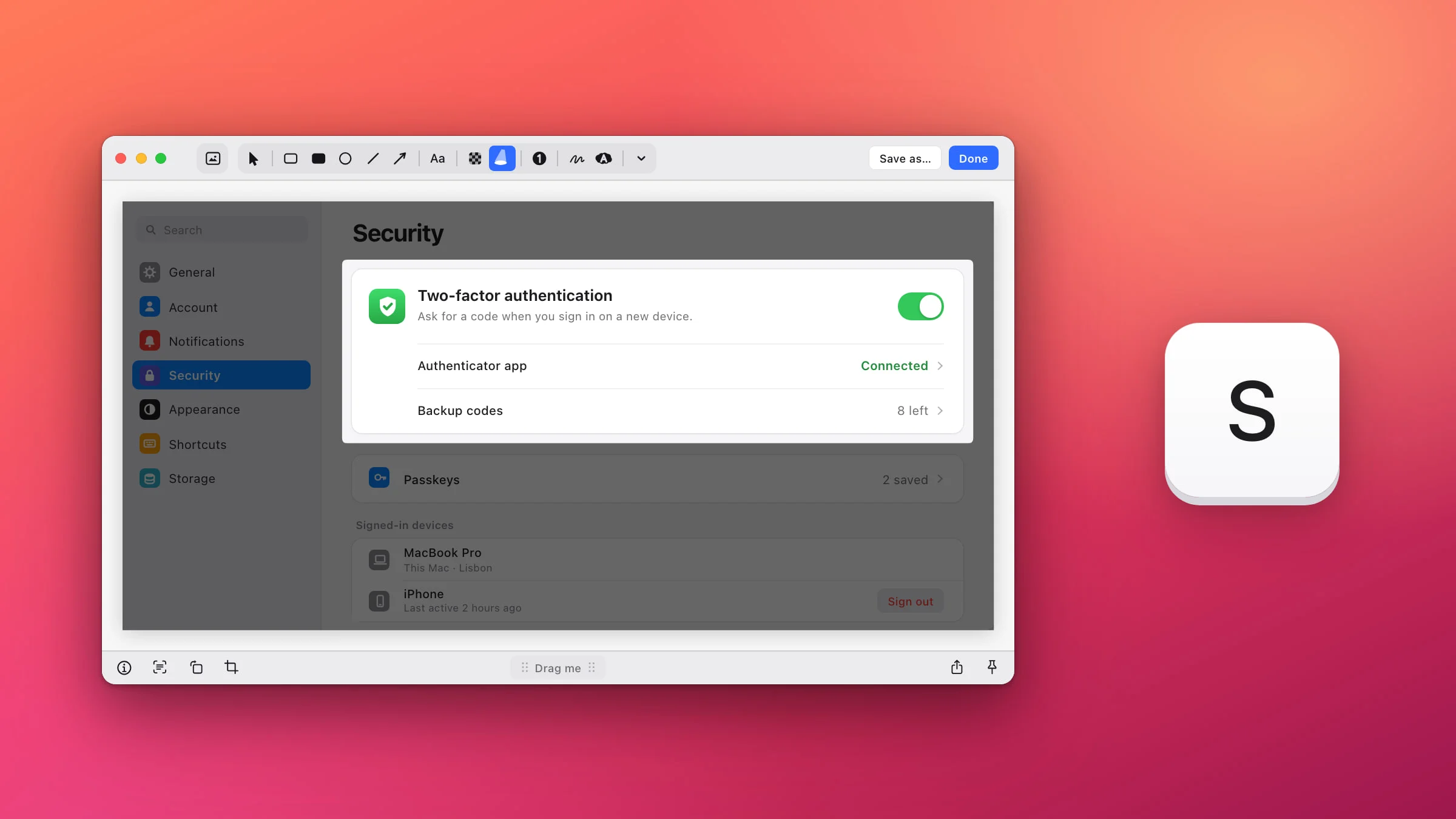
To spotlight part of a screenshot on a Mac, open it in the Snapix editor, press S and drag a box over the part that matters. Everything outside the box dims under a black shade (50% by default), which puts the focus on the bright part. Markup, the editing tool built into macOS, has a similar Highlight shape, covered at the end.
How to spotlight part of a screenshot with Snapix
- Open the screenshot in the editor. Press ⇧⌘4 and drag over what you need. Hover the preview that slides into the corner and click its pencil (Edit), or press ⌘E. For an image that’s already on your Mac, Control-click it in Finder and choose Open With ▸ Snapix.
- Press S. This picks the Spotlight tool, the beam icon next to the mosaic button in the toolbar. It has no color or size to set, so the space beside the tools stays empty.
- Drag a box over the part that matters. The rest of the picture dims as you drag, and the bright area gets slightly rounded corners. Hold ⇧ as you start for a square, or hold Space mid-drag to move the box instead of resizing it.
- Set how dark the rest goes. Press Return right after drawing to select the spotlight, then press a number from 1 (a 10% shade) to 9 (90%). It starts at 50% by default.
- Click Done. The screenshot, spotlight included, is copied to your clipboard and ready to paste. To save a file instead, click Save as… and pick a folder. If you opened the image from Finder, either one writes the spotlight into that original file, and Snapix keeps no backup.

Your spotlight stays editable. Finish with Done, Save as…, ⌘S or Pin, and when you open the capture again from its preview or from Recent Captures (⇧⌘S), the spotlight is still its own mark that you can move, resize or delete. By default, pressing Esc until the editor closes also copies the picture, but it doesn’t keep the spotlight for later.
Move, resize or add another spotlight
- Move or resize it. Press V and click the spotlight. Drag inside it to move it, or drag one of its eight handles: the corners resize it and the edge handles stretch one side. The arrow keys nudge it 1 point at a time, or 10 with ⇧.
- Move it without switching tools. Once you’ve drawn a spotlight, you can grab it and drag it somewhere else while the Spotlight tool is still picked.
- Add another. Press S if the Select tool is on, then drag on the dimmed part, outside the first box. All the spotlights in a picture cut through one shared shade, so they always use the same darkness. Where two boxes overlap, the overlap goes dark again, so keep them apart.
- Remove one. Select it and press Delete. ⌘Z undoes any step.
Make the rest darker or lighter
Select a spotlight and press a number key. Each number is a 10% step, from 1 for a light shade to 9 for nearly black. A light shade keeps the surroundings easy to read when they give useful context. A dark one leaves the bright part as almost the only thing on the page.

Snapix remembers the level for the next spotlight you draw, in later editor windows too. The number keys only set the darkness while a spotlight is selected. With nothing selected, 1 to 6 go back to being the stroke-size keys of the drawing tools.
Add an arrow or a label on top
The shade sits under every other mark, so an arrow, a label or a numbered step drawn on the dimmed part keeps its full color. Press A for an arrow, T for a text label or C for a numbered badge. There’s more in how to add an arrow to a screenshot.
Spotlight, highlighter or a box?
- Spotlight (S) when one thing on a busy screen matters: a button, a setting, a card on a dashboard. The rest stays visible for context, just quieter.
- Highlighter (H) for a line or two of text. It lays a marker band over the words and leaves the rest of the picture as it is. See how to highlight a screenshot.
- Rectangle (R) or Ellipse (O) when several things matter at once, or when you’d rather keep the whole picture at full color.
Note: A spotlight doesn’t hide anything. The dimmed part is only darkened, so anyone can brighten the image and read it again. Cover passwords, email addresses and account numbers with Black (X) instead, or see how to blur part of a screenshot on Mac.
How to spotlight part of a screenshot without an app
Markup, the editor behind the screenshot thumbnail and Preview, has a Highlight shape that keeps one area bright and darkens the rest of the picture.
- Open the screenshot in Markup. On a Mac without Snapix running, take it with ⇧⌘4 and click the thumbnail in the corner of the screen before it slides away. For an image already on your Mac, open it in Preview and click the Markup button.
- Click Shapes and choose Highlight. That’s the name in Apple’s guide. On macOS 27 the shape is labeled Mask.
- Drag the highlight where you want it. Use its blue handles to resize it.
- Click Done. In Preview, choose File ▸ Save instead.
In Preview, Apple notes that annotations on an image file can’t be edited, moved or deleted once you save it, so get the highlight right before you save.
If you’d rather not install anything, the free Annotate Screenshot tool has a Spotlight on the same S key and runs in your browser. For the other marks you can add, see how to edit a screenshot on a Mac. If you don’t have Snapix yet, you can try Snapix free.