To screenshot a window on a Mac, press ⇧⌘4, then press Space and click the window. Hold Option as you click to leave out the window’s shadow. With Snapix, ⇧⌘5 goes straight to picking a window, and you decide once what goes around it: your wallpaper, a clear or solid background, or nothing at all.
How to screenshot a window on a Mac
- Open the window you want. It can sit partly behind other windows. The whole window is captured anyway.
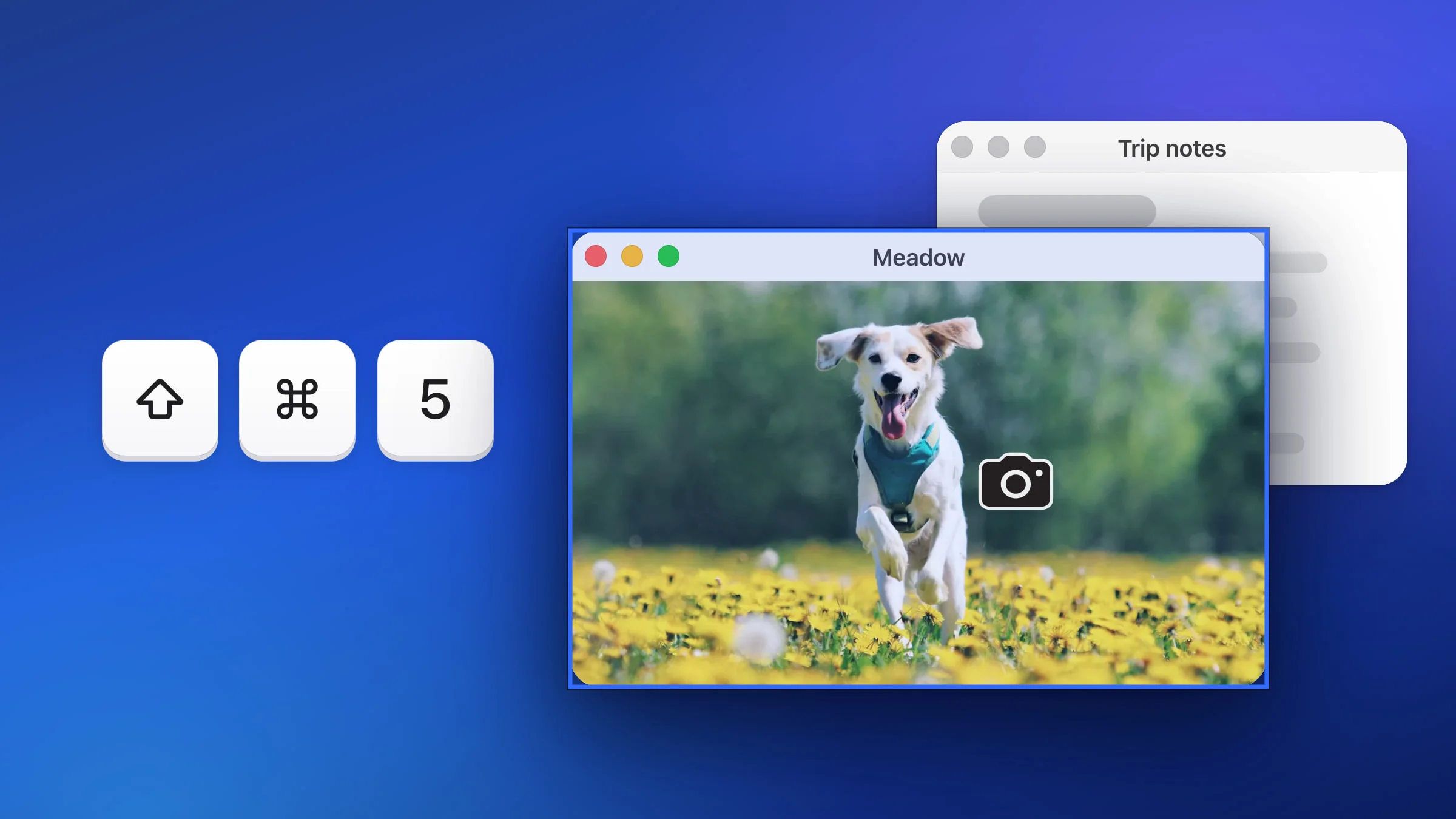
- Press ⇧⌘4, then press Space. The pointer turns into a camera.
- Move the camera over the window. The window under it is highlighted. The menu bar and the Dock can be picked the same way.
- Click the window. Hold Option as you click to leave out the shadow, or press Esc to cancel. By default the screenshot is saved as a PNG on your desktop.

Note: If Snapix is running and you’re signed in, its default shortcuts take over ⇧⌘4 and ⇧⌘5, so the steps above open Snapix’s window picker, where Option does nothing. Snapix never grabs the macOS shadow, but by default it frames the window on your wallpaper with a soft shadow of its own and copies it to the clipboard instead of saving a file. Pick Trim Shadow (below) for the bare window.
⌃⇧⌘4 stays with macOS either way: press it, then Space, and click a window to copy it to the clipboard. To give ⇧⌘4 and ⇧⌘5 back to macOS, see how to change the screenshot shortcut.
How to screenshot a window with Snapix
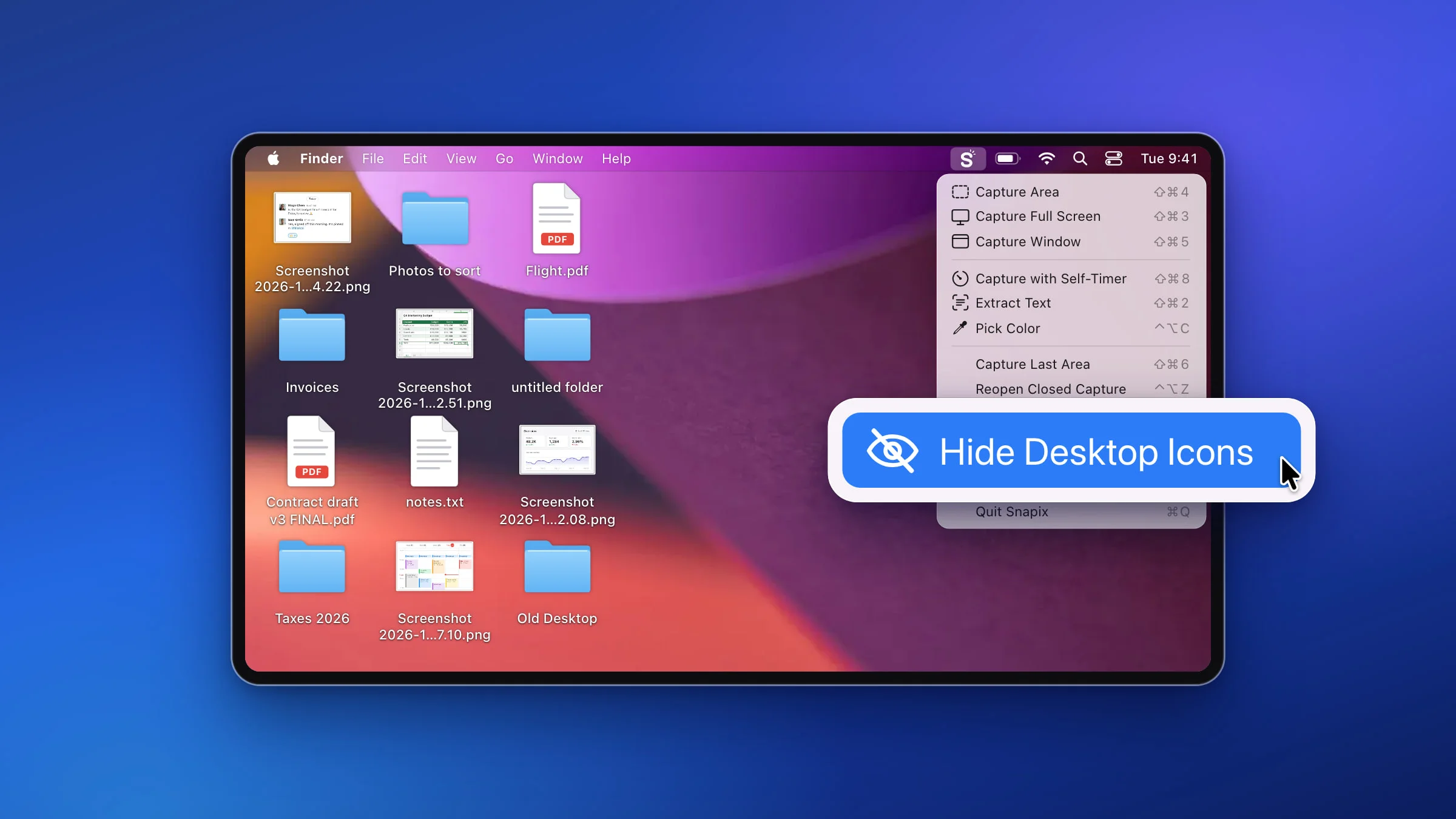
- Press ⇧⌘5. Or choose Capture Window from the Snapix menu in the menu bar. The pointer turns into a camera.
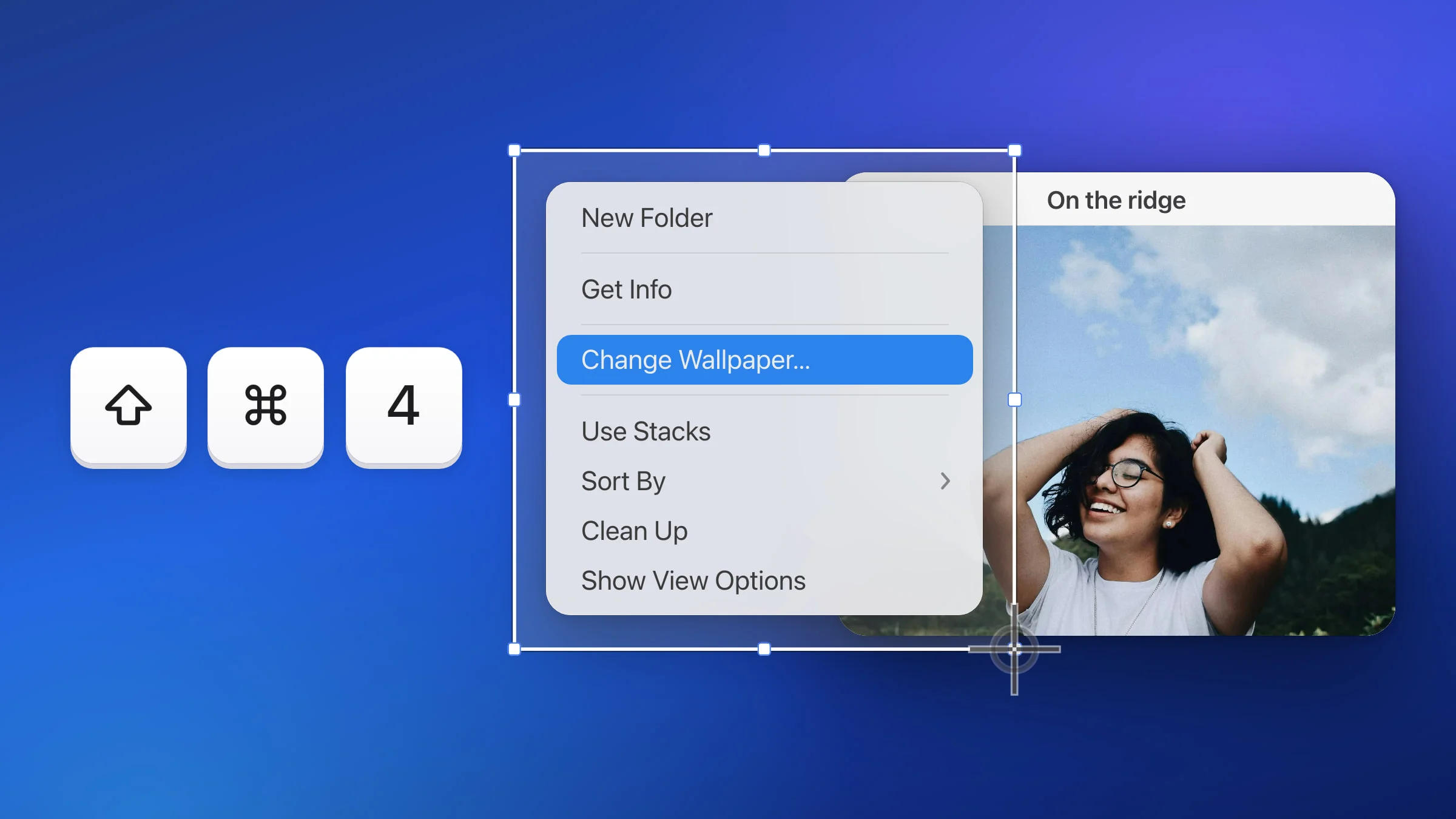
- Point at the window. Snapix outlines it in blue. Press Space to drag an area instead, and press it again to go back. If you started with ⇧⌘4, tap Space before you drag to pick a window.
- Click it. The shot is taken when you let go, so you can press, slide onto the right window and release. Let go over empty space, or press Esc, to cancel.
- Paste it or drag it. By default the window, framed on your wallpaper, is already on your clipboard, and a preview sits in the bottom-right corner of the screen. Click the preview to mark it up, or drag it into any app.

Choose what goes around the window
Snapix doesn’t capture the shadow macOS draws around a window. You choose what goes around it instead, in Settings ▸ Capture ▸ Window screenshot background:
- Wallpaper (the default) pads the window and gives it a soft shadow over the desktop picture of the display the pointer is on.
- Transparent gives the same padding and shadow on a clear background.
- Solid Color puts the window on a color you set with Background color. It’s white until you change it.
- Trim Shadow keeps just the window, with no padding and no shadow. Its rounded corners stay clear.
The look stays editable. Click the preview to open the editor, then press G to open the Background panel. Change the padding, shadow or fill there, or click Remove to get the bare window back.
To give every window capture a look of your own, build it in the Background panel and click the + next to Presets. Then pick it in Settings, where your presets show after the four styles as Preset 1, Preset 2 and so on, or right-click the preset in the editor and choose Auto-Apply to ⇧⌘5 Captures. There’s more on looks in how to add a background to a screenshot.
Tip: Transparent and Trim Shadow need a format that keeps clear pixels. PNG, the default in Settings ▸ Saving, does. A saved JPEG fills the clear parts with white.
Which windows Snapix can capture
- Covered windows. A window partly hidden behind others comes out whole.
- The current Space only. Snapix offers the windows on screen right now. Minimized windows, hidden apps and windows on another desktop can’t be picked.
- Not menus, the menu bar or the Dock. Drag over them with ⇧⌘4 instead, as in how to screenshot part of the screen.
- Full-screen apps. A full-screen browser usually comes out as one window: tab bar, toolbar and page together.
- Mission Control. Press ⇧⌘5 while Mission Control or App Exposé is open and click a thumbnail. Snapix closes the overview and captures the window at full size.
- Protected video. A window that blocks screen capture comes out transparent. The macOS tool can’t read it either.
Turn off the shadow in every Mac window screenshot
If you always want the built-in window screenshots without a shadow, open Terminal and run:
defaults write com.apple.screencapture disable-shadow -bool trueFrom then on a plain click leaves the shadow out. If a window screenshot still has one, log out and back in. To bring the shadow back, run:
defaults delete com.apple.screencapture disable-shadowFor every other way to capture your screen, see how to take a screenshot on a Mac, or try Snapix free.