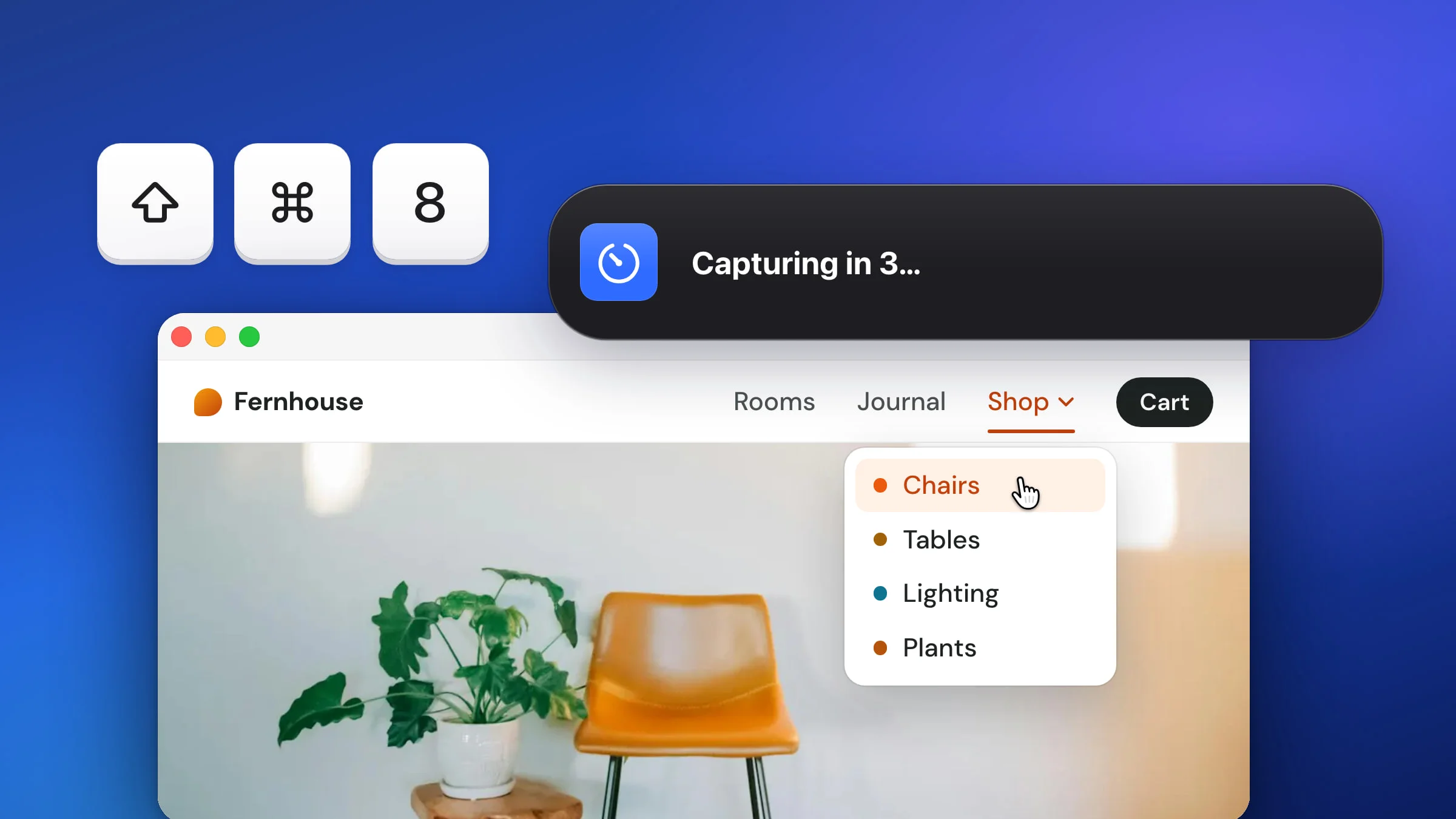
To take a timed screenshot on a Mac, press ⇧⌘5, click Options, choose 5 Seconds or 10 Seconds under Timer, then click Capture. The countdown gives you time to open a menu or hover over a button before the shot is taken. Snapix has its own self-timer on ⇧⌘8, with a banner that shows the seconds left and a choice of 2, 3, 5 or 10 seconds.
How to take a timed screenshot on a Mac
- Press ⇧⌘5. The Screenshot toolbar opens. If Snapix is using that shortcut, open the Screenshot app from Spotlight or Applications ▸ Utilities instead.
- Choose what to capture. Click Capture Entire Screen, or click Capture Selected Portion and drag the frame around the part you want.
- Set the timer. Click Options, then choose 5 Seconds or 10 Seconds under Timer.
- Click Capture, then set up the screen. Open a menu or hover over whatever you want to show before the countdown ends. By default the screenshot is saved to your desktop.
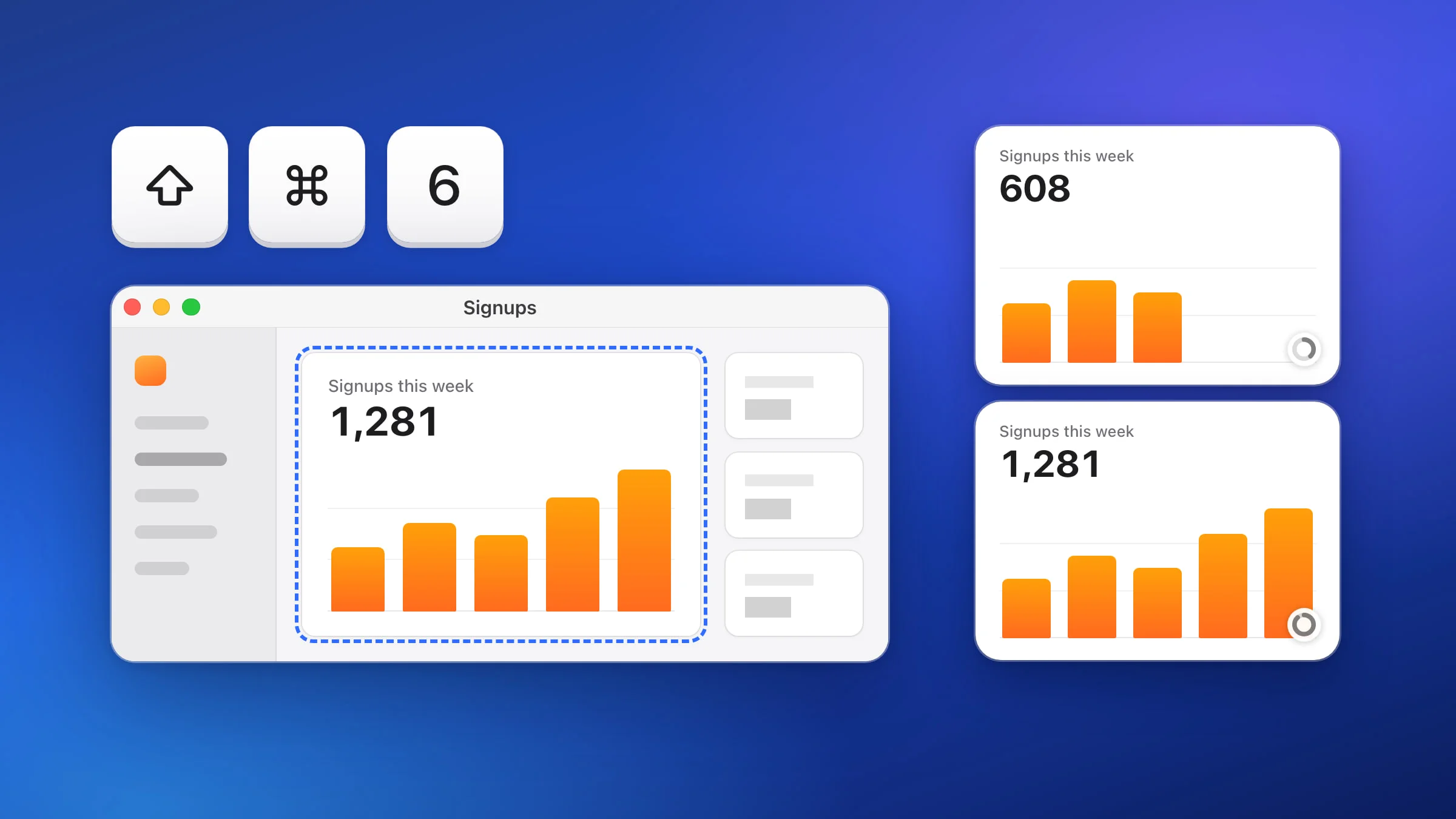
Of the macOS screenshot shortcuts, only the ⇧⌘5 toolbar has a timer. ⇧⌘3 and ⇧⌘4 take the shot the moment you press them. There’s more on those in every way to take a screenshot on a Mac. macOS also leaves the pointer out of these screenshots by default, so if the shot is about something you’re hovering, turn on Show Mouse Pointer in the same Options menu.
How to take a timed screenshot with Snapix
There’s no toolbar to set up first. One shortcut starts the countdown. If you don’t have Snapix yet, try Snapix free.
- Point at the screen you want. If you have more than one display, move the pointer onto the one to capture.
- Press ⇧⌘8. Or click the Snapix icon in the menu bar and choose Capture with Self-Timer. A banner in the top-right corner of that screen counts down: “Capturing in 5…”, “Capturing in 4…” and so on.
- Set up the shot. Open a menu, hover over a link or bring the right window to the front. Nothing is clicked when the shot is taken, so whatever you open stays open.
- Wait for zero. The banner disappears and Snapix captures the whole screen, with a shutter sound unless you’ve turned off the screenshot sound. By default the picture goes to your clipboard and a preview appears in the bottom-right corner, ready to paste, drag into another app or click to edit.

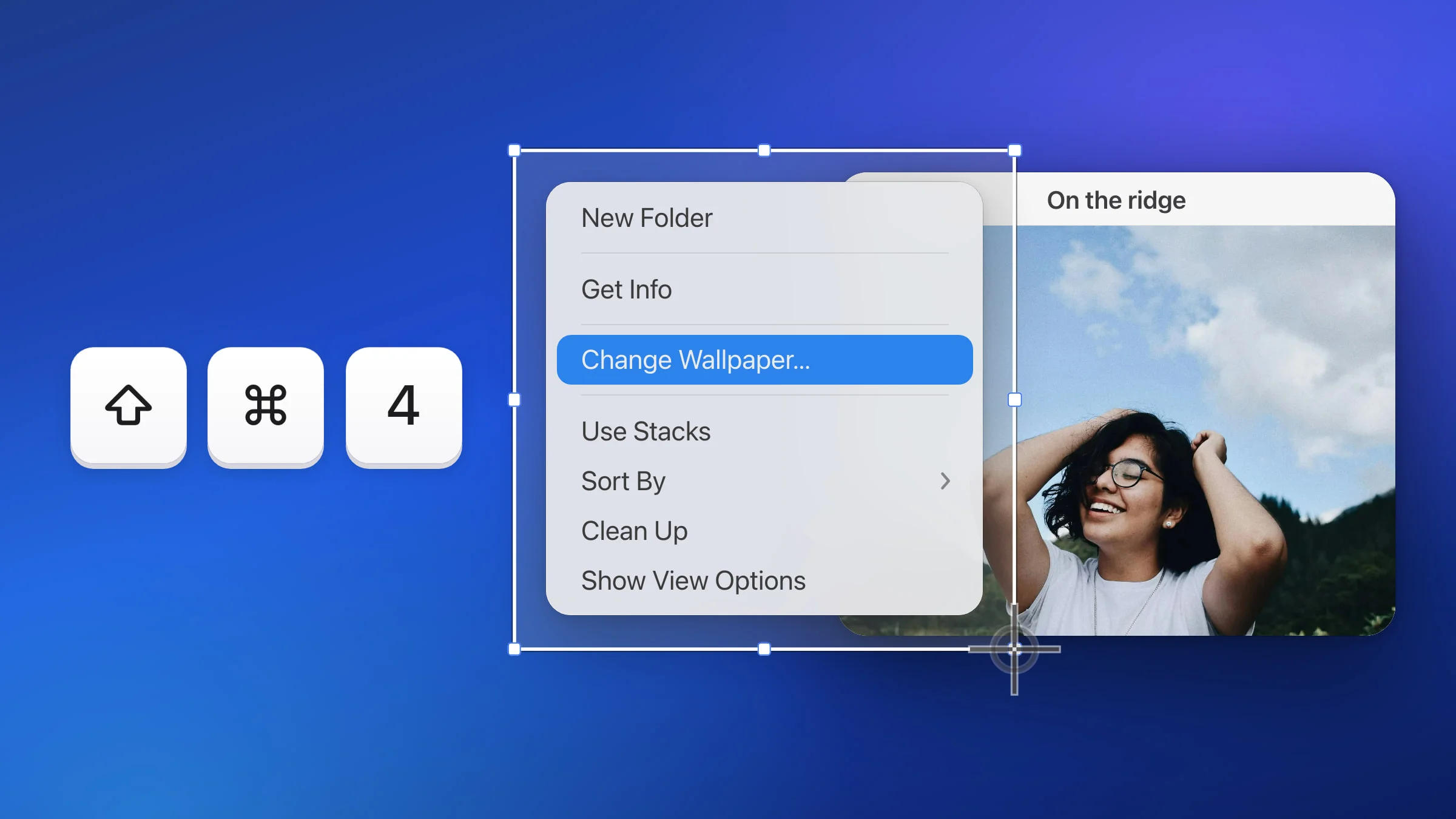
Tip: A menu that opens with a click doesn’t need the timer in Snapix. Open it, press ⇧⌘4 and drag around it. The menu stays open while you select. There’s more in how to screenshot a menu.
How to change the timer delay
In Snapix, click Settings… in the Snapix menu, open Capture and pick a Self-timer delay: 2, 3, 5 or 10 seconds. It’s 5 seconds until you change it, and ⇧⌘8 uses whichever you pick.

The Screenshot toolbar has just two lengths, 5 and 10 seconds. For any other delay, use Terminal. This command waits 3 seconds, then saves your main display as shot.png on your desktop:
screencapture -T 3 ~/Desktop/shot.pngChange the 3 to any number of seconds. Add -C to include the pointer. With more than one display, add a second file name, such as ~/Desktop/shot2.png, for the next display. To capture other apps’ windows, Terminal needs permission under System Settings ▸ Privacy & Security ▸ Screen & System Audio Recording (Screen Recording on older versions of macOS).
Timer options at a glance
| Timer | Delay | What you get |
|---|---|---|
| macOS ⇧⌘5 toolbar | 5 or 10 seconds | Screen or area, on the desktop by default |
Terminal screencapture -T | Any number of seconds | A file where you tell it |
| Snapix ⇧⌘8 | 2, 3, 5 or 10 seconds | Whole display, on the clipboard by default |
What Snapix’s self-timer captures
- The whole screen, every time. There’s no timed area or window capture. To keep just part of the picture, click the preview to open the editor and crop the screenshot.
- The display you pressed it on. The shot stays on that display even if you move the pointer to another monitor during the countdown. By default the preview shows up on the display you’re pointing at when the countdown ends. See how to screenshot one monitor.
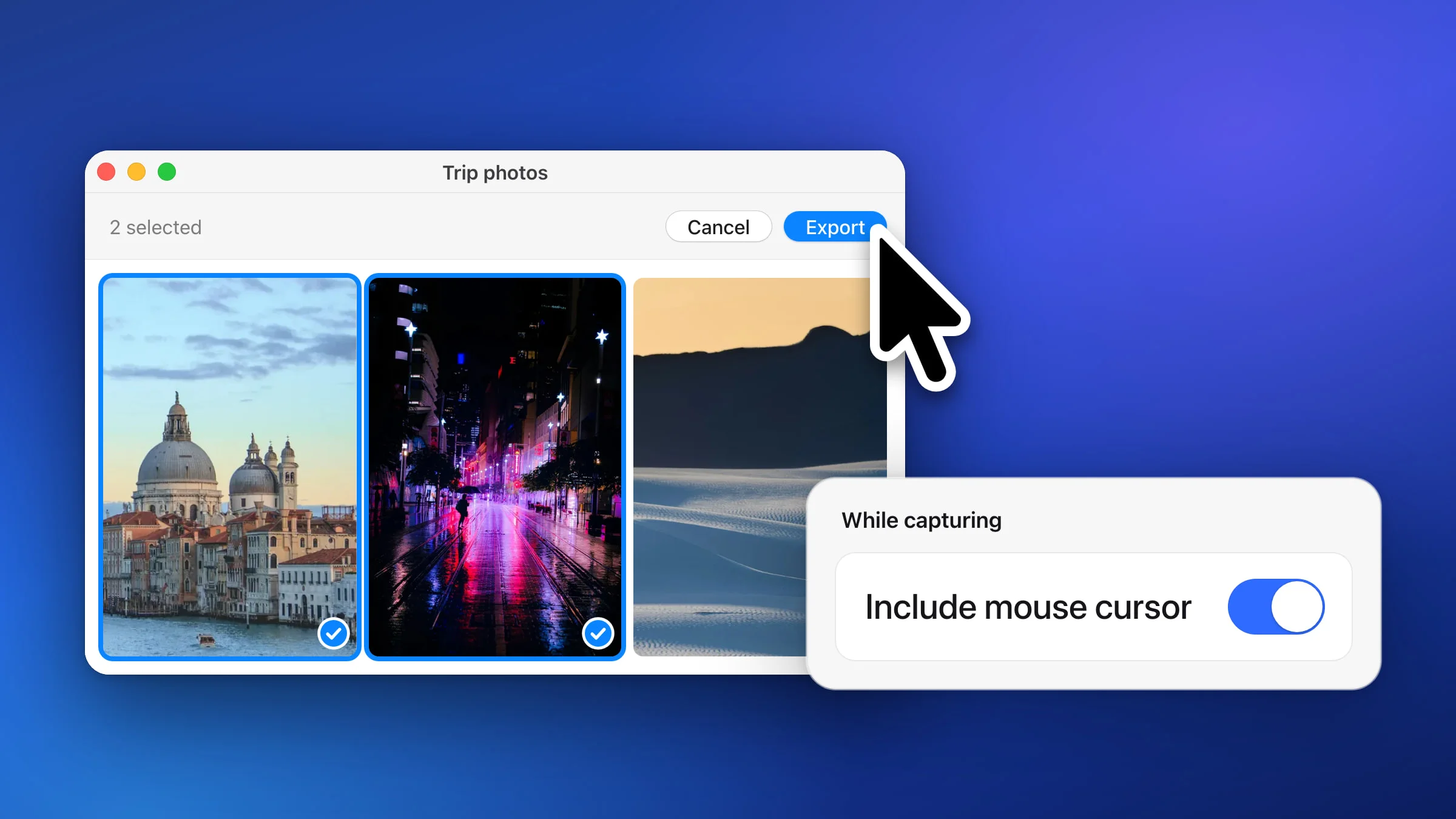
- The pointer. Full-screen and self-timer shots include the mouse pointer by default, which helps when you’re showing a hover. To leave it out, turn off Include mouse cursor in Settings ▸ Capture. There’s more in how to screenshot with the cursor.
- Not the banner. By default, Snapix keeps the countdown banner and its own previews out of the picture. They only show up if you turn on Show Snapix UI in screenshots in Settings ▸ Capture.
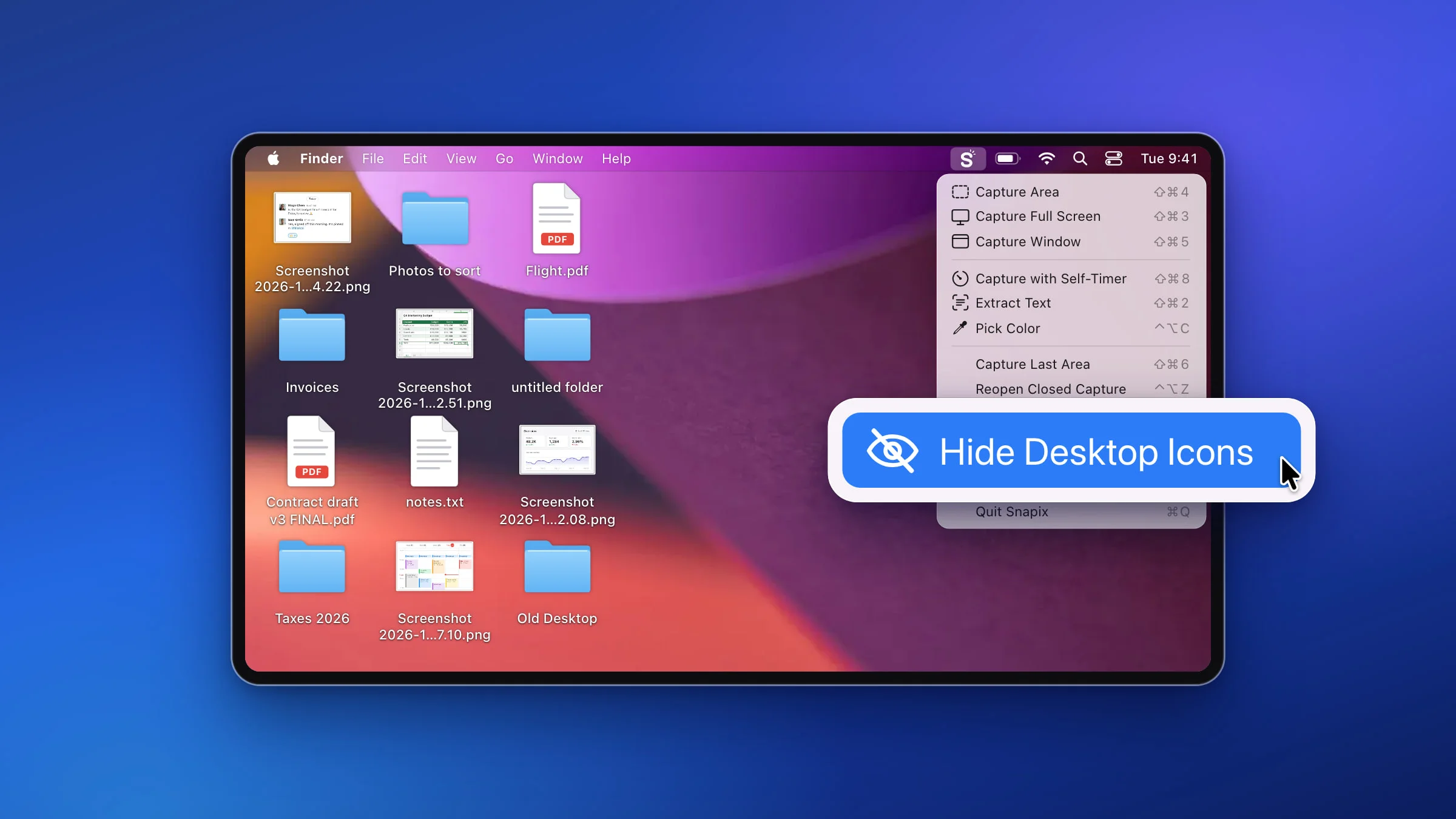
- A clean desktop, if you want one. When Hide desktop icons and notifications in Settings ▸ Capture is set to anything but Never, self-timer shots leave out desktop icons, widgets and notification banners.
Note: Once the countdown starts, it runs to zero. Snapix doesn’t offer a way to cancel it, and other capture shortcuts are ignored until the shot is taken.