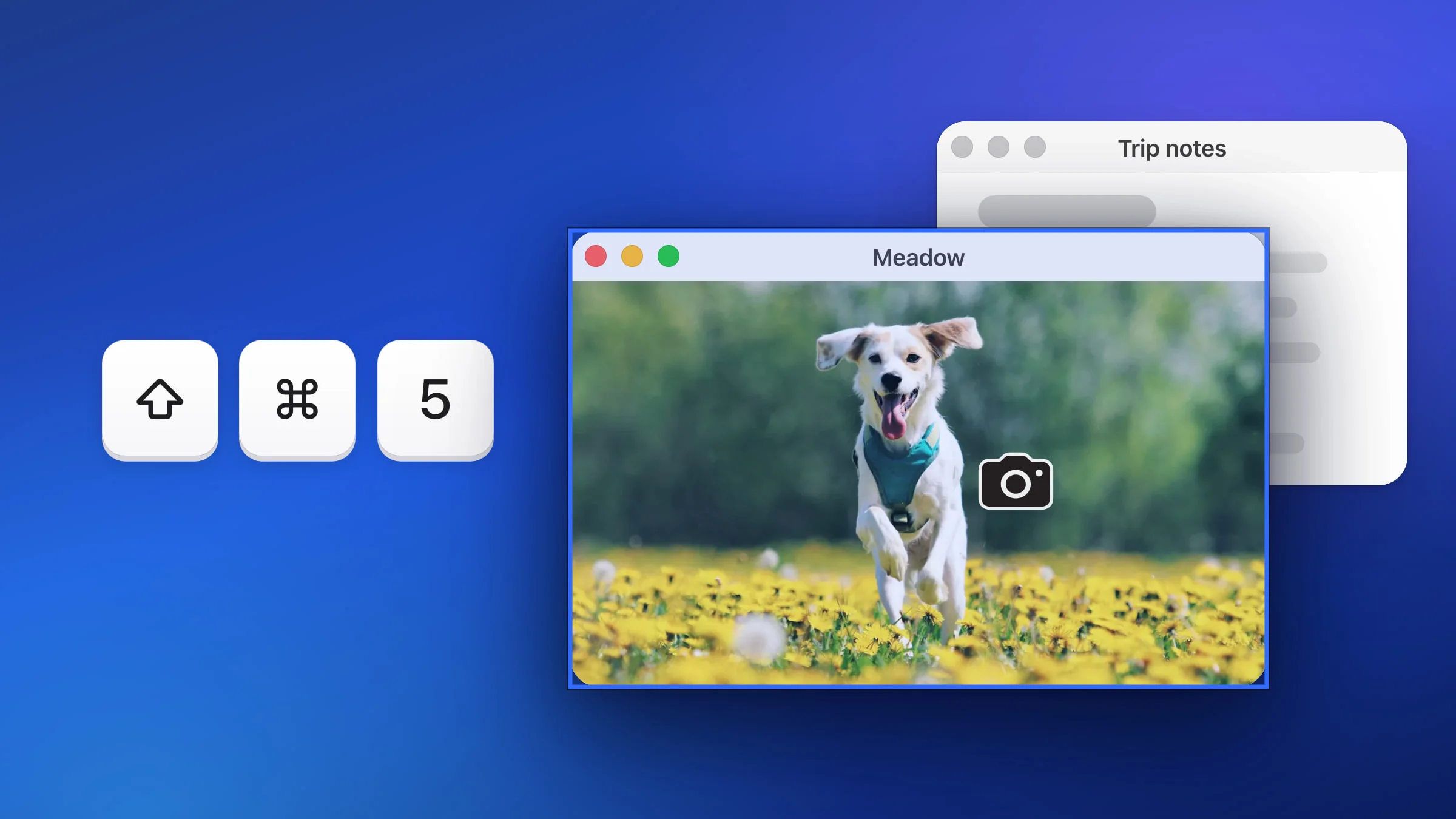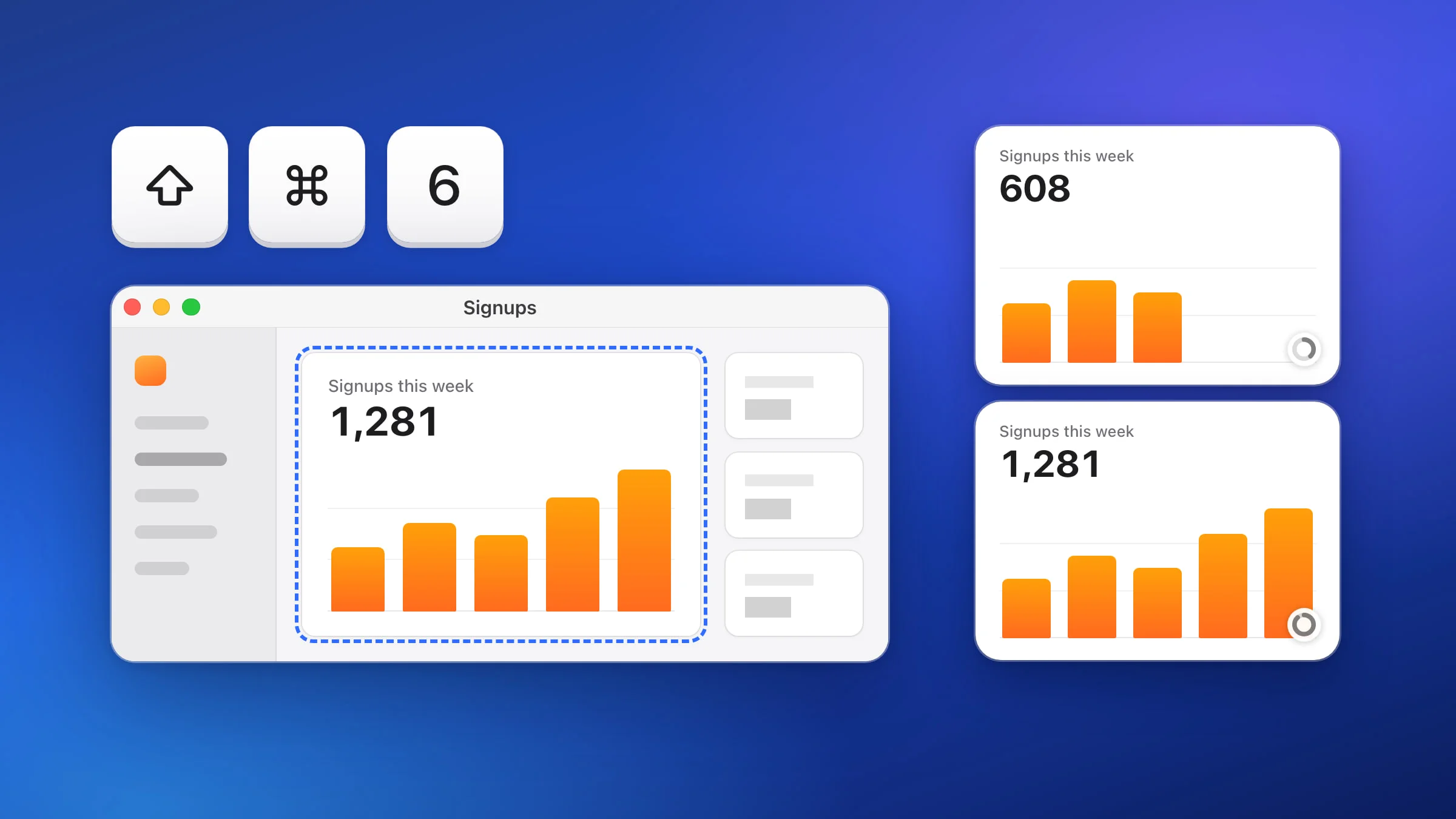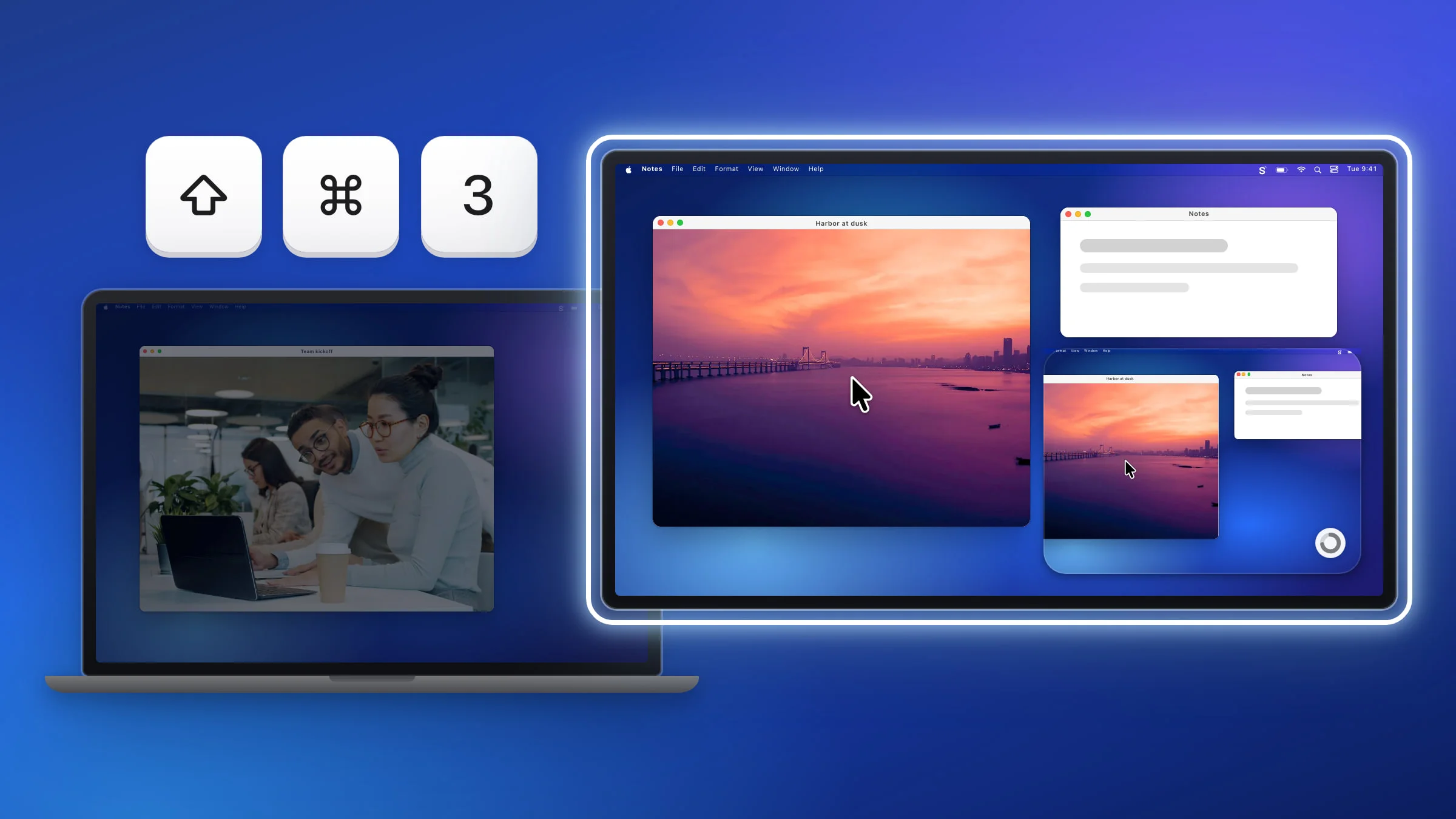
To screenshot one monitor on a Mac, such as an external or second monitor, move the pointer onto it and press ⇧⌘3 in Snapix. It captures the display under the pointer and nothing else. The shortcut built into macOS works differently: its ⇧⌘3 captures every display at once and saves one file per display, so for a single monitor you press ⇧⌘5, click Capture Entire Screen, then click the screen you want.
How to screenshot one monitor with Snapix
- Move the pointer onto the monitor you want. Snapix’s full-screen shot always takes the display the pointer is on, so this is how you pick one.
- Press ⇧⌘3. You hear the shutter, and the whole display is captured, menu bar included. Capture Full Screen in the Snapix menu does the same for the display whose menu bar you clicked.
- Use the preview. By default a preview appears in the bottom-right corner of that same monitor, and the picture is already on your clipboard. Paste it, drag the preview into another app, or click it to open the editor.
- Repeat on each monitor. Move the pointer to the next display and press ⇧⌘3 again. Each press is its own capture, with its own preview and its own place in Recent Captures.

What each method captures with multiple monitors
| Method | What you get |
|---|---|
| macOS ⇧⌘3 | Every display, saved as one file per display |
| macOS ⇧⌘5 ▸ Capture Entire Screen | The display you click |
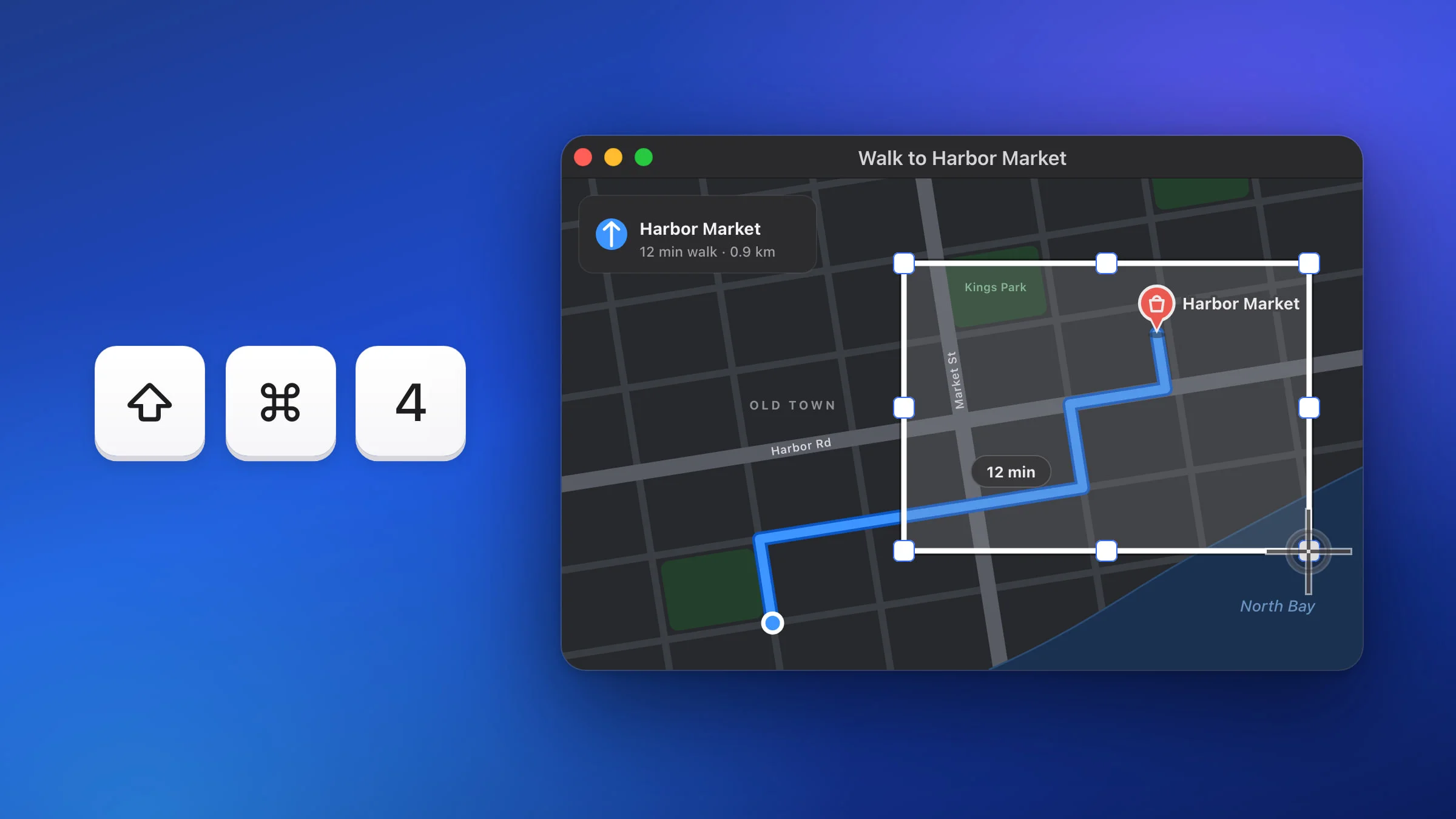
| macOS ⇧⌘4 | The area you drag, on one display |
screencapture -D 2 in Terminal | Display 2 only |
| Snapix ⇧⌘3 | The display under the pointer |
| Snapix ⇧⌘4 | The area you drag, across displays if you like, as one image |
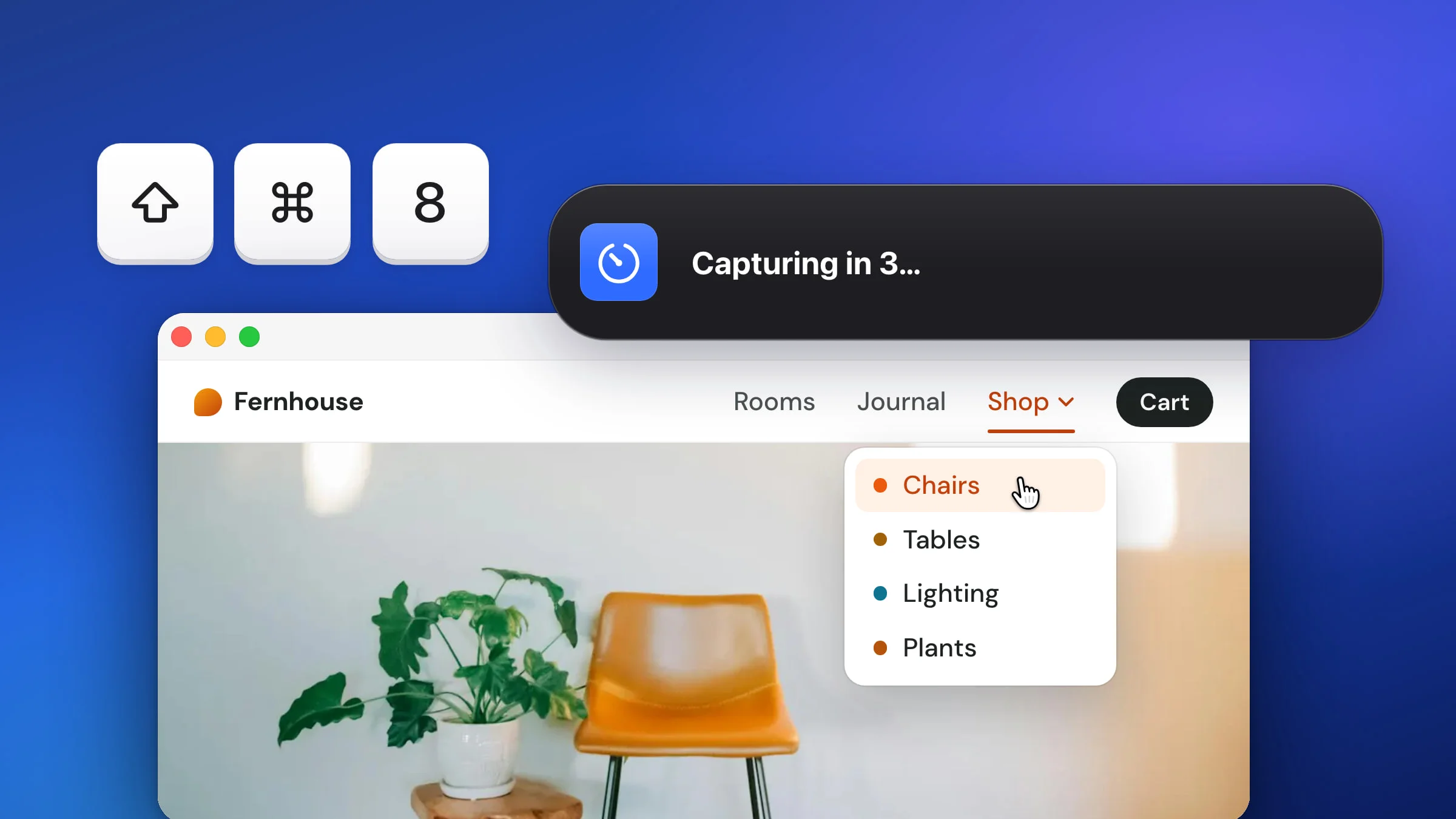
| Snapix ⇧⌘8 | After a countdown, the display you were on when you pressed it |
Note: With its default shortcuts, Snapix answers ⇧⌘3, ⇧⌘4 and ⇧⌘5 instead of macOS while it’s running. To give those keys back, open Snapix Settings ▸ Shortcuts and click Hand these back to macOS, then change the screenshot shortcuts for Snapix. The clipboard versions, ⌃⇧⌘3 and ⌃⇧⌘4, always stay with macOS.
How to screenshot one monitor without an app
macOS has no shortcut for a single display, but its Screenshot toolbar can take one.
- Press ⇧⌘5 to open the Screenshot toolbar. If Snapix is using that shortcut, open the Screenshot app from Spotlight or Applications ▸ Utilities instead.
- Click Capture Entire Screen, the first button after the close ×.
- Move the pointer to the monitor you want. The pointer turns into a camera.
- Click that monitor. macOS saves just that display, to the Desktop by default.
You can also press ⇧⌘4 and drag from one corner of the display to the opposite one, which gives you a picture the size of that whole screen.
How to screenshot all monitors in one picture
The macOS screenshot shortcuts keep displays apart: ⇧⌘3 saves a separate file for each, and a ⇧⌘4 selection stays on one screen. In Snapix, press ⇧⌘4, start dragging on one monitor and keep going onto the other. The selection carries on across the edge, and when you let go you get one stitched image. To get both screens whole, start at the outer top corner of the display that sits higher and drag to the outer bottom corner of the other one. The same drag works to screenshot part of the screen on a single display.

- Displays of different heights. Any part of the rectangle that falls outside every display is left transparent.
- A Retina screen next to a standard monitor. The image uses the sharper display’s pixel density, and the other part is scaled up to match.
- The preview appears, by default, on the display that holds most of the selection.
Resolution, the pointer and the timer
- Resolution. Each display is captured at its own full pixel resolution (twice the point size on a Retina screen), so a Retina screen and a standard monitor give pictures of different pixel sizes. What Snapix copies is always full size. To save files at 1× instead, turn on Resize Retina screenshots in Settings ▸ Saving.
- The pointer. Snapix includes the mouse pointer in full-screen shots by default. Turn it off with Include mouse cursor in Settings ▸ Capture. macOS’s own ⇧⌘3 leaves the pointer out by default. There’s more in how to screenshot with the cursor.
- The timer. Press ⇧⌘8 for Capture with Self-Timer. A banner counts down, 5 seconds by default, then Snapix captures the display you were on when you pressed the keys, even if you’ve moved the pointer to another monitor since. See how to take a timed screenshot.
Tip: Each shot is also kept in Recent Captures (⇧⌘S). After a round of monitors, open it, ⌘-click the shots you want and drag them into a message together.
Screenshot one display from Terminal
If you like the command line, macOS’s screencapture tool can take one display by number. In Terminal, this command saves the second display as display2.png in your home folder:
screencapture -D 2 ~/display2.png-D 1 is the main display and -D 2 the next one. -m also takes only the main display. Terminal needs permission under System Settings ▸ Privacy & Security ▸ Screen & System Audio Recording (Screen Recording on older versions of macOS) to capture other apps’ windows.
For every other way to capture your screen, see how to take a screenshot on a Mac, or try Snapix free.